JANETS_INM.pdf - 第651页
JaNets In structio n Manual 16 Component D ataba se 16 - 51 Setting a Tag Y ou can set a tag to dist inguish c ompon ents in the Compon ent Databas e. Set a tag to two or m ore com ponent dat a records at a time. When yo…
JaNets Instruction Manual 16 Component Database
16-50
Package code file import
You can import and then use package code file that was created with the main unit Component
Database/Flexline DB.
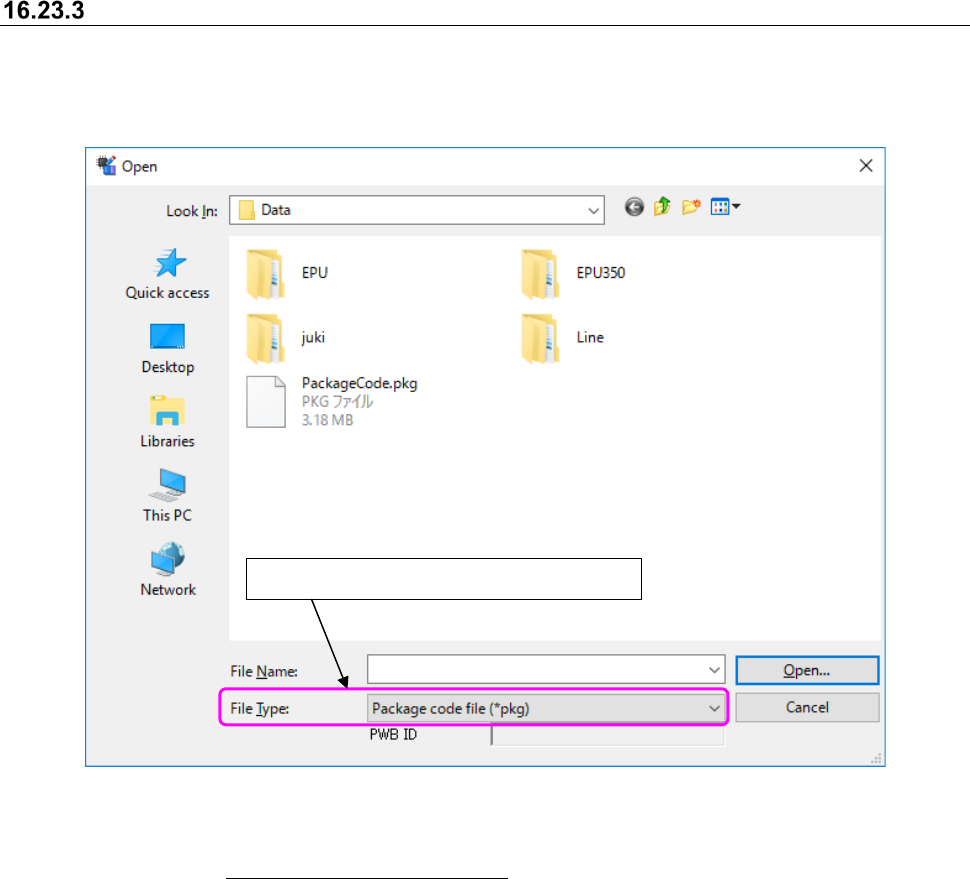
File selection screen appears if the [File] – [Importing external data] command is selected.
Figure 16.23-11 File selection screen
For a message given or an operation needed if the same package code data exists when it is
imported, refer to "16.5 Importing external data."
Select "Package code file (*flx)" in file type.
JaNets Instruction Manual 16 Component Database
16-51
Setting a Tag
You can set a tag to distinguish components in the Component Database.
Set a tag to two or more component data records at a time.
When you select [Edit] – [Tag assignment] from the menu, the screen for assigning a tag appears.
* Component names narrowed down by searching through the Component Database (and
displayed in the Component list screen) are displayed in the “Select a tag” list.
Associating Component data with a tag
Select a component from the “Select Components” list, and check off the desired tag name in the
“Select a tag” list. The selected component is associated with the selected tag.
If you select a component that is already associated with a tag, the component is displayed with
the check box of the associated tag checked off. When you uncheck this check box of the
corresponding tag, you can cancel association between the component and the tag.
If you select two or more components and only one or some of them are associated with a tag(s),
they are displayed as shown with the .
Press the <Update> button to validate the operations you have done. When you close the screen
below without pressing the <Update> button, the check-off operation you have done will not be
reflected in Component data at all.
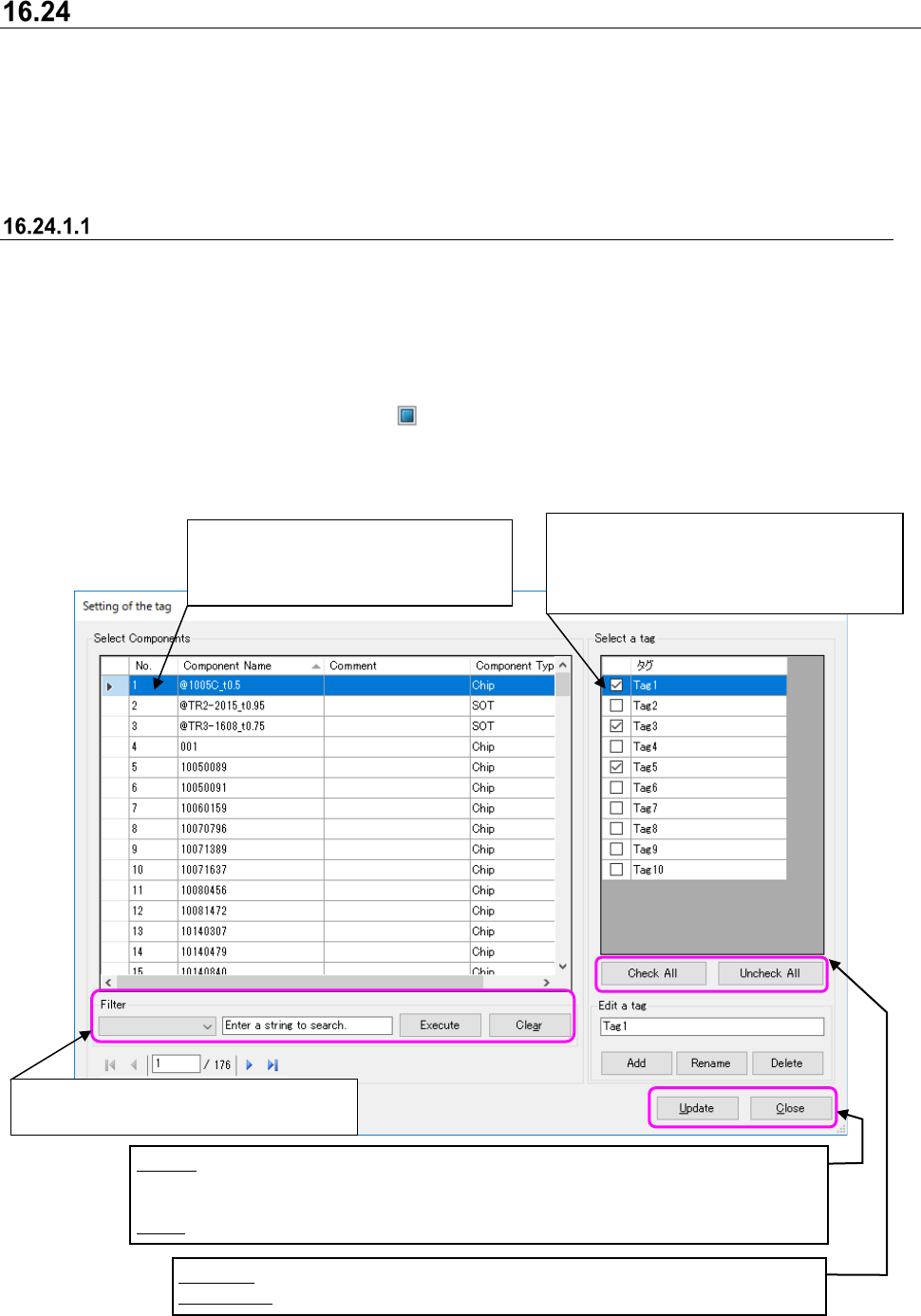
Figure 16.24-1 “Setting of the tag” screen
Select a line of a component with which
you want to associate a tag.
You can select two or more lines.
Check off a check box of a tag to be
associated with a component. When you
uncheck the check box, association with a
component is cancelled.
Update: Associates component data of the selected line with a tag.
The association state of a tag with checking off/unchecking the
corresponding tag check box is not validated until you press this button.
Close: Closes the list screen.
Check All: Associates the components being selected with all tags.
Uncheck All: Clears all tags from the components being selected.
Narrows down Component data by the
selected column name to display the result.
JaNets Instruction Manual 16 Component Database
16-52
Editing tag data
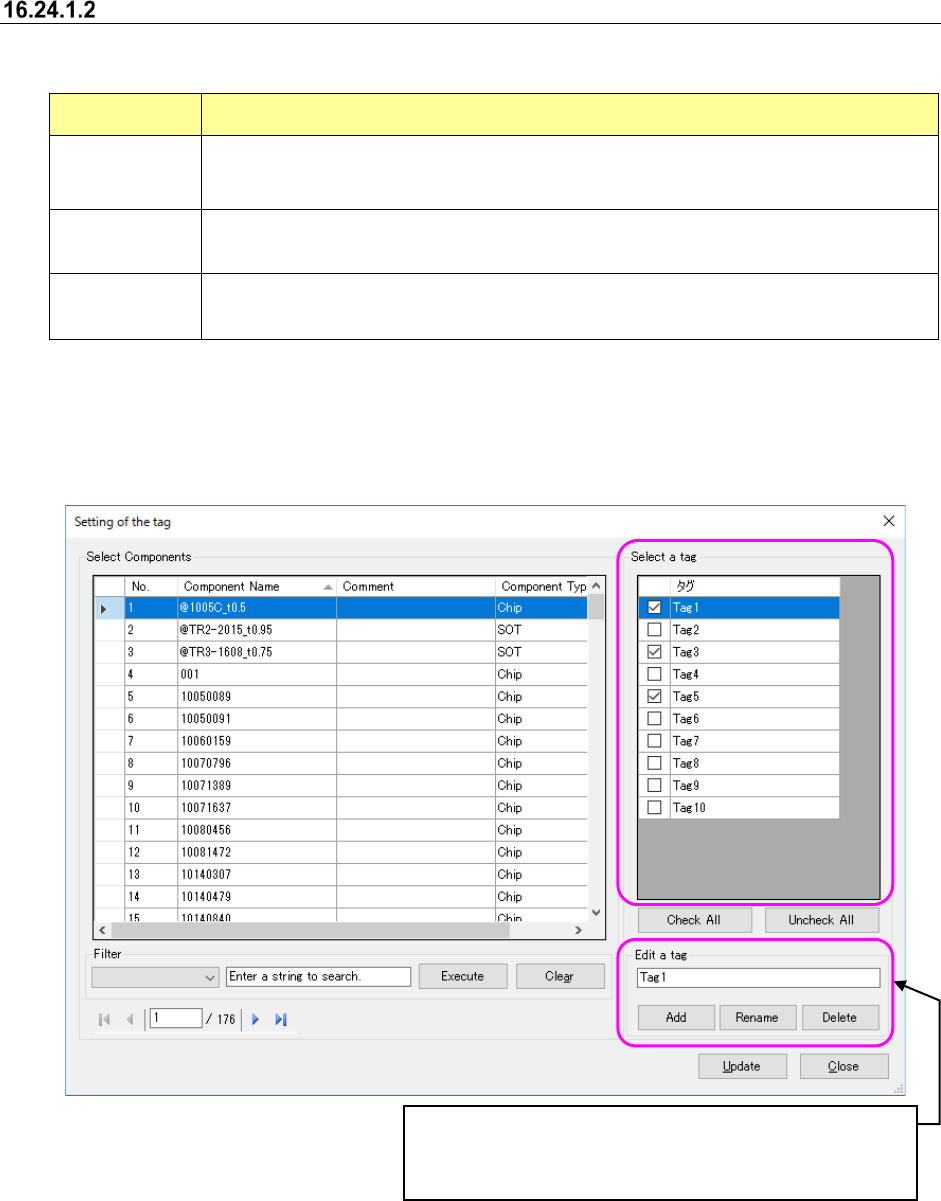
You can add a new tag, rename a tag or delete a tag on the same screen.
Button Description
Add
When you enter a name of a tag to be added (*1) and press this button, a new tag is
added.
The added tag is displayed on the last line of the “Select a tag” list.
Rename
When you enter the tag name selected in the “Select a tag” list (you cannot select two or
more tags) and press this button (*1), you can change the tag name.
Delete (*2)
When you select a tag in the “Select a tag” list (you can select two or more tags) and press
this button, the selected tag is deleted.
*1: You can enter up to 256 one-byte alphanumeric characters as a name.
*2: When you delete a tag already associated with a component, the corresponding association
data is deleted also.
Figure 16.24-2 Editing a tag
The tag editing result is applied to the tag immediately after
you press the corresponding button. (This means that your
operation is validated without pressing the <Update> button.)