JANETS_INM.pdf - 第652页
JaNets In structio n Manual 16 Component D ataba se 16 - 52 Editi ng tag data Y ou can add a new tag, rename a tag or delete a tag on the same scr een. Button Descriptio n Add When you enter a n ame of a t ag to be added…
JaNets Instruction Manual 16 Component Database
16-51
Setting a Tag
You can set a tag to distinguish components in the Component Database.
Set a tag to two or more component data records at a time.
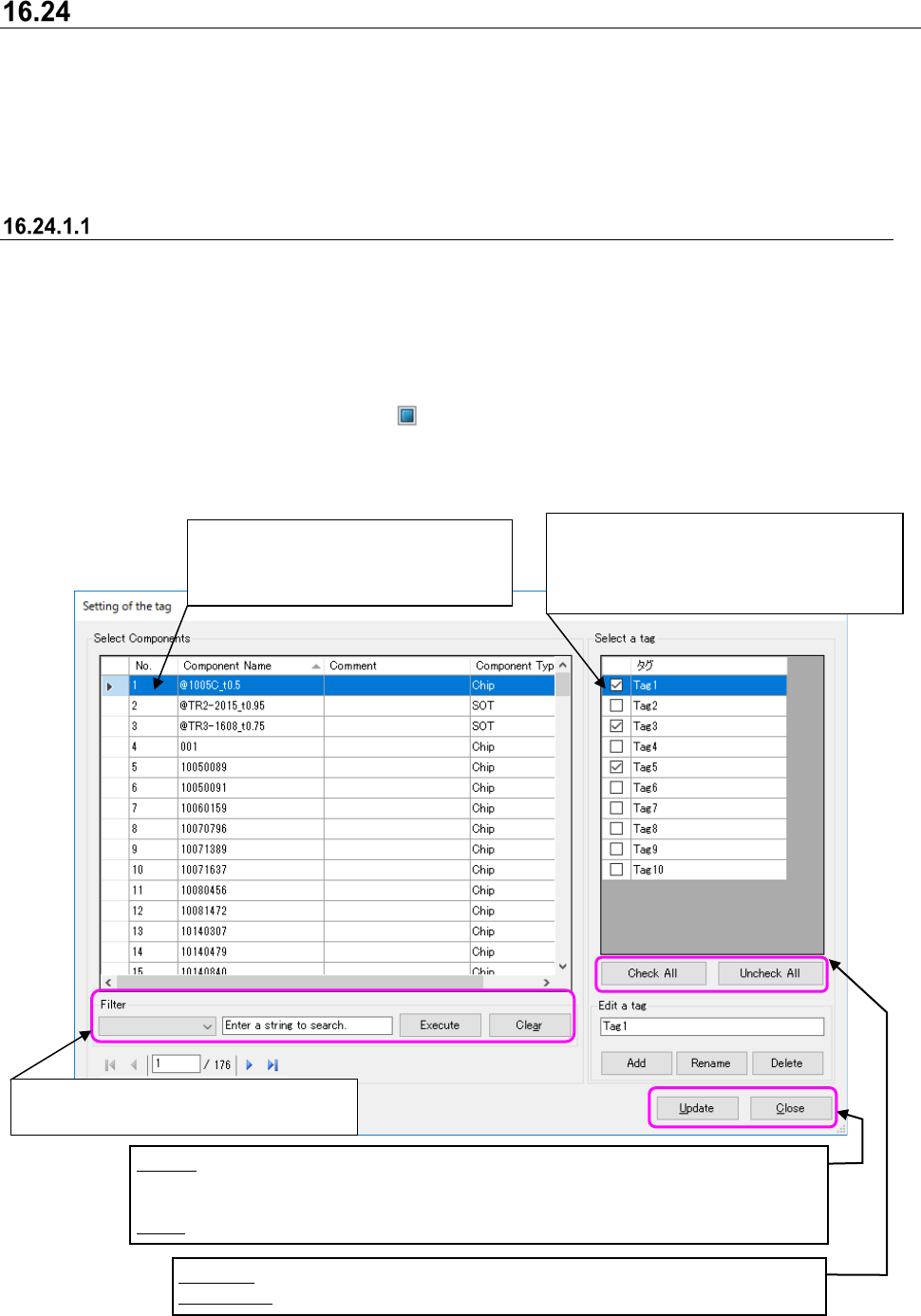
When you select [Edit] – [Tag assignment] from the menu, the screen for assigning a tag appears.
* Component names narrowed down by searching through the Component Database (and
displayed in the Component list screen) are displayed in the “Select a tag” list.
Associating Component data with a tag
Select a component from the “Select Components” list, and check off the desired tag name in the
“Select a tag” list. The selected component is associated with the selected tag.
If you select a component that is already associated with a tag, the component is displayed with
the check box of the associated tag checked off. When you uncheck this check box of the
corresponding tag, you can cancel association between the component and the tag.
If you select two or more components and only one or some of them are associated with a tag(s),
they are displayed as shown with the .
Press the <Update> button to validate the operations you have done. When you close the screen
below without pressing the <Update> button, the check-off operation you have done will not be
reflected in Component data at all.
Figure 16.24-1 “Setting of the tag” screen
Select a line of a component with which
you want to associate a tag.
You can select two or more lines.
Check off a check box of a tag to be
associated with a component. When you
uncheck the check box, association with a
component is cancelled.
Update: Associates component data of the selected line with a tag.
The association state of a tag with checking off/unchecking the
corresponding tag check box is not validated until you press this button.
Close: Closes the list screen.
Check All: Associates the components being selected with all tags.
Uncheck All: Clears all tags from the components being selected.
Narrows down Component data by the
selected column name to display the result.
JaNets Instruction Manual 16 Component Database
16-52
Editing tag data
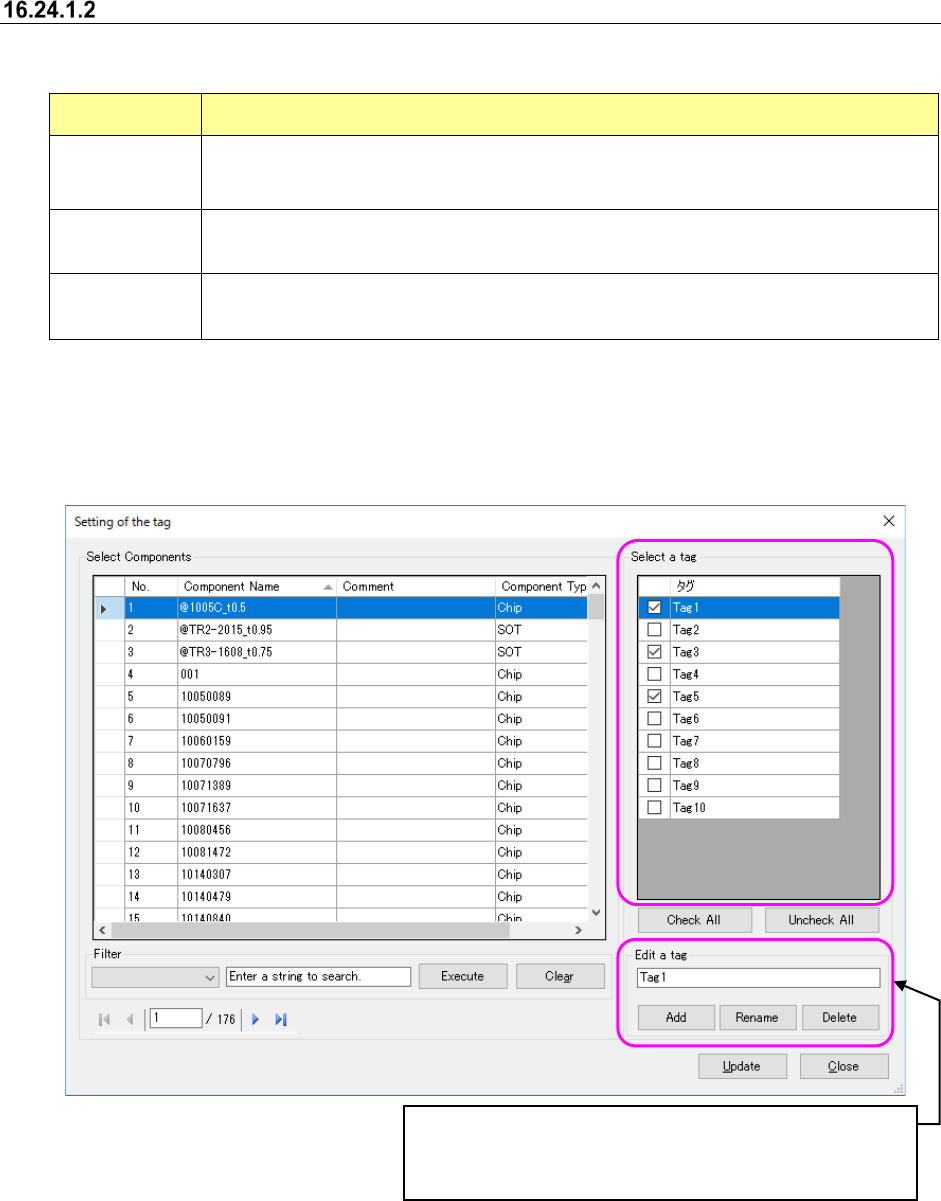
You can add a new tag, rename a tag or delete a tag on the same screen.
Button Description
Add
When you enter a name of a tag to be added (*1) and press this button, a new tag is
added.
The added tag is displayed on the last line of the “Select a tag” list.
Rename
When you enter the tag name selected in the “Select a tag” list (you cannot select two or
more tags) and press this button (*1), you can change the tag name.
Delete (*2)
When you select a tag in the “Select a tag” list (you can select two or more tags) and press
this button, the selected tag is deleted.
*1: You can enter up to 256 one-byte alphanumeric characters as a name.
*2: When you delete a tag already associated with a component, the corresponding association
data is deleted also.
Figure 16.24-2 Editing a tag
The tag editing result is applied to the tag immediately after
you press the corresponding button. (This means that your
operation is validated without pressing the <Update> button.)
JaNets Instruction Manual 17 Program Explorer
17-1
17. Program Explorer
What is the Program Explorer?
The Program Explorer displays the list of production programs and/or reservation files controlled
with the database of server, or the floor configuration. You can use the Program Explorer to store
a production program, a reservation file and/or a divided file into the database, or obtain such a
file from the database. You can also check whether each file stored in the database used with
another client/another user is used or not on the Program Explorer scree.
The number of reservation files to be registered, that of production programs and that of the
divided files are not restricted. They vary depending on the unoccupied space of the server
database.
Overview of the Operations
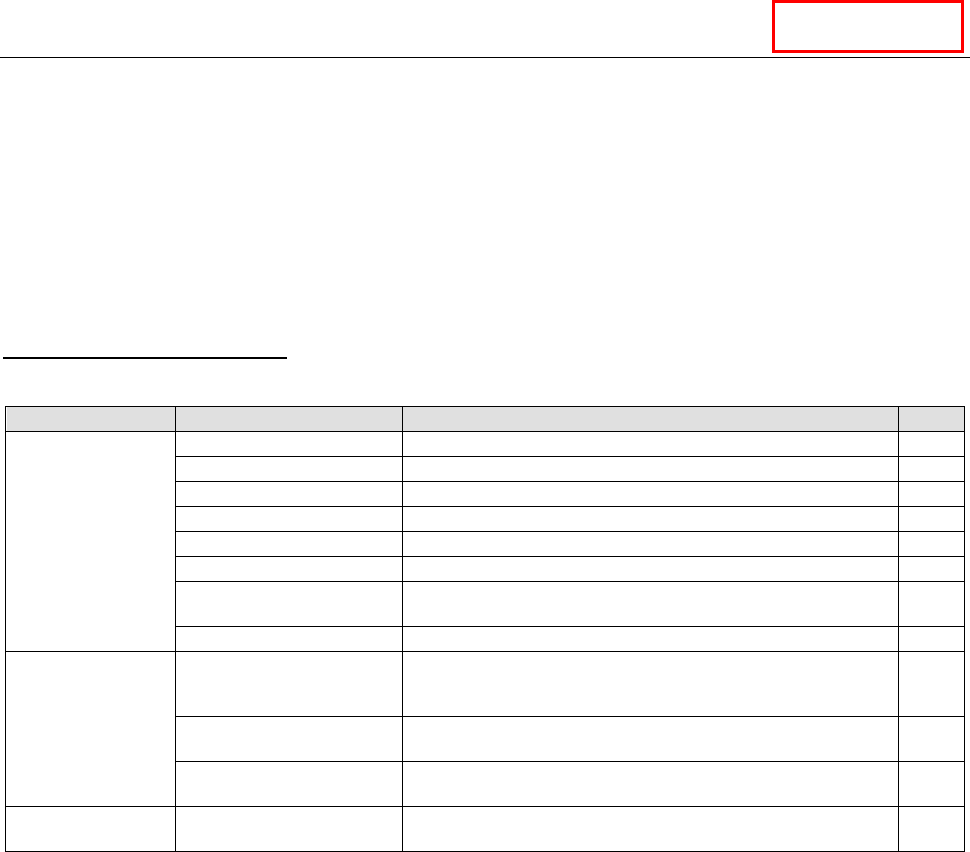
Table 17-1 Overview of the operations
Operation
Description
Level
Operation of the
database
Registration of a file
Registers a file in the database.
*
Deleting of a file
Deletes a file from the database.
*
Moving of a file
Moves a file between folders.
*
Creation of a folder
Creates a folder in the database.
*
Renaming of a folder
Renames a folder in the database.
*
Deleting of a folder
Deletes a folder from the database.
*
Registration of master file
The production program in the database is registered as a
master file.
*
Cancellation of master file
The registered master file in the database is cancelled.
*
Operation of a file
Checking out
Copies a file located in the database to a local folder, and
passes its path to the application (locks the file in the
database).
*
Checking in
Stores a checked-out production program in the database
(unlocks the file in the database).
*
Specifying where to
check out a file
Specifies where to check out a file.
*
Operation of the
floor configuration
Privilege for editing Edits a floor, a production line and/or a machine. *
* The level varies depending on the privilege level of the application into which the Program
Explorer is incorporated.
DataManager