JANETS_INM.pdf - 第655页
JaNets In structio n Manual 17 Program Expl orer 17 -3 the screen. Y ou can s elect an item that satisf ies the display con ditions from t his pop - up m enu. No produ ction pr ogram re gistered in a res ervati on fil e …
JaNets Instruction Manual 17 Program Explorer
17-2
Descriptions of the screens
About the program explorer
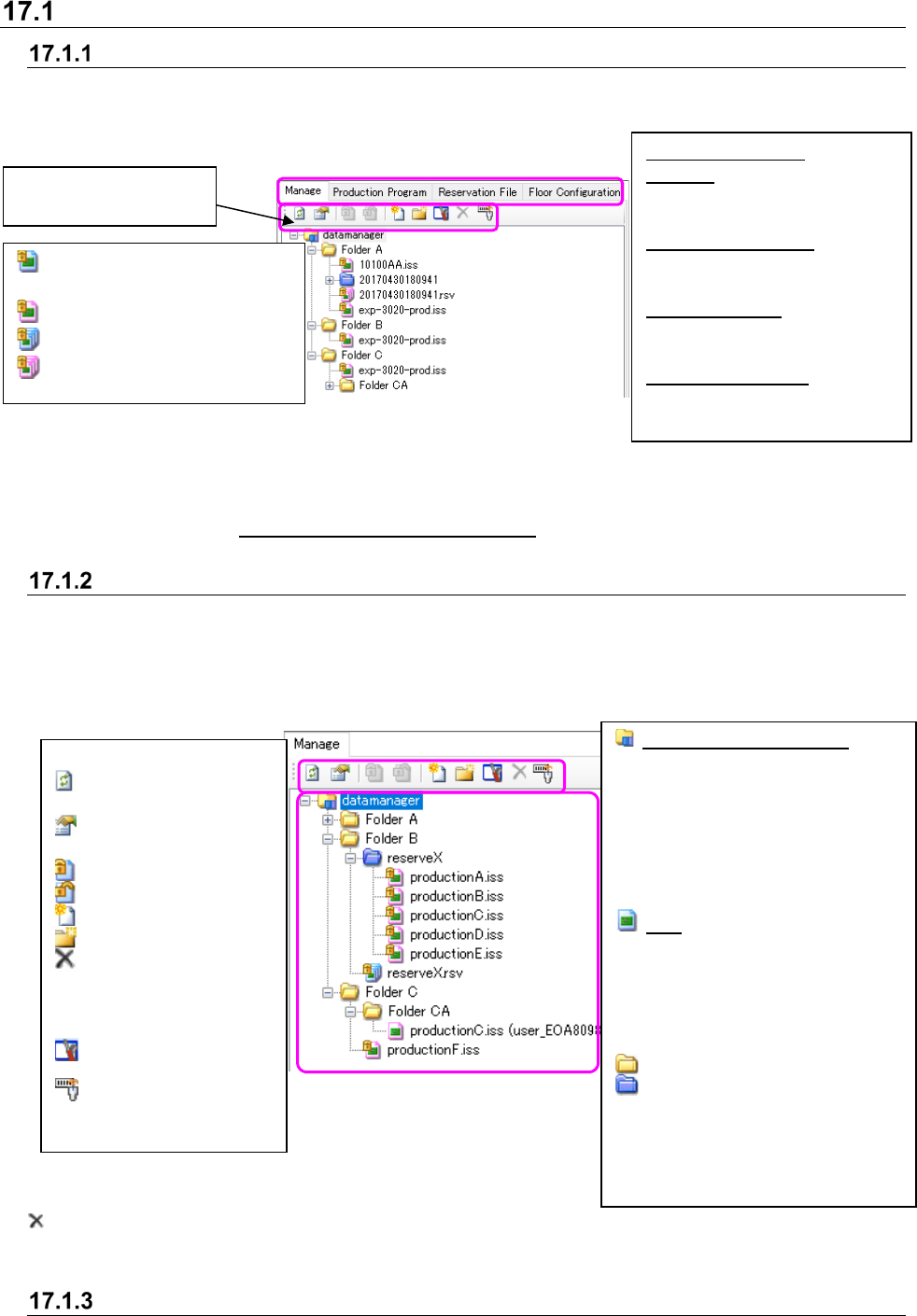
The Program Explorer has the following screens: “Manage,” “Production Program,” “Reservation
File” and “Floor Configuration” (*1). When you select each tab, the screen is switched to the
corresponding screen.
Figure 17.1-1 Program Explorer screen
*1 The kinds of screens displayed with the Program Explorer are set according to the application
(See Section 17.4 “Specifications of the Applications” for the screens to be set).
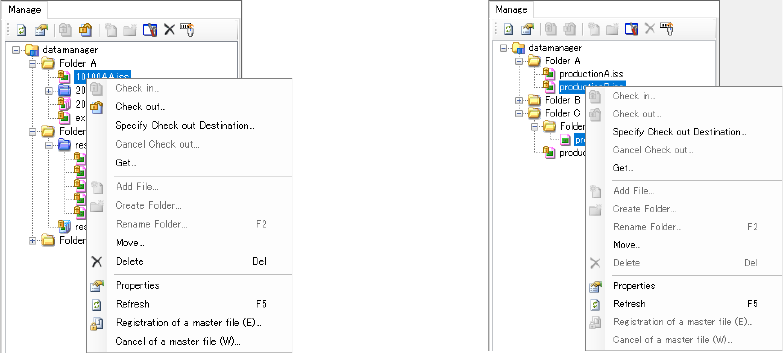
Description of the “Manage” screen
This screen displays all files controlled with the database (production programs and reservation
files). You can perform operations of the database, such as adding and deleting of a file to/from
the database. A user can create a folder, store a file in the folder and control it. You can select
two or more files so that they can be moved or deleted in/from the database at a time.
Figure 17.1-2 “Manage” screen
is displayed when the “Delete” check box is set to ON of the setting menu “Display/hide of the tool
buttons” on the “Set Environments” screen, or not displayed when the check box is set to OFF.
Operation menu items
When you click the right button of a mouse on the “Manage” screen, the pop-up menu appears on
: Production program not
optimized
: Optimized production program
: Reservation file not optimized
: Optimized reservation file
<Details of each tab>
Manage: Displays files
(production programs and
reservation files)
Production Program: Displays
production programs by
category.
Reservation File: Displays
reservation files by floor or by
production line.
Floor Configuration: Displays
the configuration of a floor, a
production line or a machine.
Toolbar for the Program
Explorer
Server name (root folder):
Displays the root of the database
(reference point of the hierarchy
structure). When the IS is
installed, only this item is
displayed on the screen at first.
You can neither move nor delete
this item. You can register a file or
create a folder only.
File: Displays registered files. The
displayed file icon varies
depending on the type or
condition of a file. See the section
“About data controlled with the
database” for the icons displayed
here.
: Displays a folder.
: Displays a reservation folder. This
is a folder in which production
program files registered in a
reservation file are stored. You
can neither move nor delete the
reservation folder itself.
<Descriptions of the toolbar>
: Updates the screen to
the latest one.
: Displays/hides the
“Properties” screen.
: Checks in a file.
: Checks out a file.
: Registers a file.
: Creates a folder.
: Deletes the selected
file or folder.
You can select two or
more files or folders.
: Environment setting
: Association of a serial
code
JaNets Instruction Manual 17 Program Explorer
17-3
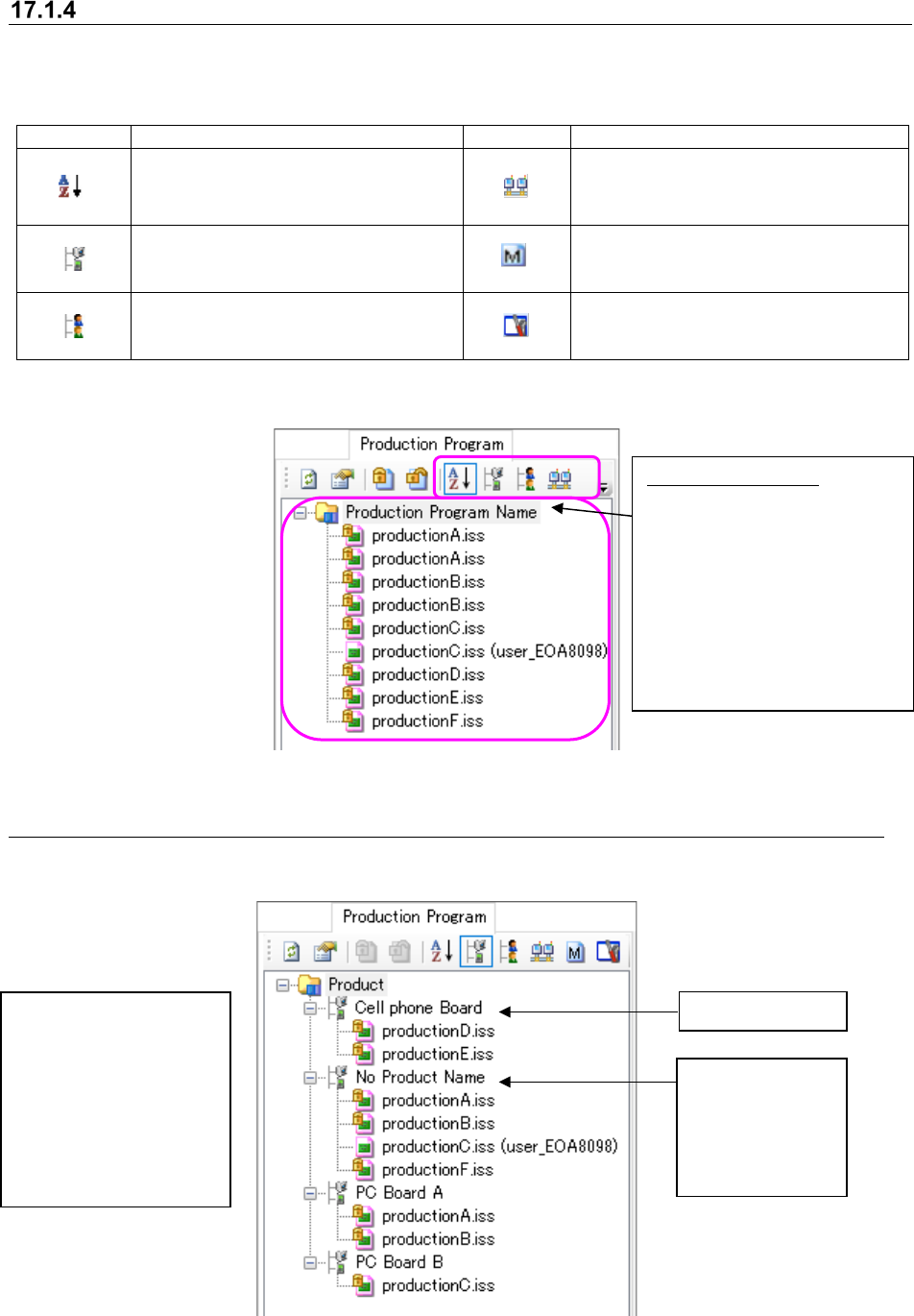
the screen. You can select an item that satisfies the display conditions from this pop-up menu.
No production program registered in a reservation file can be operated from this pop-up menu.
Figure 17.1-3 Pop-up menu (displayed when
only one file is selected)
Figure 17.1-4 Pop-up menu (displayed
when two or more files are selected)
JaNets Instruction Manual 17 Program Explorer
17-4
“Production Program” screen
The display functions that can be selected by tool bar are as shown below.
Table 17.1-1 Tree view display function
Icon
Description
Icon
Description
Production programs are displayed
in sequence starting from the first.
(Display order is changed.)
Production programs are
displayed for each line.
Production programs are
displayed in the order of product
names.
Only the master file is displayed.
Production programs are
displayed for each checked-in
(including new registration) user.
The environment setting screen is
opened.
This screen displays the list of production programs controlled with the database.
Figure 17.1-5 “Production Program” screen (in alphabetical order)
17.1.4.1 “Production Program” – displayed by product name
This screen displays production programs by product name (to be registered when they are
stored in the database).
Figure 17.1-6 Production programs displayed by product name
Product name
Category of
production
programs whose
product name is
not registered
You can register/change a
product name when you
register or check in a new
file.
Under the same product
name, production
programs are displayed in
alphabetical order.
Production program:
You can
select two or more
production programs, and
operate them at a time. Note
that you cannot sort
production programs by
dragging and dropping them.
* This screen shows
production programs in
alphabetical order.