JANETS_INM.pdf - 第66页
JaNets Instr ucti on Man ual 2. Install ation 2- 38 (4) The "Permiss ion Leve l" of Everyo ne serv es as "R ead" by def ault on the above - mentioned screen. Click th is field to select " Read/ W…
JaNets Instruction Manual 2. Installation
2-37
2.5.1.3 Setting a shared folder
In order to download a production program from the Program Downloader, the shared folder which
has a shared name of "Prg" on the machine side is required. (This setup is unnecessary for an
RX-7 series.)
(1) Start up the Explorer and create a Prg folder through new document in the arbitrary places of
a drive D.
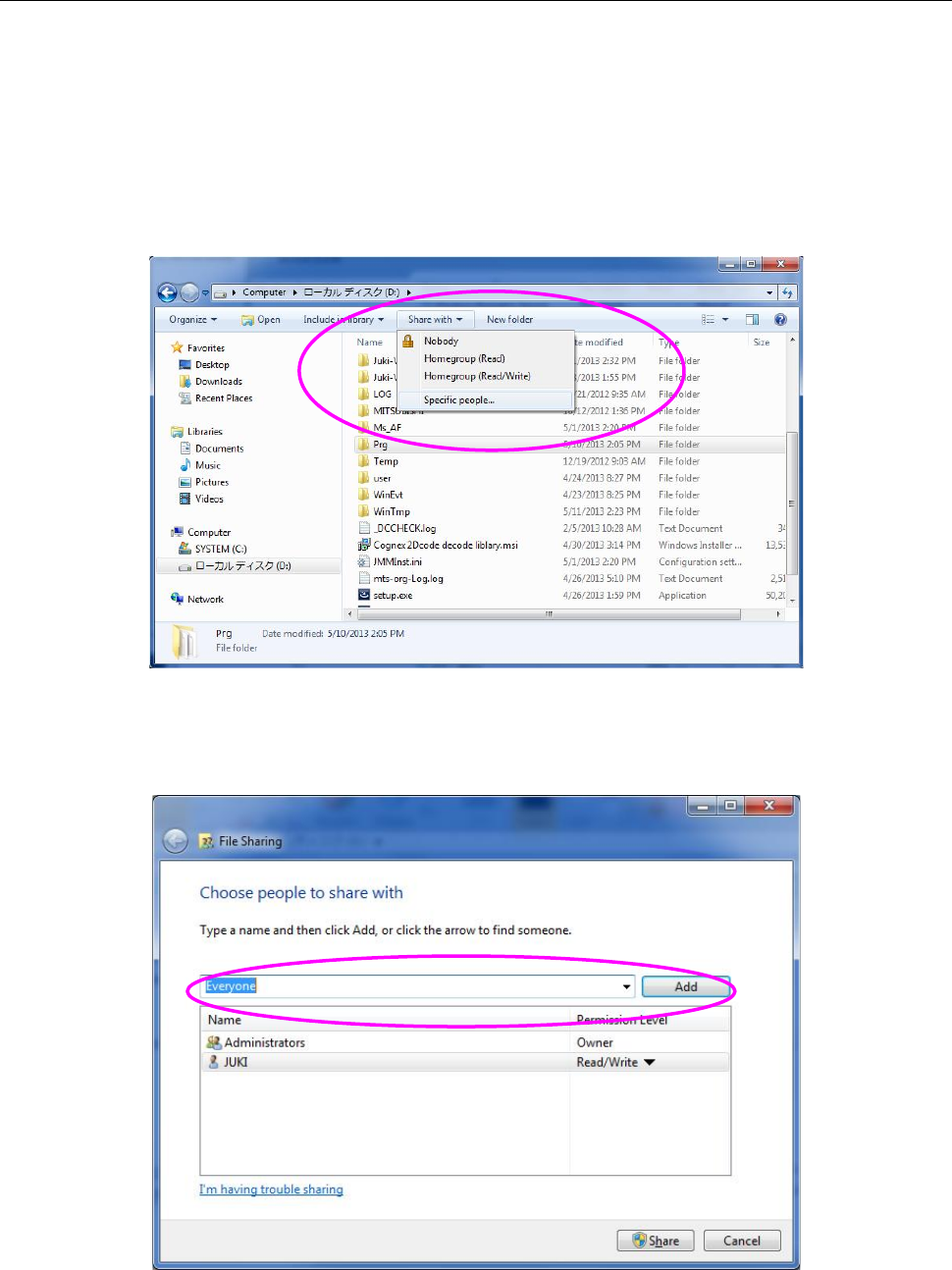
(2) In a state where your select the created Prg folder, select the "Share with" command from the
menu bar, and then the "Specific people" command from the Share with menu.
Figure 2.5-12 Shared folder setting (Windows 7)
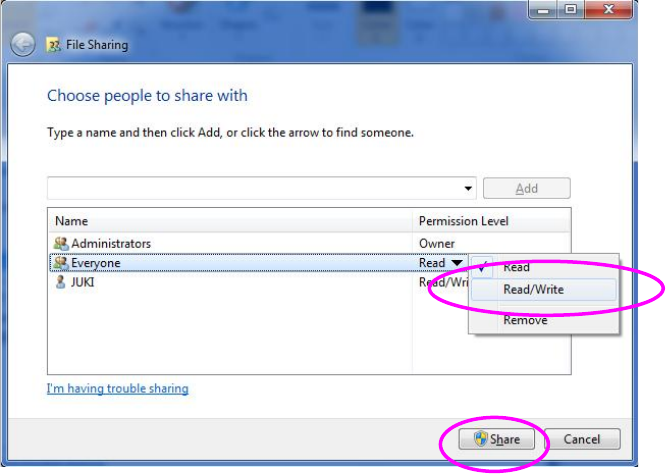
(3) The "File Sharing" dialog box appears on the screen. Click the "Add" button in a state where
you select the "Everyone."
Figure 2.5-13 File Sharing dialog box (Windows 7)
JaNets Instruction Manual 2. Installation
2-38
(4) The "Permission Level" of Everyone serves as "Read" by default on the above-mentioned
screen. Click this field to select "Read/Write," and click the "Share" button.
Figure 2.5-14 File Sharing dialog box (Windows 7)
(5) The drive C is used as a ROM by using EWF (Enhanced Write Filter) to protect the OS of the
machine. The contents written in a drive C are erased at the time of a reboot. When you
change the information on an OS, perform updating operation in accordance with the Section
"2.5.1.4 Updating the Drive C."
JaNets Instruction Manual 2. Installation
2-39
2.5.1.4 Updating the Drive C
The machine uses the Enhanced Write Filter (EWF) to handle the drive C as ROM in order to
protect the OS.
Since the data written in the drive C is erased at restart, follow the procedure below to update the
drive C in order to change the information of the OS.
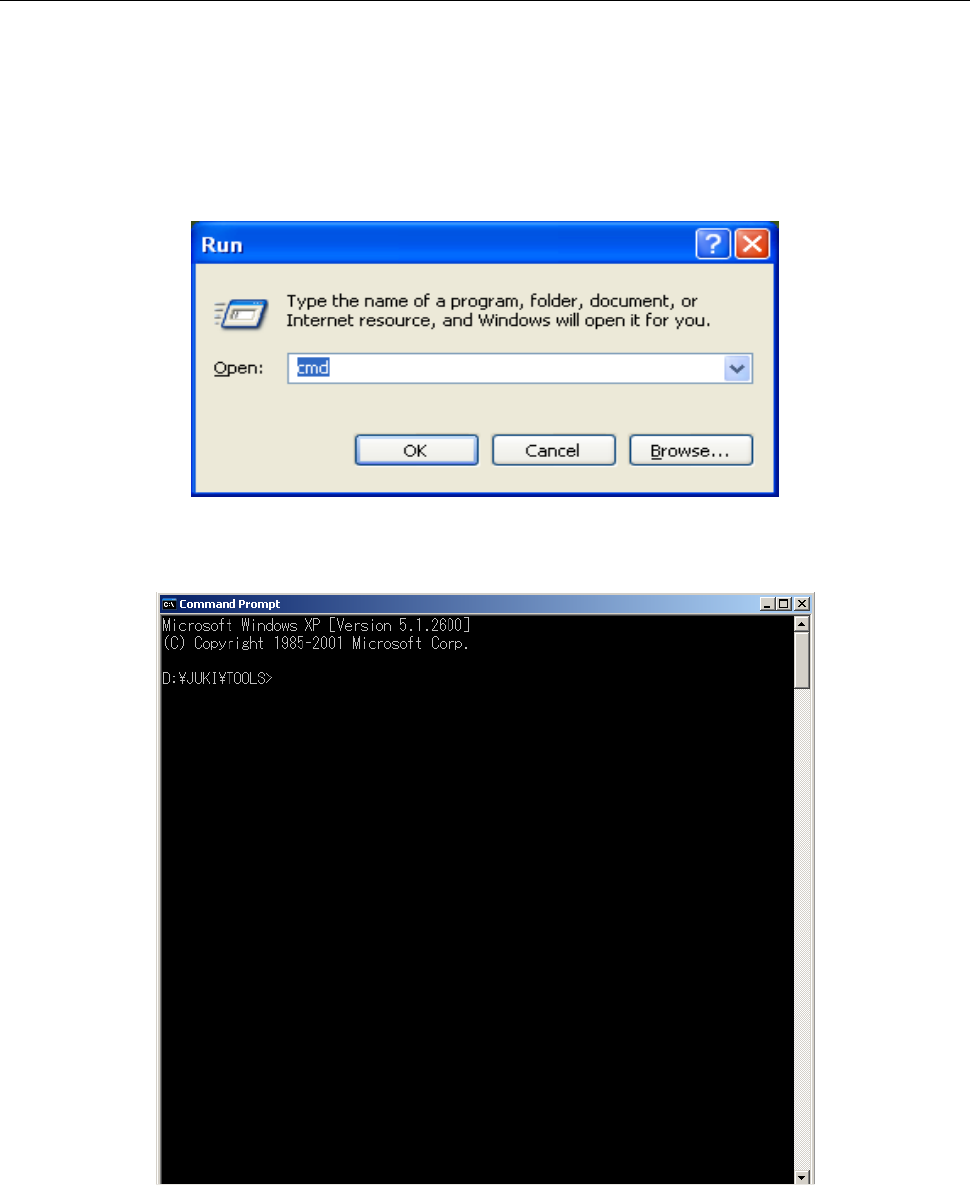
(1) Select the [Run] command on the “Start” menu invoked from the task bar.
Enter “cmd” with a keyboard, and then click the <OK> button.
Figure 2.5-15 Starting up the command prompt
(2) Enter “ewfmgr C: -commit” on the command prompt screen, and then press the Enter key.
Figure 2.5-16 Command prompt