JANETS_INM.pdf - 第661页
JaNets In structio n Manual 17 Program Expl orer 17 -9 Displa y of the use condition of a file (on the “ Manage, ” “ Production Program ” or “ Reservation File ” scre en) Check the us e conditi on of a f ile in the datab…
JaNets Instruction Manual 17 Program Explorer
17-8
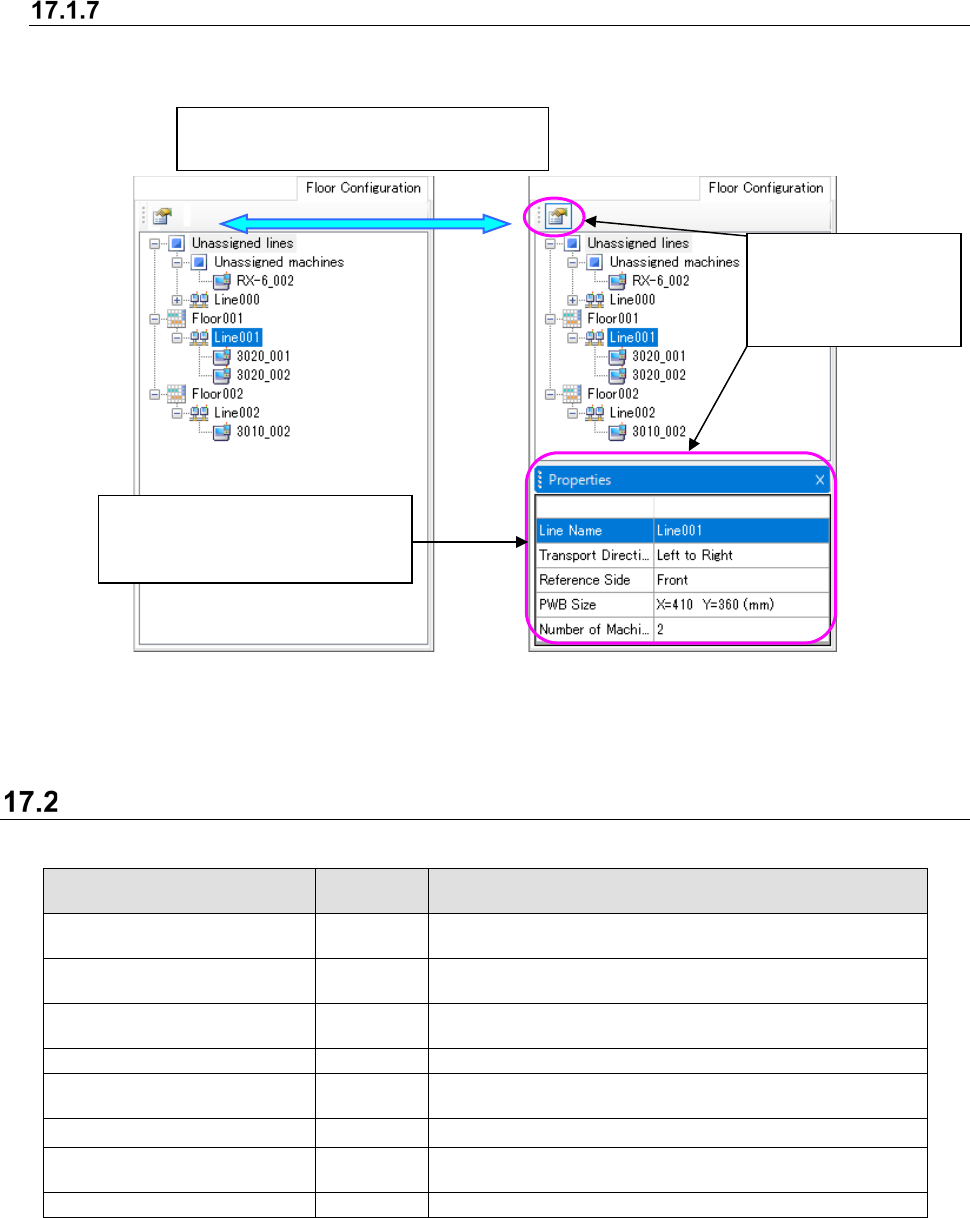
“Properties” screen
The “Properties” screen is displayed on the “Manage,” “Production Program,” “Reservation File”
and “Floor Configuration” screens.
Figure 17.1-14 Icon status (Left: not selected Right: selected)
* You can also display or hide the “Properties” screen with the [Properties] command on the
pop-up men displayed when you click the right button of a mouse.
Controlled with the database
Table 17.2-1 Data controlled with the database
Data name
Controlled
or not
Description
Production program (created
with the JaNets)
○
Production program created with the JaNets (Not added to
a reservation file yet)
Production program (added to
a reservation file)
△ Production program added to a reservation file
Production program (created
with the HLC or a mounter)
×
Production program created with the HLC or a mounter.
They cannot be stored in the database.
Divided file
△
File created when a production program is optimized (*2)
Reservation file
○
File on which reservation information of a production
program is described
Floor
☆
Information such as an assigned production line
Production line
☆
Information such as the board transporting direction and the
number of the connected machines
Machine
☆
Machine information
○: A user can specify whether a file is to be checked in or out.
△: A file is checked in/out together with the related file (*).
☆: The data is automatically obtained from the database when the Launcher starts up, and then
stored into the database when it is edited and saved with the Shopfloor Setup.
*1 A “related file” is one of the files related with each other in the following cases:
•
An optimized “production file” and a “divided file” created with the Optimization function
•
A “reservation file” and a “production program” registered in the reservation file
*2 A divided file is not displayed on the tree of the Program Explorer.
When this icon is
selected, the
“Properties” screen is
displayed.
When you click the following icon, the
“Properties” screen is displayed or hidden.
The information such as selected
programs, reservation file or
production line are displayed here.
JaNets Instruction Manual 17 Program Explorer
17-9
Display of the use condition of a file (on the “Manage,” “Production
Program” or “Reservation File” screen)
Check the use condition of a file in the database.
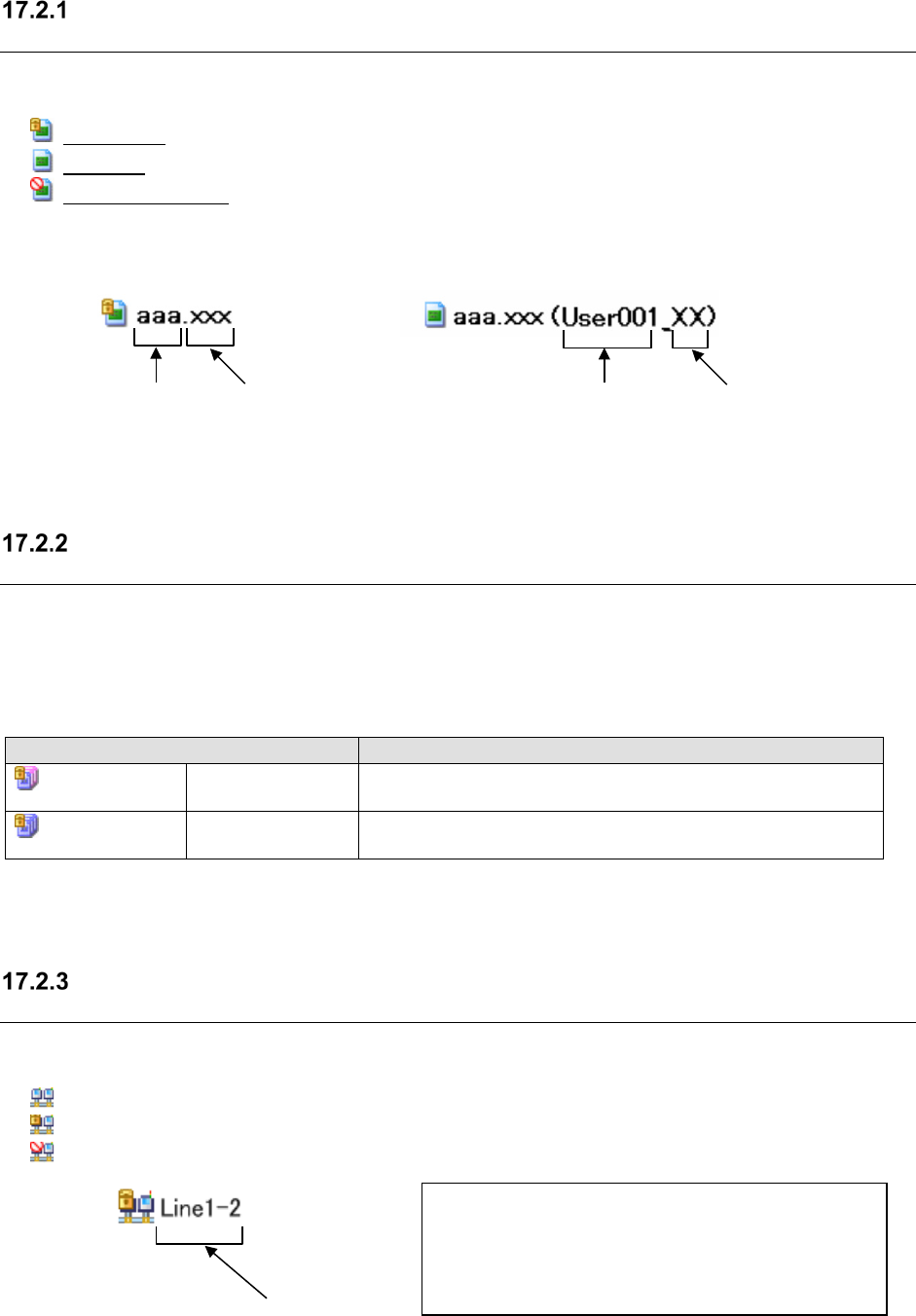
(key mark): A file is controlled within the database only and not used (*).
(normal): A file is checked out in the logged-in environment, and is being used.
(prohibition mark): A file is checked out by another client or user.
* This is the condition under which the contents of a file cannot be edited unless it is checked
out to a client.
Figure 17.2-1 Not-used file (you cannot edit it) Figure 17.2-2 Used file (you can edit it)
About an optimized file (on the “Manage,” “Production Program” or
“Reservation File” screen)
Check the optimized condition of a file controlled with the database. When you store a reservation
file into the database when it is being used for PWB production or is already used for PWB
production, the color of its icon changes.
Table 17.2-2 Description of icons indicating an optimized file (reservation file)
Icon
Description
(Partially purple)
A PWB is being
produced.
Some production programs registered in a reservation file finish
being used for PWB production (*1).
(Totally purple)
PWBs finish being
produced.
All production programs registered in a reservation file finish
being used for PWB production (*1).
*1 Since only optimized files can be used for executing PWB production, the system judges that
files are already optimized.
Display of a monitored production line (on the “Floor Configuration”
screen used with the Program Downloader only)
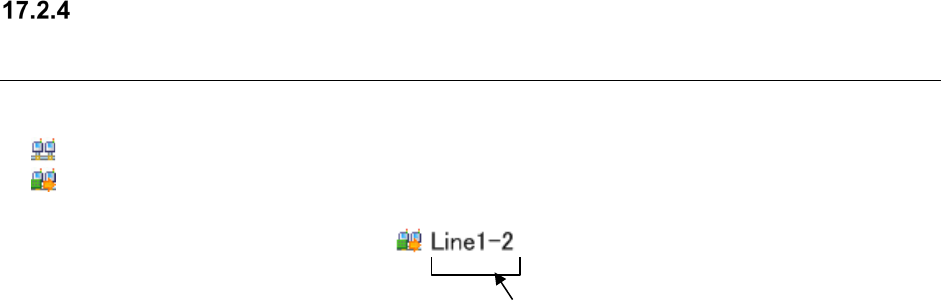
Check the setting of a production line (monitored with the Downloader) with the production line
icon.
(normal): A production line is not monitored.
(key mark): A production line is monitored with your client PC.
(prohibition mark): A production line is monitored with another client PC.
Figure 17.2-3 Icon indicating that a production line is being monitored
Extension
Name of a user
that uses a file
Name of a client
that uses a file
Line name
* When you use the Shopfloor Setup application, it
displays the icon with the prohibition mark if the
production line is being monitored (regardless of
which PC monitors it, your PC or another client PC).
You cannot edit any production line in this case.
File name
JaNets Instruction Manual 17 Program Explorer
17-10
Display of a production line that is producing PWBs (on the “Floor
Configuration” screen only when a production line is being used with the
Shopfloor Setup)
Check the setting of a production line that is producing PWBs with the production line icon.
(normal): A production line is not producing any PWB (you can edit it).
(producing a PWB): A production line is producing a PWB (you cannot edit it).
Figure 17.2-4 Icon indicating that a production line is producing PWBs
Production line name