JANETS_INM.pdf - 第664页
JaNets In structio n Manual 17 Program Expl orer 17 - 12 After a file is r egistered, it is displaye d on the scr een. Figure 17.3 -3 After a fil e is regist ered in th e databa se * After registrat ion, a lo cal (client…
JaNets Instruction Manual 17 Program Explorer
17-11
Operating Procedure
Operating the database
You can operate the database on the “Manage” screen only.
17.3.1.1 Registering a production program into the database
Follow one of the procedures 1 to 3 shown below.
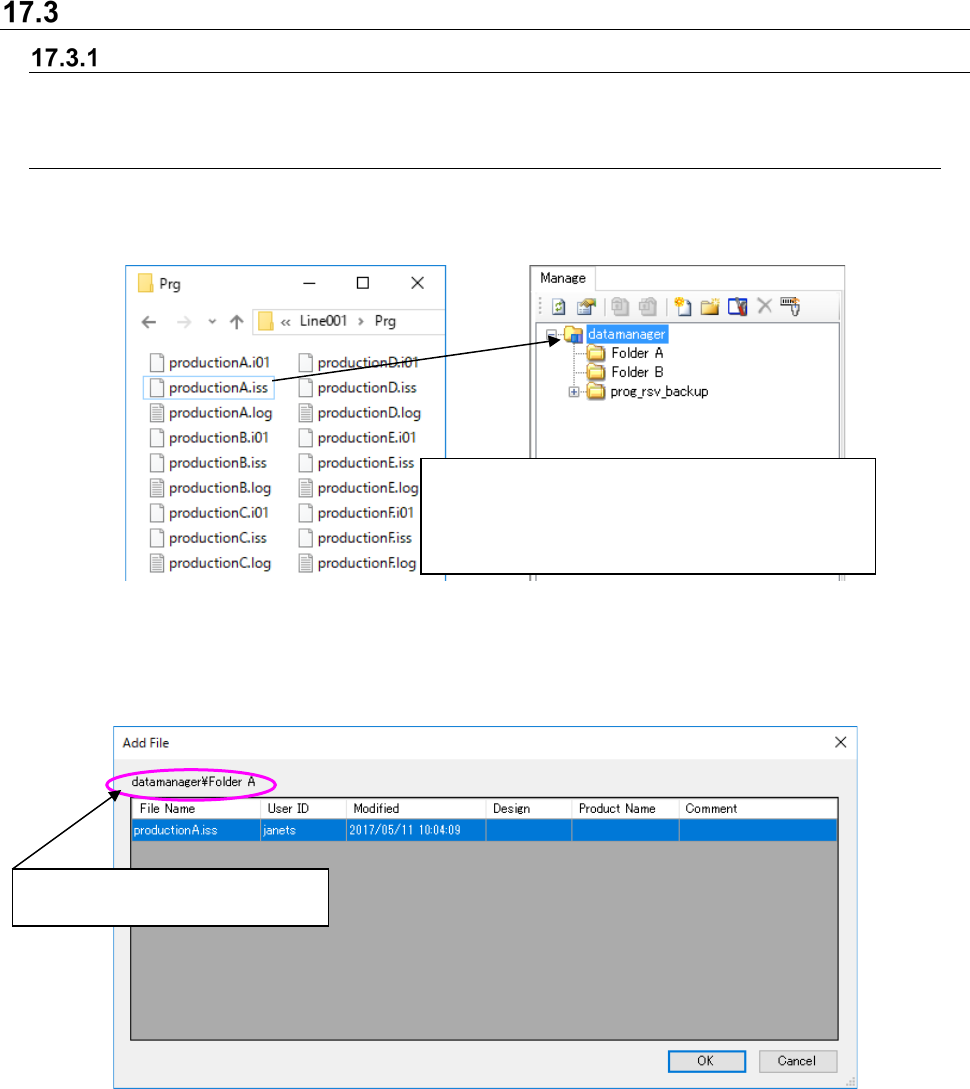
1. Perform the operations ① and ② below.
Figure 17.3-1 Registering a file
(Left: Windows explorer Right: Program Explorer)
After performing the operation ② above, the system automatically displays the confirmation
dialog box for registering the file.
Figure 17.3-2 Confirmation dialog box for registering a file
File Name: Displays the name of a file to be registered.
Design: Enter the design control number of a production program (for a production
program only).
Product Name: Enter the product name specified in a production program (for a production
program only).
Comment: Enter the user’s comment on a production program (for a production program only).
* See Section 17-3-1-2 “Entering the ‘Design,’ ‘Product Name’ and ‘Comment’” for how to enter
the “Design,” “Product Name” and “Comment.”
①
Select a file (you can select two or more files at a
time) with the Windows Explorer.
② Drag and drop the selected files in a folder
displayed on the “Manage” screen.
A folder in which the selected file is
to be registered is displayed here.
JaNets Instruction Manual 17 Program Explorer
17-12
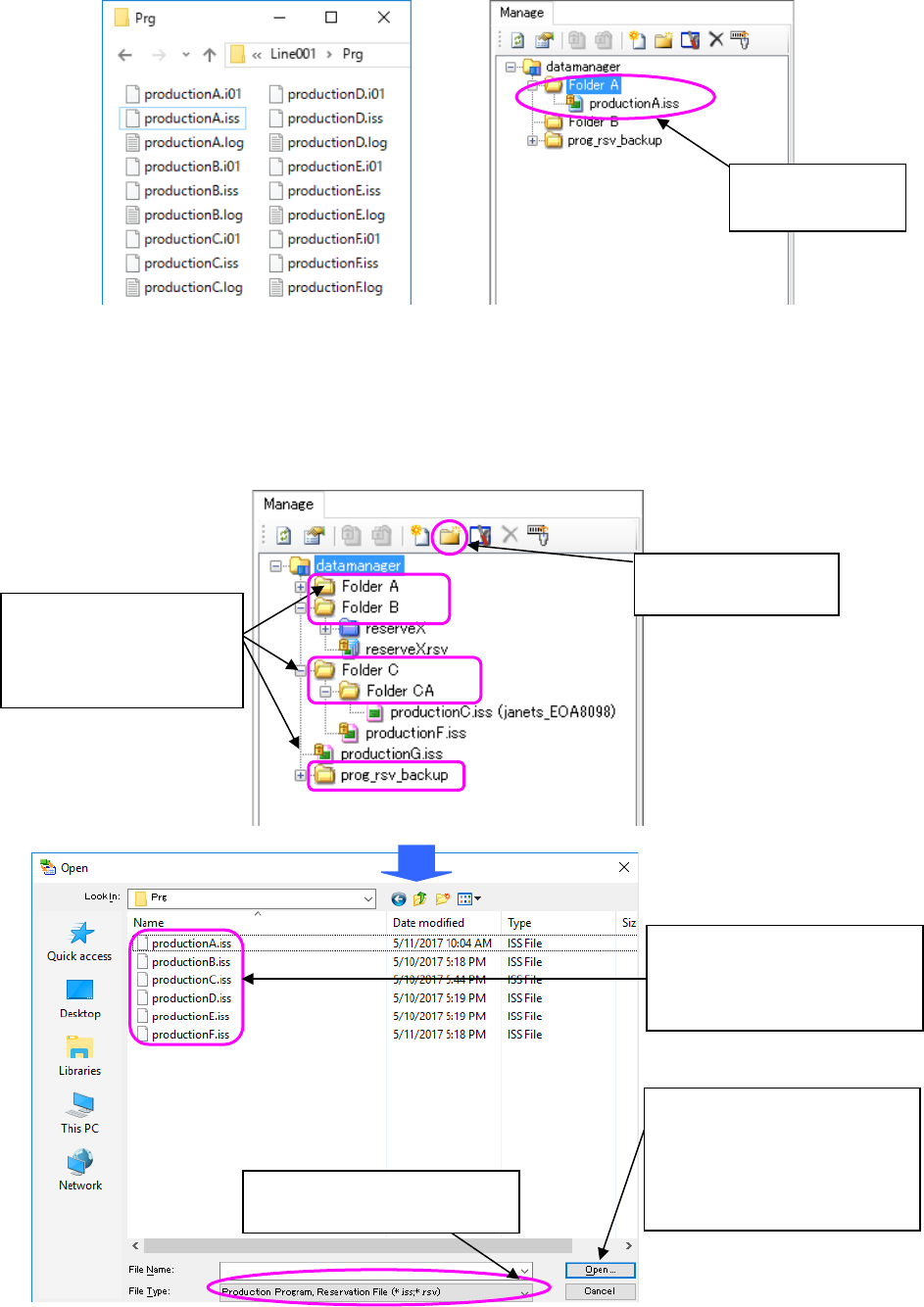
After a file is registered, it is displayed on the screen.
Figure 17.3-3 After a file is registered in the database
* After registration, a local (client) file is changed to a read-only file.
* The file path used at registration is set as the checkout destination with the client that
registered a file.
2. Perform the operations from ① to ④ below.
Figure 17.3-4 “Open” dialog box
A file is added to
the database.
④
Select the <Open> button.
The confirmation dialog box
for registering a file
appears on the screen.
Register the file into the
database.
②
Click the “file
registration” tool.
Select the type of a file you can
register in the database.
①
Select a folder (you
can select two or more
folders at a time) on
the “Manage” screen.
③
Select a file (you can select
two or more files at a time)
to be registered in the
database.
JaNets Instruction Manual 17 Program Explorer
17-13
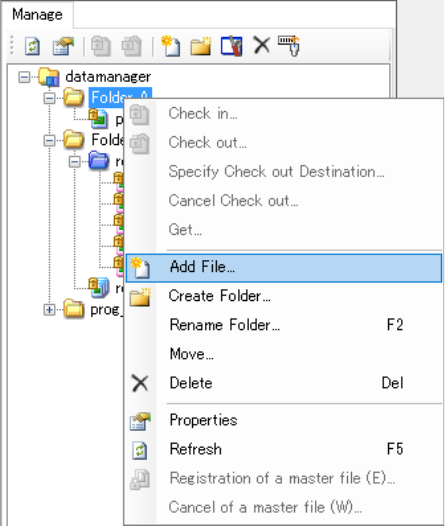
3. Perform the operations from ① to ④ below.
① Select a folder (you can select two or more folders at a time) on the “Manage” screen.
② Click the right button of a mouse to display the pop-up menu. Select the [Add File]
command on this pop-up menu.
③ In the same manner as the procedure 2, the “Open” dialog box appears on the screen.
Select a file to be added to the database.
④ The confirmation dialog box for registering a file(s) appears on the screen. After you
operate this dialog box, the file is registered in the database.
Figure 17.3-5 Pop-up menu displayed when you click
the right button of a mouse – [Add File]
* The types of files you can select to add them are only a production program (*.iss format) and
a reservation file (*.rsv format) only.
* You cannot register a divided file alone. A divided file is registered together with an optimized
(source) production program. (If you register a production program when a divided file is
located in the local folder where the production program is stored, the divided file is
automatically to be registered. You do not have to select it.)
* If you specify to register only a production program registered in a reservation file, the
reservation file, which is the parent, is not set to be registered. Only a production program is to
be registered.