JANETS_INM.pdf - 第667页
JaNets In structio n Manual 17 Program Expl orer 17 - 15 Deleting a File or Folder from the Da tabase 1. Select a file or folder on t he “ Manag e ” tab ( you can select two or more files or f olders). Whe n you select t…
JaNets Instruction Manual 17 Program Explorer
17-14
17.3.1.2 Entering the “Design,” “Product Name” and “Comment” (available with a
production program only)
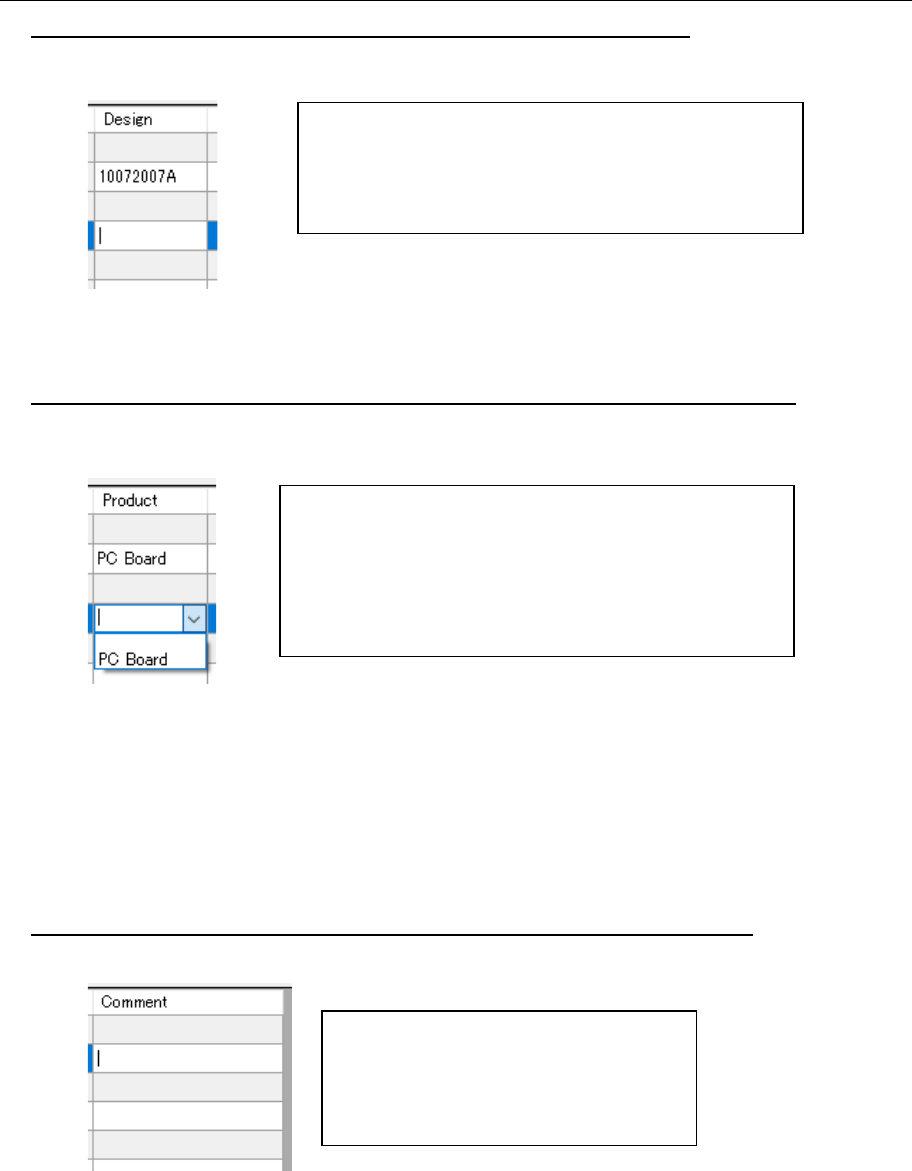
• To enter the “Design” (you cannot select two or more cells at a time)
When you select a “Design” cell, the text box for entering the “Design” cell appears on the screen.
Figure 17.3-6 Text box for entering a number in the “Design” cell
• To enter the “Product Name” cell (you cannot select two or more cells at a time)
When you select a “Product Name” cell, the combo box for setting a product name appears on
the screen.
Figure 17.3-7 Combo box for selecting a product name
* If a production program to which a product name has been entered is not controlled with the
database, the list of product names becomes blank. A “product name” you entered here is
reflected in the “Product name” display of the production program tree.
* You can change the setting of a product name when you “check in” a file.
• To enter the “Comment” cell (you cannot select two or more cells at a time)
When you select a “Comment” cell, the text box for entering a comment appears on the screen.
Figure 17.3-8 Text box for entering a comment
Enter the design control number in the text box for entering
a comment directly (up to 64 half-width characters).
* The setting in the “Design” cell can be changed when
you check in a file.
Since the list of product names set for production programs
stored in the database is displayed in the combo box, select
the desired one from the list.
You can also enter a product name directly (up to 32
characters).
If you do not set any name here, a product name is set as
“No Product Name.”
Enter a comment directly here (up to 64
characters).
* You can change the setting of a
comment when you check in a file.
JaNets Instruction Manual 17 Program Explorer
17-15
Deleting a File or Folder from the Database
1. Select a file or folder on the “Manage” tab (you can select two or more files or folders). When
you select the “Delete” ( ) tool from the tool bar for the Program Explorer, the delete
confirmation message appears on the screen, and you can delete it (them).
* Whichever you select, a file or folder, the same operation is to be performed in the
following sections.
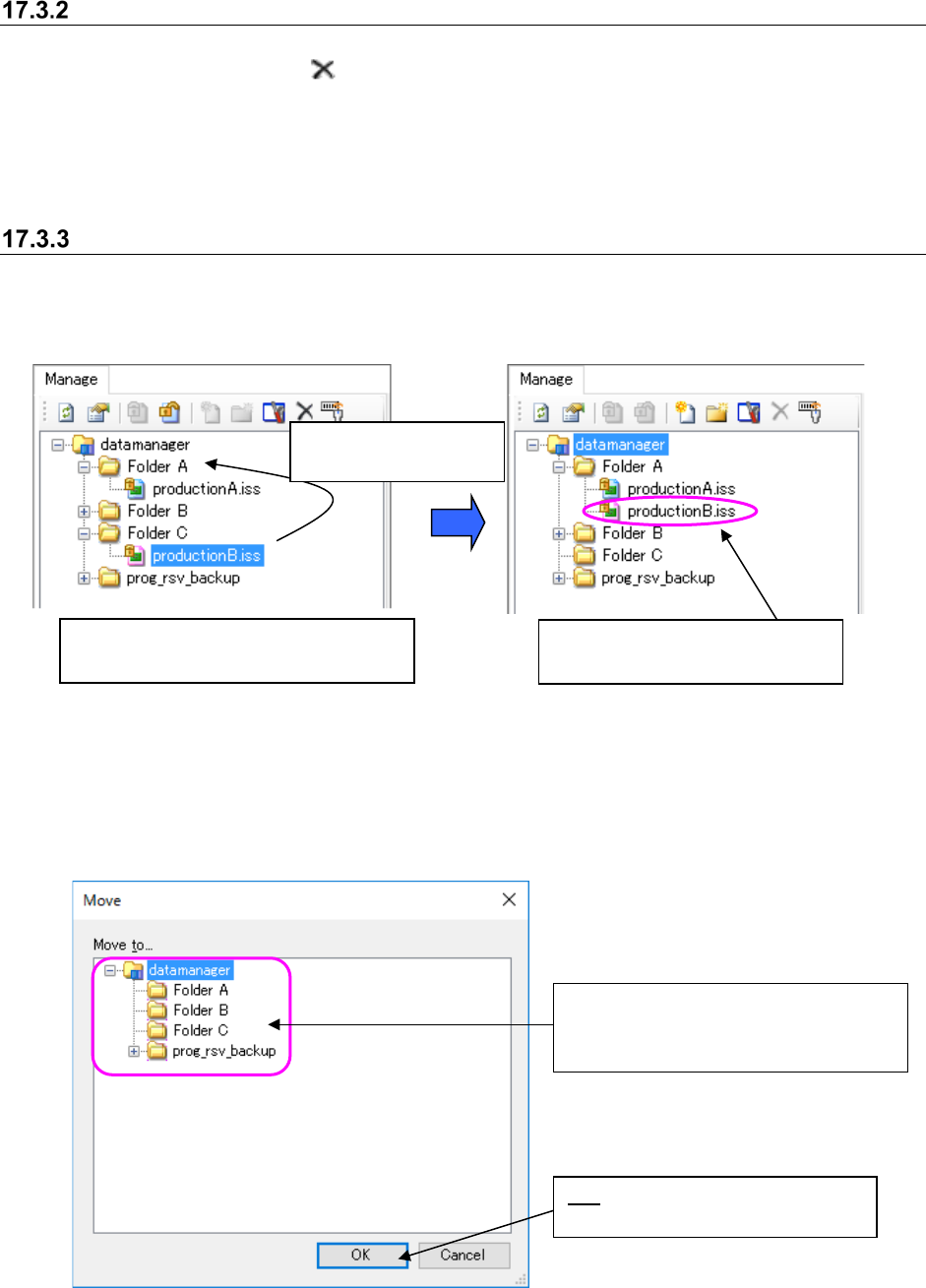
Moving a file between folders in the database
Follow the procedure 1 or 2 shown below.
1. Perform the operations ① and ② below.
Figure 17.3-9 Moving a file
2. When you select a file to be moved (you can select two or more files at a time) on the “Manage”
screen, and select the [Move] command on the pop-up menu displayed when you click the
right button of a mouse, the “Move” dialog box appears on the screen.
Figure 17.3-10 “Move” dialog box
①
Select a file to be moved (you can
select two or more files at a time.)
②
Drag and drop the
selected file(s).
The selected file(s) is (are) moved
to the folder you dropped it (them).
OK: Moves the selected file to the
selected destination folder.
Select the destination folder on the folder
configuration of the database displayed
on the “Move” dialog box.
JaNets Instruction Manual 17 Program Explorer
17-16
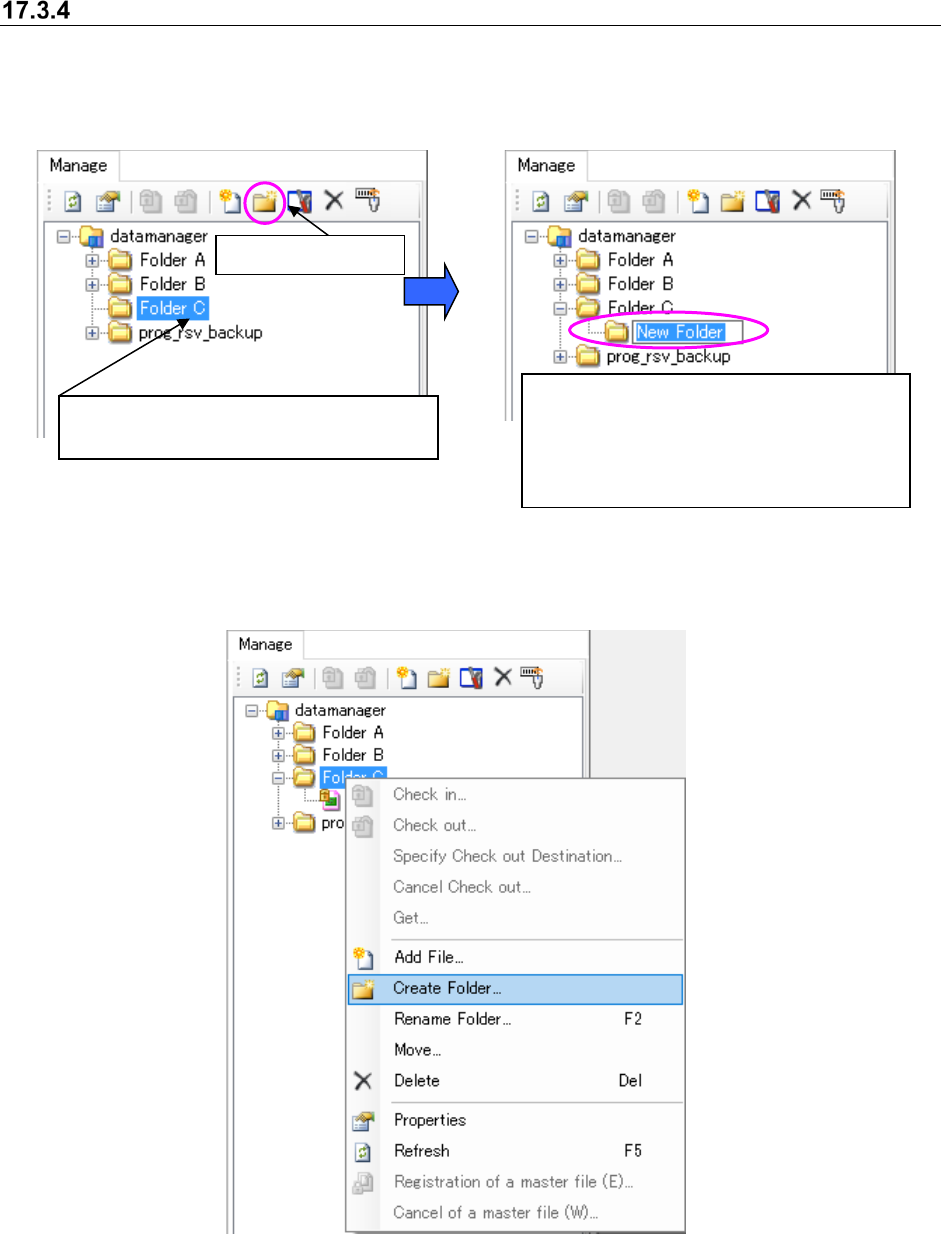
Creating a folder in the database
Follow the procedure 1 or 2 shown below.
1. Perform the operations from ① to ② below.
Figure 17.3-11 Selecting a folder
Figure 17.3-12 Creating a new folder
2. Perform the operations.
Figure 17.3-13 Clicking the right button of a mouse – [Create Folder]
① Select a folder (you cannot select two or
more folders at a time).
A new folder is created. Enter the folder
name (up to 256 characters).
If the same folder exists in the destination,
the folder is named “an entered name” +
(serial number).
②
Create a folder.