JANETS_INM.pdf - 第670页
JaNets In structio n Manual 17 Program Expl orer 17 - 18 Moving a folde r in th e dat abase F ollow the pro cedure 1 or 2 shown below . 1. Perfor m the operatio ns ① and ② below . Figure 17.3 - 15 Moving a folder 2. Perf…
JaNets Instruction Manual 17 Program Explorer
17-17
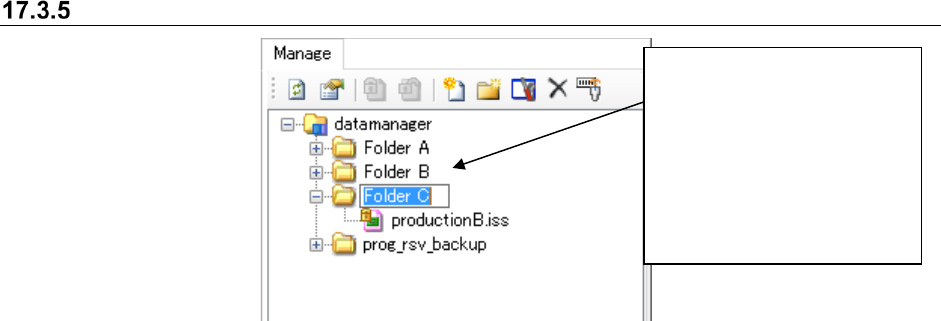
Renaming a folder in the database
Figure 17.3-14 Renaming a folder
Select a folder whose name
you want to change (you
cannot select two or more
folders at a time). Select the
[Rename Folder] command on
the pop-up menu displayed
when you click the right button
of a mouse. You can enter up
to 256 characters.
JaNets Instruction Manual 17 Program Explorer
17-18
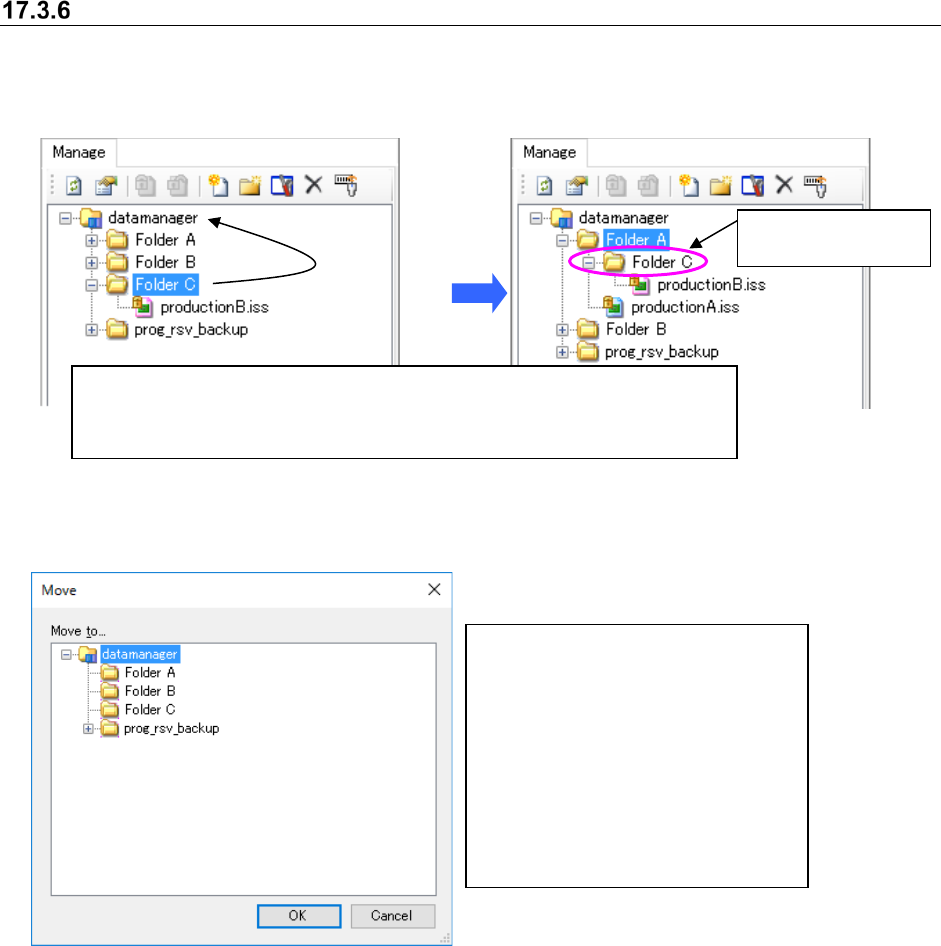
Moving a folder in the database
Follow the procedure 1 or 2 shown below.
1. Perform the operations ① and② below.
Figure 17.3-15 Moving a folder
2. Perform the operations from ① to ③ below.
Figure 17.3-16 “Move” dialog box
The selected folder
is moved here.
①
Select a folder to be moved (you can select two or more folders at a time.)
② Drag and drop the selected folder in the desired folder displayed on the
“Manage” screen.
①
Select a folder to be moved (you
can select two or more folders at a
time) on the “Manage” screen.
② Click the right button of a mouse on
the selected folder, and the select
the [Move] command on the pop-
up menu.
③ The “Move” confirmation dialog box
appears on the screen. Select the
destination folder.
JaNets Instruction Manual 17 Program Explorer
17-19
Operations for a control file
17.3.7.1 Checking in a file
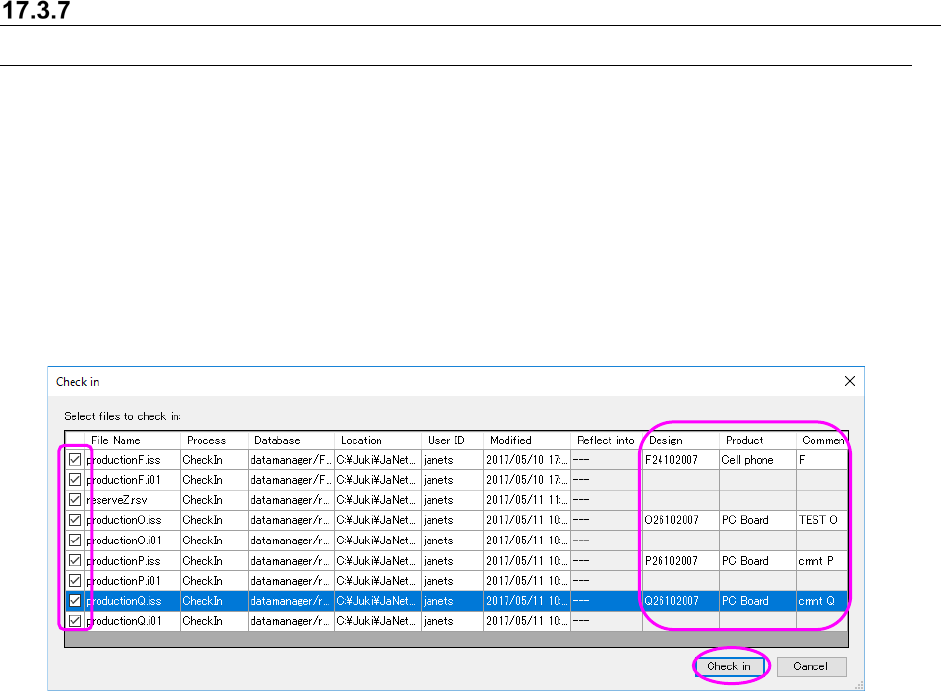
When you select the [Check in] command on the pop-up menu displayed when you click the right
button of a mouse on the “Manage” screen, the “Check in” confirmation dialog box appears on the
screen. The list of files to be checked in among the selected files is displayed on this dialog box.
<How to check in a file>
① Put a check box in the check box(es) corresponding to a file to be checked in.
② Enter data in the “Design,” “Product” and/or “Comment” cell if you like (for a production
program in the *.iss format only). *1
③ Select the <Check in> button. The system stores the selected file(s) in the database, and
closes this dialog box.
Figure 17.3-17 “Check in” confirmation dialog box
* See Section 17.3.1.2 “Entering the ‘Design,’ ‘Product Name’ and ‘Comment’.”
* If there is a divided file, it is to be checked in together with the optimized source production
program.
* A reservation file is to be checked in together with the production programs registered in the
reservation file.
* When you check in a local (client) file, its attribute is changed to “read only.” When you check
it out, you can write it.