JANETS_INM.pdf - 第676页
JaNets In structio n Manual 17 Program Expl orer 17 - 24 17.3.7.5 Canceling t he checkout operation When you se lect the [C ancel Che ck out] com mand on the pop - up men u displayed when you c lick the right butt on of …
JaNets Instruction Manual 17 Program Explorer
17-23
17.3.7.4 Specify where to check out a file
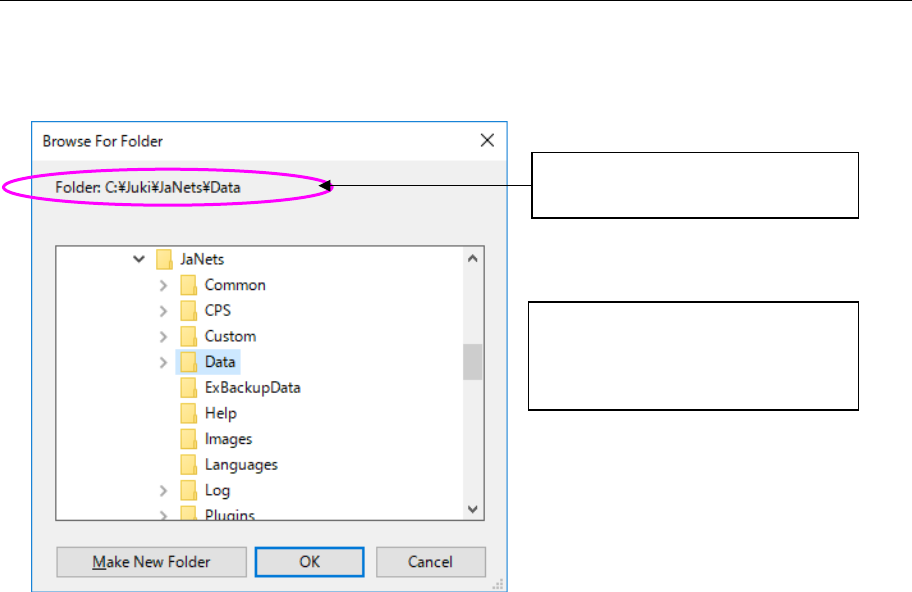
Click the right button of a mouse on the “Manage” screen. Select the [Specify Check out
Destination] command on the displayed pop-up menu. The “Browse For Folder” dialog box
appears on the screen.
Figure 17.3-23 “Browse for Folder” dialog box
* The setting made on this dialog box is used as the destination folder when the system checks
out the specified file. If you change this folder setting for a file that is being checked out, the
folder setting is changed from the next checkout operation.
The current destination set for
checking out a file is displayed here.
The local (client) folder configuration
appears on the “Browse For Folder”
dialog box. Select the destination
folder for checking out a file.
JaNets Instruction Manual 17 Program Explorer
17-24
17.3.7.5 Canceling the checkout operation
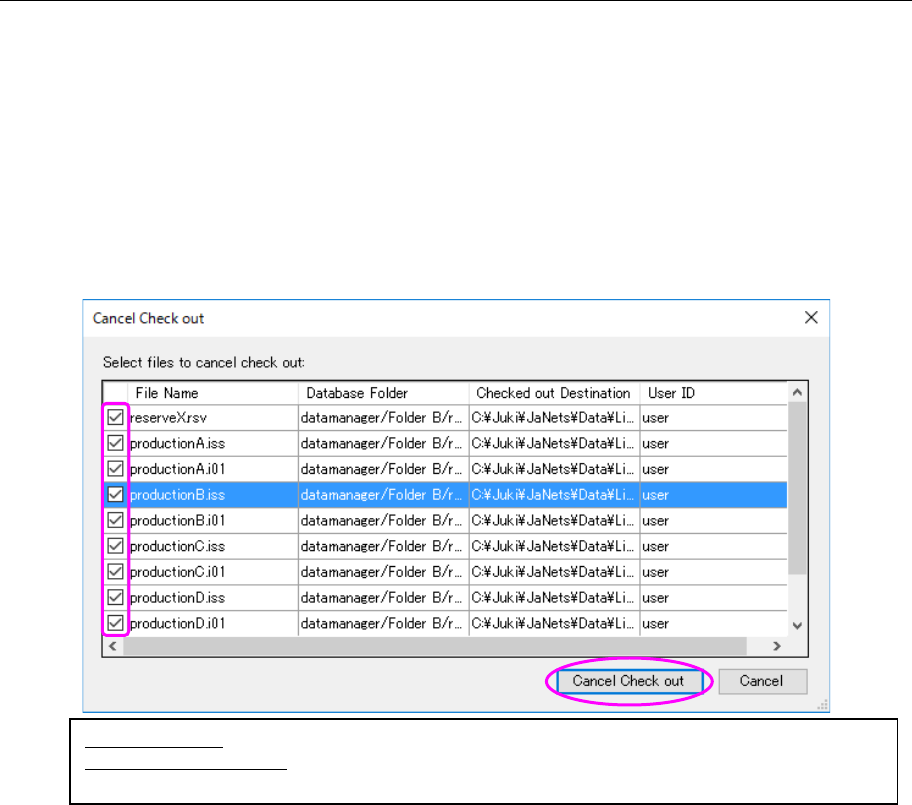
When you select the [Cancel Check out] command on the pop-up menu displayed when you click
the right button of a mouse on the “Manage” screen, the “Cancel Check out” confirmation dialog
box appears on the screen. The list of files whose checkout operation is to be canceled among
the selected files is displayed on this dialog box.
<How to chancel the checkout operation>
① Put a check mark in the check box(es) corresponding to the file(s) whose checkout
operation is to be canceled.
② Select the <Cancel Check out> button to cancel the checkout operation, and then close
the dialog box.
Figure 17.3-24 “Cancel Check out” confirmation dialog box
* If there is any divided file, its checkout operation is to be canceled together with the source
production program.
* Checkout operation of production programs registered in a reservation file is to be cancelled
together with the reservation file.
Note 1: If the production status of any production program of a reservation file existing in a client
PC is changed (for example, to the status indicating that a PWB is being produced or PWB
production finishes) after it is checked out when you try to cancel a checkout operation of the
reservation file, you cannot cancel the checkout operation.
Note 2: While using the file, you cannnot cancel the checkout operation.
However, only if all the following coditions are met, you can cancel the checkout operation after
making sure that the file in use can be changed to the unused file.
- If you cancelled the checkout operation in the file in use with Program downloader.
- If you cancelled the checkout operation by running Program downloader.
- If line information set in an intended file is different from actual line information.
(Line itself is being deleted, or machine arragemenmt is different.)
Database Folder: Displays the in the database in which a checked out file is to be stored.
Checked out Destination: Displays the local folders in which a checked out file is to be stored.
JaNets Instruction Manual 17 Program Explorer
17-25
17.3.7.6 Obtaining a file from the database
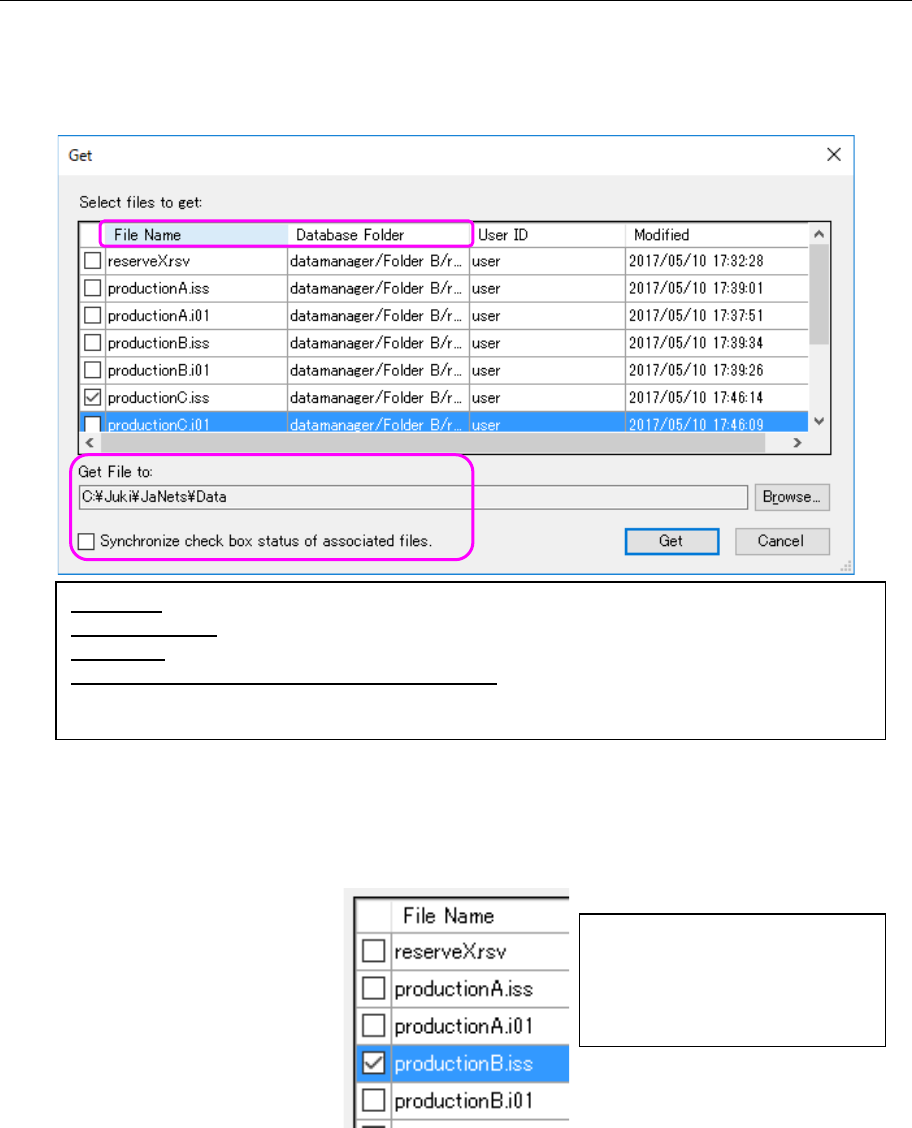
When you select the [Get] command on the pop-up menu displayed when you click the right
button of a mouse on the “Manage” screen, the “Get” confirmation dialog box appears on the
screen. The list of the selected files is displayed on this dialog box. Files associated with the
selected file are automatically added to this list also.
Figure 17.3-25 “Get” confirmation dialog box
① When you put a check mark in the check box located before the “File Name,” the
corresponding file is to be obtained.
Figure 17.3-26 Selecting a file to be obtained
File Name: Displays the name of a file to be obtained.
Database Folder: Displays the destination folder in which the corresponding file is stored.
Get File to: Displays where the corresponding file is to be obtained from.
Synchronize check box status of associated files:
Switches whether to synchronize the operation indicated with the check box
located before each associated file name with one another or not.
Unlike the checkout operation, the
system does not automatically
checks to see if there is any
associated file or not. You can
obtain the specified file only.