JANETS_INM.pdf - 第682页
JaNets In structio n Manual 17 Program Expl orer 17 - 30 17.3.8.5 Environm ent setting/check - in/master file operation On the “Manag ement” , “Pr oduction pro gram”, or “Reser vation fil e” screen, sele ct the icon of e…
JaNets Instruction Manual 17 Program Explorer
17-29
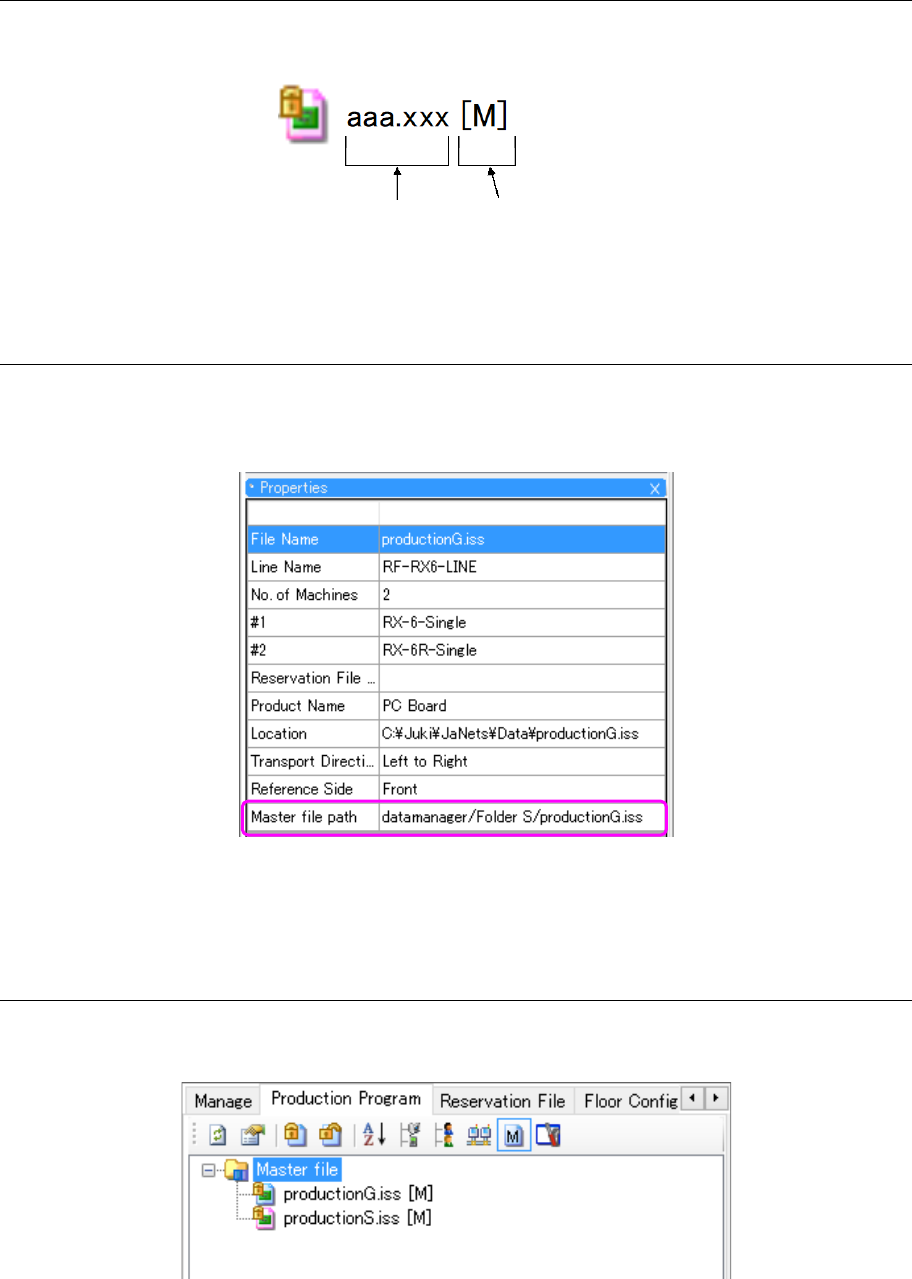
17.3.8.2 Display of the production program registered as a master file
On the management display screen and production program screen, “M” is displayed after the file
name and extension as a mark of a production program file registered as a master file.
Figure 17.3-33 Master file registration status
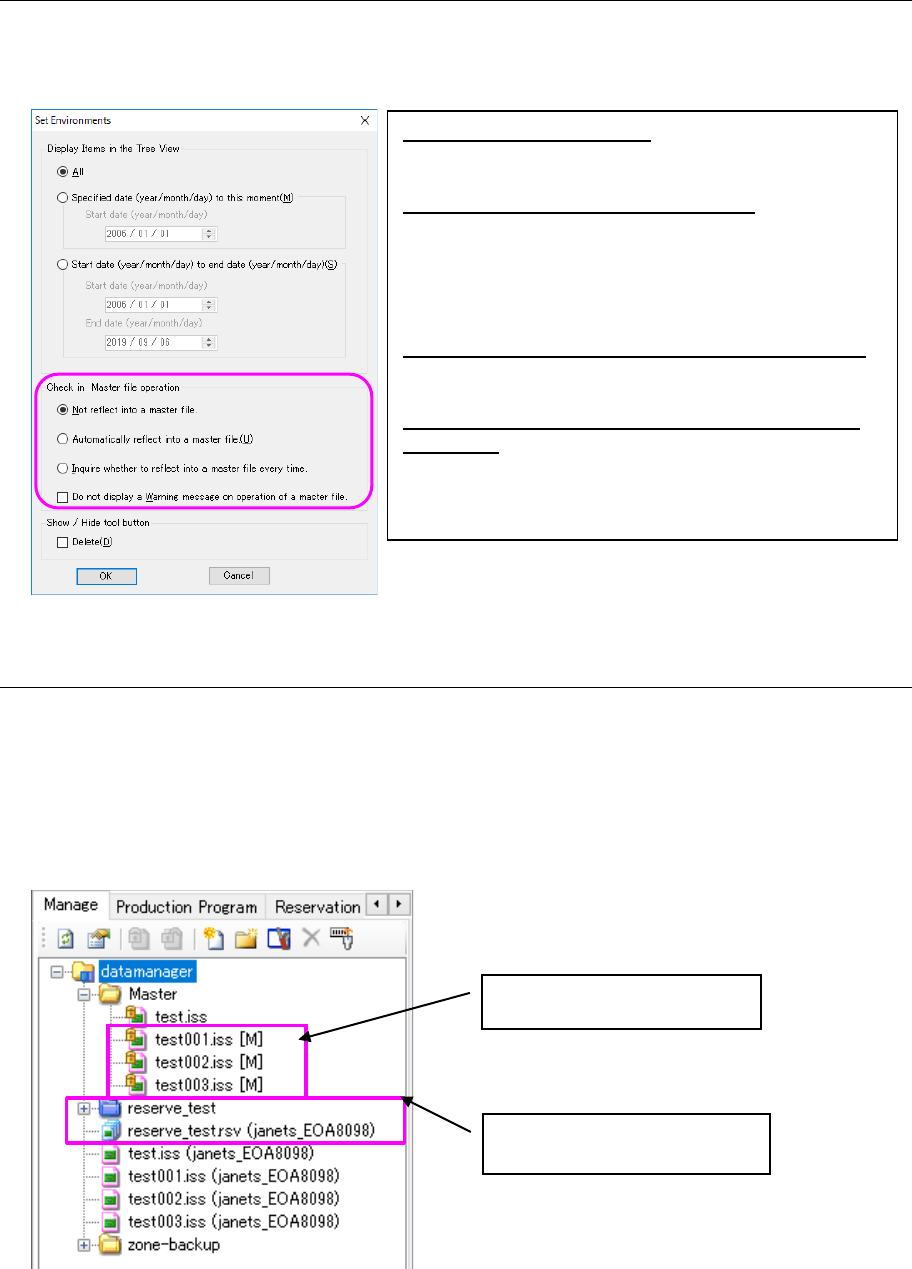
17.3.8.3 Display of the master file path in Properties
On the “Management”, “Production program” or “Reservation file” screen, select a production
program file to display the Properties screen. In the item of Master file path, the registration
destination of the master file to which the production program file belongs is displayed.
Figure 17.3-34 Master file path
* If no master file is registered, this item is blank.
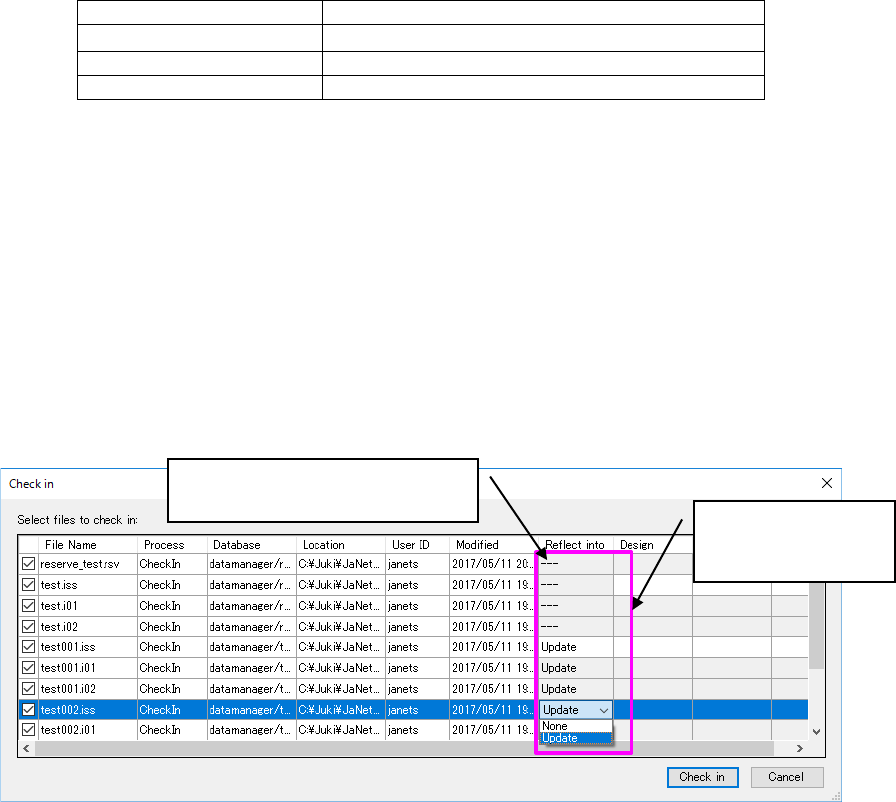
17.3.8.4 Display of an extracted master file
Select the icon of master file in the tool bar. Then, only the production program files registered
as master files in the database are extracted and displayed.
Figure 17.3-35 Display of extracted master files
Master file registration
File name and extension
JaNets Instruction Manual 17 Program Explorer
17-30
17.3.8.5 Environment setting/check-in/master file operation
On the “Management”, “Production program”, or “Reservation file” screen, select the icon of
environment setting in the tool bar to display the environment setting screen. Then, you can
perform setting for a reflecting operation into a master file.
Figure 17.3-36 Environment setting check-in master file operation
17.3.8.6 Execution of check-in to a master file
For checking in by changing the contents through a check-out operation of the reservation
file/production program file, the changed contents can be reflected into not only the production
program but also the production program with the same name registered in the master file.
<How to reflect into a master file>
[Preparation] Register the production program file to be checked in into a master file. Check
out the reservation file/production program file.
Figure 17.3-37 Setting example on the management screen
① For the reservation file/production program file under check-out processing, perform check-in
processing.
Not reflected to a master file: Even if a master file is
registered, it is not overwritten to the master file. On
the check-in dialog, any change is disabled.
Automatically reflected into a master file: When a master
file is registered, a file is overwritten to the master file.
On the check-in dialog, any change is disabled.
* Only when there are multiple production program files
with the same name in overwriting a reservation file,
this item can be selected.
Inquire whether to reflect into a master file every time:
When a master file is registered, it is selected whether to
overwrite data to the master file.
Do not display a Warning message on operation of a
master file:
Any warning message related to master file operations
is not displayed.
Registration in the master file
The target file is checked out.
JaNets Instruction Manual 17 Program Explorer
17-31
② In the check-in check dialog, perform master file reflection setting.
On the master file reflection setting screen of the check dialog, the following items are
displayed.
Table 17.3-1 Contents of the master file reflection display
Contents of display
Contents of processing
‐‐‐
No master file is registered.
None
No reflection into the master file is performed.
Update
Reflection into the master file is performed.
At this time, the contents selected in “Check-in master file operation” in the environment setting
dialog are set.
If “Not reflect into a master file” is selected, “---“ is selected for every file. The setting cannot
be changed.
When “Automatically reflect into a master file” is selected, Update is automatically selected if
the target production program file has the same name as the production program file registered
in the master file. The setting cannot be changed.*1 *2
When “Inquire whether to reflect into a master file every time” is selected, select a production
program file of the iss format to be changed and changeover between Update and None. *1
③ In the reflection of the target file and the master file, the production program in which Update
is selected is stored into the database.
Figure 17.3-38 Display of the check-in check dialog (reflection into the master file)
* For a division file, setting cannot be performed. It is automatically changed over according to
the setting of the production program file.
* When the production program file registered in the master file undergoes check-in processing,
any item other than None cannot be selected.
* When the production program file registered in the master file to be reflected is checked out,
check-in processing cannot be executed.
*1 To perform reflection into a division file, only one production program file can be selected if
multiple production program files with the same name are included. Change the production
program file to be reflected over to Update.
*2 When “Automatically reflected into a master file” is selected, change None over to Update. It
is impossible to change Update over to None.
Note: The production program file that underwent reflection into a master file cannot be saved
or overwritten in the client’s PC. To use this file, execute a check-out processing or
perform acquisition.
Changeover
between Update and
None.
Because test.iss is not registered
in the master file, “---“ is displayed.