JANETS_INM.pdf - 第684页
JaNets In structio n Manual 17 Program Expl orer 17 - 32 Assoc iating a serial code with a production program This functi on assoc iates a pr oduction pro gram reg ister ed in the Progr am Ex plorer with a ser ial code t…
JaNets Instruction Manual 17 Program Explorer
17-31
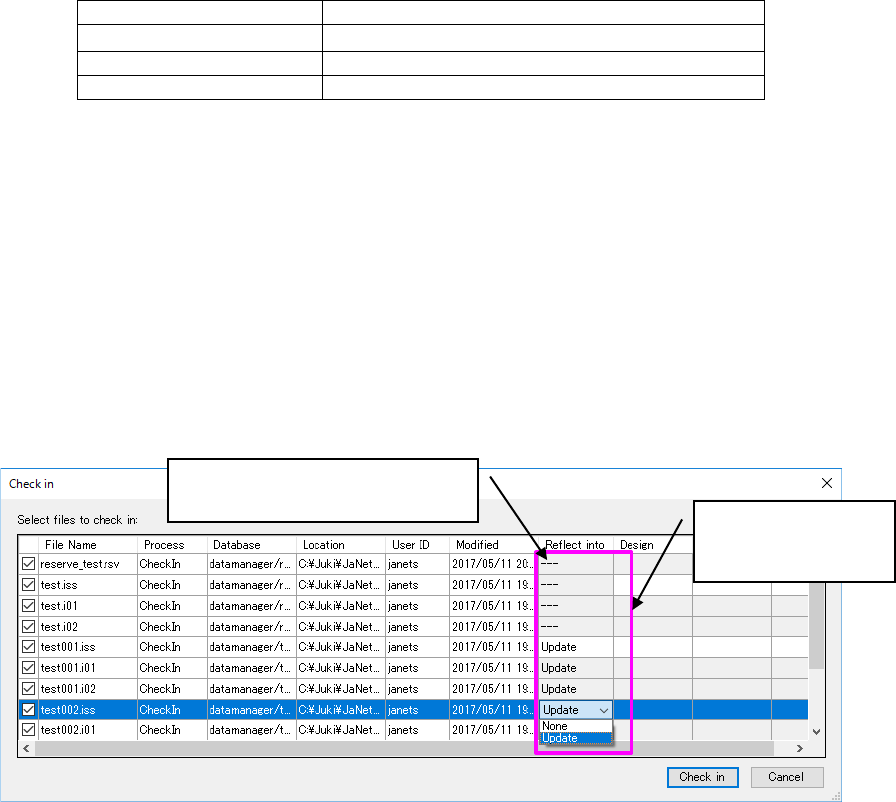
② In the check-in check dialog, perform master file reflection setting.
On the master file reflection setting screen of the check dialog, the following items are
displayed.
Table 17.3-1 Contents of the master file reflection display
Contents of display
Contents of processing
‐‐‐
No master file is registered.
None
No reflection into the master file is performed.
Update
Reflection into the master file is performed.
At this time, the contents selected in “Check-in master file operation” in the environment setting
dialog are set.
If “Not reflect into a master file” is selected, “---“ is selected for every file. The setting cannot
be changed.
When “Automatically reflect into a master file” is selected, Update is automatically selected if
the target production program file has the same name as the production program file registered
in the master file. The setting cannot be changed.*1 *2
When “Inquire whether to reflect into a master file every time” is selected, select a production
program file of the iss format to be changed and changeover between Update and None. *1
③ In the reflection of the target file and the master file, the production program in which Update
is selected is stored into the database.
Figure 17.3-38 Display of the check-in check dialog (reflection into the master file)
* For a division file, setting cannot be performed. It is automatically changed over according to
the setting of the production program file.
* When the production program file registered in the master file undergoes check-in processing,
any item other than None cannot be selected.
* When the production program file registered in the master file to be reflected is checked out,
check-in processing cannot be executed.
*1 To perform reflection into a division file, only one production program file can be selected if
multiple production program files with the same name are included. Change the production
program file to be reflected over to Update.
*2 When “Automatically reflected into a master file” is selected, change None over to Update. It
is impossible to change Update over to None.
Note: The production program file that underwent reflection into a master file cannot be saved
or overwritten in the client’s PC. To use this file, execute a check-out processing or
perform acquisition.
Changeover
between Update and
None.
Because test.iss is not registered
in the master file, “---“ is displayed.
JaNets Instruction Manual 17 Program Explorer
17-32
Associating a serial code with a production program
This function associates a production program registered in the Program Explorer with a serial
code to control them. An application program that supports loading of a production program
according to a serial code can use the associated serial code to open the corresponding
production program.
17.3.9.1 Invoking the “Association of a serial code” screen
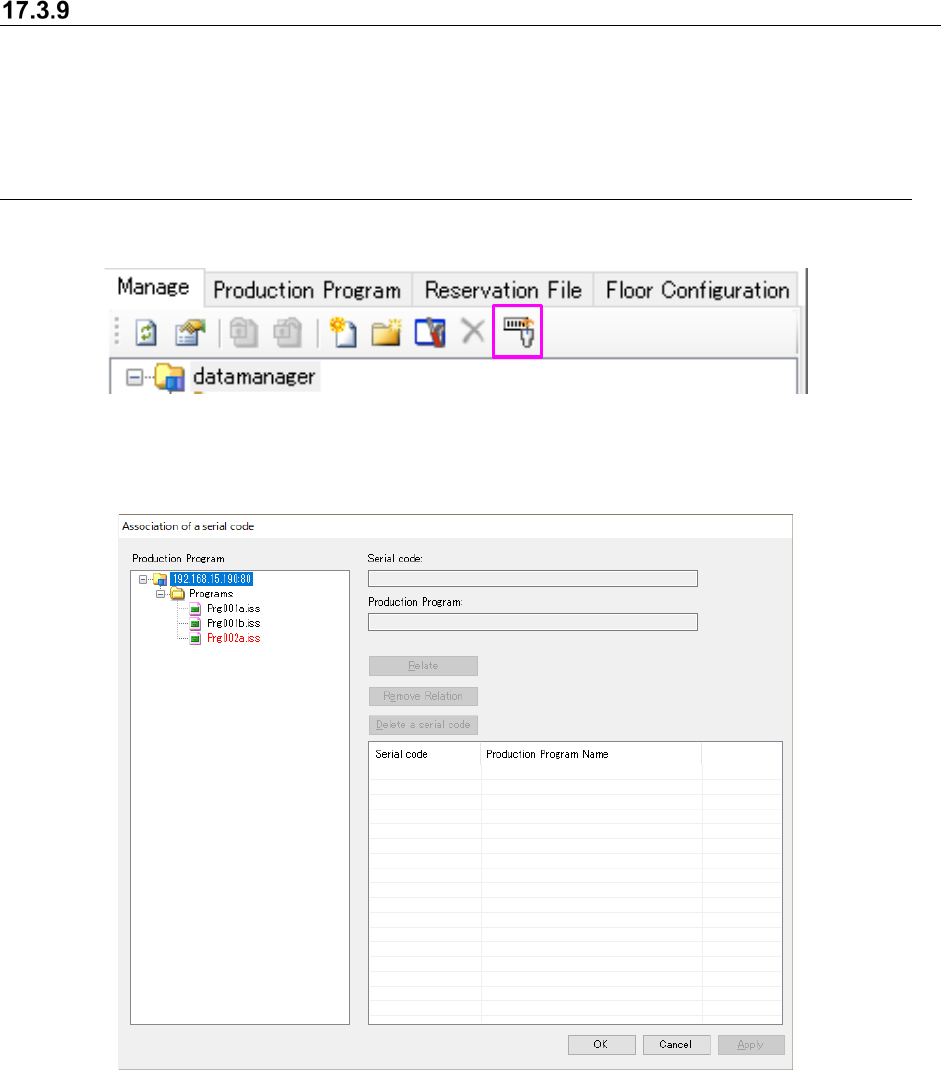
Select the “Association of a serial code” icon from the toolbar.
Figure 17.3-39 “Association of a serial code” menu item
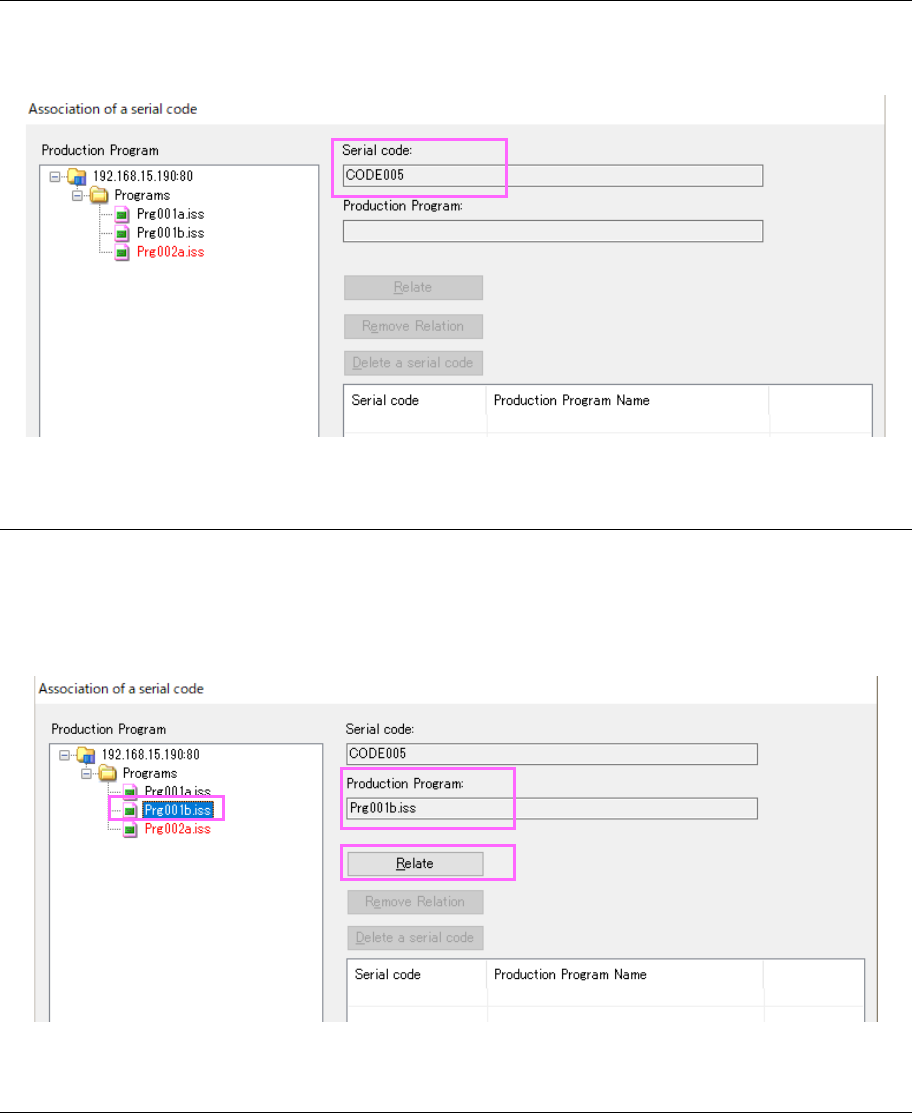
The “Association of a serial code” screen appears.
Figure 17.3-40 “Association of a serial code” screen (Data Manager)
In the “Production Program” tree displayed on the left side of the screen, folders and production
program (.iss) files displayed with the Program Explorer are displayed in a tree structure.
However, any production program to be used for production with a reservation file is not displayed
in this tree. If the production line configuration defined with a production program is different
from that registered in the monitored production line, the corresponding production program is
displayed in red.
JaNets Instruction Manual 17 Program Explorer
17-33
17.3.9.2 Reading a serial code
Use a code reader to read a serial code to be used for associating with a production program.
The read code is displayed on the “Association of a serial code” screen.
Figure 17.3-41 Screen displayed after a serial code is read
17.3.9.3 Specifying a production program to be associated with a serial code
Select a production program you want to associate with a serial code from among programs
displayed in the “Production Program” tree. The selected production program is displayed on
the “Association of a serial code” screen. When you finish reading a serial code and then
specifying a production program, the <Relate> button is enabled.
Figure 17.3-42 Screen displayed after you specify a production program
17.3.9.4 From executing association to terminating association
When you click the <OK> button or the <Cancel> button, the system finishes association
operation. When you click the <OK> button, the system saves the association information
before terminating association. When you click the <Cancel> button, the system does not save
any association information.