JANETS_INM.pdf - 第685页
JaNets In structio n Manual 17 Program Expl orer 17 - 33 17.3.9.2 Reading a serial code Use a code re ader to read a serial cod e to be used f or associati ng wit h a prod uction progr am. The read cod e is display ed on…
JaNets Instruction Manual 17 Program Explorer
17-32
Associating a serial code with a production program
This function associates a production program registered in the Program Explorer with a serial
code to control them. An application program that supports loading of a production program
according to a serial code can use the associated serial code to open the corresponding
production program.
17.3.9.1 Invoking the “Association of a serial code” screen
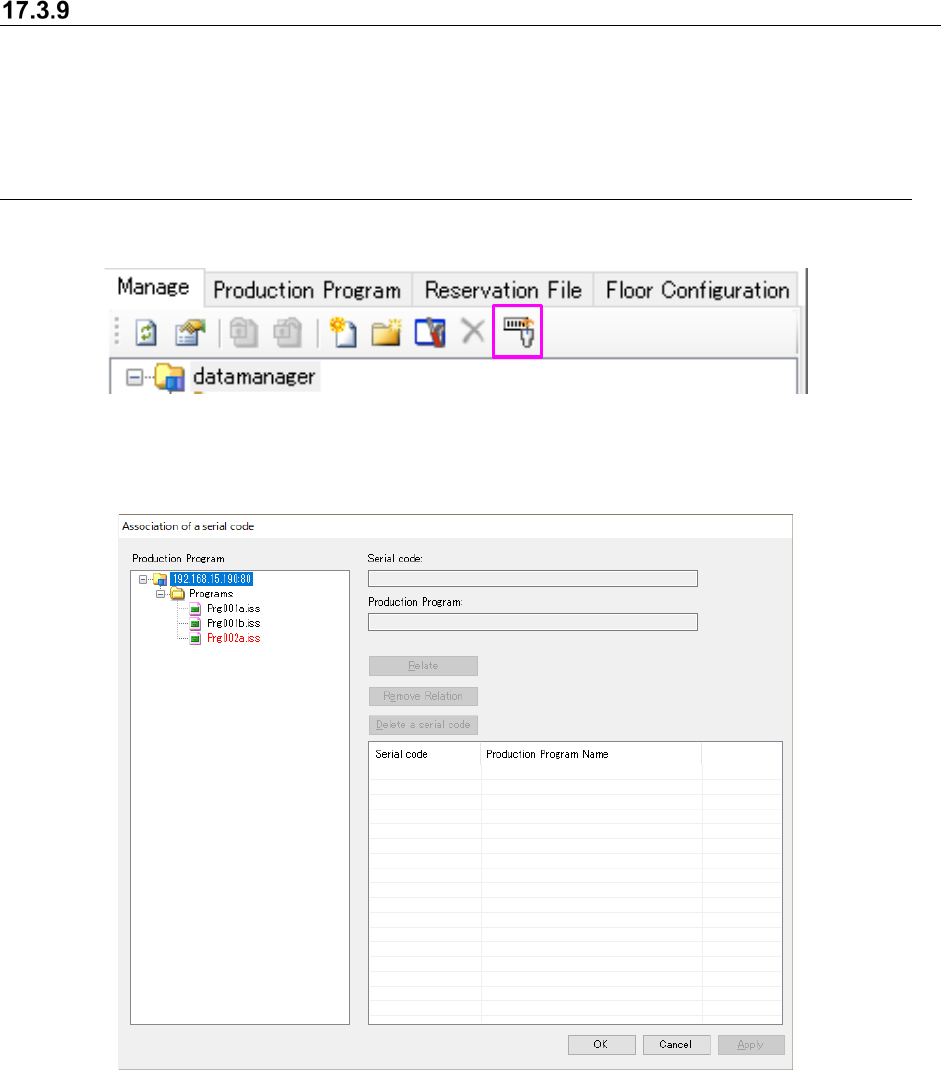
Select the “Association of a serial code” icon from the toolbar.
Figure 17.3-39 “Association of a serial code” menu item
The “Association of a serial code” screen appears.
Figure 17.3-40 “Association of a serial code” screen (Data Manager)
In the “Production Program” tree displayed on the left side of the screen, folders and production
program (.iss) files displayed with the Program Explorer are displayed in a tree structure.
However, any production program to be used for production with a reservation file is not displayed
in this tree. If the production line configuration defined with a production program is different
from that registered in the monitored production line, the corresponding production program is
displayed in red.
JaNets Instruction Manual 17 Program Explorer
17-33
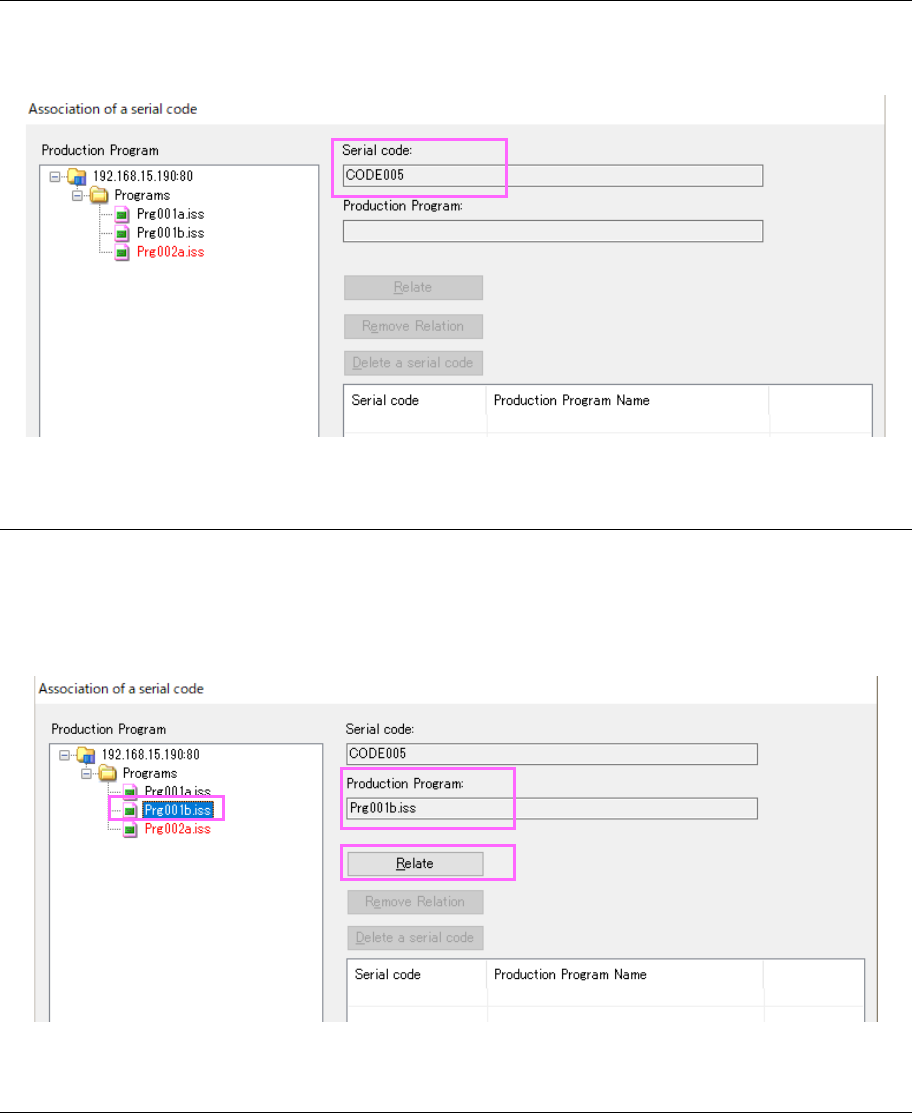
17.3.9.2 Reading a serial code
Use a code reader to read a serial code to be used for associating with a production program.
The read code is displayed on the “Association of a serial code” screen.
Figure 17.3-41 Screen displayed after a serial code is read
17.3.9.3 Specifying a production program to be associated with a serial code
Select a production program you want to associate with a serial code from among programs
displayed in the “Production Program” tree. The selected production program is displayed on
the “Association of a serial code” screen. When you finish reading a serial code and then
specifying a production program, the <Relate> button is enabled.
Figure 17.3-42 Screen displayed after you specify a production program
17.3.9.4 From executing association to terminating association
When you click the <OK> button or the <Cancel> button, the system finishes association
operation. When you click the <OK> button, the system saves the association information
before terminating association. When you click the <Cancel> button, the system does not save
any association information.
JaNets Instruction Manual 17 Program Explorer
17-34
17.4 Specifications of the Applications
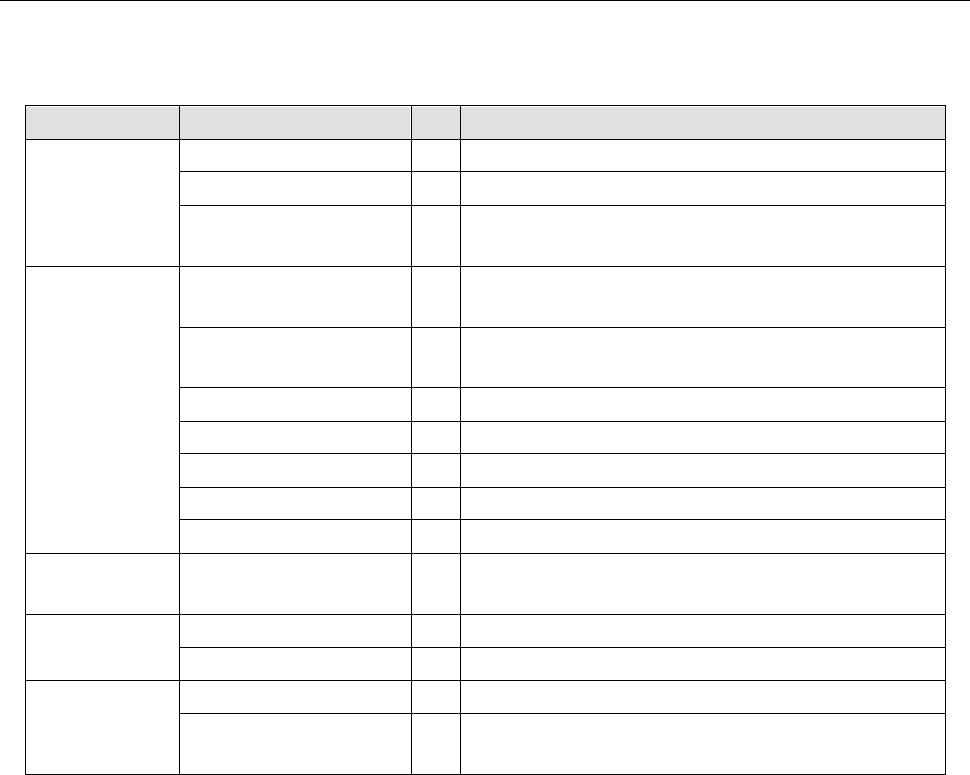
Applications into which the Program Explorer is incorporated are shown in Table 17.4-1.
Table 17.4-1 Specifications of each application
Application name
What to display
Shared User Management ×
Shopfloor Setup
×
(*1)
Component Database ○ Manage, Production Program, Reservation File and Floor
Configuration
Create Data Program Editor ○ Manage, Production Program, Reservation File and Floor
Configuration
Job Optimizer ○ Manage, Production Program, Reservation File and Floor
Configuration
Tact Simulation
○
Manage, Production Program and Floor Configuration
Feeder Set Database ○ Manage, Production Program and Reservation File
Mark Database
○
Manage and Production Program
Machine Program Relater × (*1)
Flexline CAD
×
Production Program Downloader ○ Manage, Production Program, Reservation File and Floor
Configuration
Maintenance
Tool
Snapshot Tool
○
Manage, Production Program and Reservation File
Log Control Tool ×
External Output
Function
External output monitor
×
Parts stock management
tool
×
○: To be used ×: Not to be used
*1 Displays the Line Explorer. The displayed contents are the same as those of the “Floor
Configuration.”