JANETS_INM.pdf - 第700页
JaNets In structio n Manual 19 T ra ceMonitor 19 -1 T race Monitor What i s T raceMo nito r? T raceMonitor uses log data out put from a machine register ed in the dat abas e to display error s that occurred dur ing pro d…
JaNets Instruction Manual 18. Nozzle Data Viewer
18-7
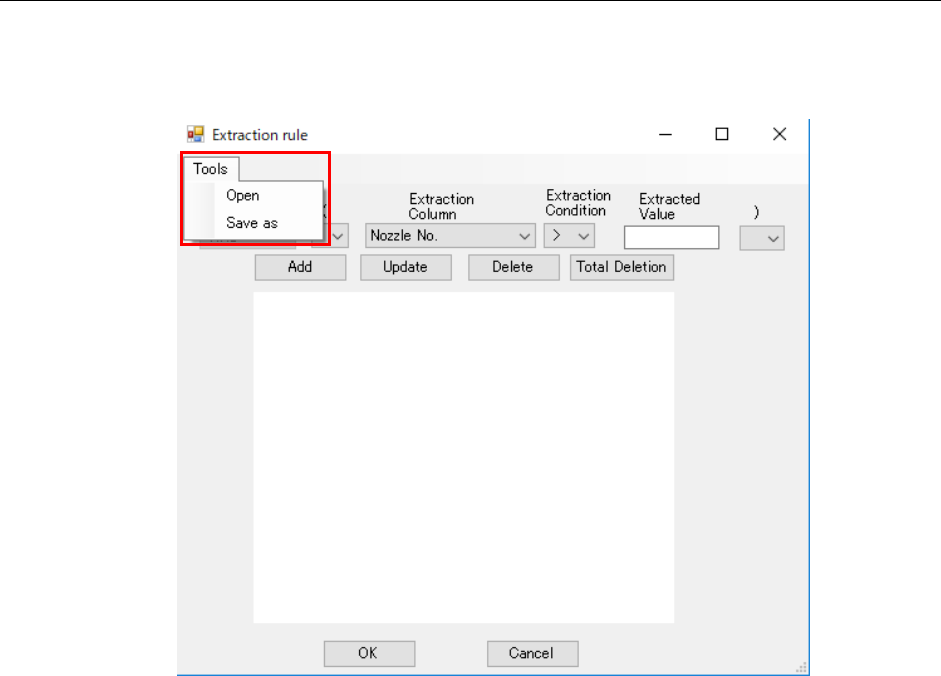
18-6-2 Saving/Loading an extraction rule
Select the menu command [Save as] from the “Too ls” menu to save an extraction rule.
Select the menu command [Open] from the “Too l s ” menu to load an extraction rule.
Figur 18-7-2 Saving/loading an extraction rule
JaNets Instruction Manual 19 TraceMonitor
19-1
TraceMonitor
What is TraceMonitor?
TraceMonitor uses log data output from a machine registered in the database to display errors that
occurred during production in a ranking format or in a graph.
19-1 Starting up or Quitting TraceMonitor
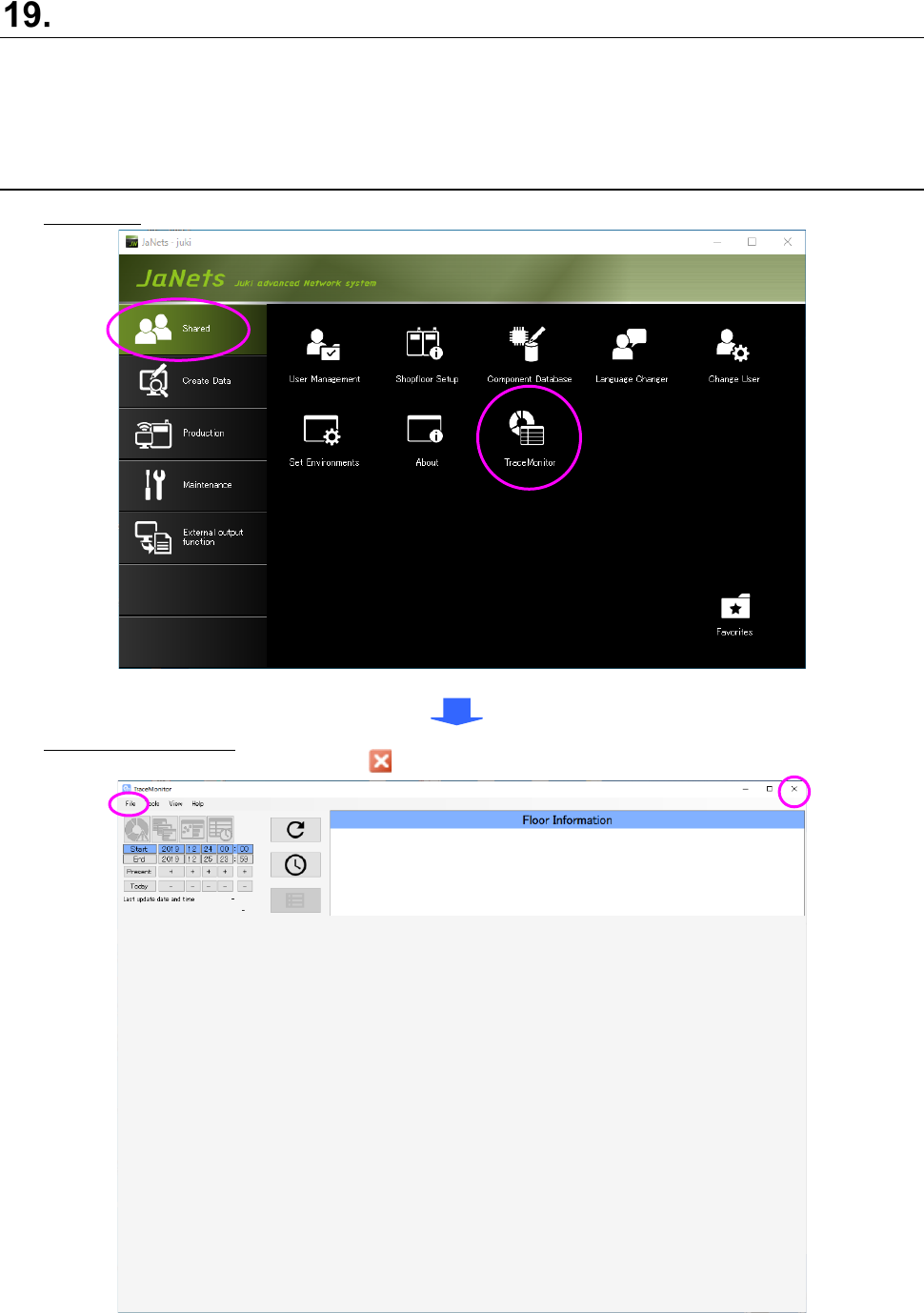
Starting up: Double-click the “TraceMonitor” icon on the “Shared” tab of the JaNets Launcher.
Figure 19-1-1 “JaNets Launcher” screen
Quitting TraceMonitor: Select the [Exit TraceMonitor] command from the “File” menu or select the
close mark ( ) on the title bar displayed on the upper right corner.
Figure 19-1-2 Screen displayed when you start up TraceMonitor for the first time
JaNets Instruction Manual 19 TraceMonitor
19
-2
19-2 Menu Configuration
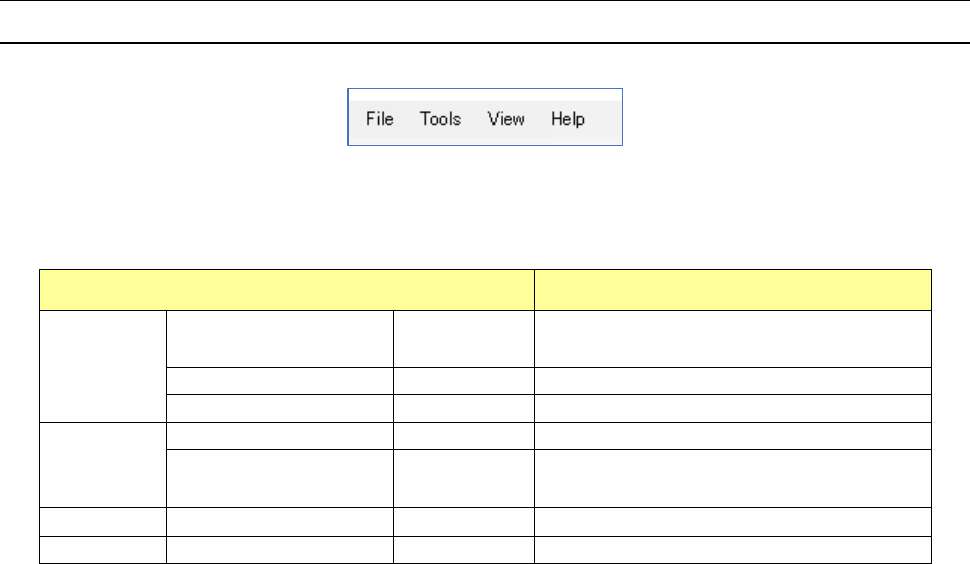
19-2-1 TraceMonitor menu
Figure 19-2-1 TraceMonitor menu
Table 19
-2-1 Items of the TraceMonitor menu
Menu items Description
File (F)
Save (S) Ctrl+S
Saves data shown on the screen
displayed at the present.
Save all (L)
Ctrl+Shitf+S
Saves data shown on all screens.
Exit TraceMonitor (X)
Alt+F4
Shuts down TraceMonitor.
Tools (T)
Set Environments (E)
Alt+E
Opens the “Set Environments” dialog box.
Change Language (L) Alt+L
Starts up the Language Changer
application.
View (V)
Corrective Action (A)
Alt+A
Opens the “Corrective Action” dialog box.
Help (H)
About (A)
Displays the version number.