JANETS_INM.pdf - 第704页
JaNets In structio n Manual 19 T ra ceMonitor 19 -5 19 -3-3 Upda ting alarm information 19 -3-3-1 Update button When you select a product ion line or a machine f rom the “Floor I nformat ion” screen and spec ify the data…
JaNets Instruction Manual 19 TraceMonitor
19-4
19-3-2 Floor information
19-3-2-1 When a production line to be monitored is changed
When you change the setting of a production line to be monitored, restart TraceMonitor.
19-3-2-2 Display of floor information
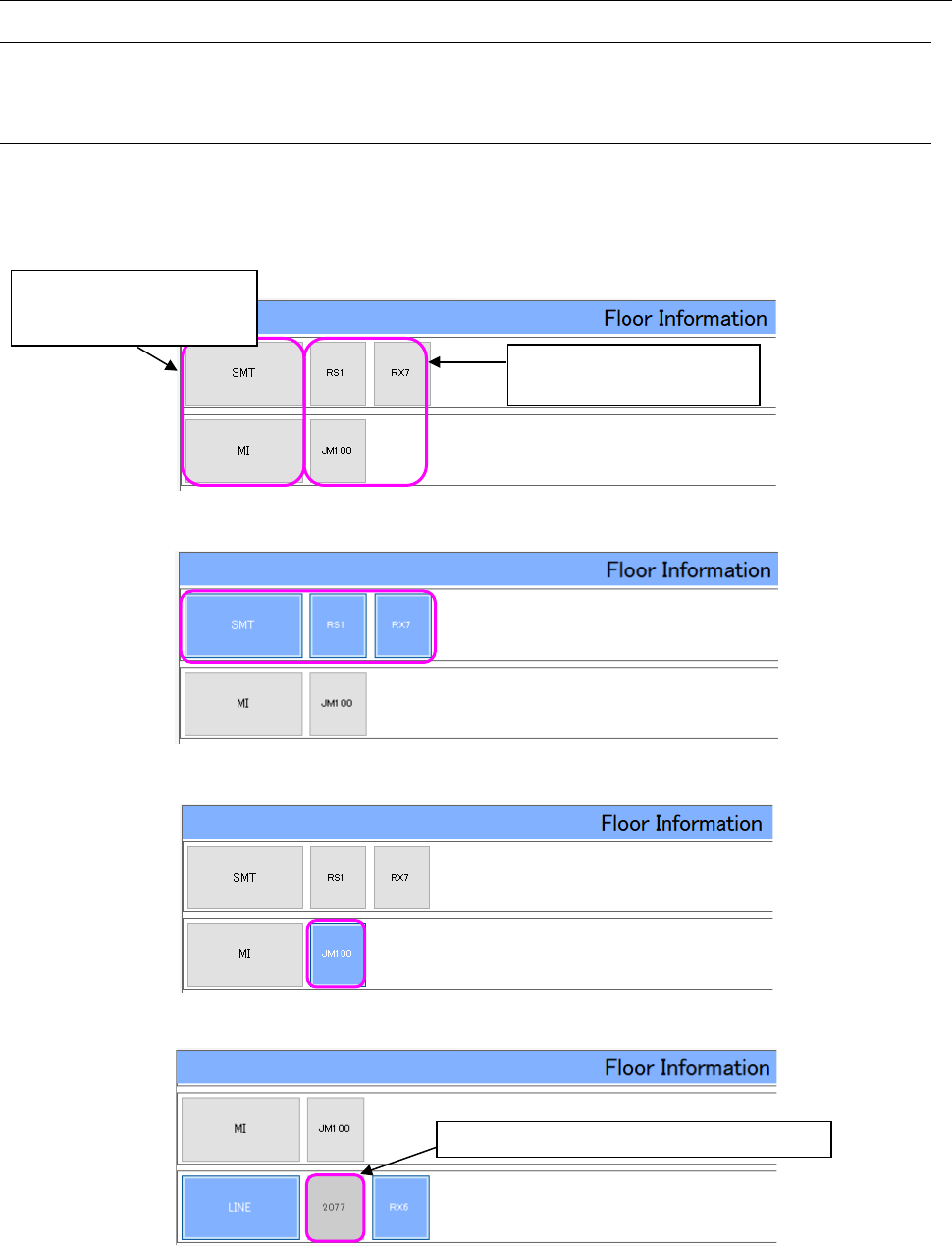
The “Floor Information” screen shows a monitored production line set with Shopfloor Setup.
You can select a production line or a machine from the “Floor Information” screen.
If any machine not supported is included in a monitored production line, the corresponding machine
icon is not selected on the screen so that you cannot select it.
Figure 19-3-2 “Floor Information” screen
Figure 19-3-3 “Floor Information” screen (when a production line is being selected)
Figure 19-3-4 “Floor Information” screen (when a machine is being selected)
Figure 19-3-5 “Floor Information” screen (An unsupported machine is displayed.)
Select one of these buttons to
select a machine.
You cannot select any unsupported machine.
Select either of these buttons
to select the corresponding
production line.
JaNets Instruction Manual 19 TraceMonitor
19-5
19-3-3 Updating alarm information
19-3-3-1 Update button
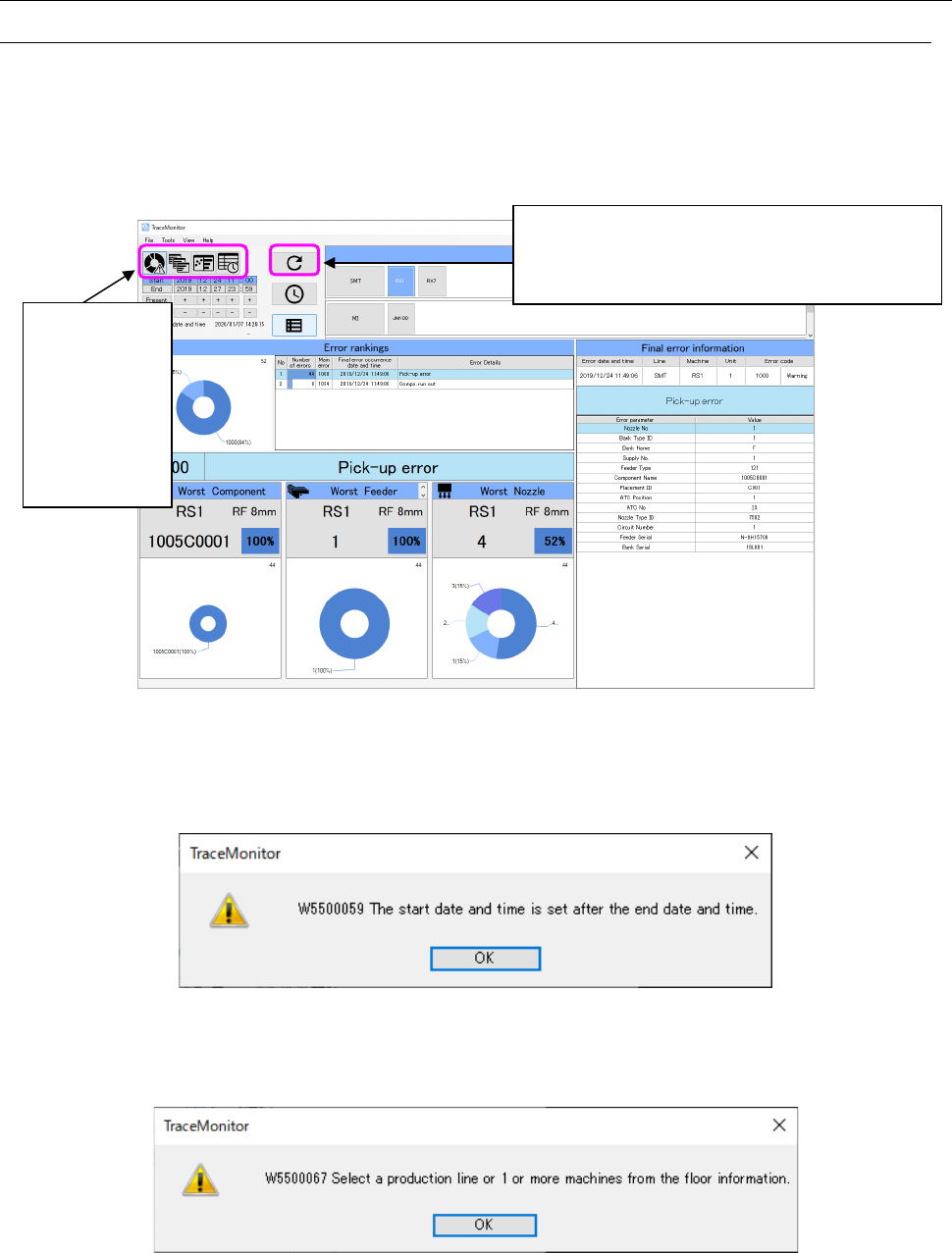
When you select a production line or a machine from the “Floor Information” screen and specify the
data collection period with the menu item “Search period at start-up,” and then press the Update
button, alarm data satisfying the search conditions are displayed on the screen.
When alarm information is updated successfully, the panel switch icons are enabled, and they allow
you to switch the panels among “Error rankings,” “Individual ranking,” “Timeline” and “Error history.”
Figure 19-3-6 TraceMonitor screen (after alarm data is updated)
If the start date and time for searching data within the data collection period exceeds the end date,
the following message appears on the screen.
Figure 19-3-7 Warning message issued when the start date and time exceeds the end date and time
If neither a production line nor a machine is selected, the following message appears on the screen.
Figure 19-3-8 Warning message issued when neither a production line nor a machine is selected
When you press the Update button, the TraceMonitor
retrieves data on the selected production line or
machine within the data collection period, and then
displays matched data.
You can switch
the displayed
panel to each of
“Error rankings,”
“Individual
ranking,”
“Timeline” and
“Error history.”
JaNets Instruction Manual 19 TraceMonitor
19-6
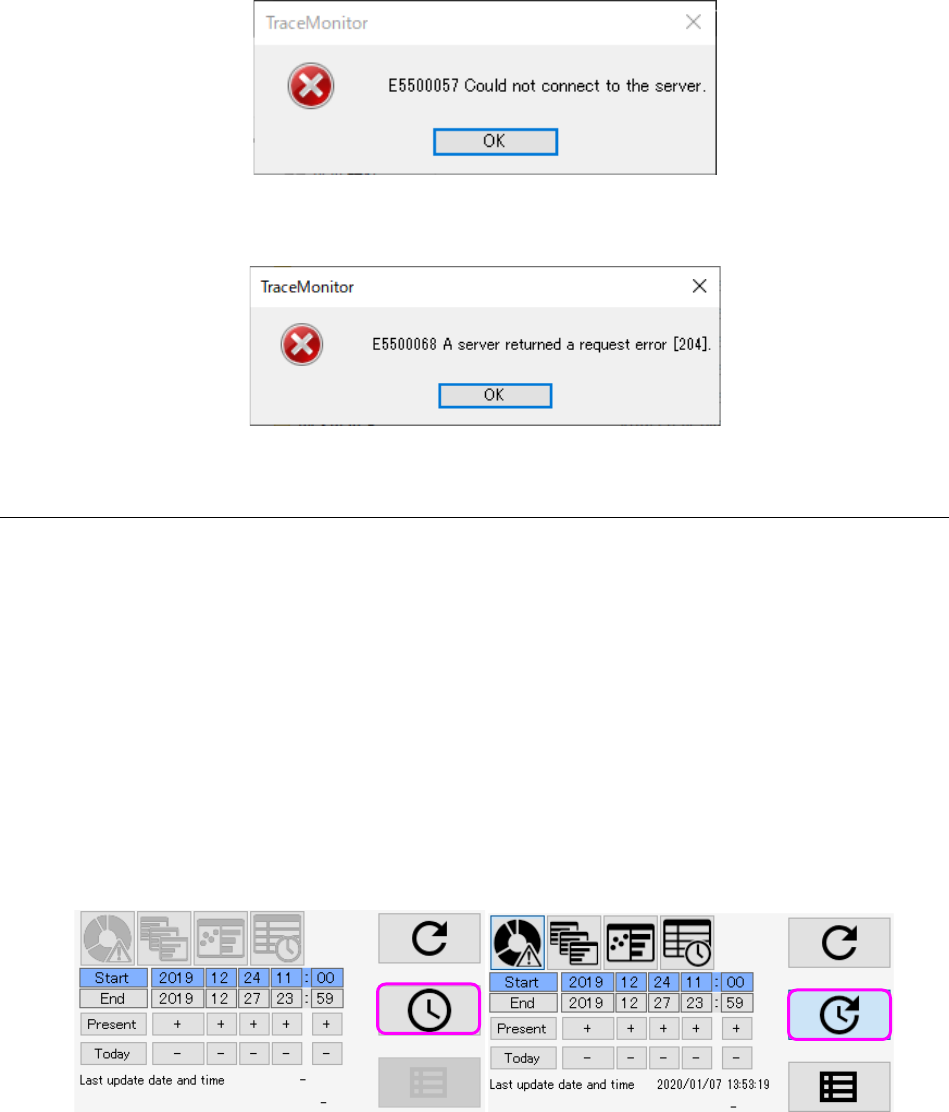
If the system cannot connect to the server, the following message appears on the screen.
Figure 19-3-9 Server connection error message
If any error occurs on the server, the following message appears on the screen.
Figure 19-3-10 Server request error message
19-3-3-2 Automatic update
Automatic update is a function that performs search of information repeatedly under the conditions
set for the menu item “Search period at start-up” at the desired intervals. When you press the
<Alarm update> button when the Automatic update function is set to ON or when you set the
Automatic update function to ON after pressing the <Alarm update> button, TraceMonitor starts
automatic update operation (note that TraceMonitor does not start updating if you change the
Automatic update function setting to ON although you have never searing any information).
After update starts, the columns for entering the date for searching data displayed on the upper left
corner are updated automatically also. If a condition for searching data by a production program
name is set, TraceMonitor updates data under this condition also.
If TraceMonitor cannot connect to the server or any error occurs at the server when data is updated,
TraceMonitor does not update the data automatically. In this case, when you set the Automatic
update function to ON again, TraceMonitor restarts automatic update operation. When a user
presses the <Alarm update> button, automatic update operation is canceled too.
Figure 19-3-11 Automatic update button (ON/OFF)