JANETS_INM.pdf - 第72页
JaNets Instr ucti on Man ual 2. Install ation 2- 44 (3) When the “New User” sc reen app ears, enter the user name an d the pass word. Check the “Passwor d never ex pires” check box on ly . When you finish t hese o perati…
JaNets Instruction Manual 2. Installation
2-43
2.5.3 Procedure for setting up an RP-1 or an RV series machine
A service engineer is supposed to make the settings of each machine according to the “Procedure for
setting up an RP-1 or an RV series machine.”
2.5.3.1 Creating a user account
To communicate with a PC, create a user account for the machine.
The name of the account to be created is “isuser,” and the corresponding password is
“is_user_2008.”
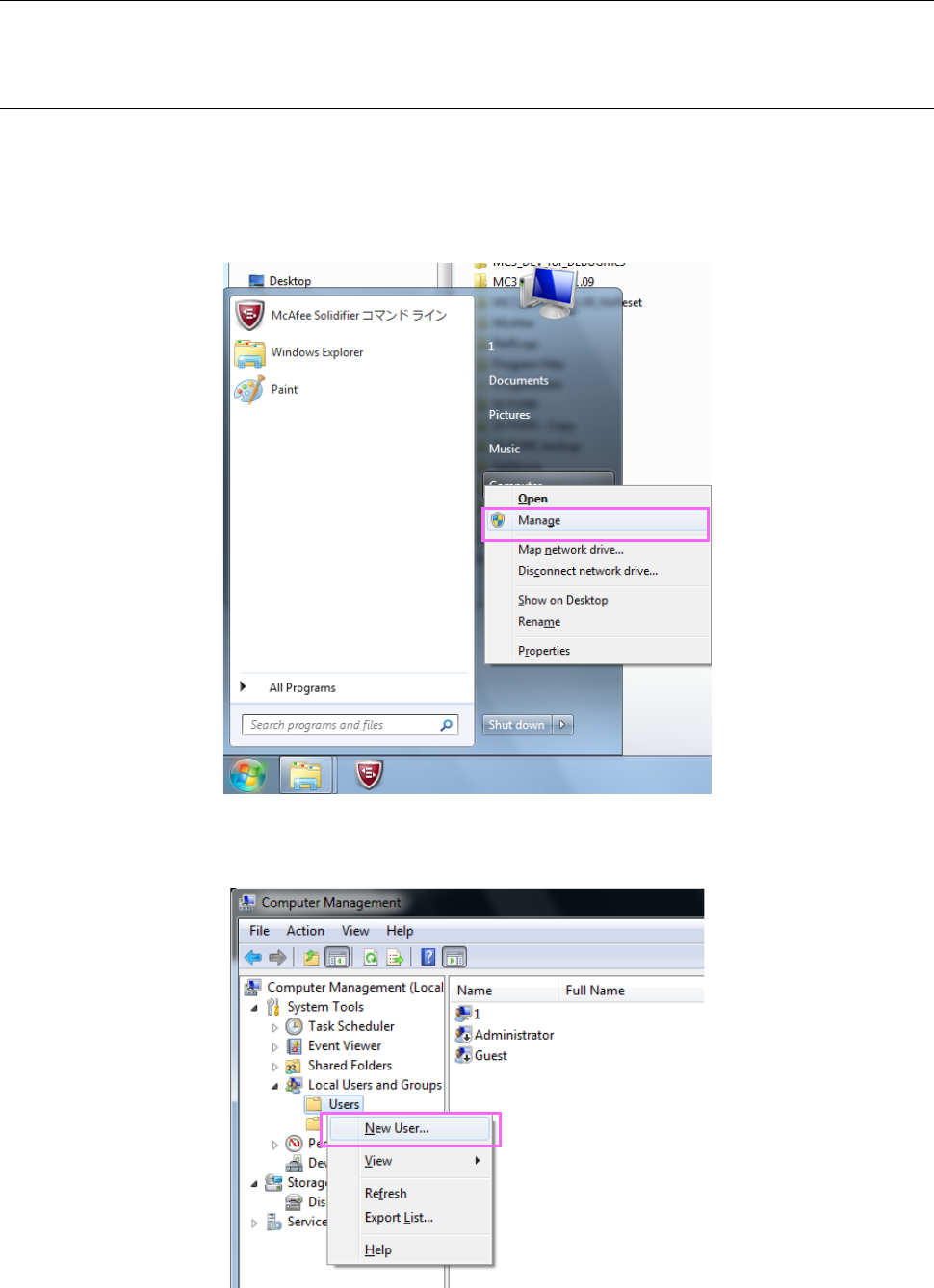
(1) Click the “Computer” on the Start menu of the Windows running on the machine main unit with
the right button. When the menu appears on the screen, click [Manage].
Figure 2.5-21 Start menu of the RP/RV series machine
(2) Click with the right button the “Users” on the “Local Users and Groups” tree displayed on the left
side of the screen. When the menu shown below appears on the screen, click [New User].
Figure 2.5-22 “Computer Management” screen
JaNets Instruction Manual 2. Installation
2-44
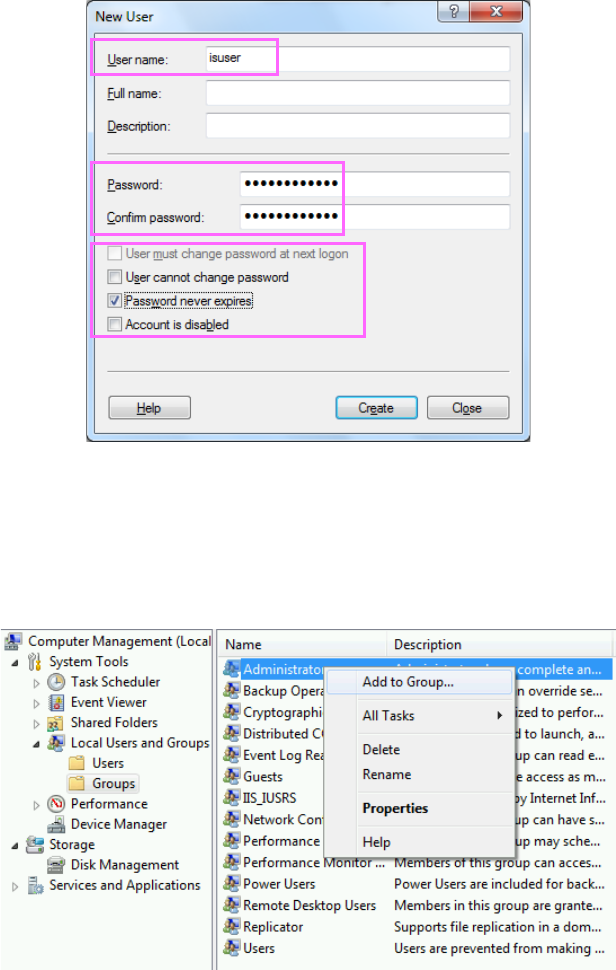
(3) When the “New User” screen appears, enter the user name and the password. Check the
“Password never expires” check box only. When you finish these operations, click the <Create>
button.
Figure 2.5-23 “New User” screen
(4) Click the <Close> button to close the “New User” screen.
(5) Click “Groups” on the “Local Users and Groups” tree displayed on the left side of the screen.
When the list of groups appears on the screen, click “Administrator” with the right button. When
the menu shown below appears on the screen, click [Add To Group…].
Figure 2.5-24 Adding a user to a group
JaNets Instruction Manual 2. Installation
2-45
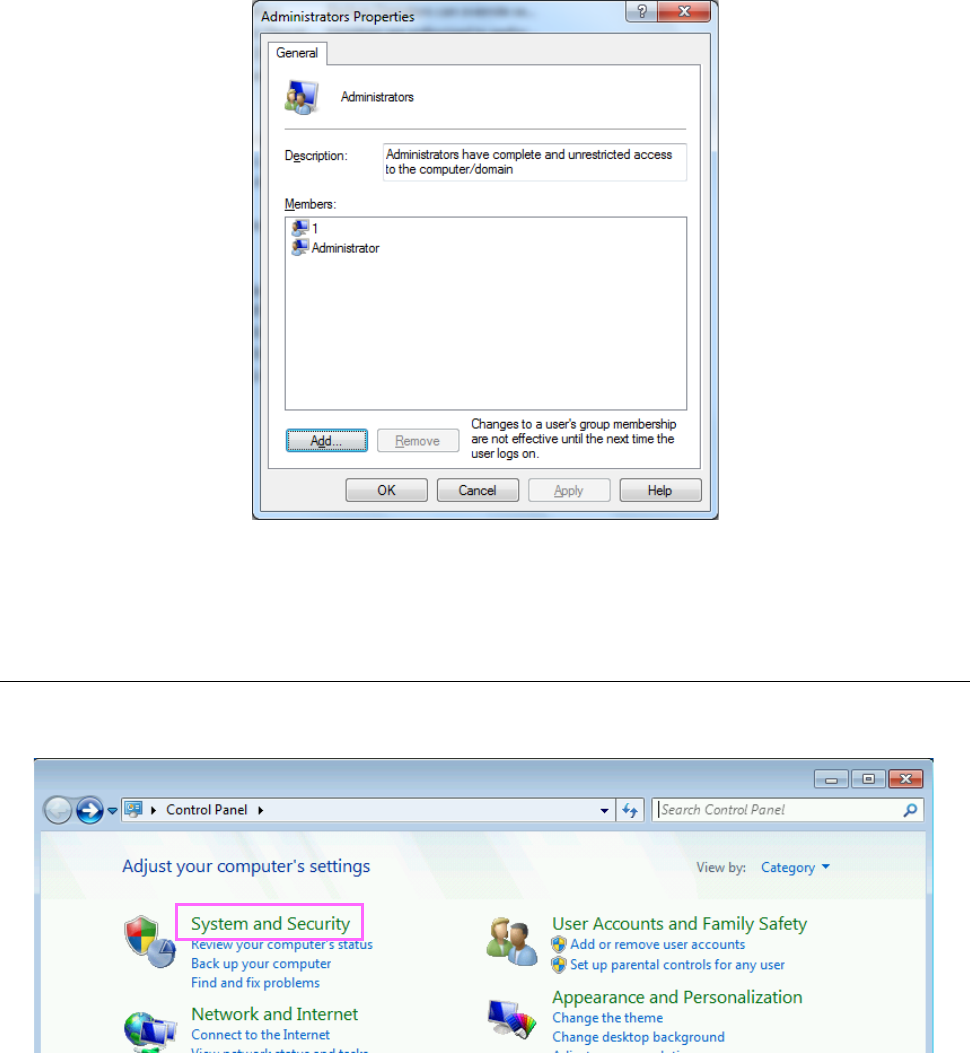
(6) The “Administrators Properties” screen appears, and name of users belonging to the group are
displayed on this screen. Click the <Add> button to add “isuser” to the group.
Figure 2.5-25 “Administrators Properties” screen
You have finished creating your user account here.
2.5.3.2 Disabling the firewall
(1) Click [Control Panel] on the Start menu of Windows running on the machine main unit. When
the control panel appears on the screen, click the “System and Security.”
Figure 2.5-26 “Control Panel” screen