JANETS_INM.pdf - 第725页
JaNets In structio n Manual 19 T ra ceMonitor 19 - 26 19 -3- 10 Outputting a file This is a funct ion for out putt ing accumu lated dat a as a CSV (b y deli mited w ith a comm a) file a nd an XML file. When you sel ect t…
JaNets Instruction Manual 19 TraceMonitor
19-25
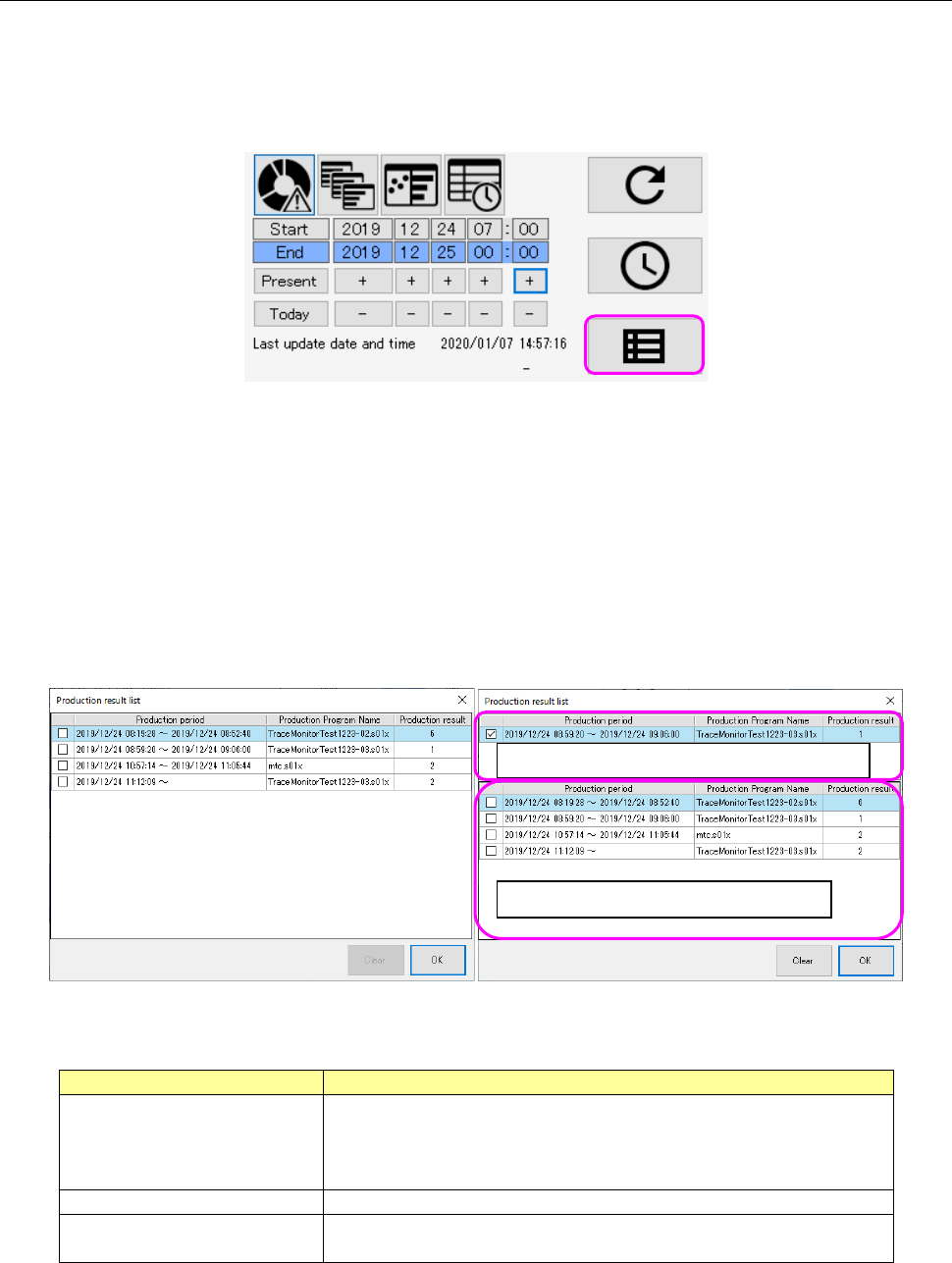
19-3-9 Selecting a production program
The time period in which each production program is to be searched from alarm data satisfying the
search condition is displayed.
When you select a production program, you can search for each type of errors within the production
period.
Figure 19-3-46 Production program selecting button
When you press the production program selecting button, the “Production result list” is displayed in
the ascending order of start time. When you select one desired production period and press the
<OK> button, your selection is reflected in the search time.
The “Production result list” can display simultaneously two types of data, the longest period of alarm
data among the updated alarm data and the alarm data searched the last time. When these two
types of data are the same, they are displayed as shown in the left figure below. When they are
different from each other, they are shown in the right figure below.
When you press the <Clear> button, the longest period of production result data is deleted.
Figure 19-3-47 “Production result list” screen
Table 19-3-13 Items of the “Production result list”
Item
Description
Production period
Displays the duration from when production starts until when it
ends in units of seconds.
It is displayed as blank for data being used for production at
the preset or if the production end time cannot be obtained.
Production Program Name
Displays a production program name.
Production result
Displays the number of PWBs produced within the production
period.
Production result data searched the last time
Longest period of production result data
JaNets Instruction Manual 19 TraceMonitor
19-26
19-3-10 Outputting a file
This is a function for outputting accumulated data as a CSV (by delimited with a comma) file and an
XML file.
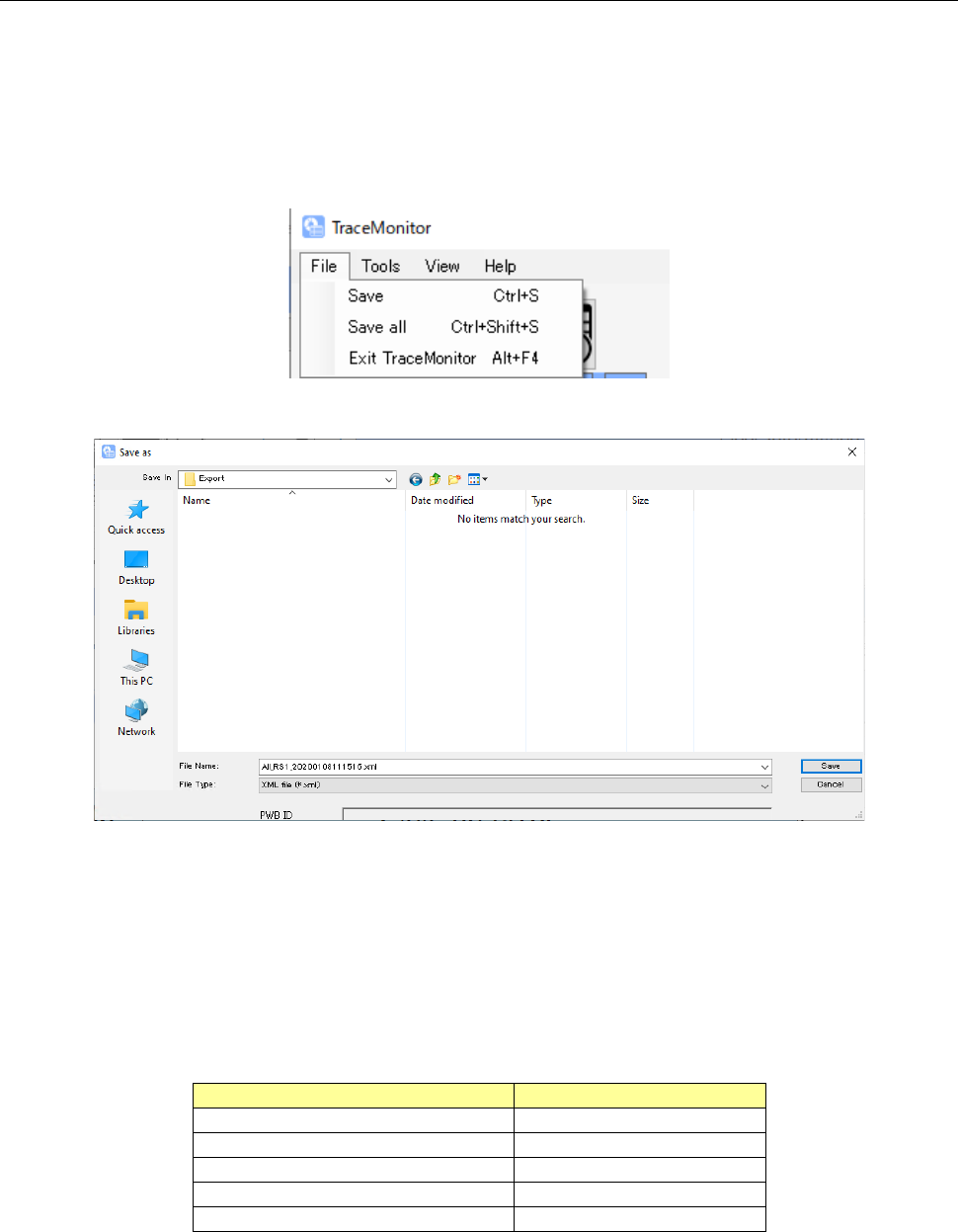
When you select the menu command [Save (S)], data shown on each displayed screen (Error
rankings screen/Individual ranking screen/Timeline screen/Error history scree) is saved. When you
select the menu command [Save all (L)], data on all screens are saved.
When you select output of data as a CSV file, the file is output together with UTF-8BOM.
Figure 19-3-48 Menu for saving a file
Figure 19-3-49 “Save as” dialog box
The default file name is assigned as shown below when you save data.
Default file name: “Data name + production line name or machine name +
YearMonthDayHourSecond.extension”
The data name varies depending on the screen being displayed as shown in the table below.
Table 19-3-14 Data name for each screen
Displayed screen
Data name
Worst ranking
WorstRanking
Individual ranking
DetailRanking
Timeline
TimeSeries
Error history
ErrorHistory
When <Save all> is selected
All
JaNets Instruction Manual 19 TraceMonitor
19-27
The file formats that can be used for saving a file are shown below.
File format: XML file (*.xml) format and CVS file (*.csv) format
Example: Timeline data output to the L1 production line at 12:58:00 on April 5, 2019 is saved
in CSV format as shown below.
TimeSeries_L1_20190405125800.csv
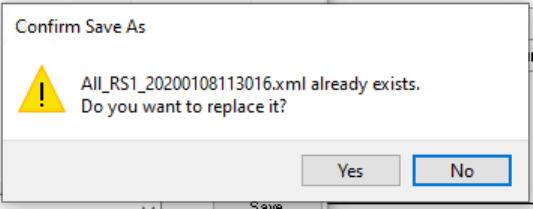
When you specify a file that exists already, the inquiry message for overwriting it appears on the
screen.
Figure 19-3-50 Confirmation message for overwriting a file
<Yes>: Overwrites an existing file.
<No>: Names a file, and then returns to the “Save as” dialog box.