JANETS_INM.pdf - 第726页
JaNets In structio n Manual 19 T ra ceMonitor 19 - 27 The file format s that can b e used for sav ing a file ar e shown be low . File format: XML file (*.xml) format and CVS fi le (*.csv) format Example: T imeline data o…
JaNets Instruction Manual 19 TraceMonitor
19-26
19-3-10 Outputting a file
This is a function for outputting accumulated data as a CSV (by delimited with a comma) file and an
XML file.
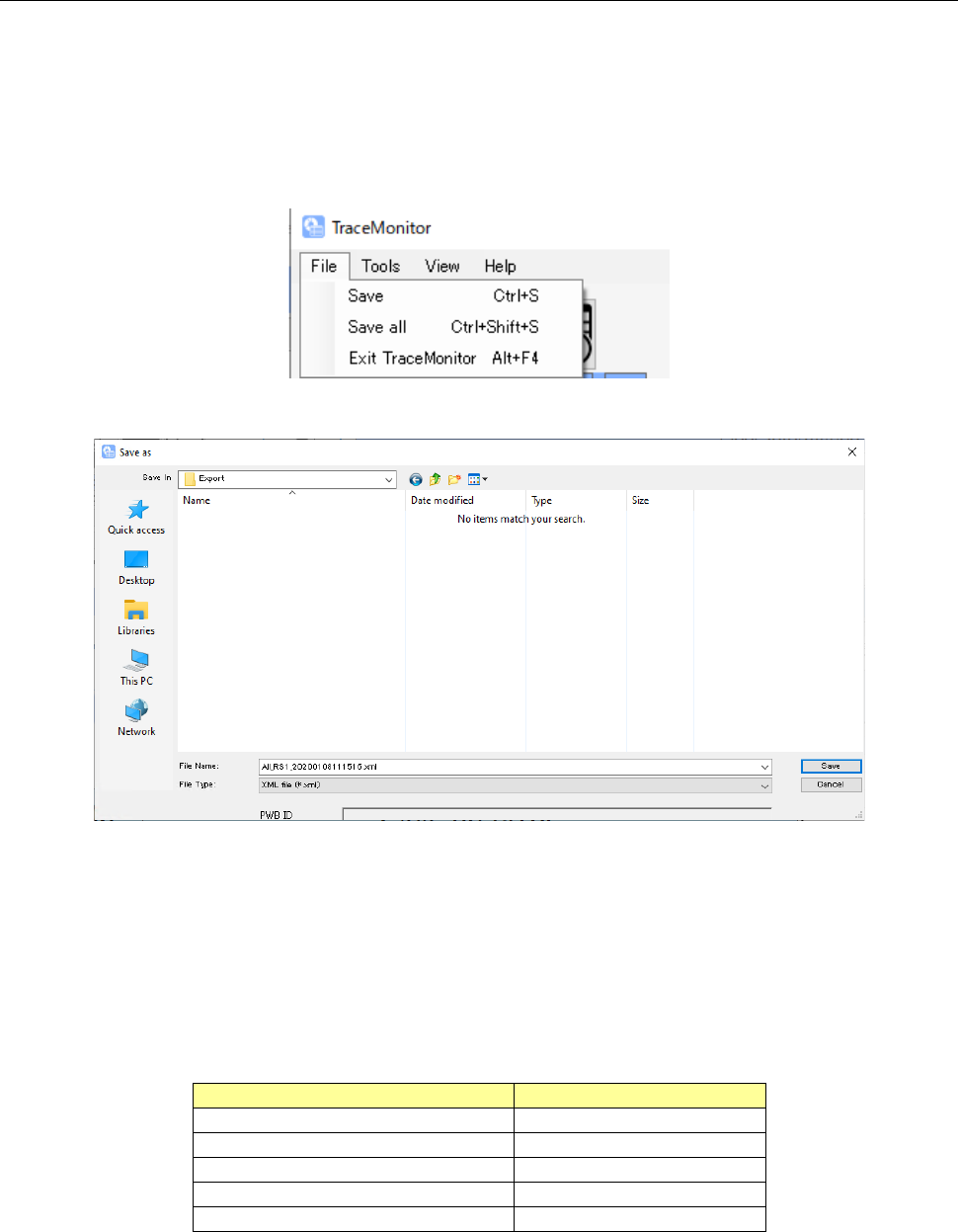
When you select the menu command [Save (S)], data shown on each displayed screen (Error
rankings screen/Individual ranking screen/Timeline screen/Error history scree) is saved. When you
select the menu command [Save all (L)], data on all screens are saved.
When you select output of data as a CSV file, the file is output together with UTF-8BOM.
Figure 19-3-48 Menu for saving a file
Figure 19-3-49 “Save as” dialog box
The default file name is assigned as shown below when you save data.
Default file name: “Data name + production line name or machine name +
YearMonthDayHourSecond.extension”
The data name varies depending on the screen being displayed as shown in the table below.
Table 19-3-14 Data name for each screen
Displayed screen
Data name
Worst ranking
WorstRanking
Individual ranking
DetailRanking
Timeline
TimeSeries
Error history
ErrorHistory
When <Save all> is selected
All
JaNets Instruction Manual 19 TraceMonitor
19-27
The file formats that can be used for saving a file are shown below.
File format: XML file (*.xml) format and CVS file (*.csv) format
Example: Timeline data output to the L1 production line at 12:58:00 on April 5, 2019 is saved
in CSV format as shown below.
TimeSeries_L1_20190405125800.csv
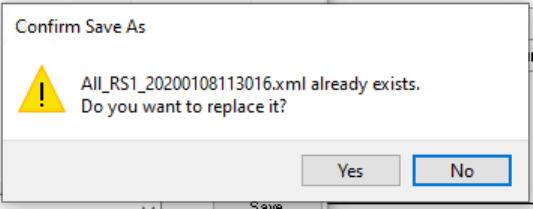
When you specify a file that exists already, the inquiry message for overwriting it appears on the
screen.
Figure 19-3-50 Confirmation message for overwriting a file
<Yes>: Overwrites an existing file.
<No>: Names a file, and then returns to the “Save as” dialog box.
JaNets Instruction Manual 19 TraceMonitor
19-28
19-3-11 Set Environments
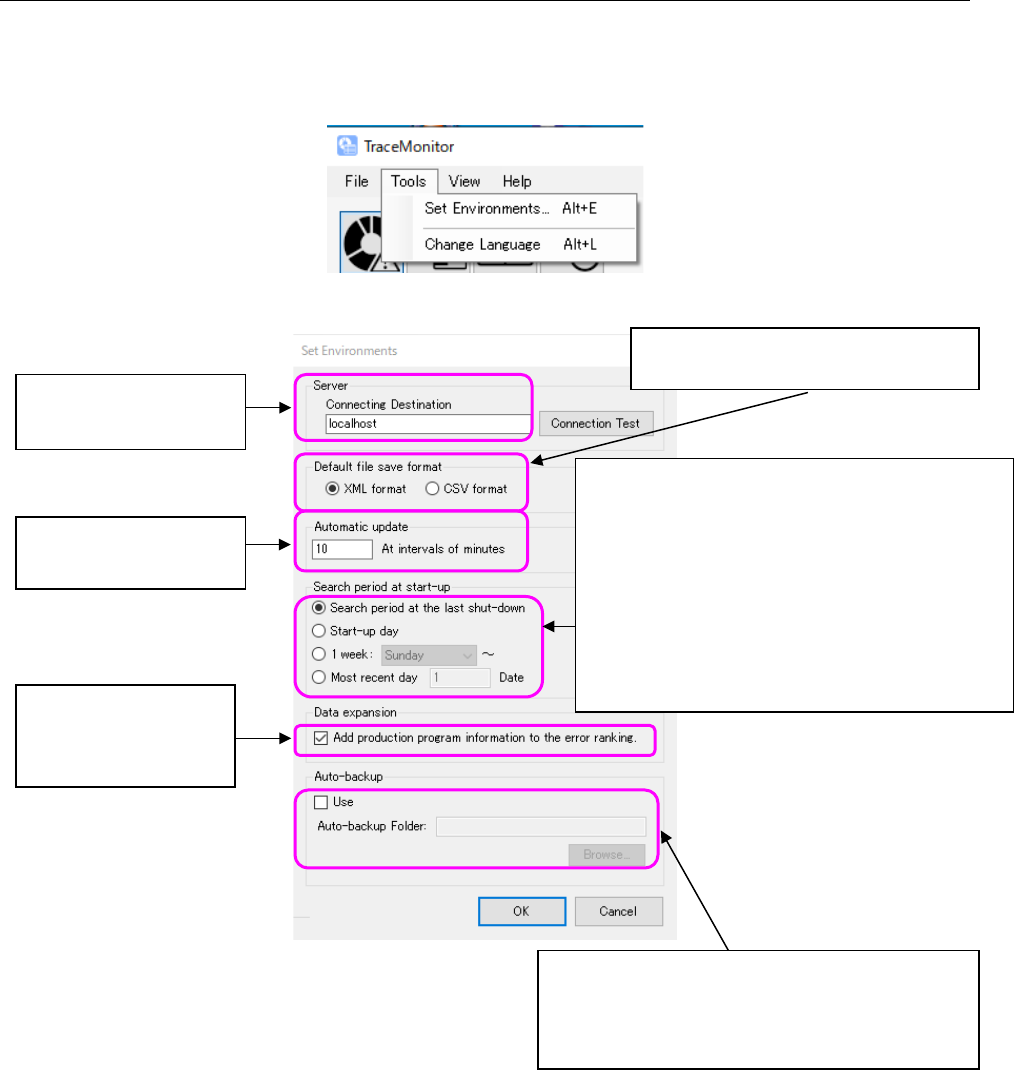
Select the menu commands, [Tools], and then [Set Environments] or press the Alt key and the E key
at the same time to start up the “Set Environments” menu, and specify the default file saving format
of TraceMonitor.
Figure 19-3-51 “Set Environments” menu
Figure 19-3-52 “Set Environments” dialog box
Data obtaining destination
Default: localhost
Automatic update interval
Default: 10 minutes
When you check off this
check box, the tool chip
for the error ranking is
displayed additionally.
The checked format is a file type to be
selected by default when a file is saved.
When you check off this check box, TraceMonitor
automatically backs up the database.
TraceMonitor copies data stored in the database 90
or more days ago into the backup folder.
Specify the period to be entered by default as the
search period when TraceMonitor starts up.
Search period at the last shut-down: Time when
the search was performed at the end when you quit
TraceMonitor the last time
Start-up day: 00:00 to 23:59 on the start-up day
1 week (day is to be specified): One week from the
specified day of the week including the start-up day
Most recent day: Specified number of days
including the start-up day