JANETS_INM.pdf - 第73页
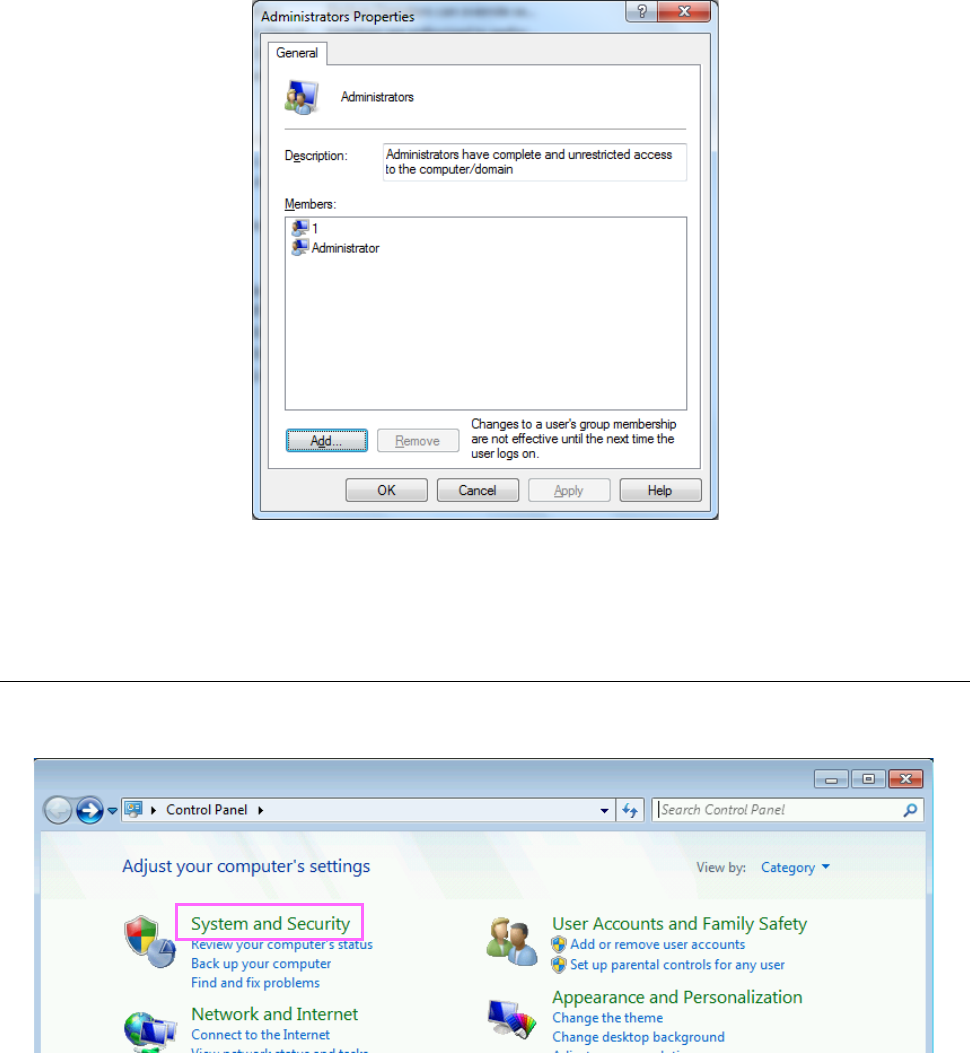
JaNets Instr ucti on Man ual 2. Install ation 2- 45 (6) The “Adm inistr ators Propert ies” screen appear s, and na me of u sers bel ongi ng to the group ar e displayed o n this scr een. Click the <Add> but ton to a…
JaNets Instruction Manual 2. Installation
2-44
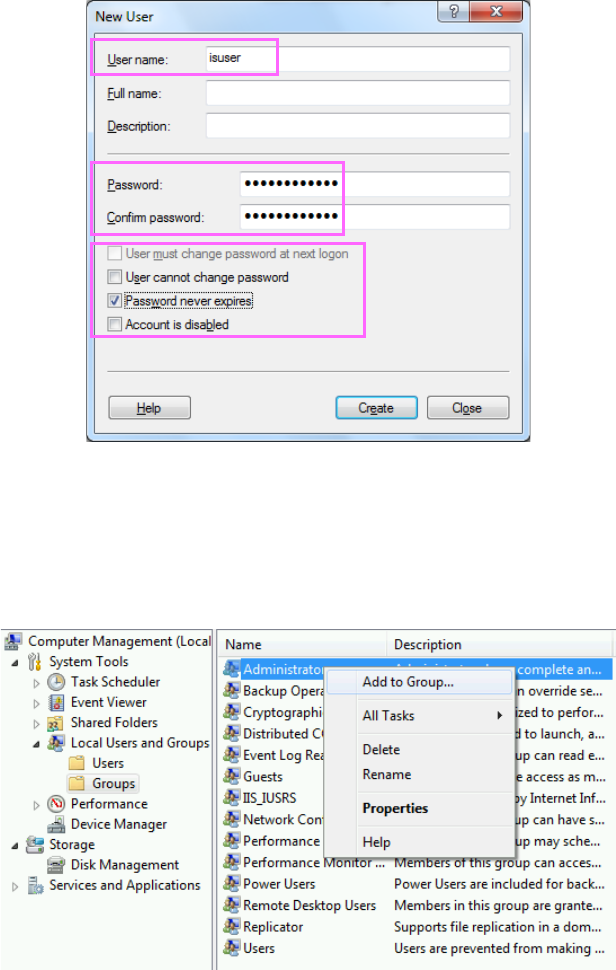
(3) When the “New User” screen appears, enter the user name and the password. Check the
“Password never expires” check box only. When you finish these operations, click the <Create>
button.
Figure 2.5-23 “New User” screen
(4) Click the <Close> button to close the “New User” screen.
(5) Click “Groups” on the “Local Users and Groups” tree displayed on the left side of the screen.
When the list of groups appears on the screen, click “Administrator” with the right button. When
the menu shown below appears on the screen, click [Add To Group…].
Figure 2.5-24 Adding a user to a group
JaNets Instruction Manual 2. Installation
2-45
(6) The “Administrators Properties” screen appears, and name of users belonging to the group are
displayed on this screen. Click the <Add> button to add “isuser” to the group.
Figure 2.5-25 “Administrators Properties” screen
You have finished creating your user account here.
2.5.3.2 Disabling the firewall
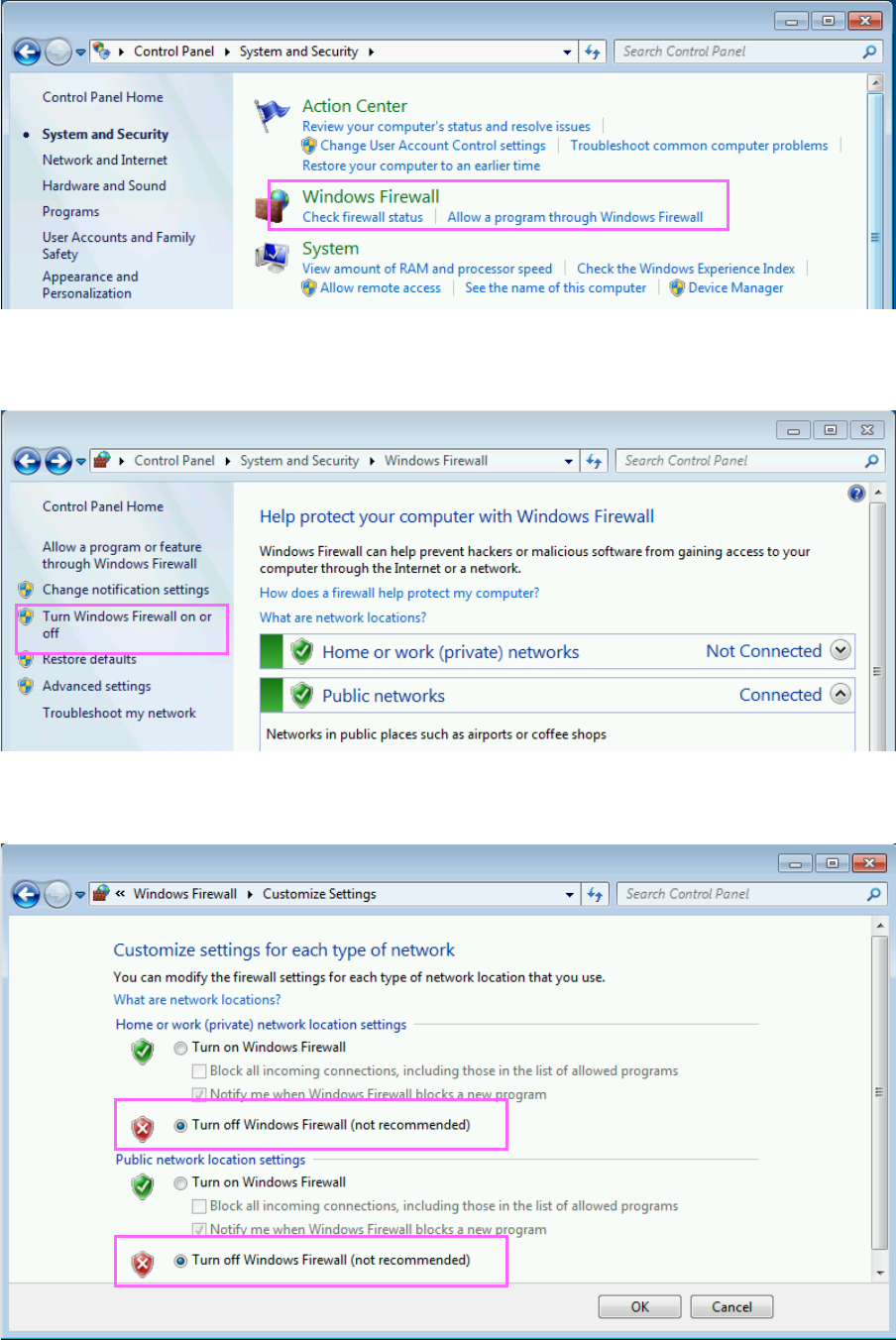
(1) Click [Control Panel] on the Start menu of Windows running on the machine main unit. When
the control panel appears on the screen, click the “System and Security.”
Figure 2.5-26 “Control Panel” screen
JaNets Instruction Manual 2. Installation
2-46
(2) Click the “Windows Firewall.”
Figure 2.5-27 “System and Security” screen
(3) The Windows Firewall screen appears. Click the menu item “Turn Windows Firewall on or off”
displayed on the left side of the screen.
Figure 2.5-28 “Windows Firewall” screen
(4) Disable the Windows Firewall, and then click the <OK> button.
You have finished disabling the firewall here.