JANETS_INM.pdf - 第732页
J aN et s Instruc tion M anua l A. P at c h V er si o n Insta llation T ool A-3 “Patc h Ins ta ller” scre en A. 2 Op erate the f oll ow ing w izar d sc reen to p er f orm the p atch i nstal lati o n pr ocess of a JaN ets…
JaNets Instruction Manual A. Patch Version Installation Tool
A-2
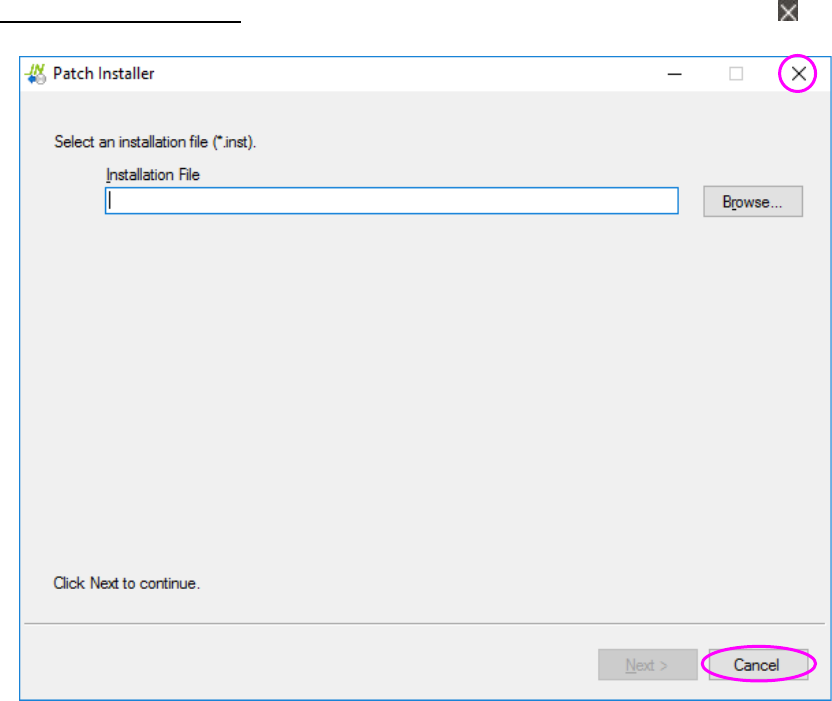
To quit the Patch Installer: Click the <Cancel> button, or select the close button ( ).
Figure A.1-2 “Patch Installer” screen
JaNets Instruction Manual A. Patch Version Installation Tool
A-3
“Patch Installer” screen A.2
Operate the following wizard screen to perform the patch installation process of a JaNets program.
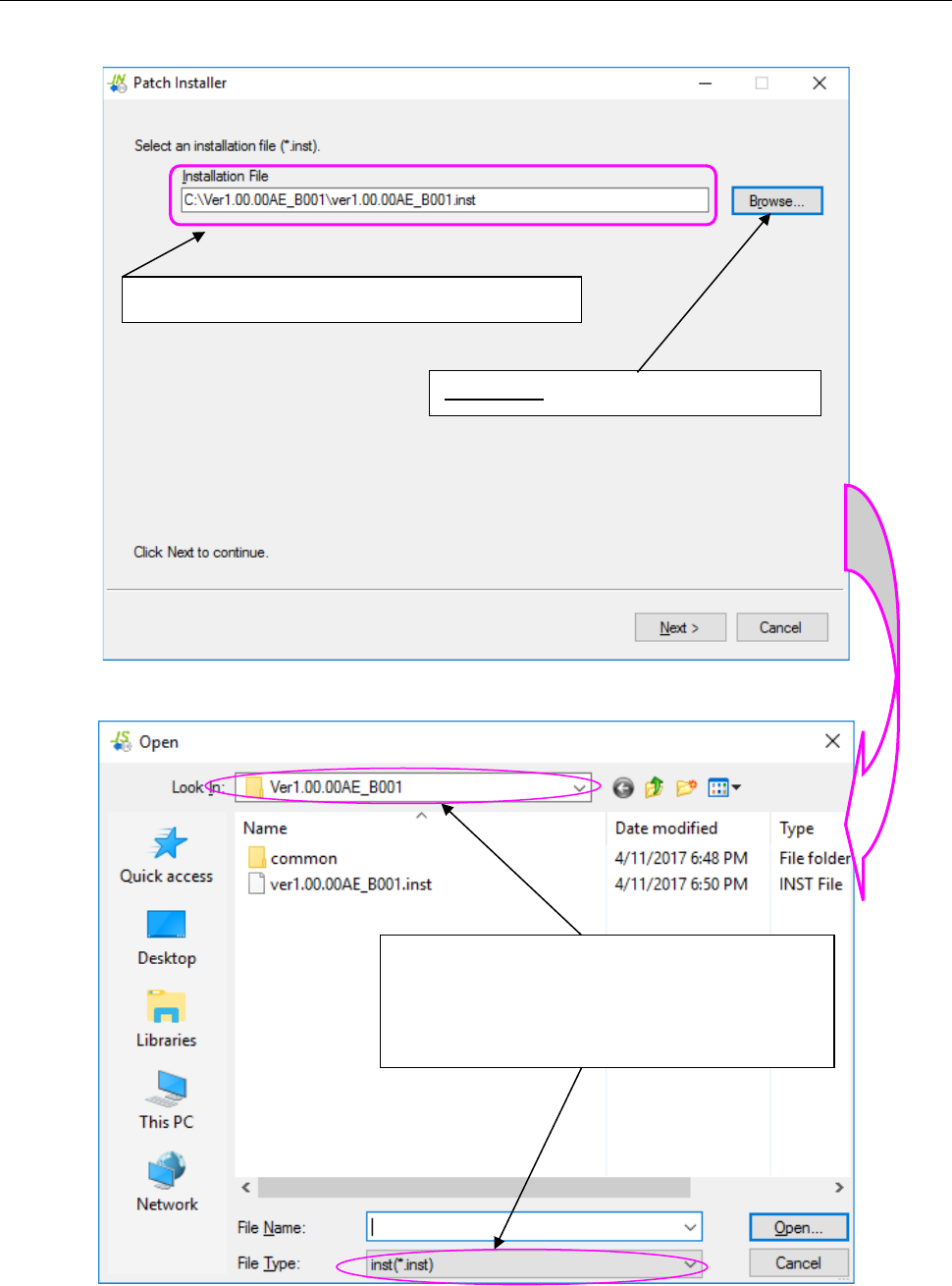
Figure A.2-1 Screen for selecting an installation file (file to be installed)
Figure A.2-2 “Open” dialog box for selecting a file
The selected installation file name is displayed here.
<Browse>: Starts up the “Open” dialog box.
Select the desired folder in the “Look In” field and the
desired file type in the “File Type” field (that is, a file in
the format of MI Line Optimizer patch installer
file*.inst) , and then select a file name. Next, select
the <Open> button.
JaNets Instruction Manual A. Patch Version Installation Tool
A-4
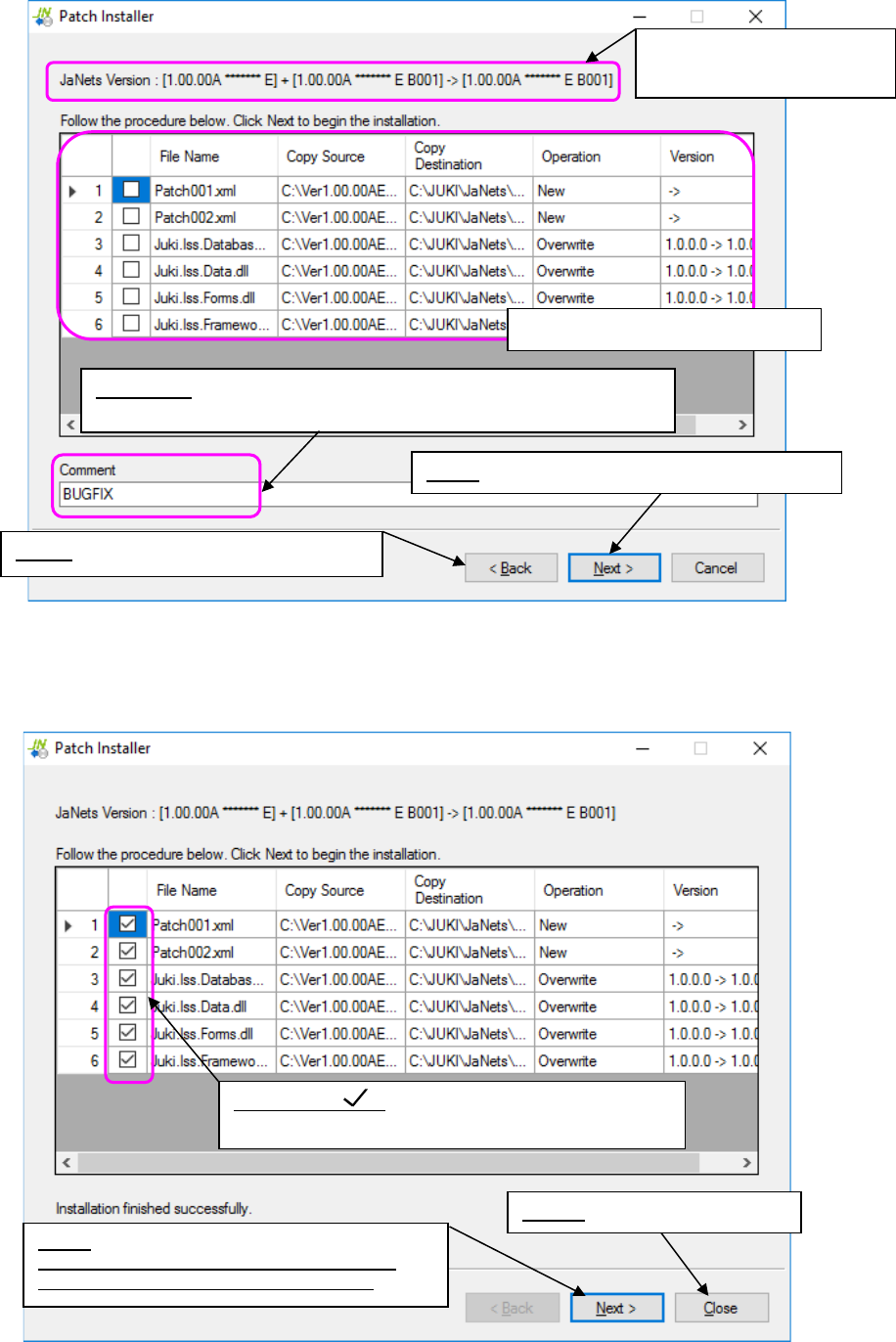
Figure A.2-3 Installation checking screen
<Screen displayed when installation is done normally>
Figure A.2-4 When installation is done normally
Displays the system versions
before/after installation.
Columns for checking installations
Back: Goes back to the “Open” dialog box.
Comment: Automatically entered if you select installation from the
“Installation File” field.
Check mark :
Indicates that installation is done normally.
Close: Quits the Patch Installer.
Next:
Returns to an installation file selection screen.
You can proceed to install other patches.
Next: Goes to the installation execution screen.