JANETS_INM.pdf - 第738页
JaNets In structio n Manual B. T roubleshootin g B-5 B.4 Whe n you update Window s, the RemoteSe rver.exe error occurs. 【 Phenom enon 】 After you upd ate Windows , an Except ion error r elated to Re moteServ er .exe oc c…
JaNets Instruction Manual B. Troubleshooting
B-4
B.3 When the Program Downloader starts up, the E3105019 error
occurs.
【Phenomenon】
When the Program Downloader starts up, the E3105019 error occurs.
The application communicating with the machine does not start up yet.
To start up the communication application, you have to enable “Secondary Logon” of the
Windows Services.
【Corrective action】
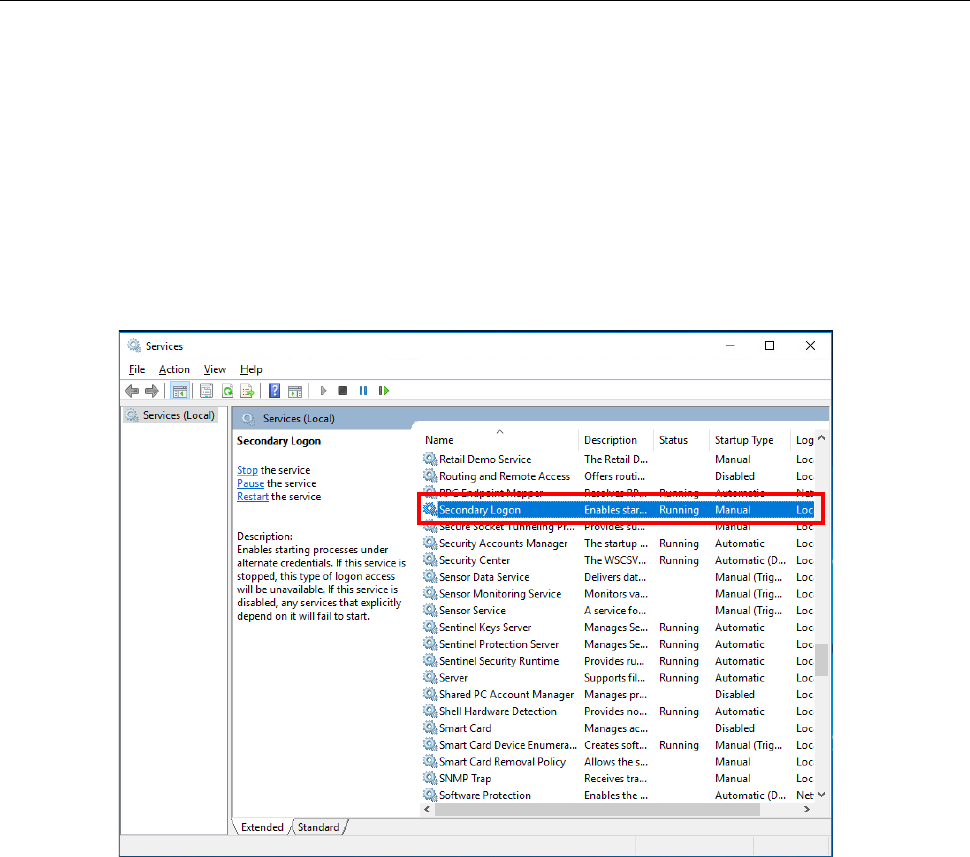
Start up [Control Panel] – [Administrative Tools] – [Services] in this order, select the “Secondary
Logon,” and then click with the right button to display the property. Set the items whose
“Startup Type” is set to “Disabled” to another choice, and then start the service.
JaNets Instruction Manual B. Troubleshooting
B-5
B.4 When you update Windows, the RemoteServer.exe error occurs.
【Phenomenon】
After you update Windows, an Exception error related to RemoteServer.exe occurs.
When you update Windows, the settings for starting up RemoteServer.exe may change in some
cases.
【Corrective action】
Perform either the operation described in Section B.4.1 “Changing the settings with the tool” or
that in Section B.4.2 “Changing the settings manually” to modify the settings.
B.4.1 Changing the settings with the tool
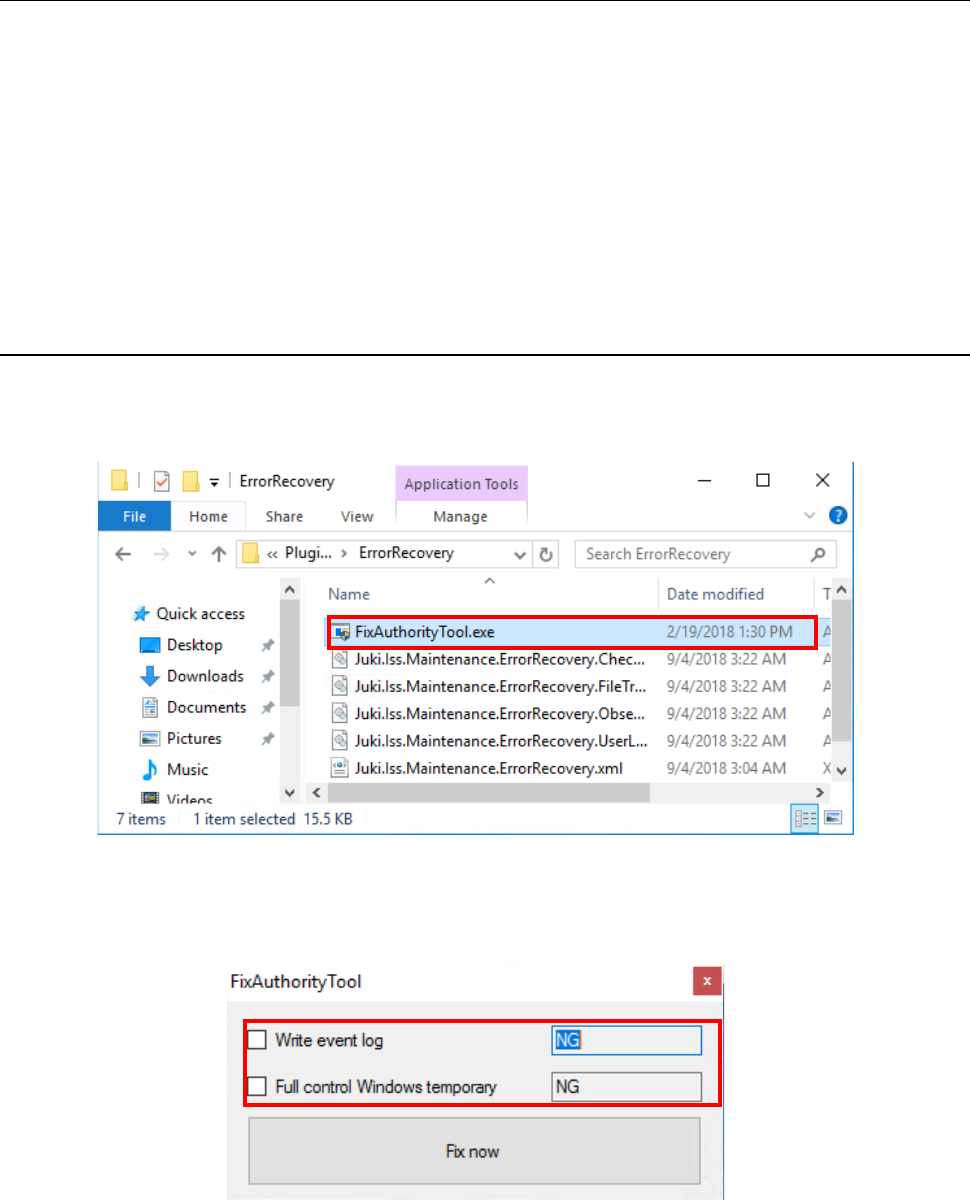
To change the settings with the tool, a user who has the administrator’s privilege has to start up
“¥Plugins¥ErrorRecovery¥FixAuthorityTool.exe” from the JaNets installation destination folder.
The tool starts up, and then displays the settings of the privileges required to start up
RemoteServer.exe.
JaNets Instruction Manual B. Troubleshooting
B-6
If “NG” is displayed for any menu item, check off the corresponding check box, and then click the
<Fix now> button. Check to see if the status of the corresponding item changes to “OK.”
B.4.2 Changing the settings manually
Check the settings of the following items:
- Whether you have the permission to create a log of RemoteServer.exe.
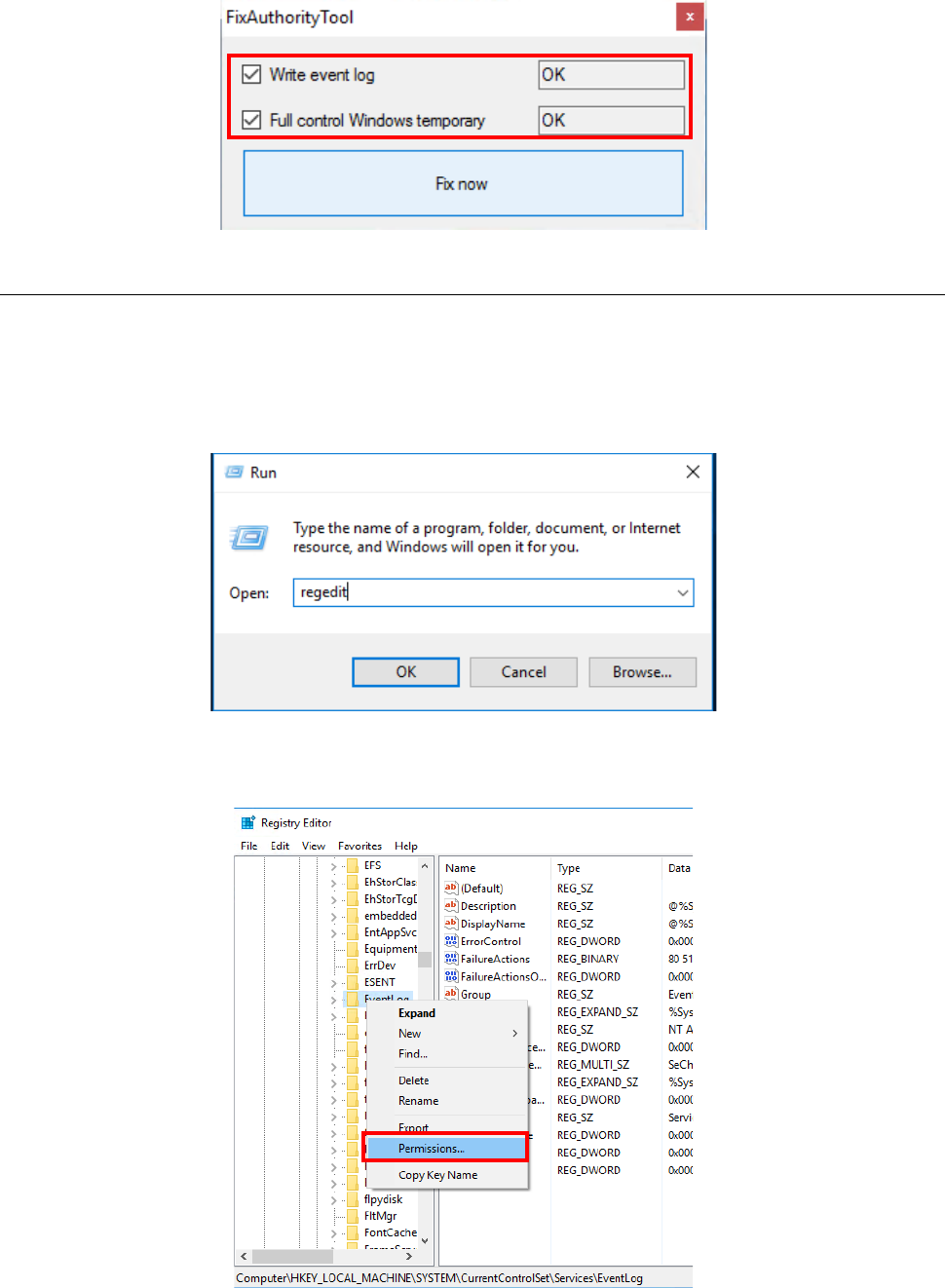
Select [Run] from the “Start” menu of the Windows, and then enter “regedit” to start up the
Registry Editor.
Select “HKEY_LOCAL_MACHINE¥SYSTEM¥CurrentControlSet¥Services¥Eventlog,” and
then click with the right button to select the [Permissions] menu command.