JANETS_INM.pdf - 第739页
JaNets In structio n Manual B. T roubleshootin g B-6 If “ NG ” is dis played for a ny menu ite m, check of f the correspond ing chec k box, and t hen cl ick the <Fix now> button. Check to see if th e status of th e…
JaNets Instruction Manual B. Troubleshooting
B-5
B.4 When you update Windows, the RemoteServer.exe error occurs.
【Phenomenon】
After you update Windows, an Exception error related to RemoteServer.exe occurs.
When you update Windows, the settings for starting up RemoteServer.exe may change in some
cases.
【Corrective action】
Perform either the operation described in Section B.4.1 “Changing the settings with the tool” or
that in Section B.4.2 “Changing the settings manually” to modify the settings.
B.4.1 Changing the settings with the tool
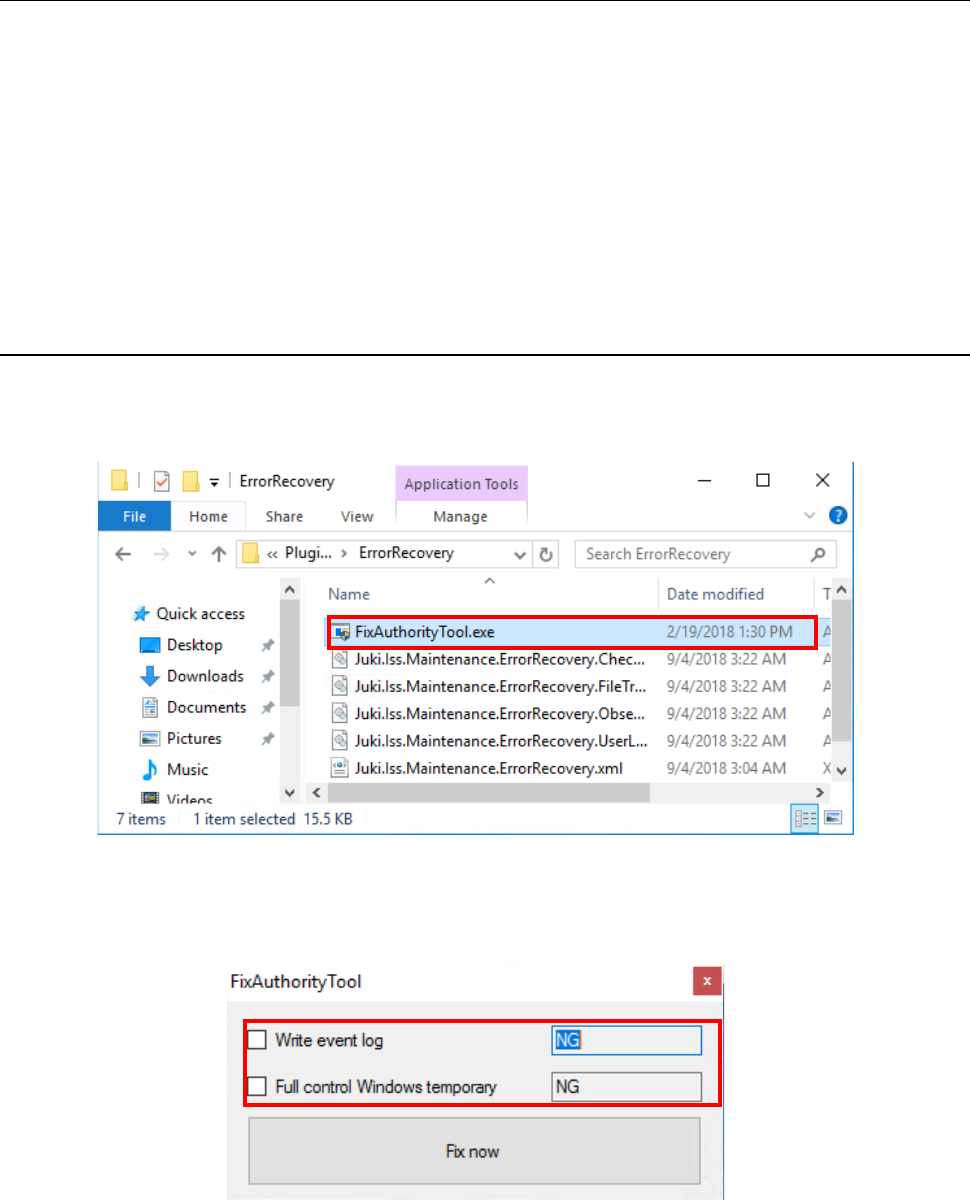
To change the settings with the tool, a user who has the administrator’s privilege has to start up
“¥Plugins¥ErrorRecovery¥FixAuthorityTool.exe” from the JaNets installation destination folder.
The tool starts up, and then displays the settings of the privileges required to start up
RemoteServer.exe.
JaNets Instruction Manual B. Troubleshooting
B-6
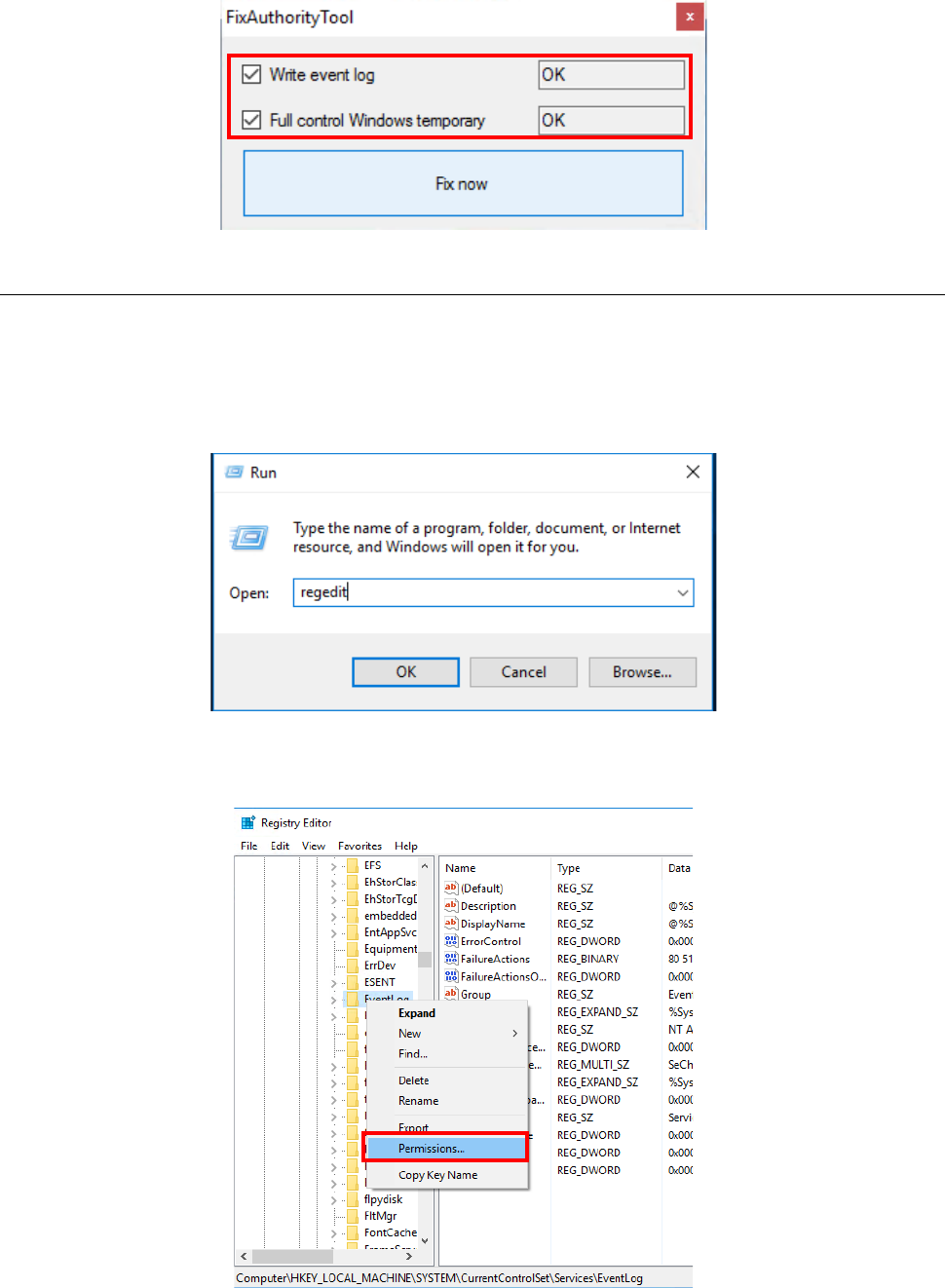
If “NG” is displayed for any menu item, check off the corresponding check box, and then click the
<Fix now> button. Check to see if the status of the corresponding item changes to “OK.”
B.4.2 Changing the settings manually
Check the settings of the following items:
- Whether you have the permission to create a log of RemoteServer.exe.
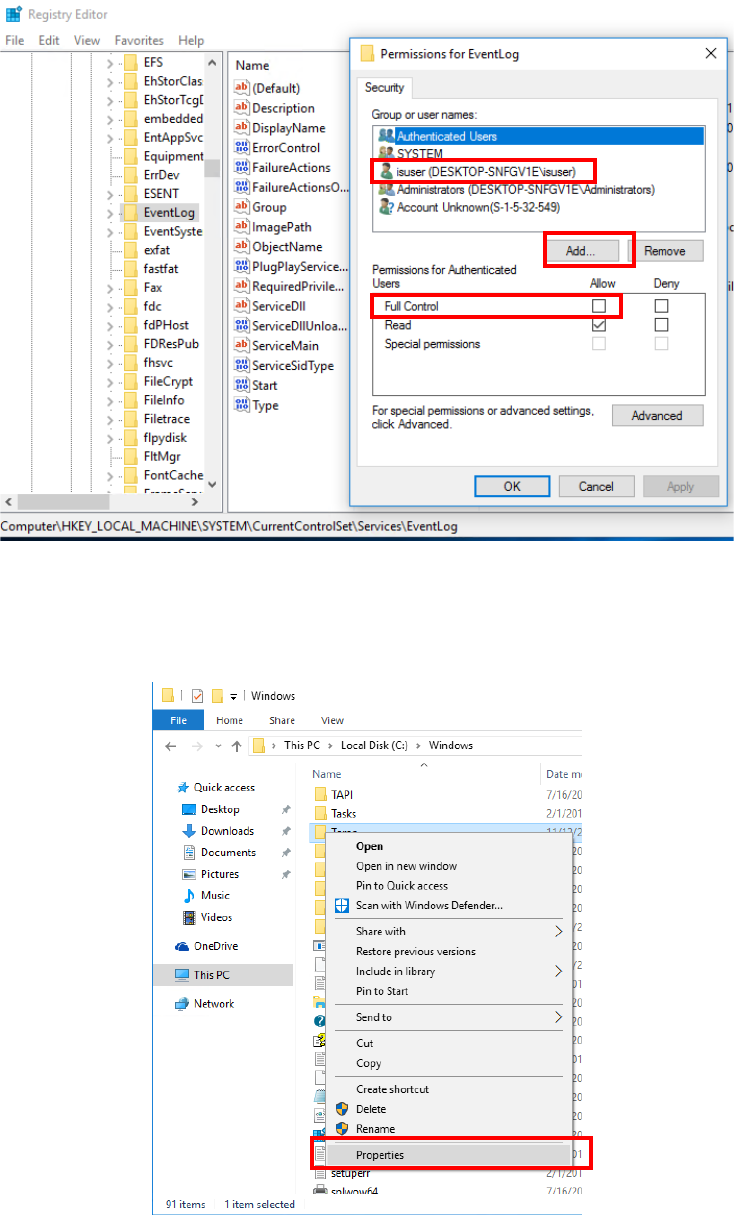
Select [Run] from the “Start” menu of the Windows, and then enter “regedit” to start up the
Registry Editor.
Select “HKEY_LOCAL_MACHINE¥SYSTEM¥CurrentControlSet¥Services¥Eventlog,” and
then click with the right button to select the [Permissions] menu command.
JaNets Instruction Manual B. Troubleshooting
B-7
When the Permissions for Eventlog starts up, check to see if “isuser” is shown in the list. If it
is not, add it to the list by clicking the <Add> button, and then check the “Allow” check box for
the setting item “Full Control.”
- Whether “C:¥Windows¥Tem p ” has the user authority of “isuser.”
Use Explorer to select “C:¥Windows¥Tem p ,” and then click with the right button to display the
menu command [Properties].