JANETS_INM.pdf - 第75页
JaNets Instr ucti on Man ual 2. Install ation 2- 47 2.5.3 .3 Setting a shared folder Set a folder st ored in the m achine s o that it can be shared for a f ile to be tran sferr ed or rece ived. (1) With the right b utton…
JaNets Instruction Manual 2. Installation
2-46
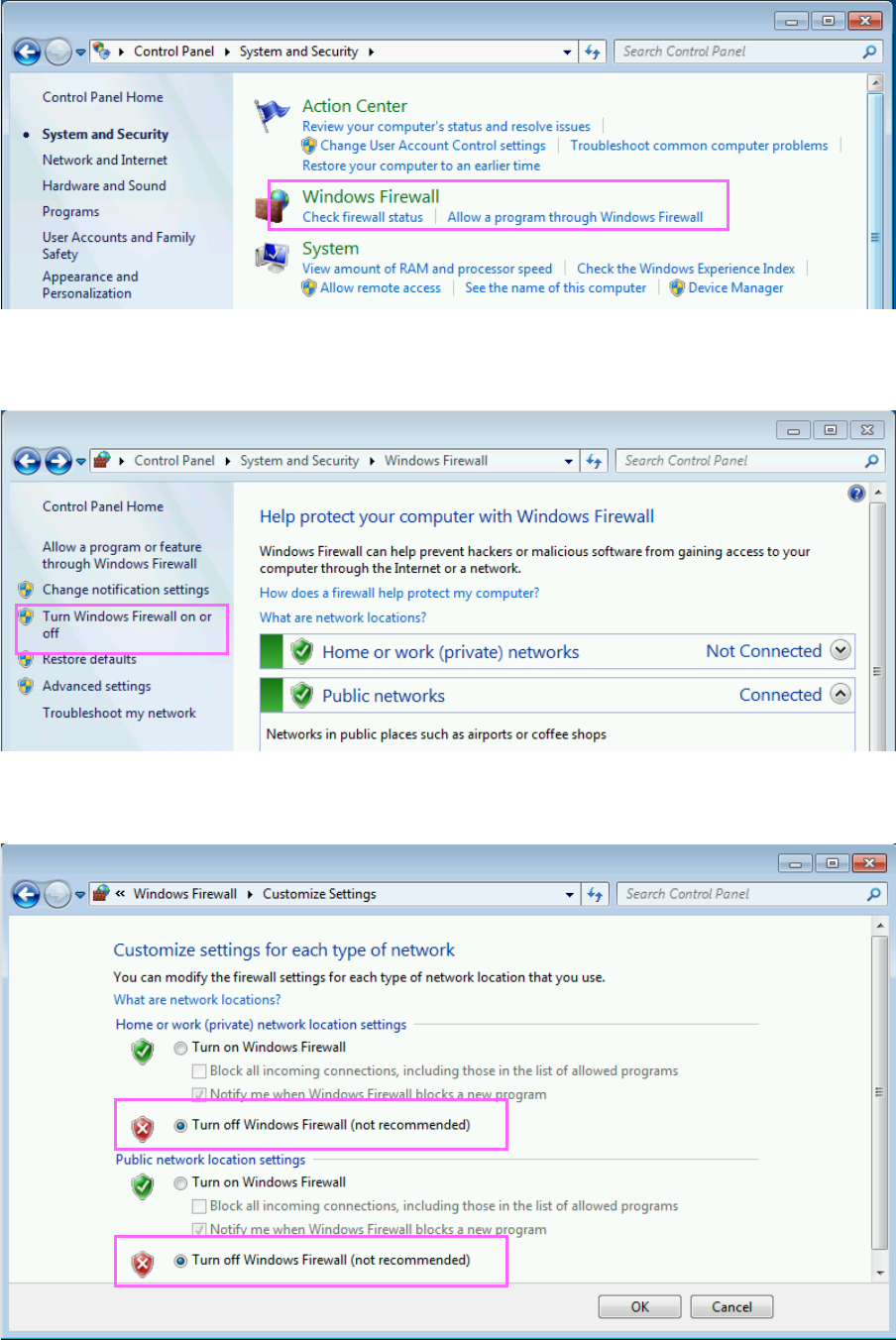
(2) Click the “Windows Firewall.”
Figure 2.5-27 “System and Security” screen
(3) The Windows Firewall screen appears. Click the menu item “Turn Windows Firewall on or off”
displayed on the left side of the screen.
Figure 2.5-28 “Windows Firewall” screen
(4) Disable the Windows Firewall, and then click the <OK> button.
You have finished disabling the firewall here.
JaNets Instruction Manual 2. Installation
2-47
2.5.3.3 Setting a shared folder
Set a folder stored in the machine so that it can be shared for a file to be transferred or received.
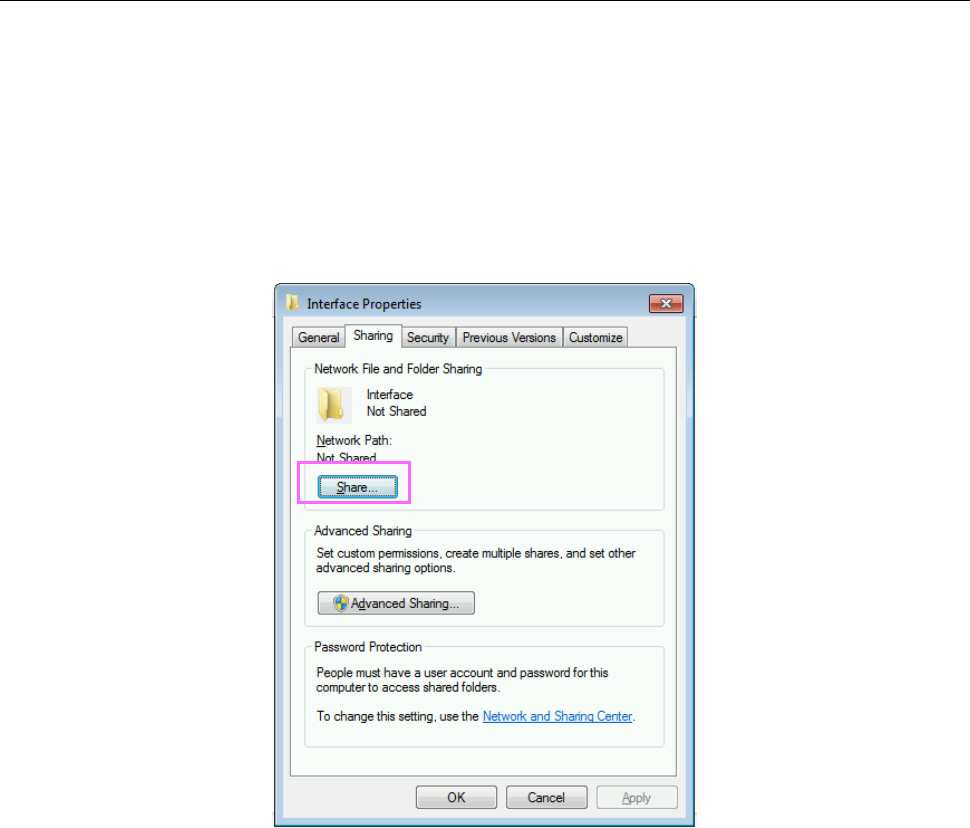
(1) With the right button, click the folder whose name is “Interface” on the drive C of the machine
main unit. When the menu appears on the screen, click [Properties].
RP-1 C:\Interface
RV-1, RV-2, RV-2-3D C:\ProgramData\Sony\SI-V1000\Interface
(2) Click the <Share…> button of the “Sharing” tab.
Figure 2.5-29 Properties of the Interface folder
JaNets Instruction Manual 2. Installation
2-48
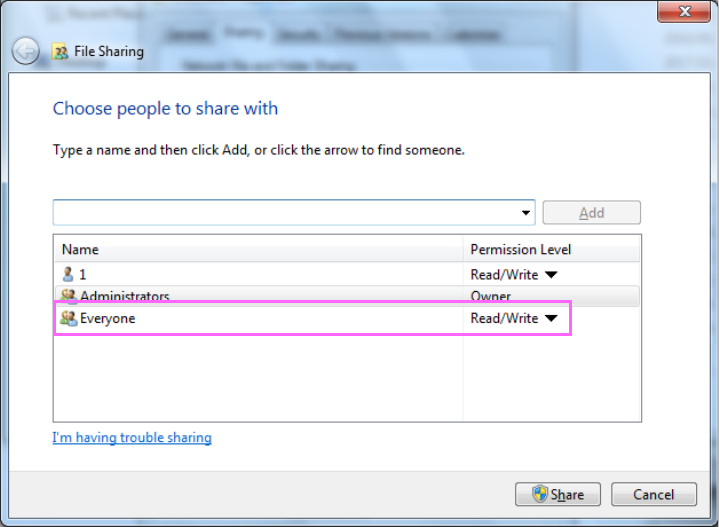
(3) The “File Sharing” screen for the folder appears. Select “Everyone” from the drop-down list,
and then click the <Add> button. When “Everyone” is added to the user names who share
the folder, click the “Permission Level” of the “Everyone,” and then change the setting from
“Read” to “Read/Write.”
Figure 2.5-30 Sharing setting of the Interface folder
(4) Click the <Share> button to start sharing the folder.
You have finished setting up the shared folder here.