JANETS_INM.pdf - 第750页
JaNe ts Inst ruction Manua l C . Data bas e Manage m ent T ool C-5 (4) Setti ng the s tart ti m e S p ecif y the s tart ti m e f or bac ki ng up data autom at icall y . Y ou c an ent er fr om 00:00:00 to 23:59 :59. Figur…
JaNets Instruction Manual C. Database Management Tool
C-4
C.2.1.1 Auto-backup
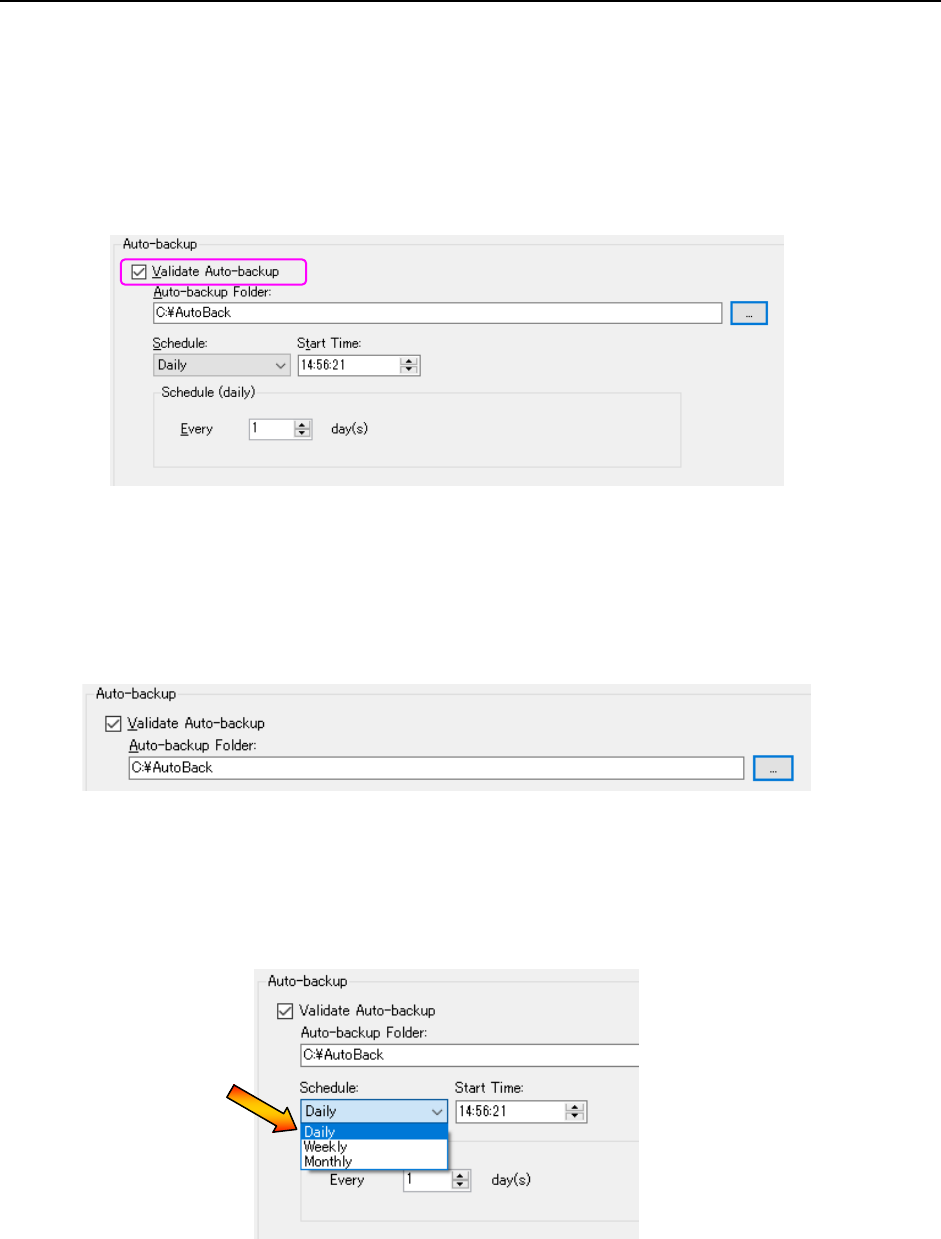
(1) Validate Auto-backup
To back up data automatically, check the check box “Validate Auto-backup” on the “Backup”
screen.
This enables the automatic back-up function. When you deselect this check box, the
automatic backup function is disabled.
The setting of the automatic back-up function is actually enabled only when you save it
when quitting the “Database Management Tool.”
Figure C.2-2 “Validate Auto-backup” check box
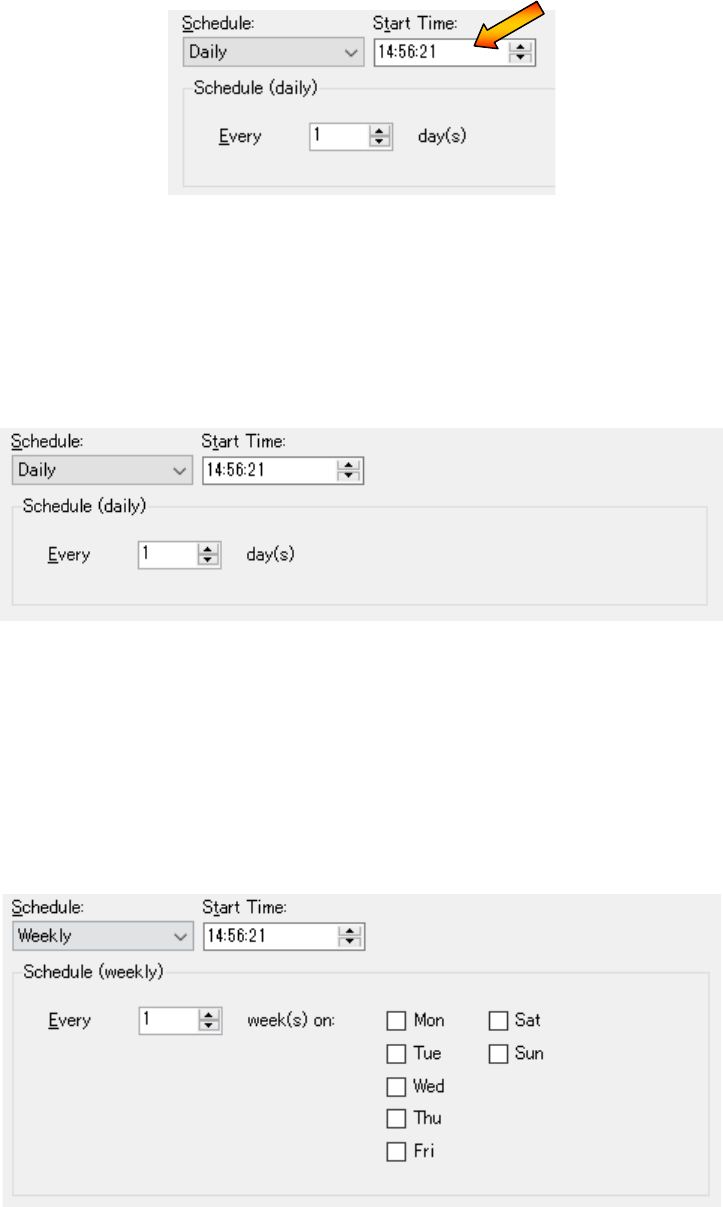
(2) Specifying the “Auto-backup Folder”
Specify the folder in which data is stored when the automatic back-up function is executed.
Enter the path in the “Auto-backup Folder” text box ① directly, or open the dialog box for
selecting a folder with the button ② and select the path.
Figure C.2-3 Specifying the automatic back-up folder
(3) Drawing up the schedule
Draw up the schedule for backing up data. You can draw up the schedule daily, weekly or
monthly. In addition, you can work out details of the schedule.
Figure C.2-4 Drawing up a schedule
②
①
JaNets Instruction Manual C. Database Management Tool
C-5
(4) Setting the start time
Specify the start time for backing up data automatically. You can enter from 00:00:00 to
23:59:59.
Figure C.2-5 Setting the start time
(5) Working out details of the schedule (daily)
When you select “Daily” on the “Schedule” menu, the “Schedule (daily)” screen appears.
You can specify at how many days interval the system is to back up data on this screen.
You can enter a value from 1 to 365, and the initial value is “1.”
Figure C.2-6 “Schedule (daily)” screen
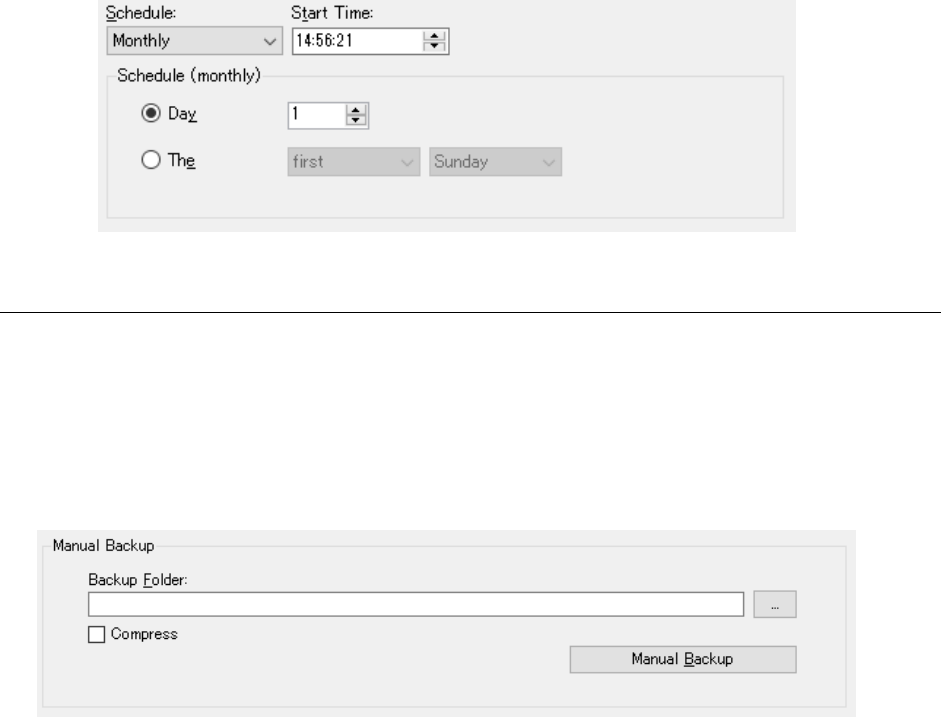
(6) Working out details of the schedule (weekly)
When you select “Weekly” on the “Schedule” menu, the “Schedule (weekly)” screen
appears.
You can specify at how many weeks interval the system is to back up data, and on what day
it is to back up data on this screen.
You can enter a value from 1 to 52, and the initial value is “1.”
Figure C.2-7 “Schedule (weekly)” screen
JaNets Instruction Manual C. Database Management Tool
C-6
(7) Working out details of the schedule (monthly)
When you select “Monthly” on the “Schedule” menu, the “Schedule (monthly)” screen
appears.
You can specify on which day the system is to back up data (by checking the “Day” radio
button) or the interval at which data is to be backed up (by checking the “the” radio button)
on this screen.
To specify on which day data is to be backed up, enter a value from 1 to 31. Note that
when you specify a value from 29 to 31 even though the number of days of the
corresponding month is less than the specified day, the system will not back up data in that
month.
To specify the interval at which data is to be backed up, enter the week and the day of the
week.
The week you can specify is the first, second, third, fourth or last week, and a day is from
Sunday, Monday, and Tuesday to Saturday. The initial day is the first Sunday.
Figure C.2-8 “Schedule (monthly)” screen
C.2.1.2 Manual Backup
To back up data manually, specify the “Backup Folder” on the “Manual Backup” section of the
“Backup” screen.
Enter the path in the “Backup Folder” text box ① directly, or select the button ② to open the
dialog box for selecting a folder and select the path.
After specifying the back-up folder, press the <Manual Backup> button. The system allows you
to back up data manually.
Figure C.2-9 Setting manual backup operation
When data is manually backed up, the folder of a name that is the same as that in the Data
Manager version is created automatically in the input backup destination folder and a backup
image is saved in it.
For example) When you specify the "D:¥BackUp" as a backup folder in the Data Manager
version 1.01.00A, the backup image is created in the "D:¥BackUp¥1.01.00A."
②
①