JANETS_INM.pdf - 第92页
JaNets Instr ucti on Man ual 2. Install ation 2- 64 2.6.4 If th e system f ails t o updat e the pr otect m od ule If the syst em fails to upd ate the prot ect modu le, the follo wing mess age appe ars on t he screen. Fig…
JaNets Instruction Manual 2. Installation
2-63
2.6.3 Adding the license
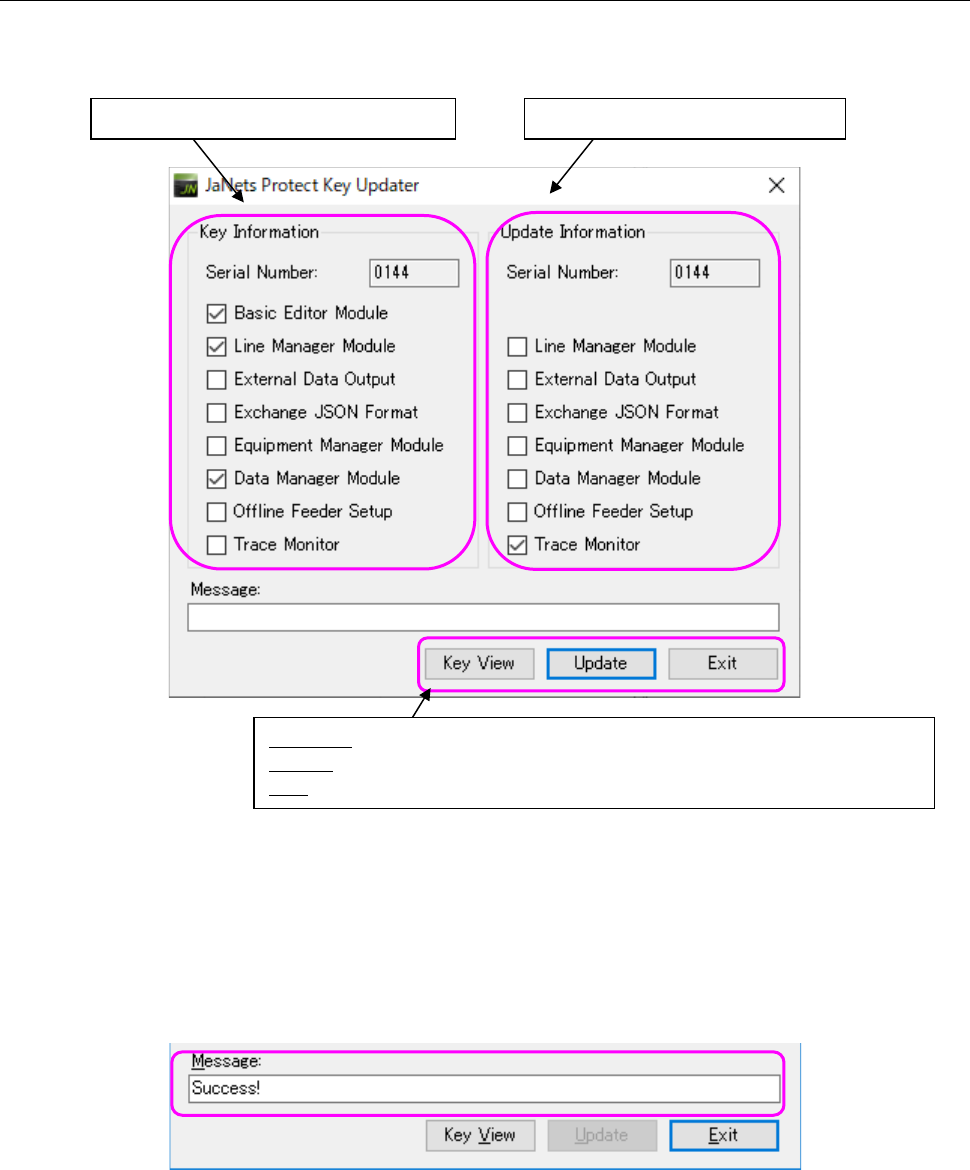
(1) The protect module license information is displayed in the “Key Information” column on the
left side of the screen, while the added JaNets license information is displayed in the “Update
Information” column on the right side of the screen.
Figure 2.6-1 " Starting up the protect module update utility
(2) After checking the displayed information, press the <Update> button. The system starts
updating the protect module.
It may take several seconds to several minutes to update the protect module.
(3) When the system finishes updating the protect module successfully, the message “Success!”
(the protect module is updated successfully) appears in the “Message” text box.
Figure 2.6-2 Message displayed when the protect module is updated successfully
You have finished adding the license here. Press the <Exit> button to terminate the protect
module update tool.
Note that the <Update> button is disabled and you cannot press it when the protect module is
updated successfully.
Protect module license information
Key View: Obtains the license information, and then displays it again.
Update: Adds the license to the protect key.
Exit: Terminates the update tool.
Added license file information
JaNets Instruction Manual 2. Installation
2-64
2.6.4 If the system fails to update the protect module
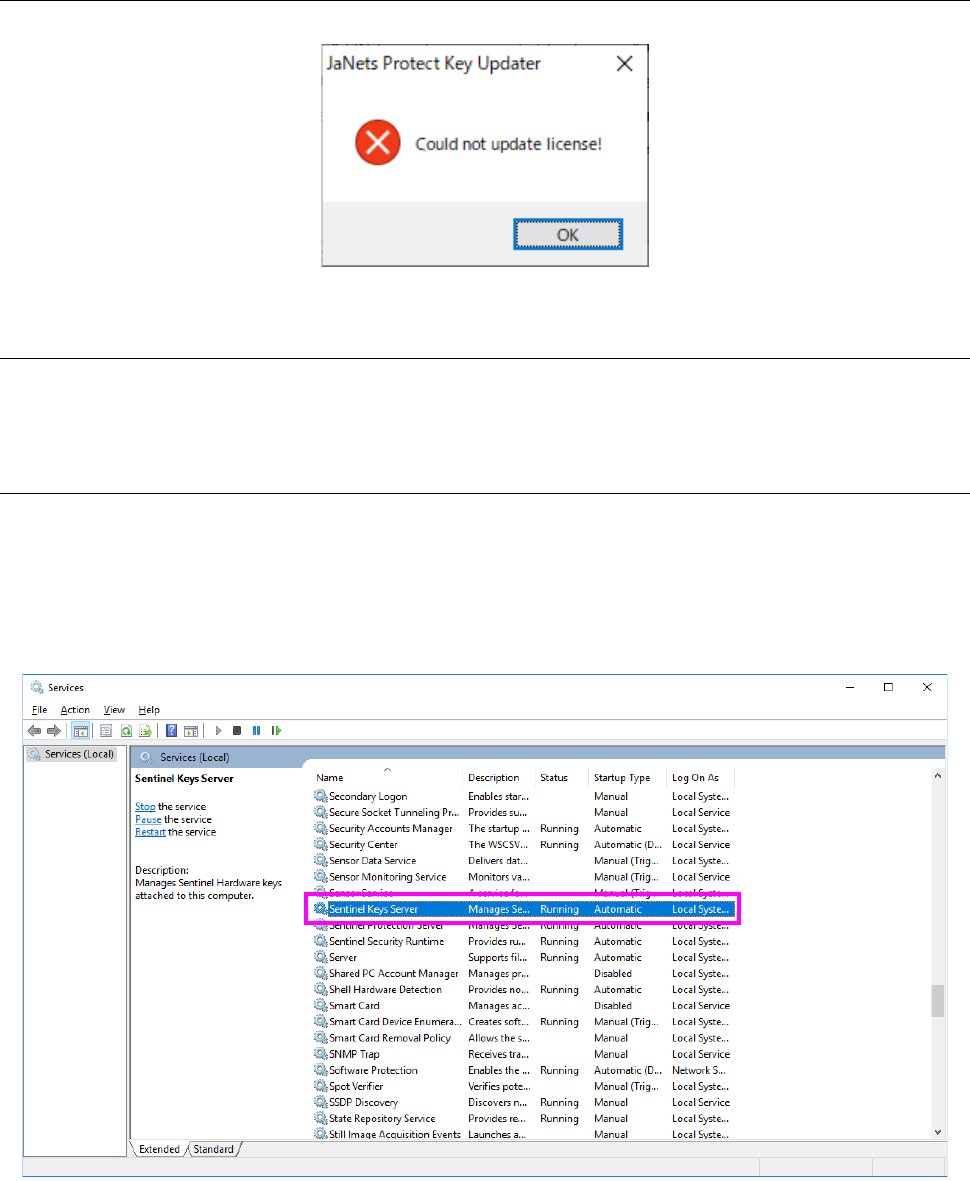
If the system fails to update the protect module, the following message appears on the screen.
Figure 2.6-3 Message indicating that the system failed to update the protect module
2.6.4.1 Checking the connection with the protect module
Check to see if the protect module is attached to the USB port, and then execute the update
processing again.
2.6.4.2 Checking the execution of the Sentinel SuperPro Server
Select [All Programs] – [Control Panel] – [Administrative Tools] from the “Start” menu, and then
[Services].
Check the “Sentinel Keys Server” and the “Sentinel Protection Server” from the list of services.
Confirm that “Start” is displayed in the respective “Status” column, and then execute the update
processing again.
Figure 2.6-4 List of services
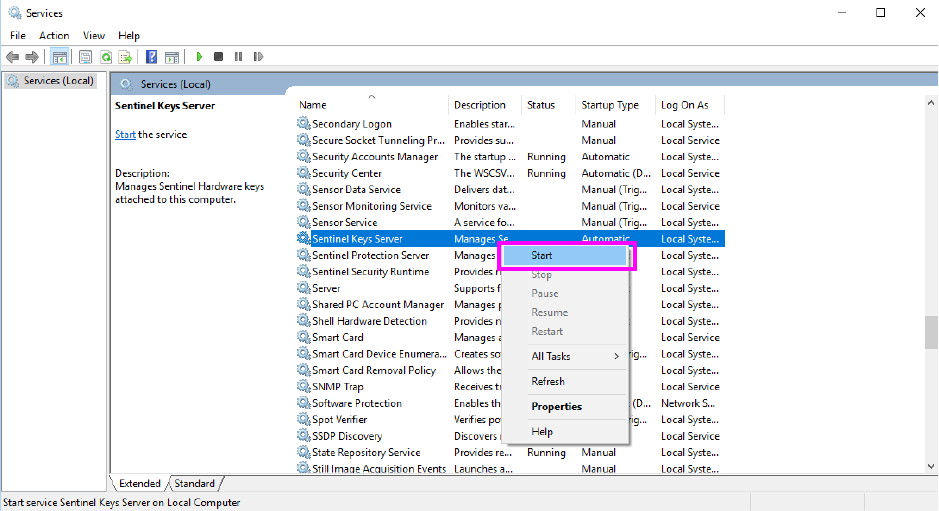
If “Start” is not displayed in the respective “Status” column, start the services as shown below.
JaNets Instruction Manual 2. Installation
2-65
(1) Click the service with the right button. Select the [Start] menu command on the displayed
pop-up menu.
Figure 2.6-5 Menu displayed when you click a service with the right button