JANETS_INM.pdf - 第98页
JaNets Instr ucti on Man ual 3. Launcher 3-3 Click “ Allow the program or func tion throu gh the Win dows fire wall” on the left of t he screen. Change th e contents of t he “Remot e Serv er” sett ing as sho wn below . ①…
JaNets Instruction Manual 3. Launcher
3-2
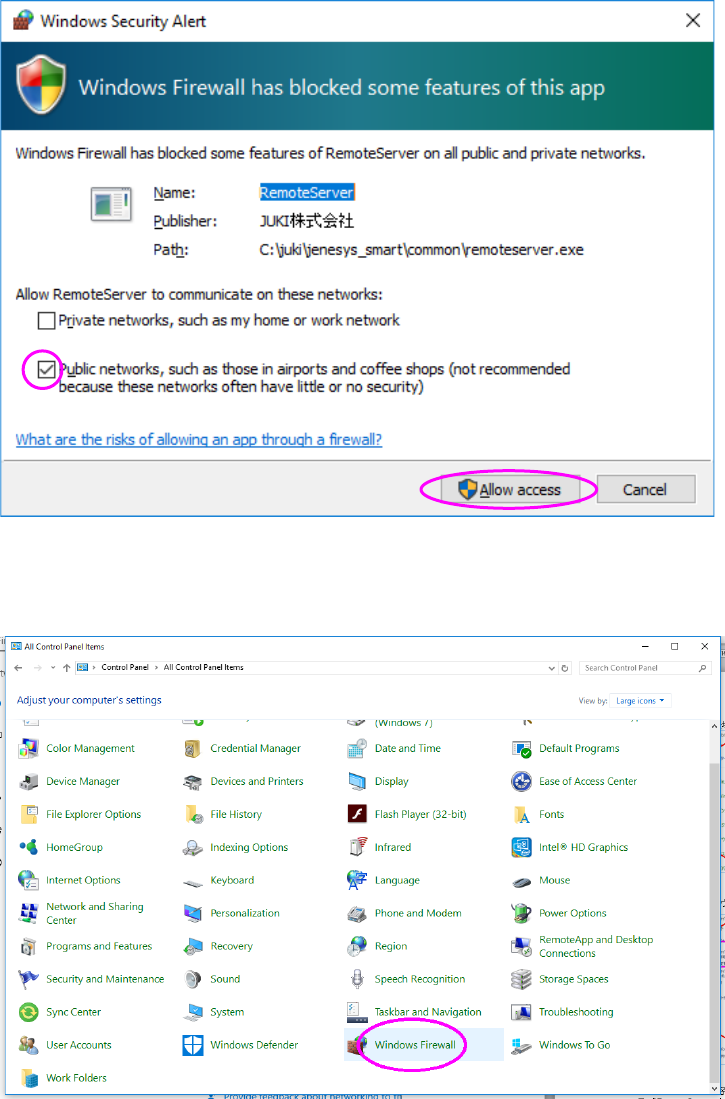
* When Windows firewall is made effective
A security warning dialog is displayed when the launcher is started. At this time, make sure
that “Public network” is checked off and then press the “Allow access” button.
If any setting other than the above is performed, open “Windows firewall” from “Control panel.”
JaNets Instruction Manual 3. Launcher
3-3
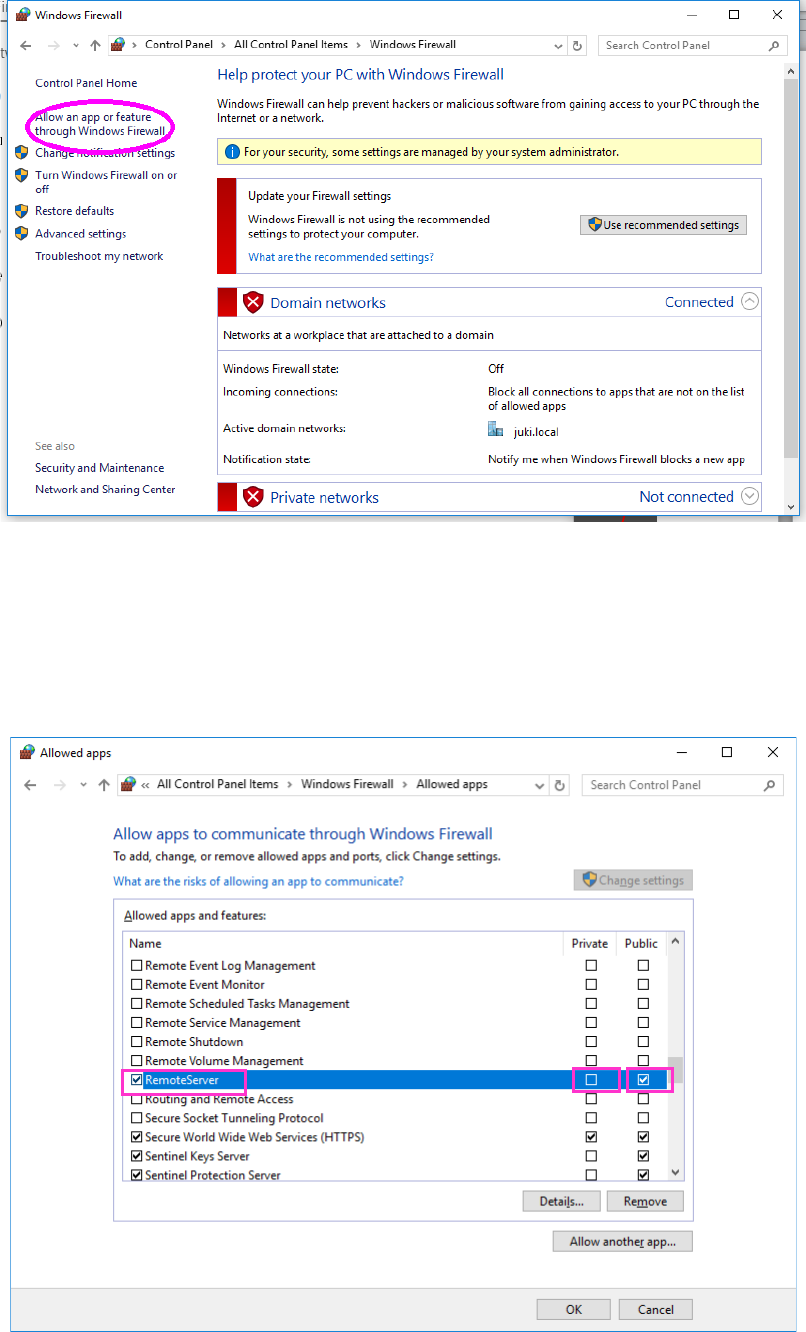
Click “Allow the program or function through the Windows firewall” on the left of the screen.
Change the contents of the “Remote Server” setting as shown below.
① Check box on the left of “Remote Server” : Checked off
② Check box of the “Home/Work” column : Not checked off
③ Check box of the “Public” column : Checked off
①
②
③
JaNets Instruction Manual 3. Launcher
3-4
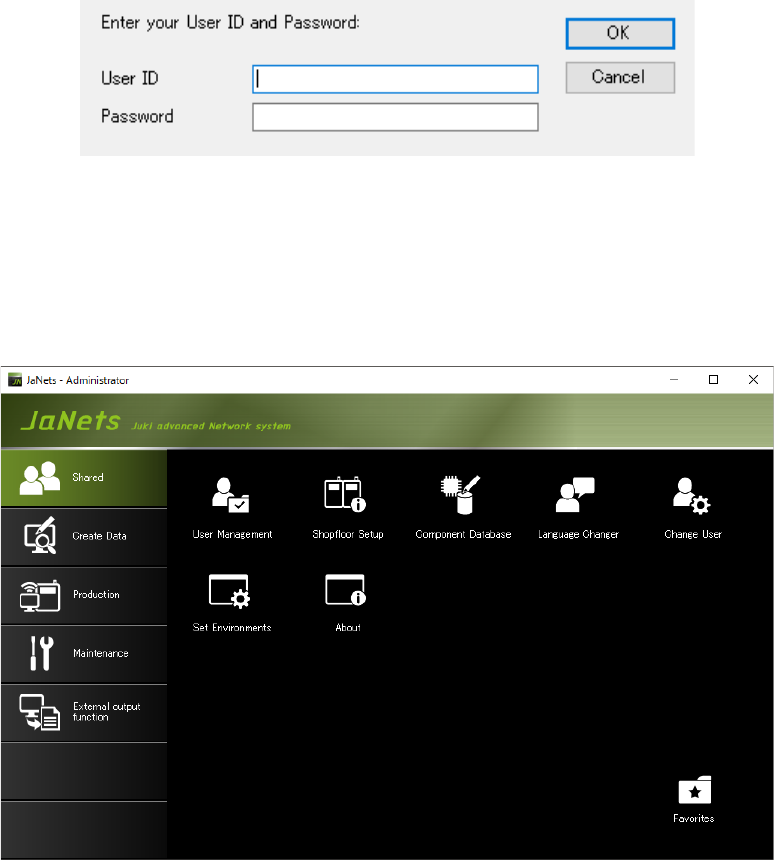
After the Launcher starts up, the “Login” dialog box appears on the screen.
Enter the user ID and the password.
* When you install the newly, you can use the following default user ID and password:
User ID: “administrator” Password: “Administrator”
Figure 3.1-1 Launcher – Dialog box for entering the password
The Launcher initial screen appears.
On the initial screen subsequent to the first time, the last indicated tab is displayed for each
user.
Figure 3.1-2 Launcher screen