TS566R-UserGuide - 第20页
20 7. Typ e: “ cd :\iot ” then press the “E nter ” button 8. Typ e: “set OKI_IOT_PREFIX=MyPrefix” then press the “Enter” button
19
6. INTERNET of Thing (IoT)
6.1 Setup webserver on the computer
1. Go to Techcon Website (www.techconsystems.com), under resources tab,
download “Software download for IoT”, and focus mainly on copying the
following files to your computer:
a. The “portal.exe” file
b. The “timezone.zip” file
2. Create a new folder and name “IoT” or any desired name
3. Copy the “portal.exe” file and the “timezone.zip” file in the “IoT” folder
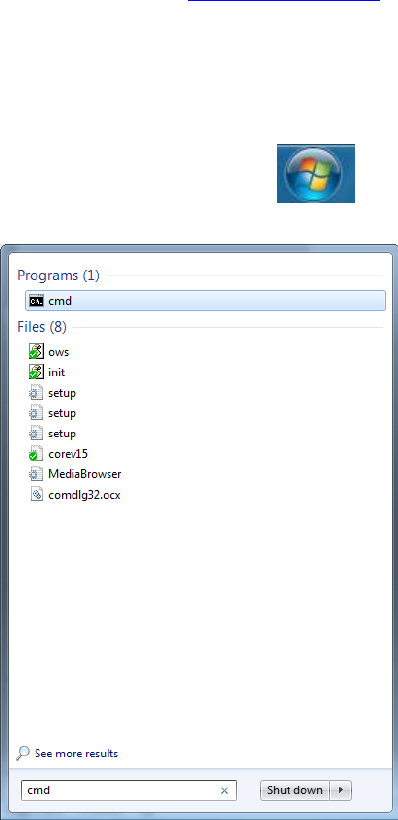
4. Click on the “Windows” start icon
5. Type: “cmd” in the box (as show below)
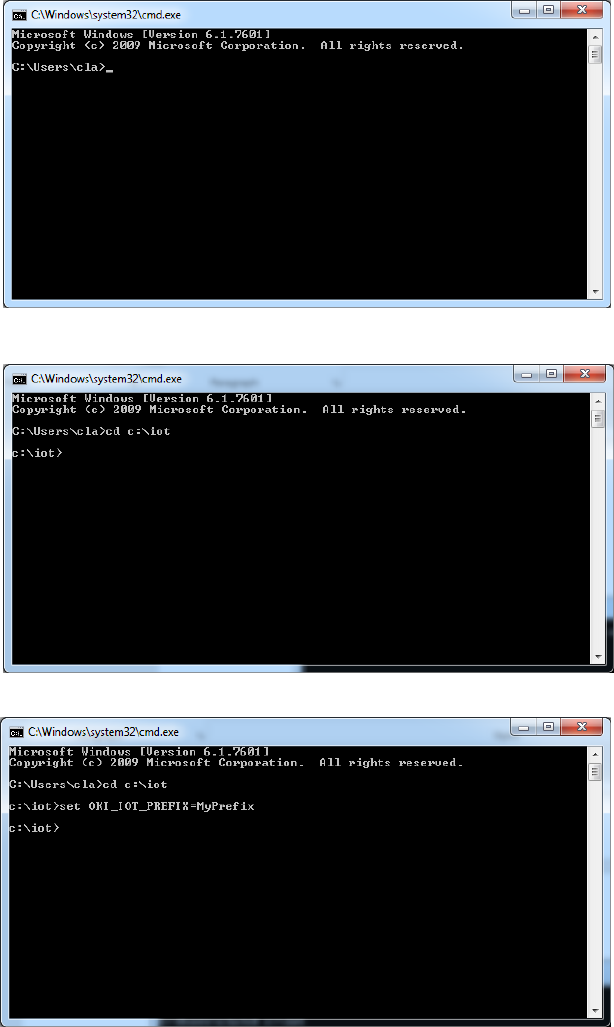
6. Press the “Enter” button
The screen should appear as shown below
20
7. Type: “cd :\iot” then press the “Enter” button
8. Type: “set OKI_IOT_PREFIX=MyPrefix” then press the “Enter” button
21
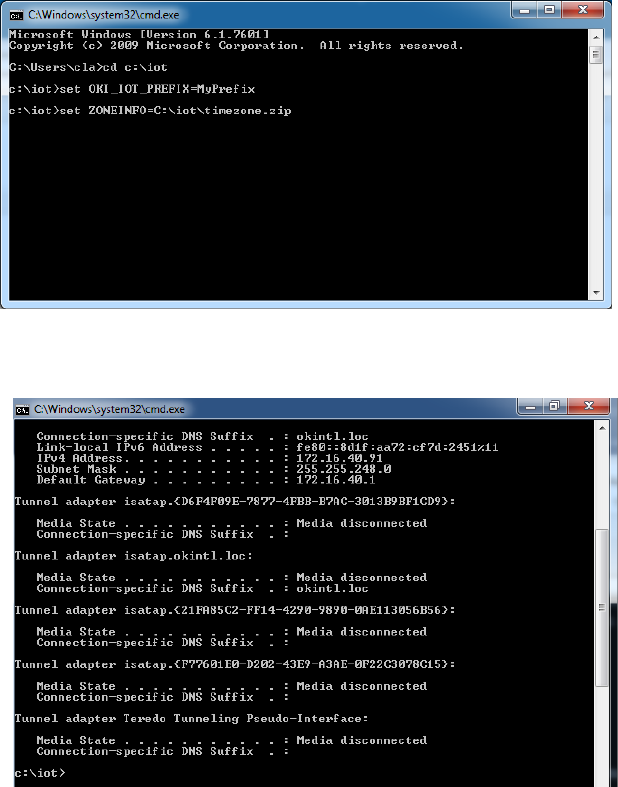
9. Type: “set ZONEINFO=C:\iot\timezone.zip” then press the “Enter” button
10. Type: “ipconfig” then press the “Enter” button
11. Record the Server IPv4 address show in the “IPv4 Address” line on the above
screen; For this example, the Server IP address is: 172.16.40.91
This address will be entered in the controller screen later.
12. Type: “.\portal” then press the Enter button