TS566R-UserGuide - 第22页
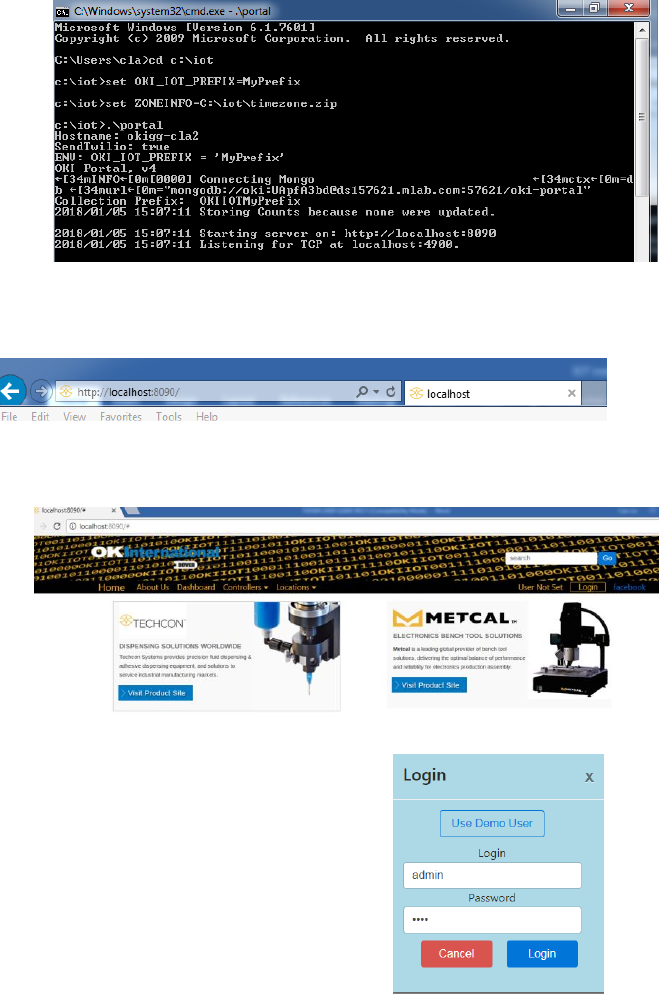
22 13. G o to any computer and open any web browser 14. Type in: http://localhost:8090/ then press the enter button You are now in t he webserver site. The screen belo w will be displayed 15. Cl i ck the “Login” butt on …
21
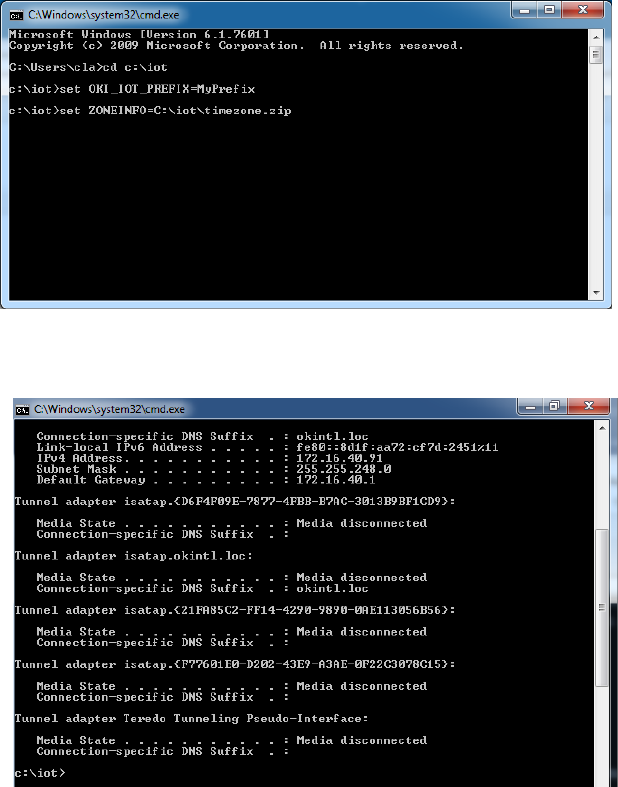
9. Type: “set ZONEINFO=C:\iot\timezone.zip” then press the “Enter” button
10. Type: “ipconfig” then press the “Enter” button
11. Record the Server IPv4 address show in the “IPv4 Address” line on the above
screen; For this example, the Server IP address is: 172.16.40.91
This address will be entered in the controller screen later.
12. Type: “.\portal” then press the Enter button
23
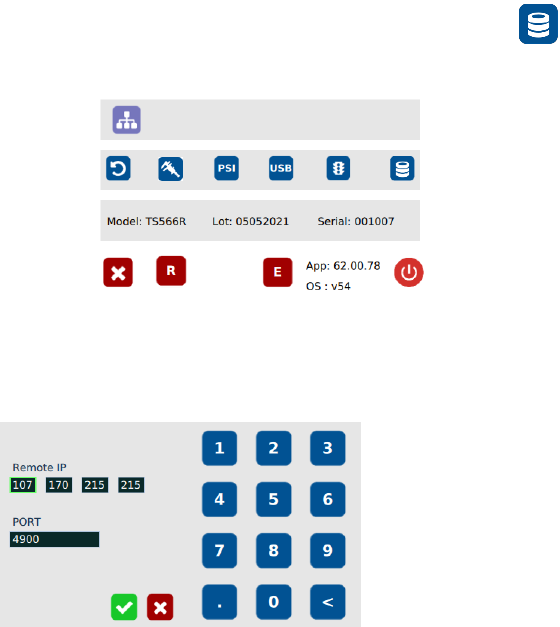
18. Go to the setup screen of the controller and touch the “Remote Server”
icon
19. Enter the Server IPv4 address recorded in step #11 into Remote IP address box
20. Touch the green check mark icon to save
21. The controller is now connected to the webserver site.