TS566R-UserGuide - 第23页
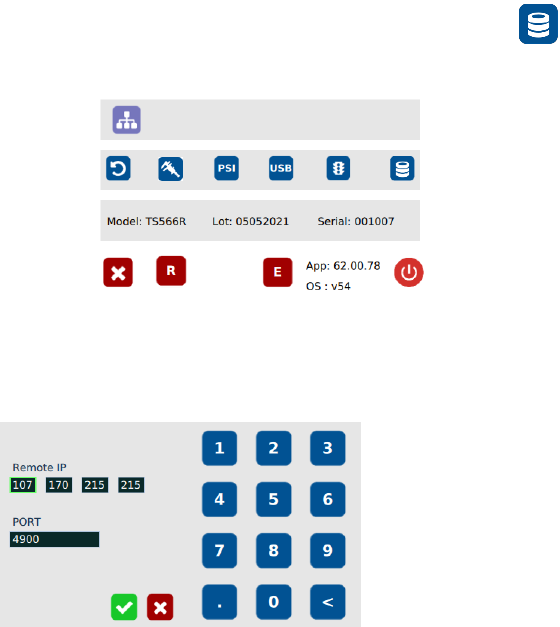
23 18. G o to the setup screen of the controller and tou ch the “Remote Server” icon 19. Enter the Server IPv4 a ddress recorded in step #11 into Remote IP address box 20. Touch the green check mark icon to save 21. The …
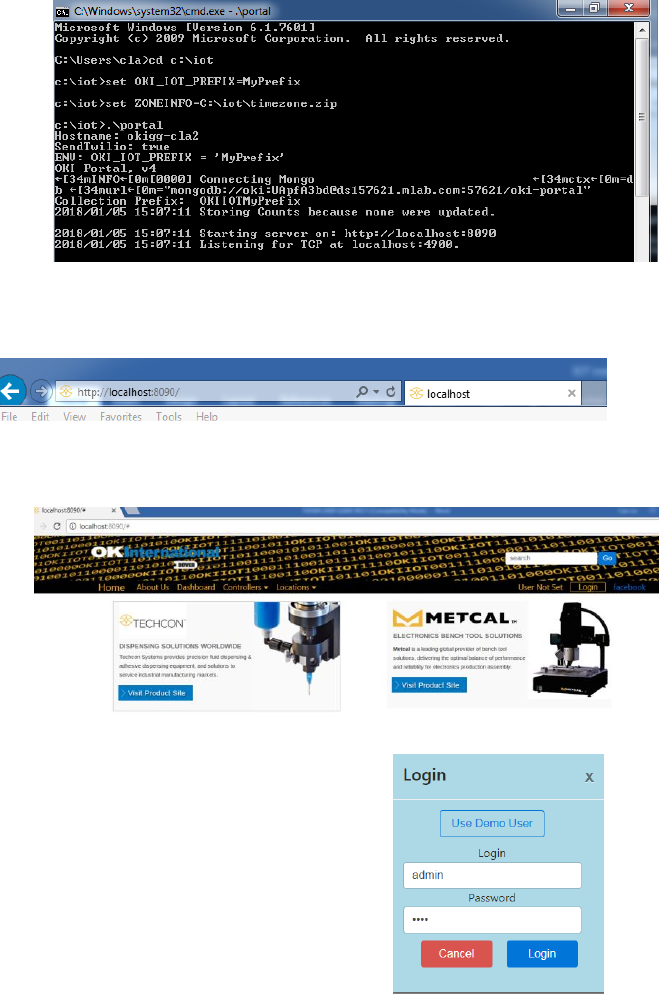
23
18. Go to the setup screen of the controller and touch the “Remote Server”
icon
19. Enter the Server IPv4 address recorded in step #11 into Remote IP address box
20. Touch the green check mark icon to save
21. The controller is now connected to the webserver site.
24
6.2 Making Parameters Adjustment from the webserver
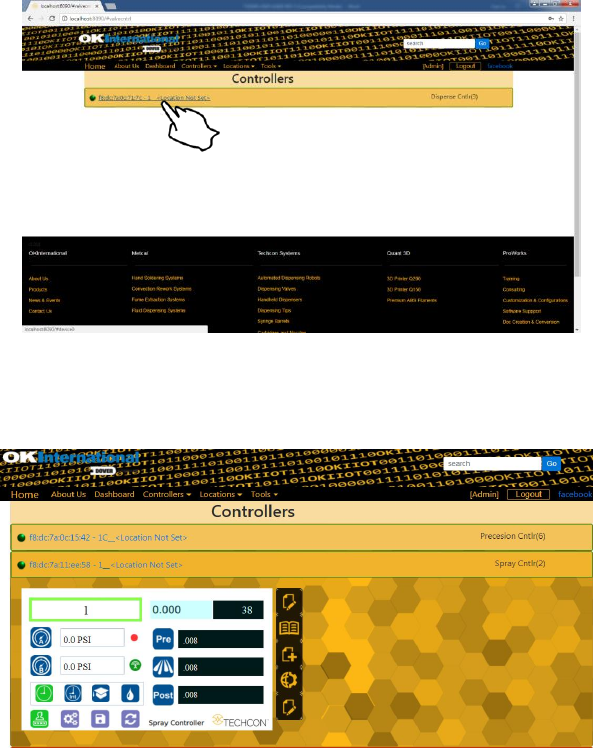
Go back to the webserver site and click on the “Controllers” menu
Click on the active controller link
The controller screen will be displayed in the webserver as shown below.
The controller parameters such as pressure and dispense time can be adjusted
from the webserver.
Click on the “Edit” icon
The parameter screen will appear as shown below: