TS566R-UserGuide - 第24页
24 6.2 Making Par ameters Adjustm ent from the webserv er Go back to the webserver site and click on the “Controllers” men u Click on the active controller link The controller screen will be displayed in the webserver as…
23
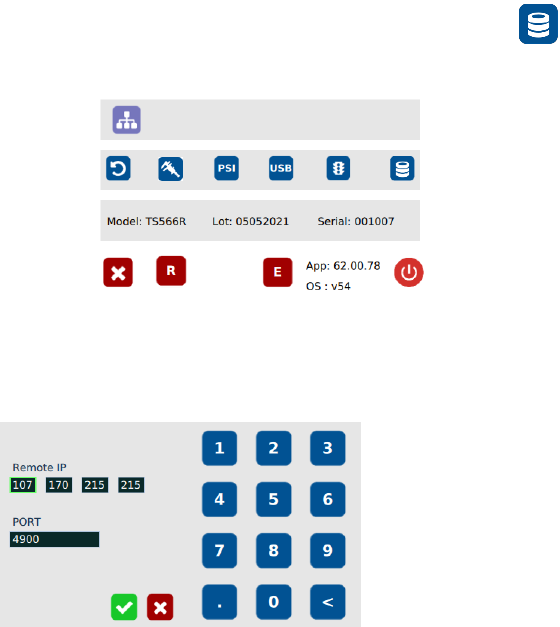
18. Go to the setup screen of the controller and touch the “Remote Server”
icon
19. Enter the Server IPv4 address recorded in step #11 into Remote IP address box
20. Touch the green check mark icon to save
21. The controller is now connected to the webserver site.
24
6.2 Making Parameters Adjustment from the webserver
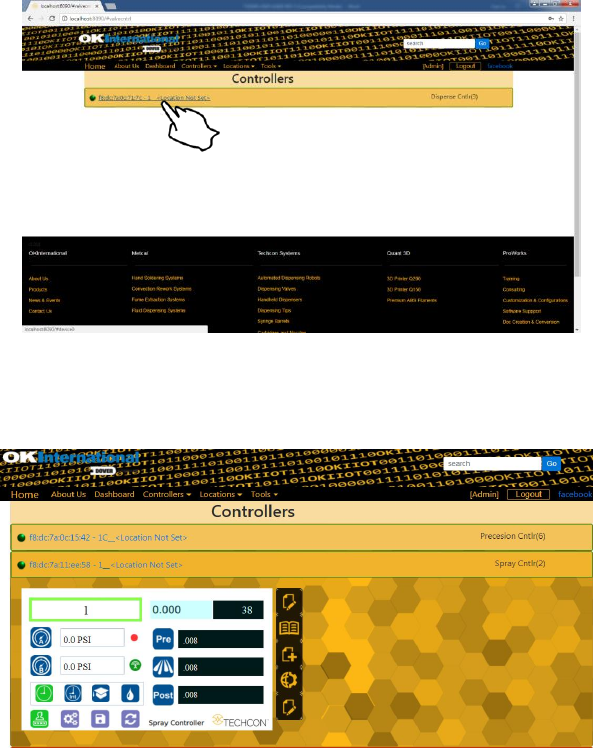
Go back to the webserver site and click on the “Controllers” menu
Click on the active controller link
The controller screen will be displayed in the webserver as shown below.
The controller parameters such as pressure and dispense time can be adjusted
from the webserver.
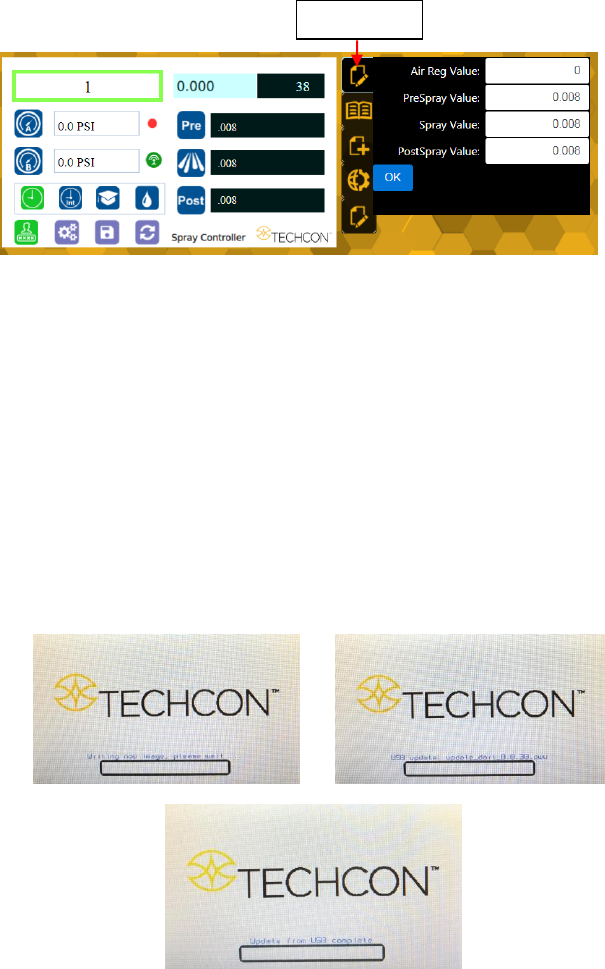
Click on the “Edit” icon
The parameter screen will appear as shown below:
25
Proceed to make changes
Click OK button to save
The new parameters will be displayed on the controller
7. SOFTWARE UPGRADE
Note: For future software upgrade, follow the instructions below.
1. Download the latest software version from Techcon website and copy it to
a blank USB thumb drive. Note: Do not put the software file inside a
folder
2. Make sure that the unit is turned off
3. Insert the USB drive to the USB port located in the back of the unit
4. Turn on the unit
5. Wait while the system is loading the new software. This process can take
a few minutes
“Edit” icon