00198377-01_SM_JTF-ML2_en.pdf - 第32页
2 General Tasks 2.2 Software Tasks 32 Service Manual SIPLACE JTF-ML2 08/2017 Fig.19: Mounting the Transport 7 ► Push the plate (1) until end position to the right. Fig.20: Mounting the Transport 8 ► Fit the cover (2)…
2 General Tasks
2.1 Hardware Tasks
Service Manual SIPLACE JTF-ML2 08/2017 31
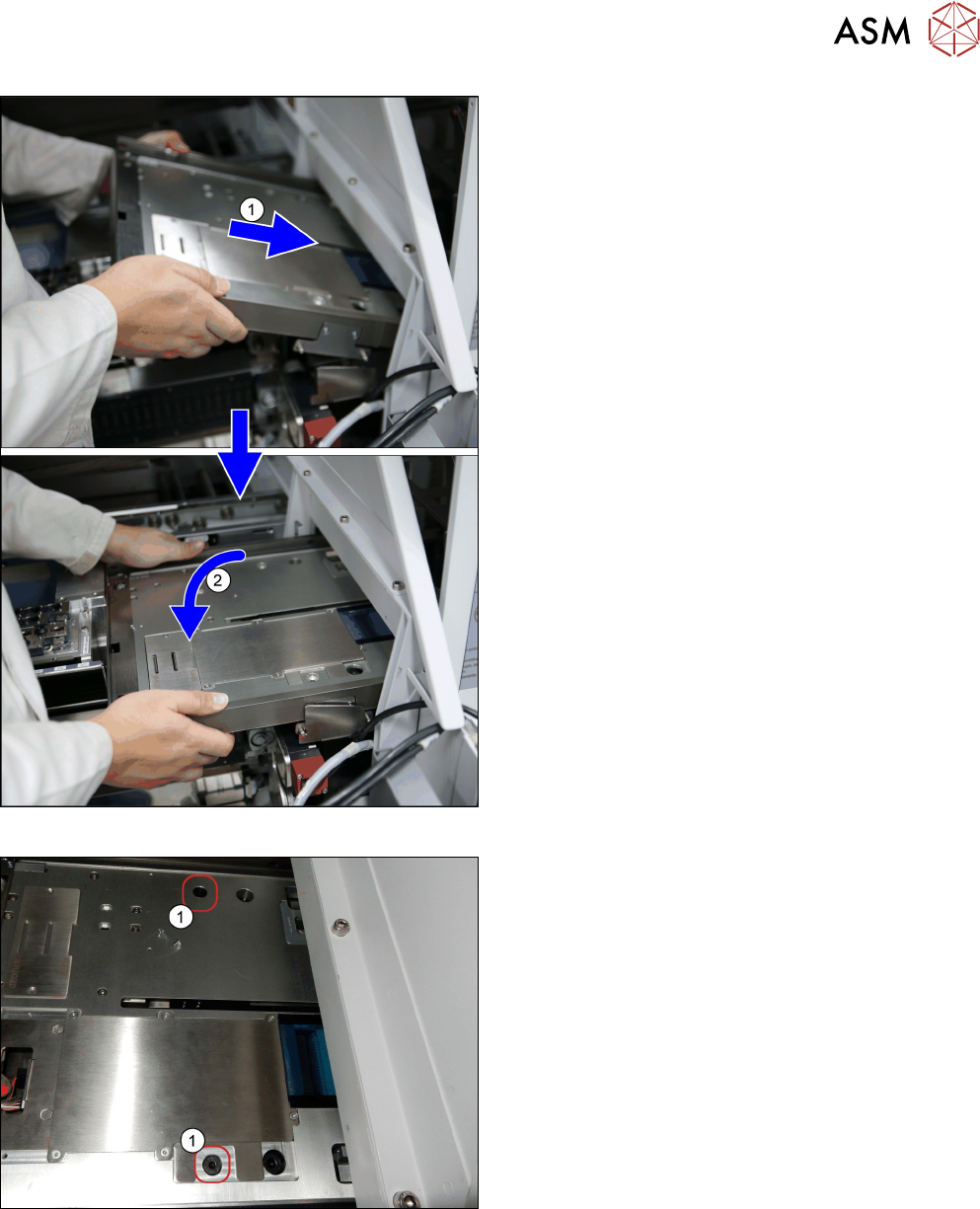
Fig.17: Mounting the Transport 5
► (1) Insert the conveyor. Make sure that it fits cor-
rectly into the conveyor pivot.
► (2) Swing the transport down onto the SIPLACE
JTF-ML2 adapter.
Fig.18: Mounting the Transport 6
► Fasten the transport with two screws(1)
(ISO7379 - 8x16-12.9) on the SIPLACE JTF-
ML2 adapter.
2 General Tasks
2.2 Software Tasks
32 Service Manual SIPLACE JTF-ML2 08/2017
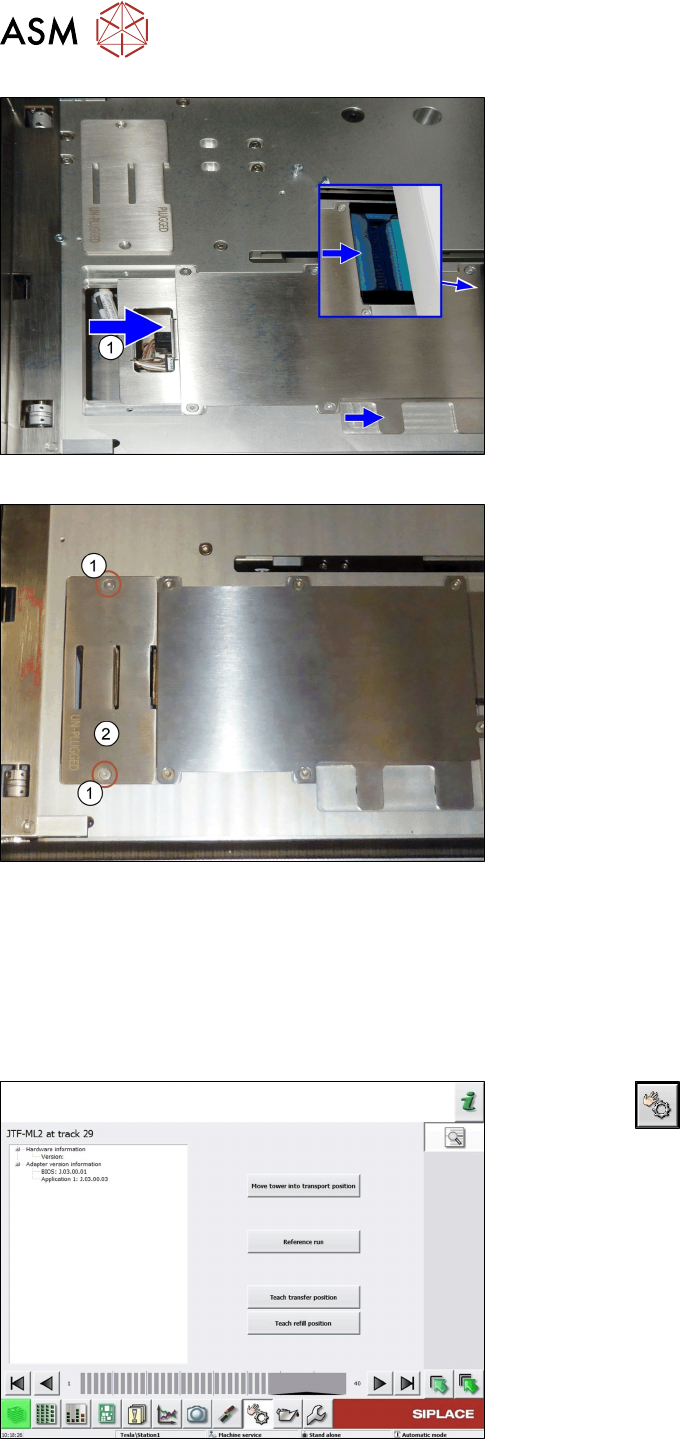
Fig.19: Mounting the Transport 7
► Push the plate(1) until end position to the right.
Fig.20: Mounting the Transport 8
► Fit the cover(2) using two screws(1).
2.2 Software Tasks
2.2.1 Teach Transfer Position
Whenever the tower or the conveyor of the SIPLACE JTF-ML2 has been mounted to the machine,
the teach transfer position has to be taught again.
Fig.21: Teach transfer position 1
► Click the button.
► Select the button location 1.
► Select track 29.
► Select the button Details….
► Select the button Teach transfer position.
2 General Tasks
2.2 Software Tasks
Service Manual SIPLACE JTF-ML2 08/2017 33
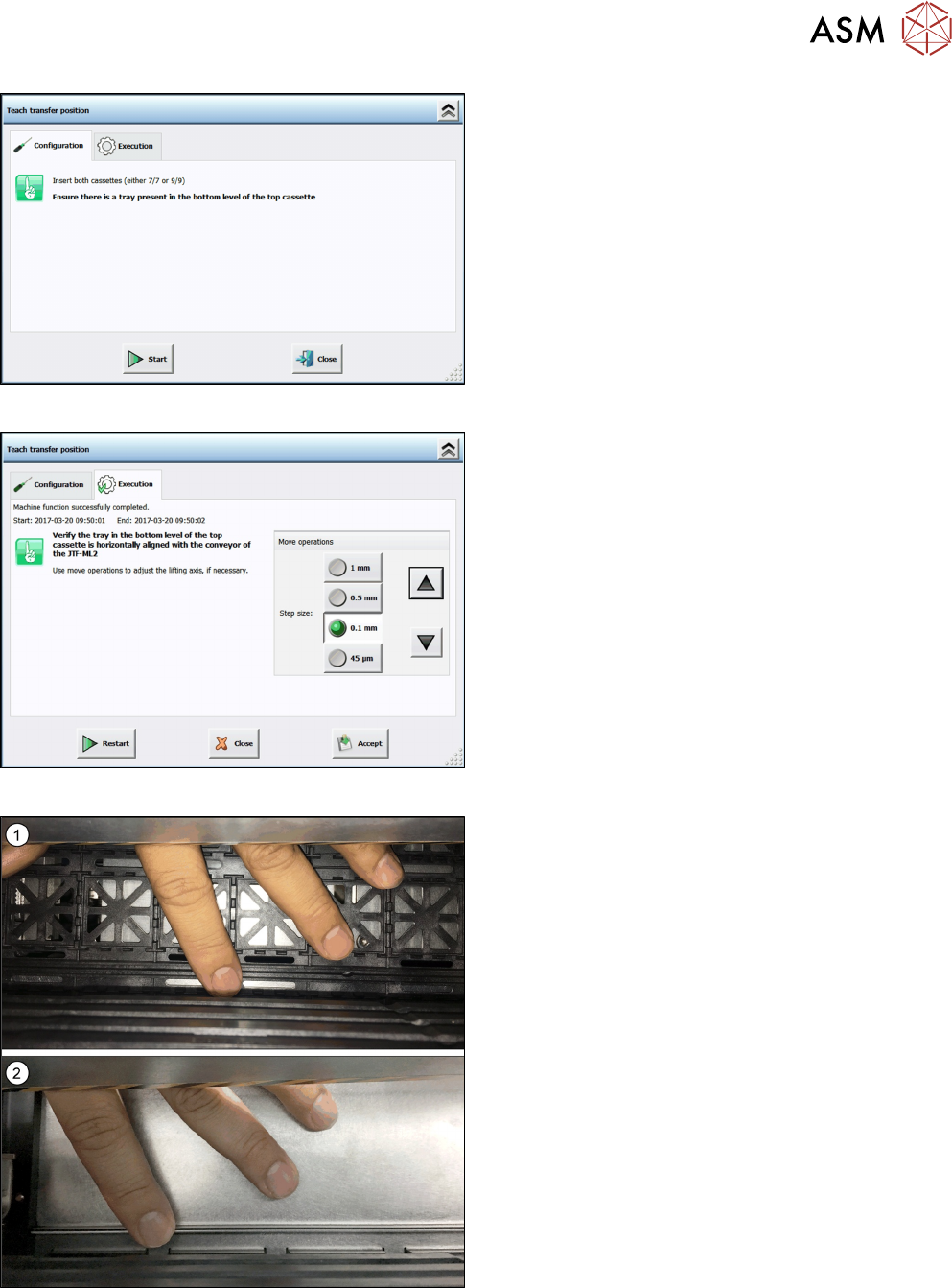
Fig.22: Teach transfer position 2
► Insert two cassettes into the SIPLACE JTF‑ML2.
Ensure there is a Jedec tray or a cookie tray
present in the bottom level of the top cassette.
Fig.23: Teach transfer position 3
► Verify the tray in the bottom level of the top cas-
sette is horizontally aligned with the conveyor of
the SIPLACE JTF‑ML2.
Use the arrow buttons to adjust transport and
tower to each other.
Fig.24: Adjusting transfer position
► Use your finger to feel the levelling and adjust ac-
cordingly.
You may use a JEDEC(1) or a cookie tray(2).
► Click the button Accept to save the new transfer
position.