00198268-02_GS_SIPLACE-Pro-14.1-R17-1_EN - 第20页
2 Program Overview Getting S tarted SIPLACE Pro 14.1 (R17-1) 2.3 Presettings and Configurations 05/2017 Edition 20 2.2.7 Reset Default Lay out for User Interface If you have changed the arrangement of con trols or disa b…
Getting Started SIPLACE Pro 14.1 (R17-1) 2 Program Overview
05/2017 Edition 2.2 The User Interface
19
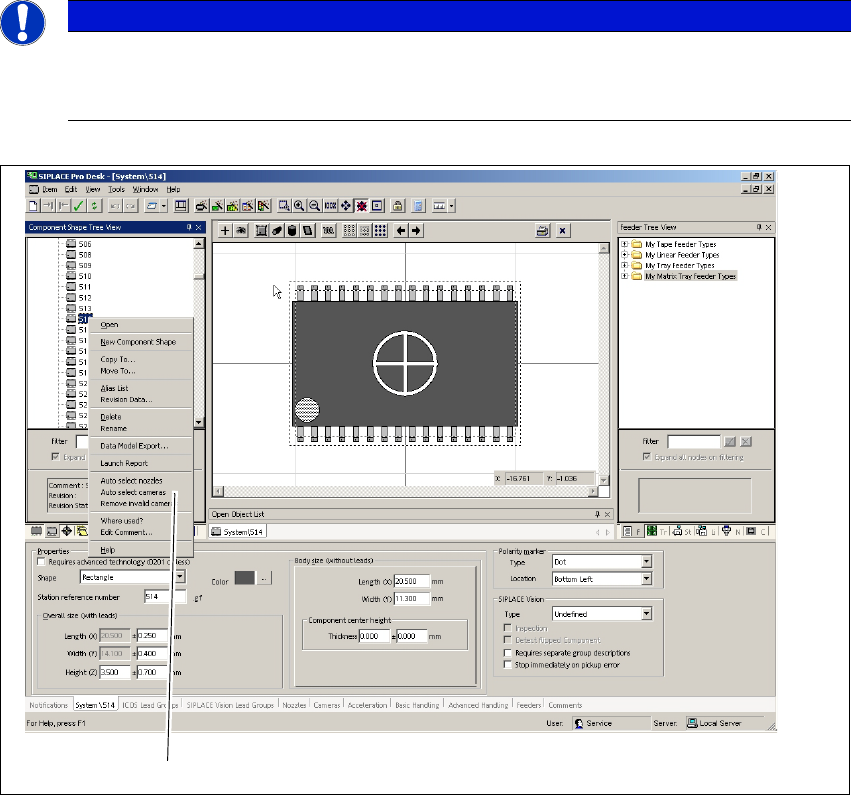
2.2.6 Accessing the Context Menu by "Right-Clicking" the Mouse
"Right-click" the mouse to access frequently used functions for the current view and active object
(context menus).
2
2
Fig. 2 - 11 Context menu - example: Tree view - Component Shapes
Key
Note
Test the right mouse button in every view or dialog. Optimize your work with this range
of useful or frequently used functions for your current view.
(1) Context menu in the component shape
tree view
2
1
2 Program Overview Getting Started SIPLACE Pro 14.1 (R17-1)
2.3 Presettings and Configurations 05/2017 Edition
20
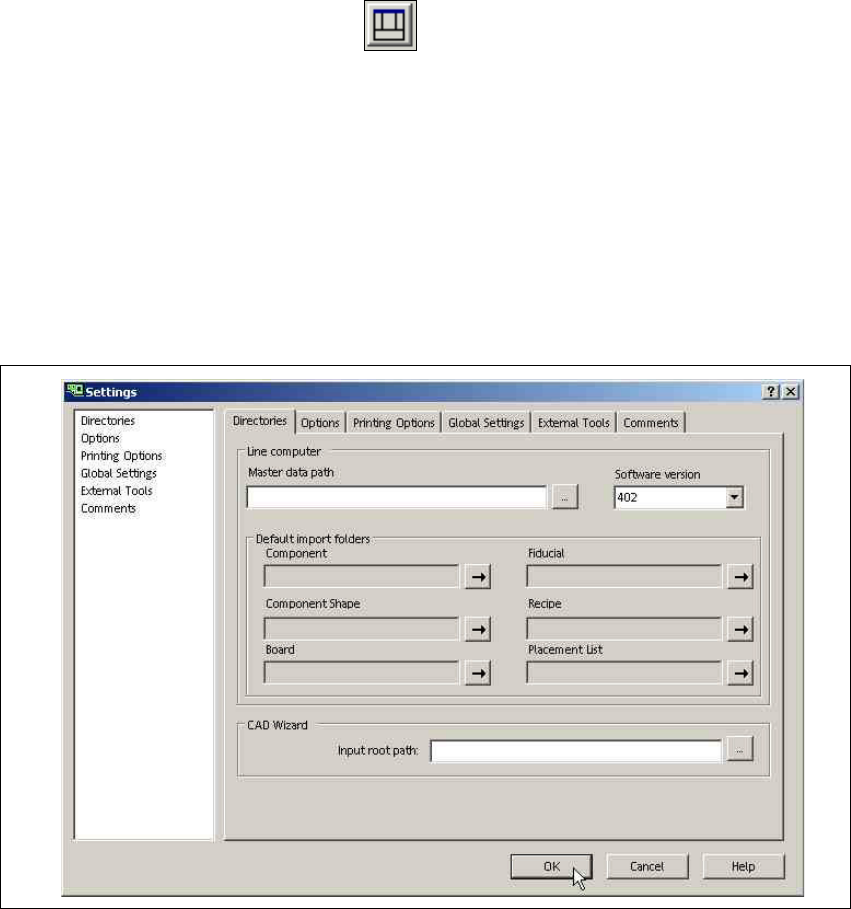
2.2.7 Reset Default Layout for User Interface
If you have changed the arrangement of controls or disabled items in the user interface, the default
state can be restored by clicking on the icon in the toolbar. 2
2
2.3 Presettings and Configurations
2.3.1 Settings
Global settings and function-related presettings can be defined in the Tools menu, at => Settings.
Please refer to the Online Help for details about the individual tabs. 2
Fig. 2 - 12 Dialog box - Settings
2.3.2 Changing the Language
The language for user interface texts can be changed in the Tools menu, at => Change Lan-
guage.... 2
Getting Started SIPLACE Pro 14.1 (R17-1) 2 Program Overview
05/2017 Edition 2.3 Presettings and Configurations
21
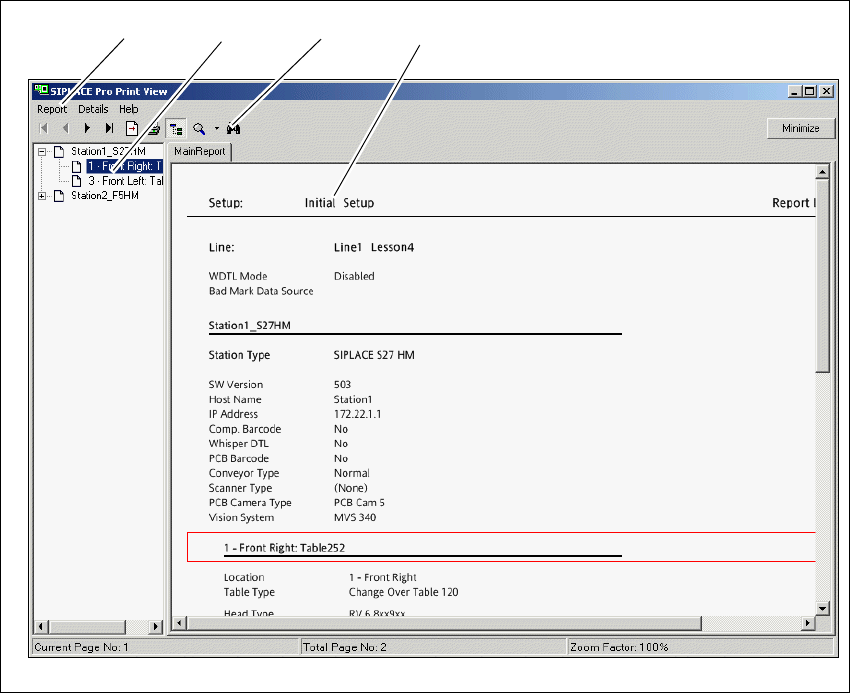
2.3.3 Printing with the Report Manager
Images, brief descriptions and even whole evaluations can be printed via the Report Manager.
The Report Manager can be opened from the context menu for the active or selected object. 2
You can start the report by: 2
– selecting the Item => Launch Report menu
– right clicking the object on the tree view
– right clicking the object on the opened editor
2
Fig. 2 - 13 Report manager - line report
Key
(1) Menu Bar (2) Structure view (if available)
(3) Toolbar (4) Report Window
321
4