00198268-02_GS_SIPLACE-Pro-14.1-R17-1_EN - 第22页
2 Program Overview Getting S tarted SIPLACE Pro 14.1 (R17-1) 2.3 Presettings and Configurations 05/2017 Edition 22 2.3.4 Import St andard Shape Library This Wizard help s you to import the standar d library with shape an…
Getting Started SIPLACE Pro 14.1 (R17-1) 2 Program Overview
05/2017 Edition 2.3 Presettings and Configurations
21
2.3.3 Printing with the Report Manager
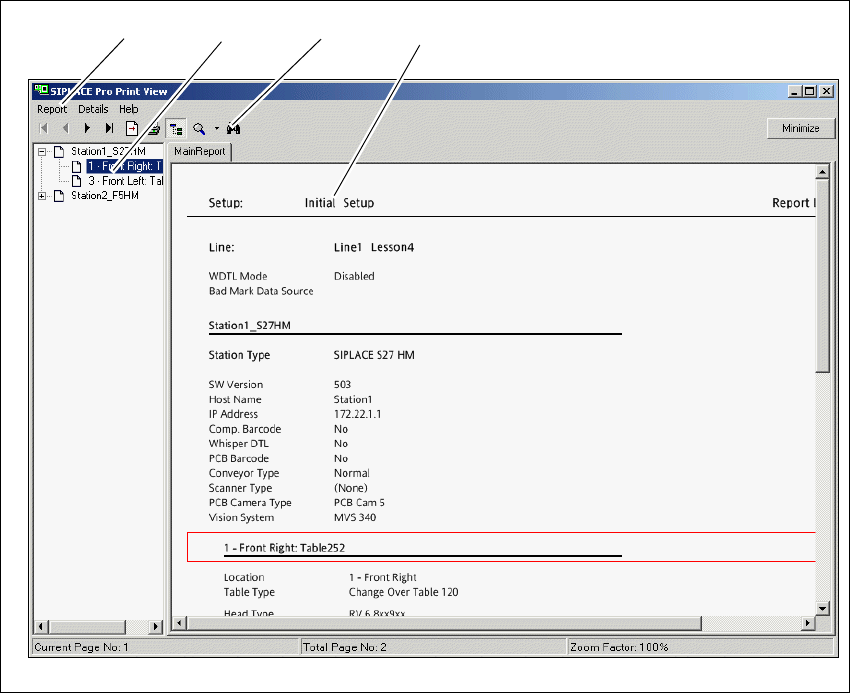
Images, brief descriptions and even whole evaluations can be printed via the Report Manager.
The Report Manager can be opened from the context menu for the active or selected object. 2
You can start the report by: 2
– selecting the Item => Launch Report menu
– right clicking the object on the tree view
– right clicking the object on the opened editor
2
Fig. 2 - 13 Report manager - line report
Key
(1) Menu Bar (2) Structure view (if available)
(3) Toolbar (4) Report Window
321
4
2 Program Overview Getting Started SIPLACE Pro 14.1 (R17-1)
2.3 Presettings and Configurations 05/2017 Edition
22
2.3.4 Import Standard Shape Library
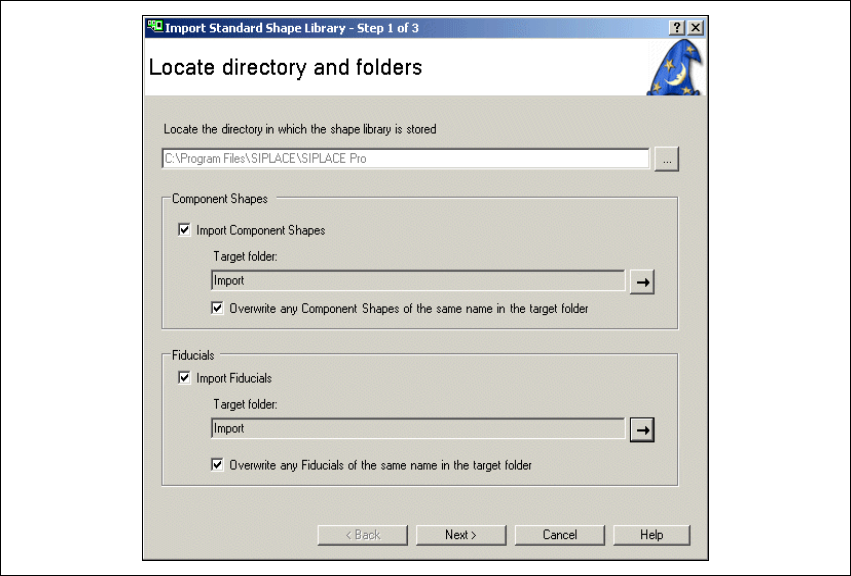
This Wizard helps you to import the standard library with shape and fiducial data. This data is
made available in XML format. 2
After standard installation (without changing the target directory), these data will be in the SI-
PLACE Pro target directory on your computer (C:\Program Files\SIPLACE\SIPLACE
Pro\Standard Library).
Select the menu Tools => Import => Standard Shape Library... to import this data.
Fig. 2 - 14 Import Standard Shape Library
Getting Started SIPLACE Pro 14.1 (R17-1) 2 Program Overview
05/2017 Edition 2.3 Presettings and Configurations
23
2.3.5 Adjust Shapes and Fiducials for X Series
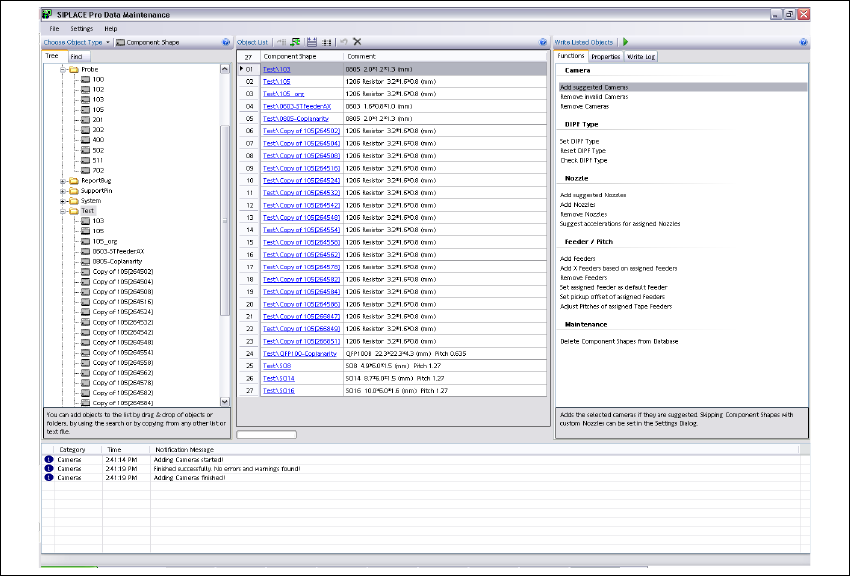
Use this tool if you want to edit existing component shapes, components or fiducial types for the
first time with machines running SIPLACE Vision. You can also use it if you have imported version
2.x XML data, line computer master data or CAD data. 2
2
In addition, this tool can be used to change the properties of many objects of a certain type at the
same time. Simply select the objects concerned and apply the required function to change the
properties needed (e.g. add cameras prompted for component shapes) 2
2
Select Start => Programs => SIPLACE Pro => Data Maintenance from the Windows Start
menu.
Fig. 2 - 15 SIPLACE Pro Data Maintenance
2