00198268-02_GS_SIPLACE-Pro-14.1-R17-1_EN - 第26页
3 T utorial Getting S tarted SIPLACE Pro 14.1 (R17-1) 3.2 Exercise 1: Importing ASCII Centroid Data 05/2017 Edition 26 3 3 3.2 Exercise 1: Importing ASCII Centroid Dat a 3.2.1 Importing ASCII Centroid Dat a Aim of exerci…
Getting Started SIPLACE Pro 14.1 (R17-1) 3 Tutorial
05/2017 Edition 3.1 Introduction/Overview
25
3 Tutorial
3.1 Introduction/Overview
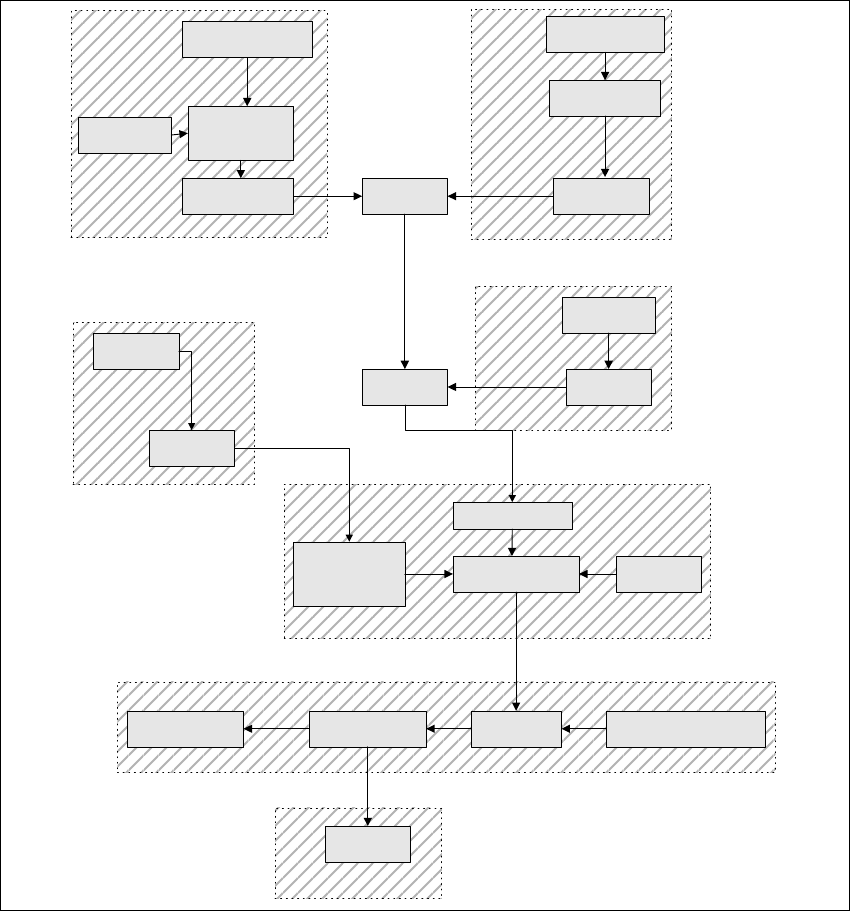
These simple exercises are designed to get you started with the SIPLACE Pro program. They are
in a logical sequence, showing the procedure from ASCII data to download at the machine. These
practical examples cover the basic functions of SIPLACE Pro but do not claim to be exhaustive.
Fig. 3 - 1 Examples - Overview
Creating a
Placement List
Import Wizard
ASCII Centroid
Creating a
Board
Import CAD Data
Creating a
Station
Creating a
Line
Editing
Recipe Data
Creating a Job
Line Control
GUI
Creating a
Component
Shape
Component Shape
Wizard
Job-Editor
Handlings
Data
Exercise 1
Exercise 3
Exercise 5
Exercise 4
New Component
Shape
Placement
List
Board-Editor
Board
Add
Setup-Editor
Creating a Initial
Setup
Creating a
Optimized Setup
Configuration
Optimization Parameters
OptimiziationError Results
Exercise 6
Exercise 7
Exercise 2
3 Tutorial Getting Started SIPLACE Pro 14.1 (R17-1)
3.2 Exercise 1: Importing ASCII Centroid Data 05/2017 Edition
26
3
3
3.2 Exercise 1: Importing ASCII Centroid Data
3.2.1 Importing ASCII Centroid Data
Aim of exercise 3
To create a placement list from existing ASCII centroid data. 3
How to create a placement list 3
Open the Wizard with Tools => Import => ASCII Centroid Import Wizard... or click on the
icon.
Open the SingleBoard.cad file in the SIPLACE Pro target directory C:\Program Files\
SIPLACE\SIPLACE Pro\Stammdaten.
In the Step 1 of 6 dialog box at Import filter, select the option New.
Click on Next.
Define these delimiters in the Step 2 of 6 dialog box:
Click on Next.
Caution
At first import the GFs (with help of the shape library!
Note
These examples have been kept relatively simple to help new users familiarize them-
selves with the SIPLACE Pro user interface and functions.
Edit field Option
Choose a record delimiter <End of line>
Treat consectuive delimiters as one Enable
Field delimiters Tab
Getting Started SIPLACE Pro 14.1 (R17-1) 3 Tutorial
05/2017 Edition 3.2 Exercise 1: Importing ASCII Centroid Data
27
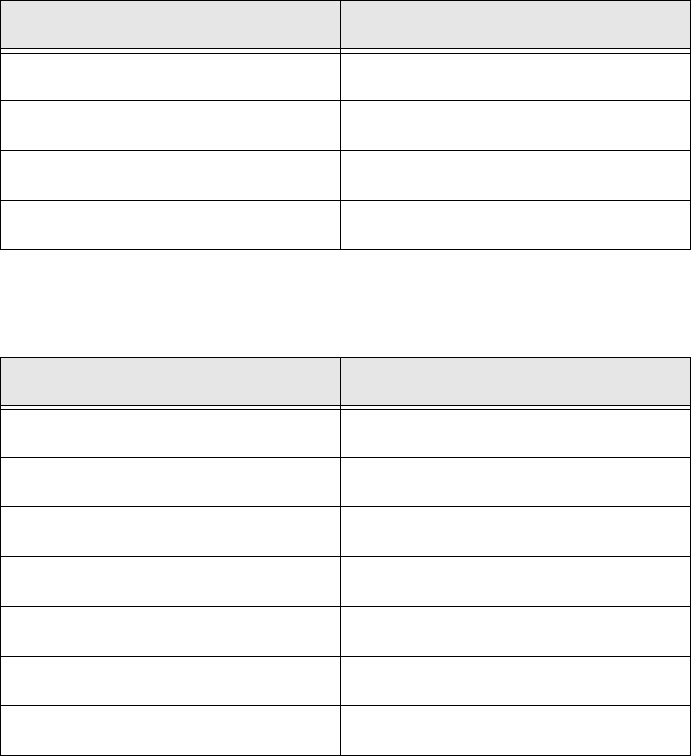
Define the following settings in the Step 3 of 6 dialog box:
Click on <Skip> in the header cell and select the designators for the individual columns from
the context menu:
The checkboxes in the Import column will be automatically enabled.
Disable the first line in the Import column if not already disabled - this includes column infor-
mation and not placements (should be automatically disabled).
Click on Next.
In the Step 4 of 6 dialog box, specify that you want to create a new placement list. Select Cre-
ate new from the list box.
Click on Next.
Edit field Option
Import unit mm
Radix Comma
Factor 1.000
Board side designators <None>
Column Column designator
Import <is automatically enabled
Column No. 1 Component
Column No. 2 X
Column No. 3 Y
Column No. 4 Angle
Column No. 5 Reference designator
Column No. 6 <Skip>