00198268-02_GS_SIPLACE-Pro-14.1-R17-1_EN - 第29页
Getting S tarted SIPLACE Pro 14.1 (R17-1) 3 T utorial 05/2017 Edition 3.2 Exercise 1: Importing ASCII Centroid Data 29 Result 3 A placement list has be en created. Y ou now need to a ssign component shapes (see also sect…
3 Tutorial Getting Started SIPLACE Pro 14.1 (R17-1)
3.2 Exercise 1: Importing ASCII Centroid Data 05/2017 Edition
28
Create a directory for this exercise My Components\Getting Started.
Select the following directories in the Step 5 of 6 dialog box:
3
Click on Next.
The Step 6 of 6 dialog box will appear. The placement list structure will be shown as a preview.
Click on Finish.
the placement list will be generated.
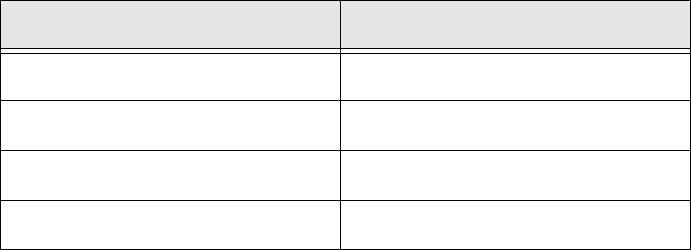
Dialog box/ Option Contents
Components folder (Read from) \Import
Components folder (Write to) \Getting Started (create)
Component Shape folder (Read from) <None>
Component Shape folder (Write to) <None>
Getting Started SIPLACE Pro 14.1 (R17-1) 3 Tutorial
05/2017 Edition 3.2 Exercise 1: Importing ASCII Centroid Data
29
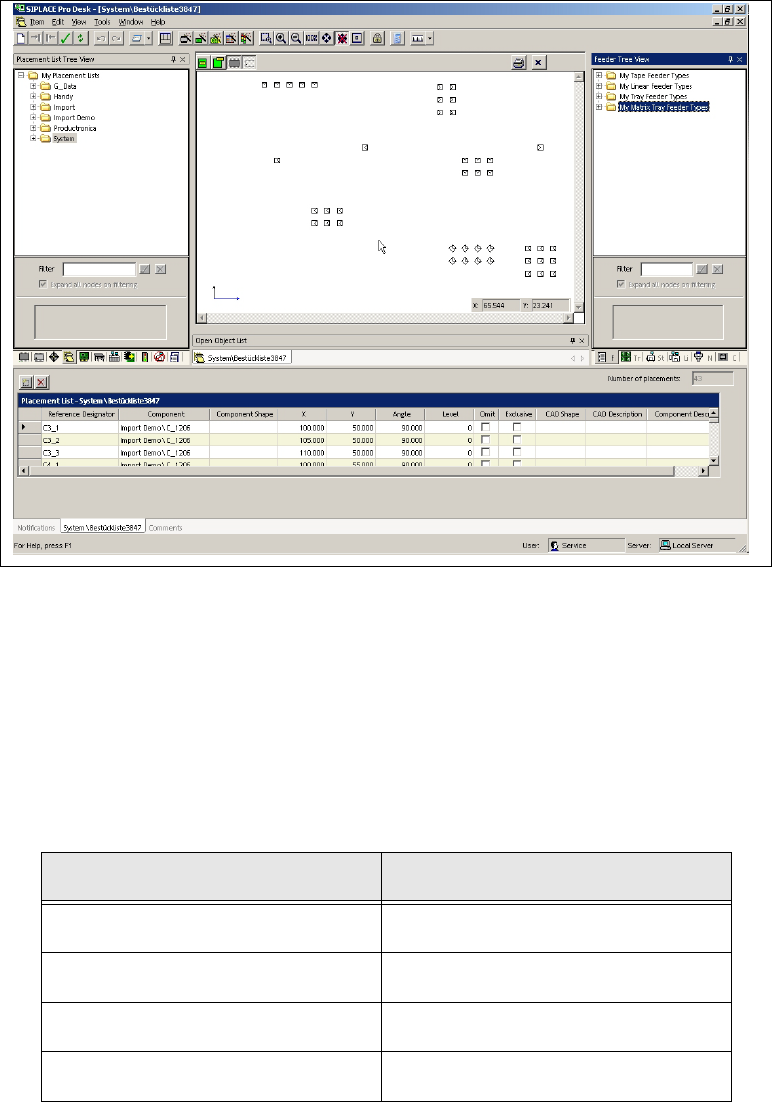
Result 3
A placement list has been created. You now need to assign component shapes (see also section
3.2.2 on page 29). One of the components does not yet have a component shape assigned. This
needs to be created in Exercise 2: Creating a Component Shape. 3
3
Fig. 3 - 2 Result: "Placement list created" screen
3.2.2 Assigning Component Shapes to Components
Select the Component shapes tree view and open the
System directory.
Use the drag & drop function to assign the required component shapes to the placement list.
– Use the data in the following table to help you:
Component Component shape
MMELF 201
0805 103
SOT23 400
1206 105
3 Tutorial Getting Started SIPLACE Pro 14.1 (R17-1)
3.2 Exercise 1: Importing ASCII Centroid Data 05/2017 Edition
30
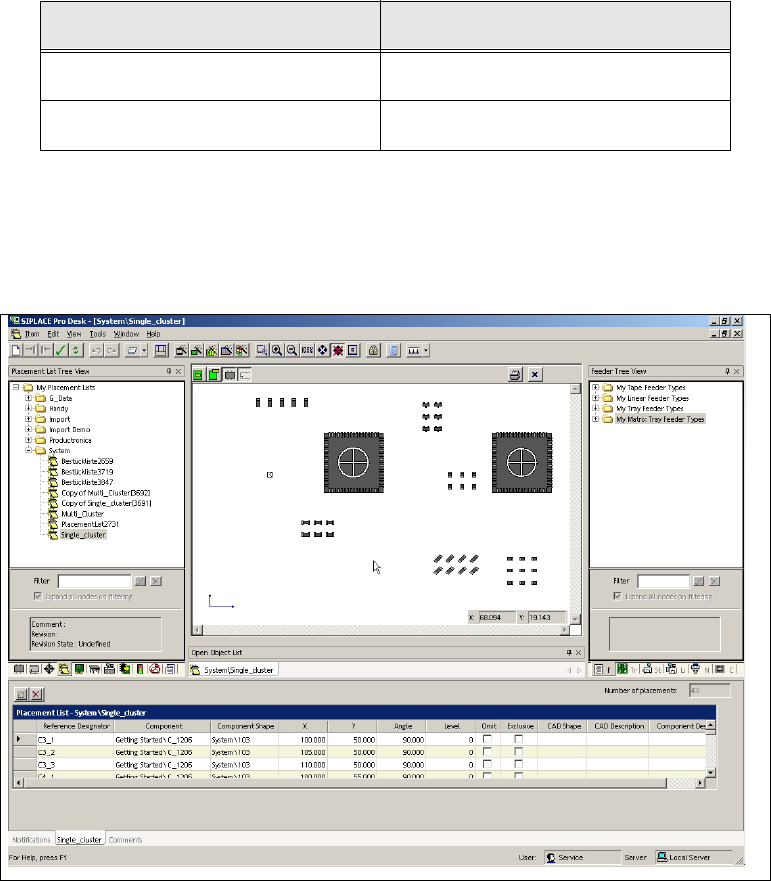
Result 3
The component shapes have been assigned. There is no component shape available for the com-
ponent SO20L. This will need to be created in Exercise 2: Creating a Component Shape. 3
3
Fig. 3 - 3 Result: "Placement List created and Component Shapes assigned" screen
Close the placement list.
Create the directory My Placement Lists\Getting Started in the Saves As dialog box.
Save this placement list as Single_Cluster.
3
PLCC 68 704
SO20L You will create this in exercise 2.
Component Component shape