00198268-02_GS_SIPLACE-Pro-14.1-R17-1_EN - 第35页
Getting S tarted SIPLACE Pro 14.1 (R17-1) 3 T utorial 05/2017 Edition 3.4 Exercise 3: Creating a Board for the Placement List 35 3 Fig. 3 - 6 Result: "Board wi th Placement List" screen Close the board. Now…

3 Tutorial Getting Started SIPLACE Pro 14.1 (R17-1)
3.4 Exercise 3: Creating a Board for the Placement List 05/2017 Edition
34
3.4 Exercise 3: Creating a Board for the Placement List
3.4.1 Creating a Single Board
Aim of exercise 3
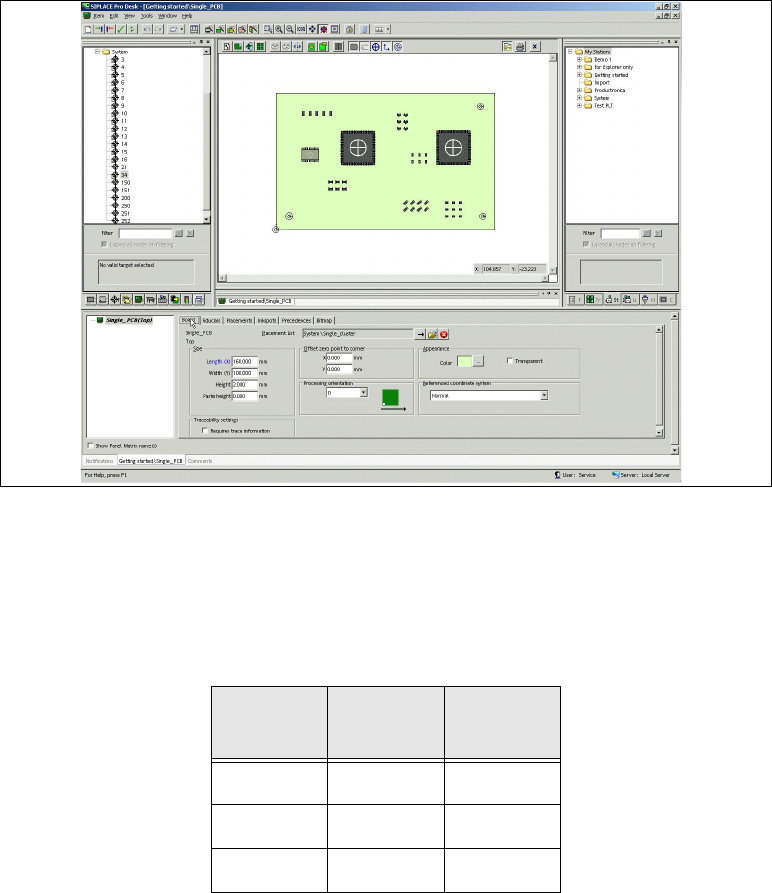
To create and assign a single board for the Single_Cluster placement list. 3
Step-by-step 3
Open the Board Editor with the menu Item => New => Board.
Select the required board in the view area.
Enter the board data.
Use the drag & drop function to assign the Getting Started\Single_Cluster placement list to
the board.
Result 3
The board will be shown with the placement list in the Board Editor and can be edited there. 3
Size
Length (X) 160.000 mm
Width (Y) 100.000 mm
Height 2 mm
Paste height 0.000 mm
Offset from zero point to corner
X 0.000 mm
Y 0.000 mm
Other
Default orientation 0 degrees
Reference coordinate system Normal
Getting Started SIPLACE Pro 14.1 (R17-1) 3 Tutorial
05/2017 Edition 3.4 Exercise 3: Creating a Board for the Placement List
35
3
Fig. 3 - 6 Result: "Board with Placement List" screen
Close the board.
Now generate a new fiducial type and save it as number 99 in the fiducial’s ’System’ folder.
Add three fiducials of the type 99 to your board using the coordinates in the table below and
activate it as panel fiducial. .
Create the directory My Boards\Getting Started for this board, in the Save As dialog box.
Save this board as Single_PCB.
3
Fiducial
type
X Y
99 10.0 10.0
99 150.0 10.0
99 150.0 90.0
3 Tutorial Getting Started SIPLACE Pro 14.1 (R17-1)
3.4 Exercise 3: Creating a Board for the Placement List 05/2017 Edition
36
3.4.2 Creating a Cluster Board
Aim of exercise 3
To create a cluster board and assign it to a placement list. Repeat the steps from Exercise 1 and
Exercise 2. 3
Preparation 3
Create a placement list for the cluster board as described in Exercise 1. 3
Use the ASCII Centroid Import Wizard...to import the ASCII file
ClusterBoard.cad into the SIPLACE Pro target directory at
C:\Program Files\SIPLACE\SIPLACE Pro\Stammdaten.
Assign the necessary component shape data to this placement list.
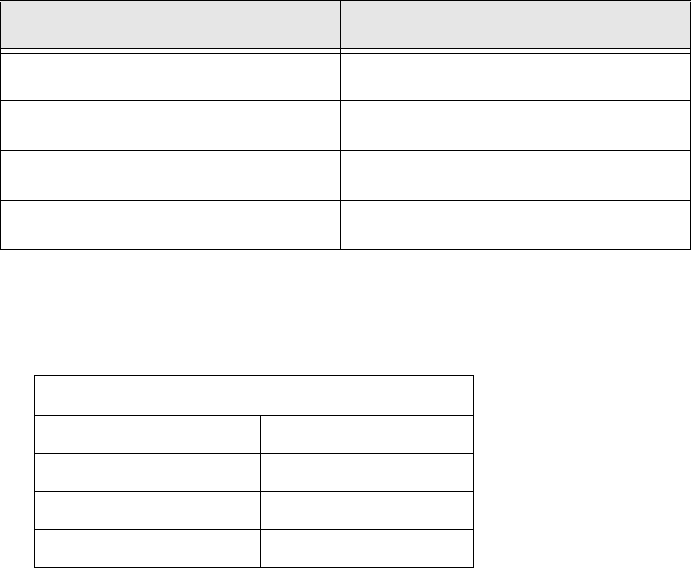
– Use the data in the following table to help you:
Save this placement list in the My Placement Lists\Getting Started directory as Multi_Clus-
ter.
Create a board with the following dimensions:
Save this board in the My Boards\Getting Started directory as Multi_PCB.
Component Component shape
0805 103
SOT23 400
1206 105
0603 102
Size
Length (X) 150.000 mm
Width (Y) 210.000 mm
Height 2 mm
Paste height 0.000 mm