00198268-02_GS_SIPLACE-Pro-14.1-R17-1_EN - 第44页
3 T utorial Getting S tarted SIPLACE Pro 14.1 (R17-1) 3.6 Exercise 5: Creating a Job with Initial Setup 05/2017 Edition 44 Result 3 The job will be shown in the Job Editor . 3 3 Fig. 3 - 10 Result: "Job with Initial…

Getting Started SIPLACE Pro 14.1 (R17-1) 3 Tutorial
05/2017 Edition 3.6 Exercise 5: Creating a Job with Initial Setup
43
3.6.2 Preparing the Job for Optimization
Aim of exercise 3
To create a job and use this to generate an optimized setup during the next exercise. An initial
setup must be assigned in the Job Editor and at least one board or recipe must be available. 3
How to create a job 3
Open the Job Editor with the menu Item => New => Job.
In the Job tab, at Initial Setup select the icon.
Select the Initial_Setup setup at My Setups\Getting Started .
Switch to the Recipe List tab.
Move the cursor to this tab and do a right-click on the mouse.
Select the Insert Boards function from the context menu and then choose the Single_PCB
board from My Boards\Getting Started .
Create the directory My Recipes\Getting Started for this recipe, in the Save As dialog box.
Assign the name Recipe1_Lesson5.
Close this job and create the directory My Jobs\Getting Started for this job, in the Save As
dialog box.
Assign the name Job1_Lesson5.
3 Tutorial Getting Started SIPLACE Pro 14.1 (R17-1)
3.6 Exercise 5: Creating a Job with Initial Setup 05/2017 Edition
44
Result 3
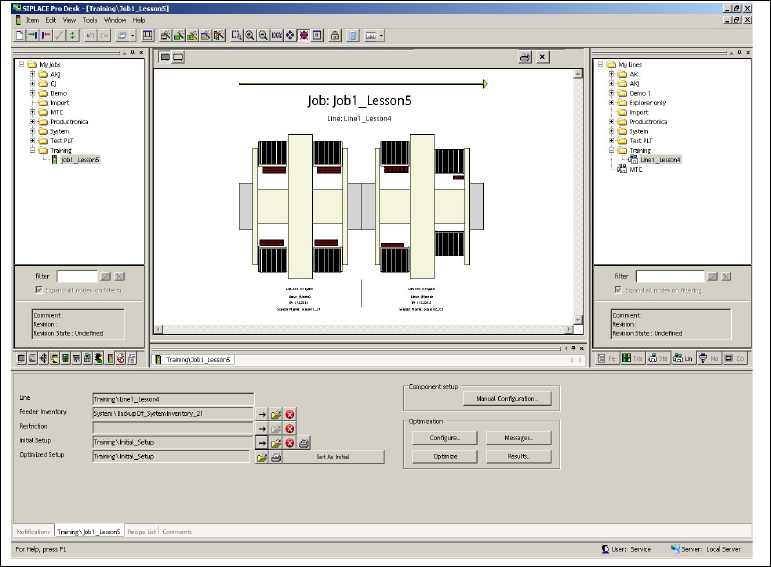
The job will be shown in the Job Editor. 3
3
Fig. 3 - 10 Result: "Job with Initial Setup and Recipe List" screen
– This job can now be optimized. An optimized setup will be generated, which can then be used
for a Download. Continue with Exercise 6: Optimizing the Job.
Getting Started SIPLACE Pro 14.1 (R17-1) 3 Tutorial
05/2017 Edition 3.7 Exercise 6: Optimizing the Job
45
3.7 Exercise 6: Optimizing the Job
3.7.1 Configuring the Optimization Parameters
Aim of exercise 3
The requirements defined in job configuration depend upon the complexity of the job. Get to know
this function here and learn how to define a simple configuration. 3
How to configure a job 3
Open the Job1_Lesson5 job at My Jobs\Getting Started.
Switch to the Job tab and select the Configure... button in the Optimization edit field.
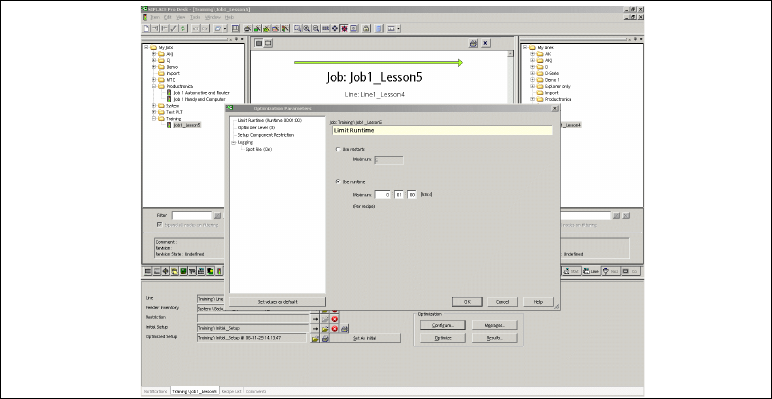
–The SIPLACE - Optimization Parameters dialog box will open.
Select the parameter groups "Limit Runtime" and "Optimizer Level" and enter the following val-
ues:
- Runtime: 1 minute
- Optimizer Level: 3
3
Fig. 3 - 11 Result: "Optimization Parameters" screen