00198268-02_GS_SIPLACE-Pro-14.1-R17-1_EN - 第46页
3 T utorial Getting S tarted SIPLACE Pro 14.1 (R17-1) 3.7 Exercise 6: Optimizing the Job 05/2017 Edition 46 . 3 Fig. 3 - 12 Result: "Optimization Parameters" screen Confirm with OK . 3.7.2 Performing Optimiza…
Getting Started SIPLACE Pro 14.1 (R17-1) 3 Tutorial
05/2017 Edition 3.7 Exercise 6: Optimizing the Job
45
3.7 Exercise 6: Optimizing the Job
3.7.1 Configuring the Optimization Parameters
Aim of exercise 3
The requirements defined in job configuration depend upon the complexity of the job. Get to know
this function here and learn how to define a simple configuration. 3
How to configure a job 3
Open the Job1_Lesson5 job at My Jobs\Getting Started.
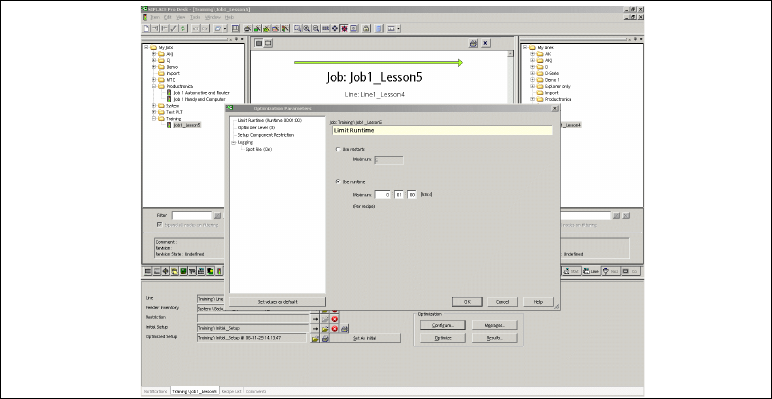
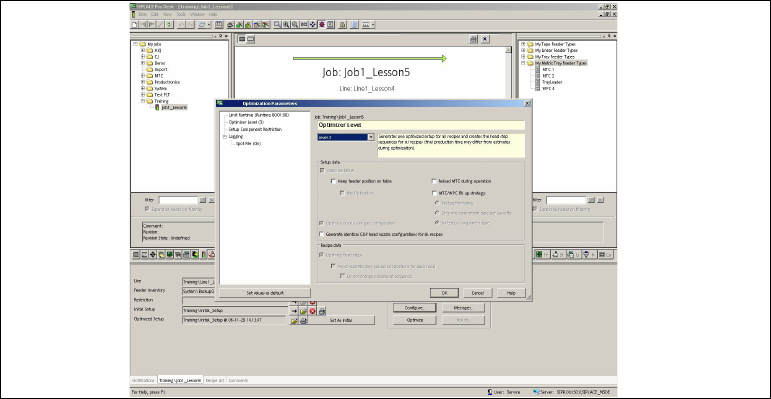
Switch to the Job tab and select the Configure... button in the Optimization edit field.
–The SIPLACE - Optimization Parameters dialog box will open.
Select the parameter groups "Limit Runtime" and "Optimizer Level" and enter the following val-
ues:
- Runtime: 1 minute
- Optimizer Level: 3
3
Fig. 3 - 11 Result: "Optimization Parameters" screen
3 Tutorial Getting Started SIPLACE Pro 14.1 (R17-1)
3.7 Exercise 6: Optimizing the Job 05/2017 Edition
46
. 3
Fig. 3 - 12 Result: "Optimization Parameters" screen
Confirm with OK.
3.7.2 Performing Optimization
Aim of exercise 3
The job will be optimized and an optimized setup (result setup) generated. Notification messages
will be issued to inform you whether the optimization was successful. You will learn to localize and
remedy errors. The result setups can be viewed and printed out as reports. 3
How to optimize a job and display the errors 3
Switch to the Job tab and select the Optimize... button in the Optimization edit field.
The Optimization Status dialog box will open and optimization will start.
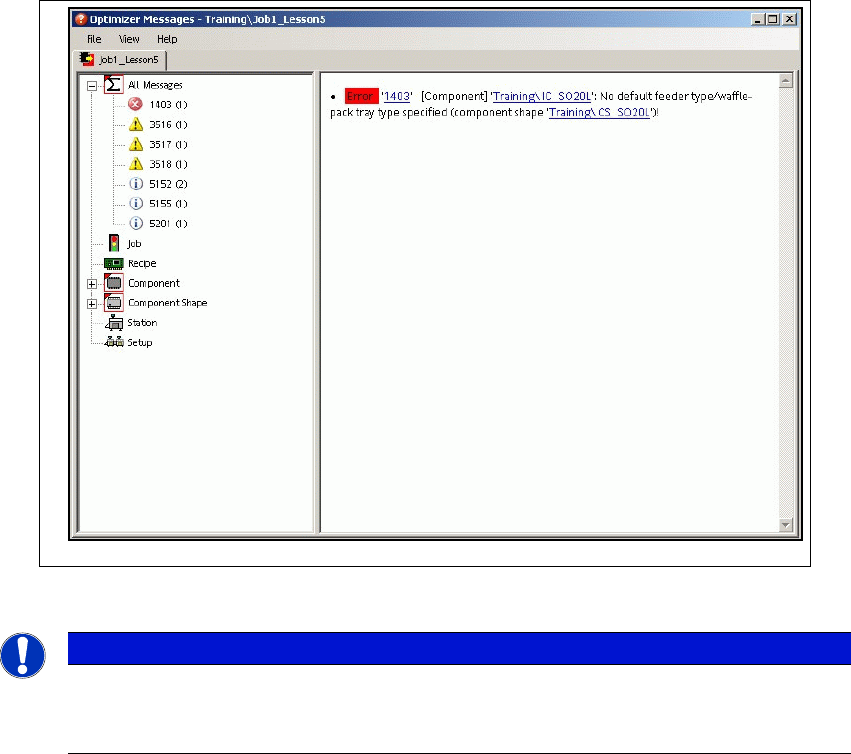
Follow the instructions in this dialog box. Optimization was not successful as errors occurred.
Select the Errors button in the Optimization edit field.
The Error Dialog will open. Localize and remedy the problem.
Getting Started SIPLACE Pro 14.1 (R17-1) 3 Tutorial
05/2017 Edition 3.7 Exercise 6: Optimizing the Job
47
3
Fig. 3 - 13 Result: "Error Dialog" screen
3
How to remedy the error 3
Open the SO20L component shape at My Component Shapes\Getting Started .
Switch to the Feeders tab and assign the most suitable feeder as default feeder
(e.g. 24mm S).
Switch to the Job tab and select the Optimize... button in the Optimization edit field.
–The Optimization Status dialog box will open and optimization will begin. Optimization
should now run successfully.
Note
A default feeder was not assigned when the missing component shape was created in
Exercise 2.