00198268-02_GS_SIPLACE-Pro-14.1-R17-1_EN - 第49页
Getting S tarted SIPLACE Pro 14.1 (R17-1) 3 T utorial 05/2017 Edition 3.7 Exercise 6: Optimizing the Job 49 3 Fig. 3 - 15 Result: "Brief Overview of Optimization Results" screen Mark the line and select the S…
3 Tutorial Getting Started SIPLACE Pro 14.1 (R17-1)
3.7 Exercise 6: Optimizing the Job 05/2017 Edition
48
3
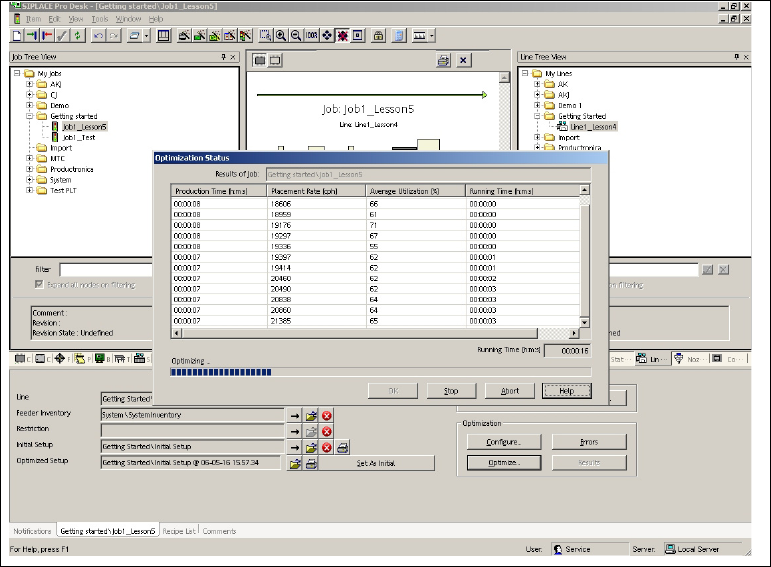
Fig. 3 - 14 Result: "Optimization Status" screen
Confirm with OK.
Save this optimized setup under the suggested name.
Open the result setup and set alll feeders, components and nozzles to "Fixed". Save the setup.
Set the result setup as initial setup in the Job Editor.
This setup is now the basis for subsequent optimizations. 3
3.7.3 Result Setups Reports and Brief Overview
Aim of exercise 3
The job is optimized and an optimized setup (result setup) is generated. The result setups can be
viewed in a brief overview or printed out as reports. 3
3
How to start the report 3
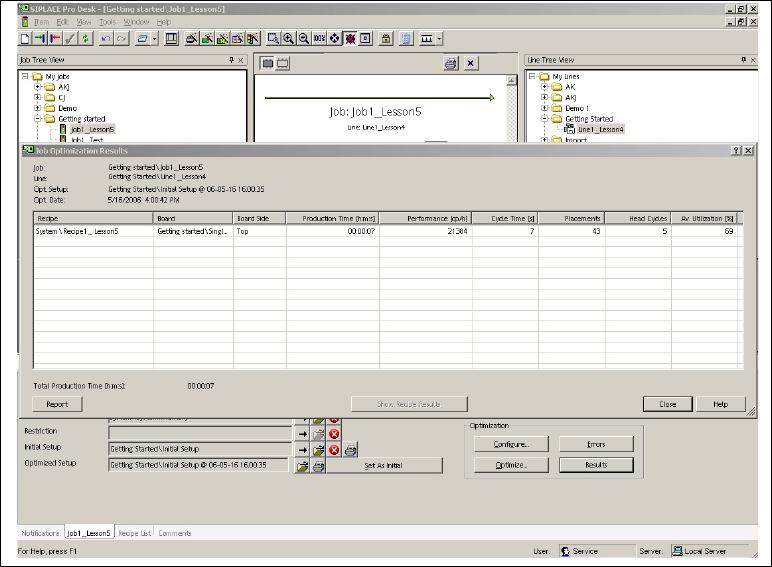
Switch to the Job tab and select the Results... button in the Optimization edit field.
The brief overview of optimization results will be opened for this job.
Getting Started SIPLACE Pro 14.1 (R17-1) 3 Tutorial
05/2017 Edition 3.7 Exercise 6: Optimizing the Job
49
3
Fig. 3 - 15 Result: "Brief Overview of Optimization Results" screen
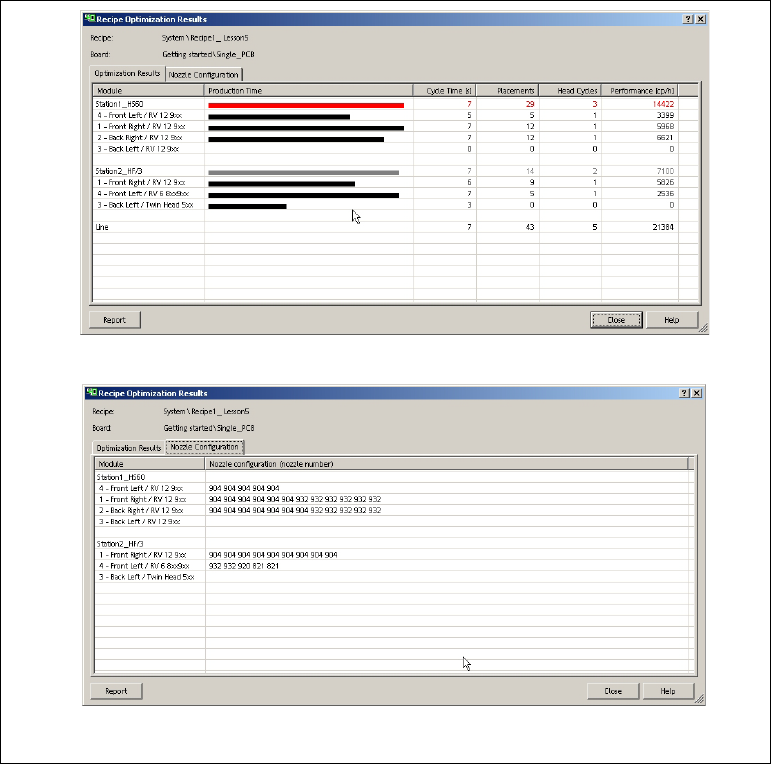
Mark the line and select the Show Recipe Results button. You will see the optimization results
for the individual placement heads, the station or line utilization and the nozzle configuration
for this recipe.
3 Tutorial Getting Started SIPLACE Pro 14.1 (R17-1)
3.7 Exercise 6: Optimizing the Job 05/2017 Edition
50
3
Fig. 3 - 16 Optimization Results for the Recipe (Placement Heads and Nozzle Configuration)