00198268-02_GS_SIPLACE-Pro-14.1-R17-1_EN - 第55页
Getting S tarted SIPLACE Pro 14.1 (R17-1) 3 T utorial 05/2017 Edition 3.8 Exercise 7: Performing a Download with the Line Control GU I 55 Aim of exercise 3 Y ou will create a simple production s chedule for t he job crea…
3 Tutorial Getting Started SIPLACE Pro 14.1 (R17-1)
3.8 Exercise 7: Performing a Download with the Line Control GUI 05/2017 Edition
54
3.8 Exercise 7: Performing a Download with the Line
Control GUI
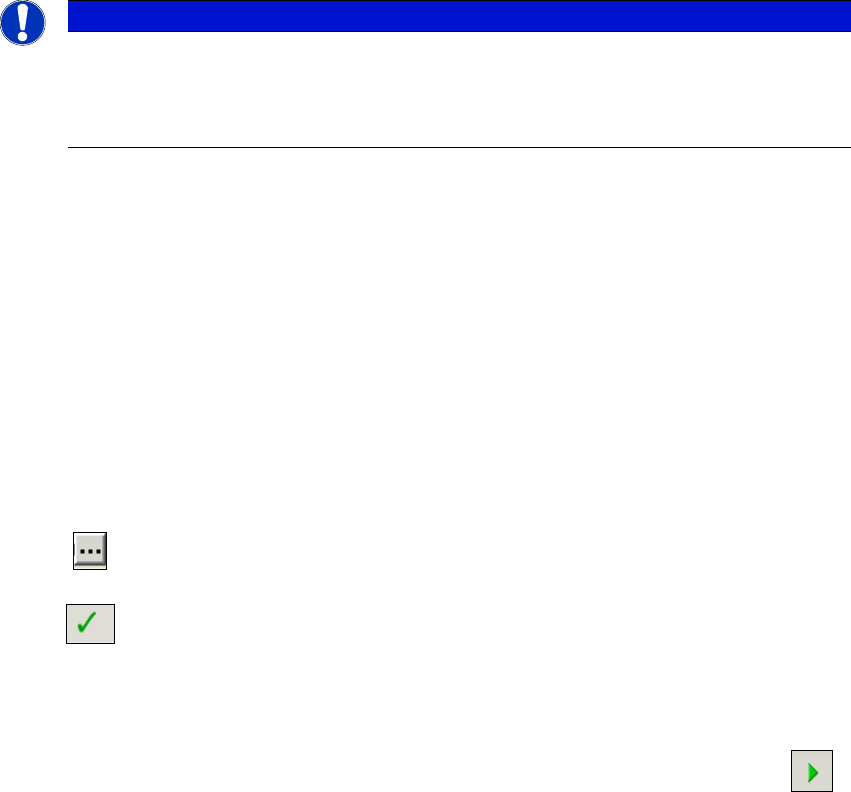
After successfully installing SIPLACE Pro, the Windows Start menu Start => Programs => will
show the entry SIPLACE Pro => LCGUI 14.1 and
the LCGUI 14.1 icons will appear on the Desktop. 3
Start the LCGUI 14.1 from the submenu or
with the icon on the Desktop.
– The system will open the Logon dialog box.
Enter your User data. Contact your system administrator if you have questions about user
name or password.
– After successfully logging on, the system will connect to the Line Control server and open
the Line Control GUI user interface.
Please refer to your installation guide, if installation was not successful.
3
Fig. 3 - 20 LCGUI: Main View
Getting Started SIPLACE Pro 14.1 (R17-1) 3 Tutorial
05/2017 Edition 3.8 Exercise 7: Performing a Download with the Line Control GUI
55
Aim of exercise 3
You will create a simple production schedule for the job created in Exercise 5 and optimized in
Exercise 6 and will then send this to the line. 3
How to create a production schedule and perform a download 3
3
From the View menu, select the function Production Schedules - Show Tree View.
Move the cursor to this tree view and right-click with the mouse.
Select the function New Production Schedule from the context menu.
Select Linie1_Lesson4 at My Lines\Getting Started or choose another line to which a con-
nection already exists. The line will be shown in the Line view area.
Move the cursor to the editing area for the recipes and right-click with the mouse.
Select the function Add boards from the context menu.
Select the board Single_PCB from My Boards\Getting Started
A new recipe will be created. Save this recipe at My Recipes\Getting Started , as Down-
load_Single_PCB. Confirm with OK.
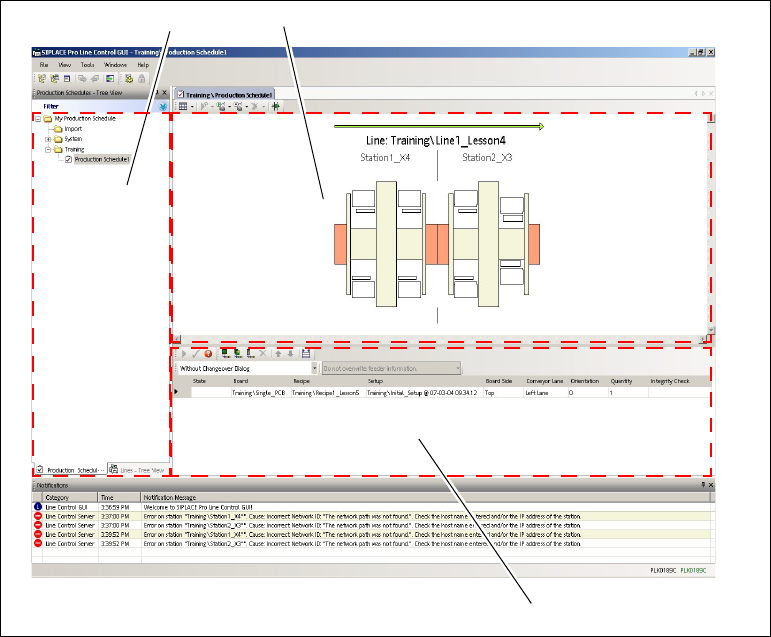
In the recipe list editing area (see Fig. 3 - 21 on page 56), mark the column Setup and click on
the button to select the optimized setup Initial_Setup@xxxx.
Mark the recipe in the production schedule and perform an integrity check. To do this, click on
the icon in the toolbar of the recipe list.
– If the integrity check is successful, the Status column will display the message "Checked"
and the Integrity Checkcolumn will shown the data and time of the check.
Mark the recipe line via the icon in the cell header.
Define the production schedule recipe for the stations by starting a download with the
icon.
Confirm the Conveyor lane emptied message withOK, as soon as the line has been emptied.
Note
The following exercise describes the standard download procedure. To perform this ex-
ercise, you must have a connection to your stations. If the line from the previous exercis-
es is used, error messages could be issued.
3 Tutorial Getting Started SIPLACE Pro 14.1 (R17-1)
3.8 Exercise 7: Performing a Download with the Line Control GUI 05/2017 Edition
56
3
Fig. 3 - 21 LCGUI: Production schedule for Job1_Lesson5
Key
3
3
(1) Tree view - production schedules (2) Line view area
(3) Recipe list editing area 3
3
2
1