00198268-02_GS_SIPLACE-Pro-14.1-R17-1_EN - 第9页
Getting S tarted SIPLACE Pro 14.1 (R17-1) 2 Program Overview 05/2017 Edition 2.1 S tarting SIPLACE Pro 9 2 Program Overview 2.1 S t arting SIPLACE Pro After successfully inst alling SIPLACE Pro, the W indows S tart menu …
1 Introduction Getting Started SIPLACE Pro 14.1 (R17-1)
1.4 Online Help 05/2017 Edition
8
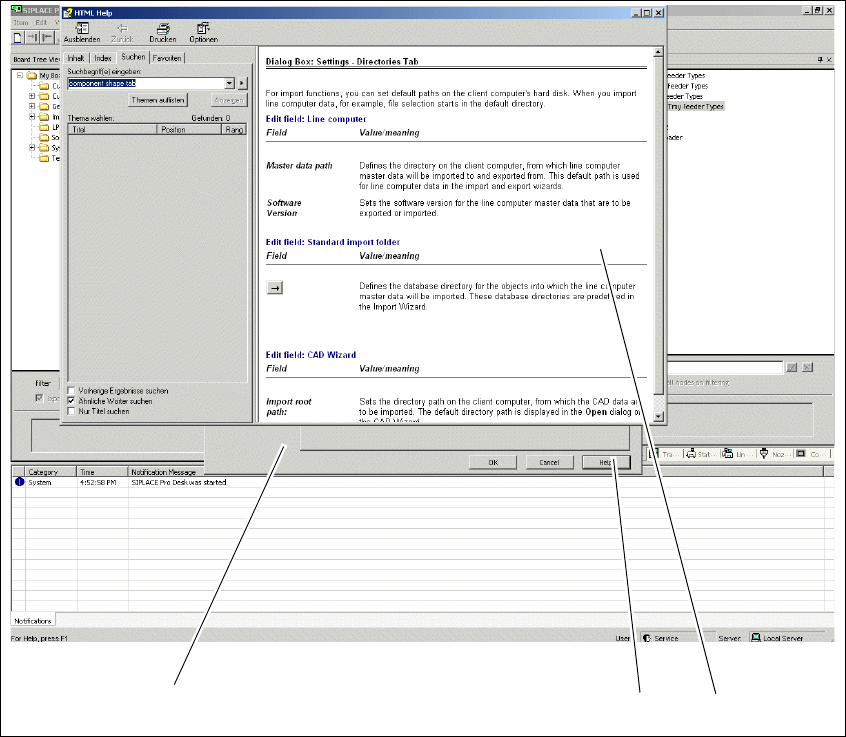
1.4.2 Accessing Online Help from Dialog Boxes via the "Help" Button
Access the Online Help function for dialog boxes with the Help button.
Abb. 1 - 2 Accessing Online Help via the "Help" button
Key
(1) Dialog box (2) Help button
(3) Online Help about this subject
1
2
3
Getting Started SIPLACE Pro 14.1 (R17-1) 2 Program Overview
05/2017 Edition 2.1 Starting SIPLACE Pro
9
2 Program Overview
2.1 Starting SIPLACE Pro
After successfully installing SIPLACE Pro, the Windows Start menu Start => Programs => will
show the entry SIPLACE Pro => Desk 14.1 and a
Desk 14.1 icon will be added to the Desktop. 2
Start SIPLACE Pro from the menu or with the
icon on the desktop.
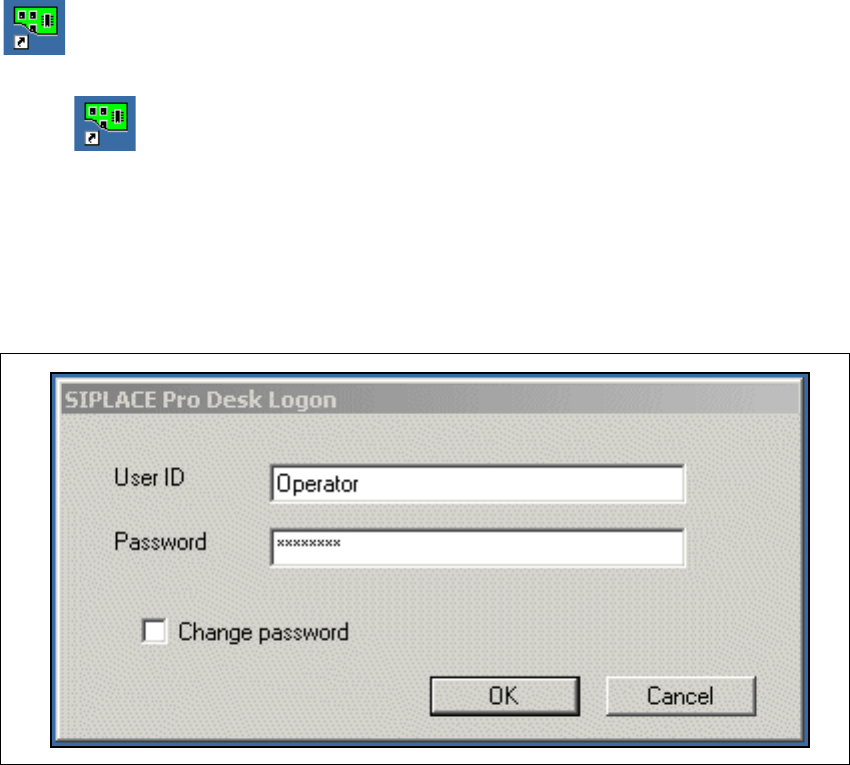
– If security is turned on, the system will open the Logon dialog box.
– If security ist turned off, select Global Options, tab Settings and select the option Security
on.
Enter your User data. Contact your system administrator if you have questions about user
name or password.
2
Fig. 2 - 1 SIPLACE Pro - Logon user
– After successfully logging on, the system will connect to the SIPLACE Pro server and open the
SIPLACE Pro user interface. Please refer to your installation guide, if installation was not suc-
cessful.
2 Program Overview Getting Started SIPLACE Pro 14.1 (R17-1)
2.2 The User Interface 05/2017 Edition
10
2.2 The User Interface
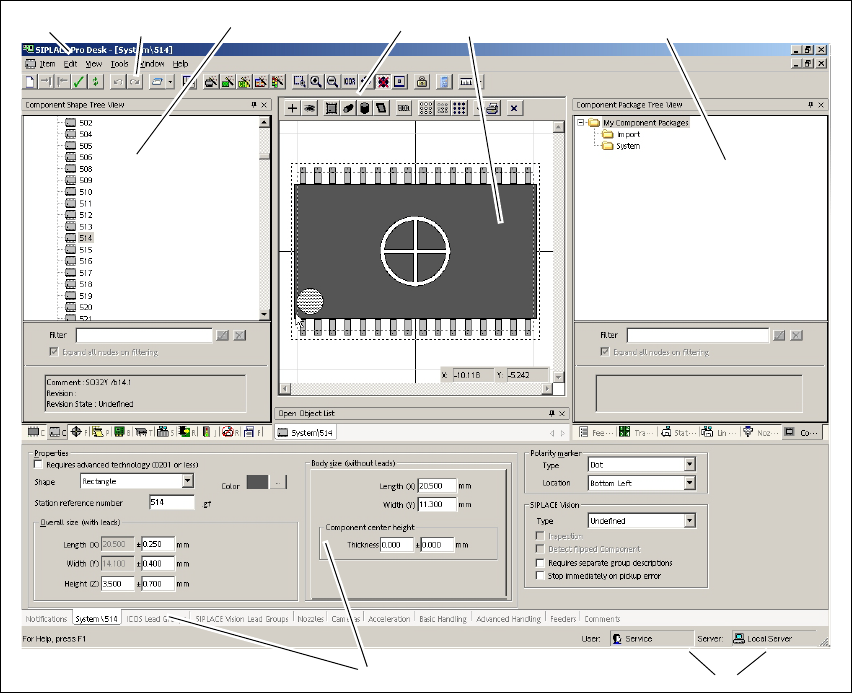
This chapter will help you to familiarize yourself with the SIPLACE Pro user interface. The user
interface is divided into the following areas. These contain all the functions and editors needed to
create a placement program with SIPLACE Pro. This example shows the user interface with the
opened Component Shape Editor. 2
2
Fig. 2 - 2 The user interface
Key
(1) Menu bar (2) Toolbar
(3) Tree view - product objects (4) Editor toolbar in window (may vary
between editors)
(5) View area/window (6) Tree view - Equipment objects
(7) Editor editing areas as tabs (may vary
between editors)
(8) Shows the current user name and the
server to which this desk is connected
123 45
7
6
8