00197733-01_VD_605_04_DE_EN.pdf - 第17页
Station Software 60 5.04 / Version D escription Ausgabe 04/ 2015 Edition 17 6.3.2 EVA Running under Station Sof tware 605 6.3.2.1 Activating EVA ► Change to the oper ating system and start Explorer. Activate EVA as fol l…
Station Software 605.04 / Version Description Ausgabe 04/2015 Edition
16
6.3 EventAnalyzer
EventAnalyzer (EVA) is a program running on the station. EVA records all axis and transport
events and all vacuum values. And EVA records all these events during reference run and during
placement.
EVA is used for:
– detecting the exact cycle time and for the detailed analysis of cycle time workflow
– troubleshooting
– recording the axis movements over a longer period
The EventAnalyzer (EVA) is a tool that is used for service and development.
6.3.1 EVA Measurement
For the exact and reliable detection of cycle times you have to measure several boards
(approx. 5-10 boards).
EVA produces periodically log files filled with event files that are stored in the axis buffer. In order
to make sure that all events of a measurement cycle – from EVA start until EVA stop – are stored
in the log files the following sequence has to be followed.
1. EVA stop & EVA start (before the 1st board)
2. Placement of boards 1 to n
3. EVA stop to save all events from the axis buffer
4. Save data (i.e. BugReport) and maybe delete EVA log files if necessary
With every EVA stop the current EVA log file is closed and a new EVA log file is saved under
C:\EVA\Data\Stations\Local\Log\BB-*.log. You can send the EventAnalyzer_*.log file for evaluation
to the SIPLACE service.
NOTICE
●
We recommend that you save or delete log files before and after each measurement
cycle because the number and size of log files could be very large.
● If the three XML files (ConfigInSet.xml, ConfigInStart.xml, ConfigInStop.xml)
necessary for EVA activation are not available, please contact your SIPLACE
representative. Once, you receive them copy the XML files (ConfigInSet.xml,
ConfigInStart.xml, ConfigInStop.xml) into the C:\EVA\DATA\EVAIn\Commands
directory.
Station Software 605.04 / Version Description Ausgabe 04/2015 Edition
17
6.3.2 EVA Running under Station Software 605
6.3.2.1 Activating EVA
► Change to the operating system and start Explorer.
Activate EVA as follows:
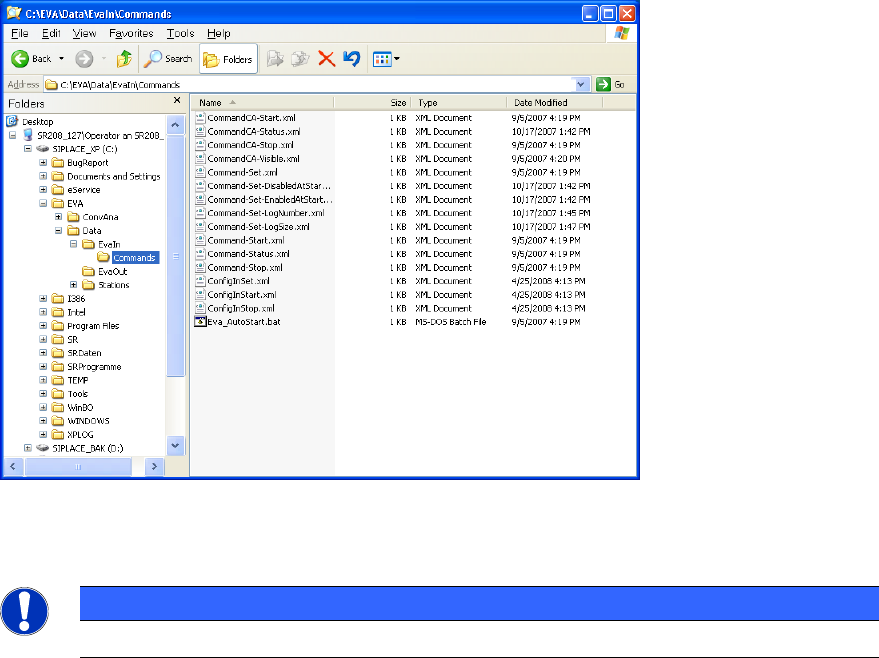
► Copy the ConfigInSet.xml file from the C:\EVA\Data\EvaIn\Commands directory into the
C:\EVA\Data\EvaIn directory.
Rename the file to ConfigIn.xml. One second later the file is recognized by the system and
disappears.
► Always stop EVA before you start a new measurement (several boards).
► Copy the ConfigInStop.xml file from the C:\EVA\Data\EvaIn\Commands directory into the
C:\EVA\Data\EvaIn directory.
Rename the file to ConfigIn.xml. One second later the file is recognized by the system and
disappears.
► Copy the ConfigInStart.xml file from the C:\EVA\Data\EvaIn\Commands directory into the
C:\EVA\Data\EvaIn directory.
Rename the file to ConfigIn.xml. One second later the file is recognized by the system and
disappears.
EVA is now activated.
Figure 6-2: Directory for XML files
Now you can start the production of 1 to n boards for a measurement in the main view.
NOTICE
If you reboot the station EVA is deactivated and needs to be reactivated.

Station Software 605.04 / Version Description Ausgabe 04/2015 Edition
18
6.3.2.2 Stopping EVA
► Close the measurement by stopping EVA.
Stop EVA as follows:
► Copy the ConfigInStop.xml file from the C:\EVA\Data\EvaIn\Commands directory into the
C:\EVA\Data\EvaIn directory.
Rename the file to ConfigIn.xml. One second later the file is recognized by the system and
disappears.
6.3.2.3 Saving Log Files
The log files (EventAnalyzer_*.log, BB-*.log) are automatically saved under
C:\EVA\Data\Stations\Local\Log\BB-*.log.
You can save the EventAnalyzer file(s) directly or via a bug report on a removable medium and
send it (them) to SIPLACE service.
For troubleshooting we recommend saving the EventAnalyzer file via bug report.
You can save the log file via bug report as follows:
► Start bug report (Crtl + Alt + F10).
► Mark the checkbox EVA.
► Activate the Generate Bug Report button.
► Finally, copy the bug report onto a removable medium.