00197042-04_SM_X-Serie-S_Customer_EN.pdf - 第269页
7 Conveyor 7.8 Laser light barriers, fiber optic cable and PCB sensors Service Manual SIPLACE X-Serie S 06/2019 269 Fig.338: Holding plate ► Remove the screws (2) fastening the bracket (3) to the top end of the traili…
7 Conveyor
7.8 Laser light barriers, fiber optic cable and PCB sensors
268 Service Manual SIPLACE X-Serie S 06/2019
Overview
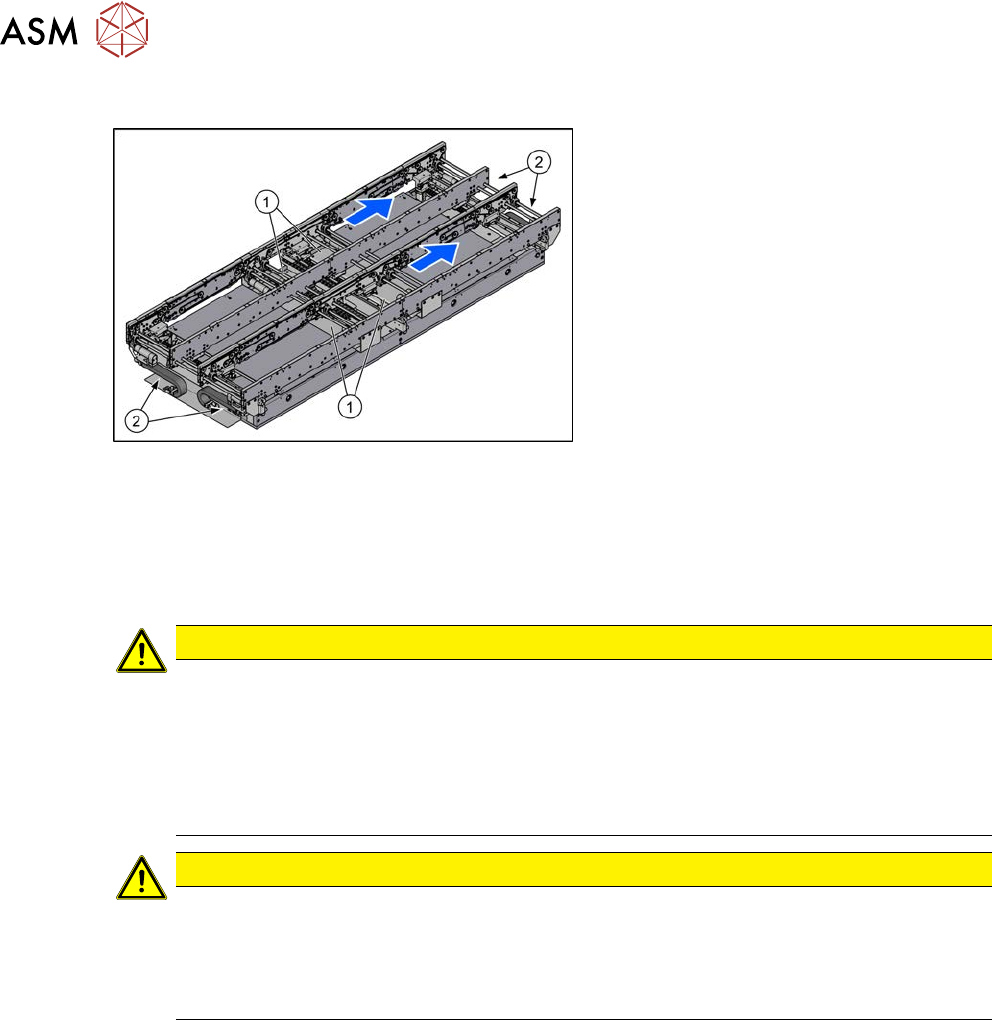
Fig.337: Overview of conveyor controls
The cables for the laser light barriers are
either connected directly to the conveyor
controls(1) or to the input or output area(2)
of the conveyor.
For details of the conveyor control, see
7.9.1.1 "Conveyor control TSP420" [}291].
Removal
► Switch off the machine, disconnect it from the power supply and secure it to prevent
unauthorized reactivation.
1.2 "Preparatory work..." [}16]
CAUTION
Move the conveyor sides carefully!
The clamping and guide rails are a key stabilizing element for the conveyor side, which is
then less stable once they have been removed.
► Move the opened conveyor sides very carefully.
► Make sure that the sides are always pushed equally on the left and right.
► Make sure that you do not distort the sides.
CAUTION
Make a note of the order in which the cables are run!
The room in the side walls is limited. Therefore, make sure that no cables are crossed over,
particularly in the output area, from the trailing cable to the laser light barrier.
Make a note of the order in which the cables are run in the side panel, so that you can run
them neatly and correctly again later on.
► Remove the transmitter/receiver.
7.8.1 "Replacing the Laser Light Barrier for the Transmitter/Receiver" [}263]
► You might need to dismantle other guide rails in order to thread the cable out of the conveyor
side, as far as the trailing cable.
7.7.3 "Replacing the Clamping Rail/Belt Guidance" [}259]
► You might want to move hexagonal shafts in order to create more room for movement.
7.6.6 "Replacing the hexagonal shaft" [}253]
7 Conveyor
7.8 Laser light barriers, fiber optic cable and PCB sensors
Service Manual SIPLACE X-Serie S 06/2019 269
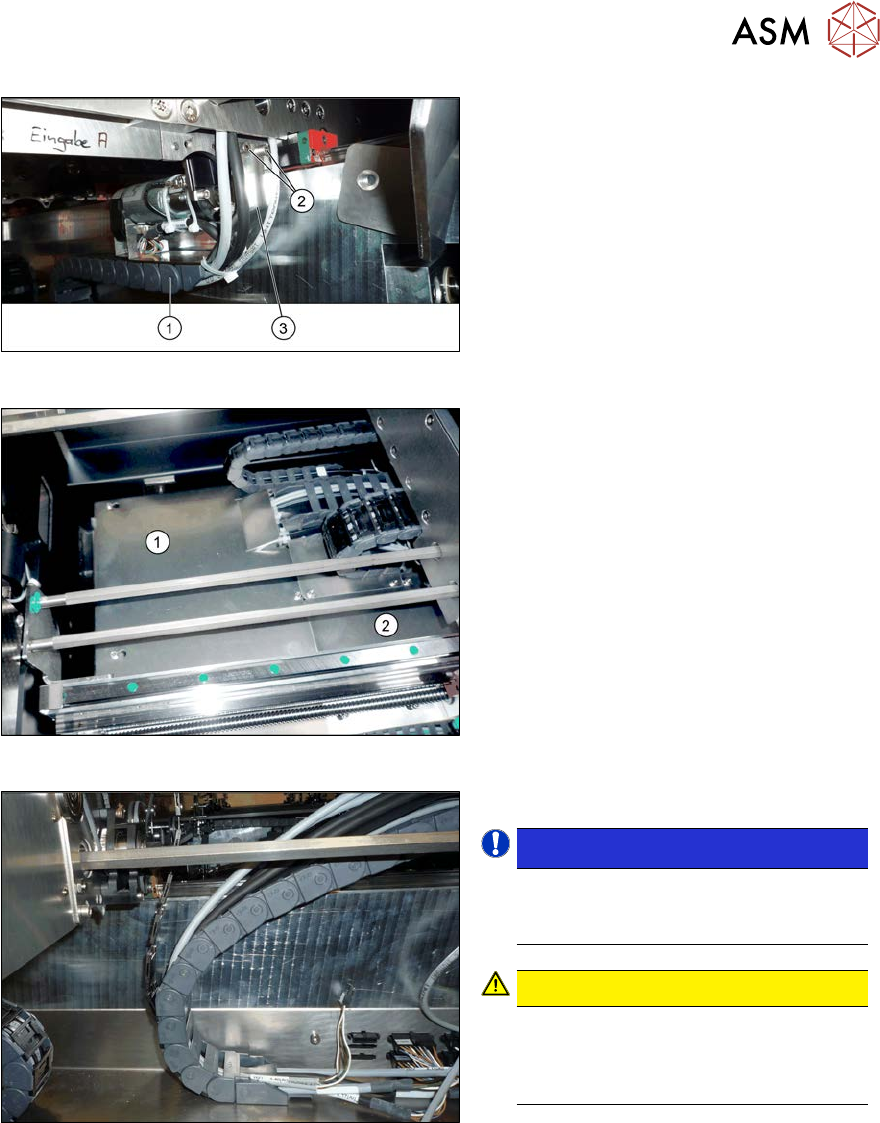
Fig.338: Holding plate
► Remove the screws(2) fastening the
bracket(3) to the top end of the trailing
cable(1) on the conveyor side.
► For better access, you can remove the
screws fastening the trailing cable to
the bracket.
Fig.339: Cover plates (example of SX1/SX2 shown)
► In the intermediate conveyor: dismantle
the two cover plates(1) and (2) under
the trailing cable. To do this, loosen the
four fastening screws for each and then
remove the cover plates.
Fig.340: Opened trailing cable
► Open the trailing cable.
NOTICE!
There is also a protective tape in the
trailing cable. This separates the fiber
optic cable from the cables.
.
CAUTION!
Make sure you do not bend the fiber
optic cable. These could otherwise be-
come cloudy or break and no longer
transmit the signal properly.
.
► For better access, you can remove the
screws fastening the trailing cable to
the bottom of the conveyor.
► Thread the cable out of the conveyor
side and the trailing cable.
7 Conveyor
7.8 Laser light barriers, fiber optic cable and PCB sensors
270 Service Manual SIPLACE X-Serie S 06/2019
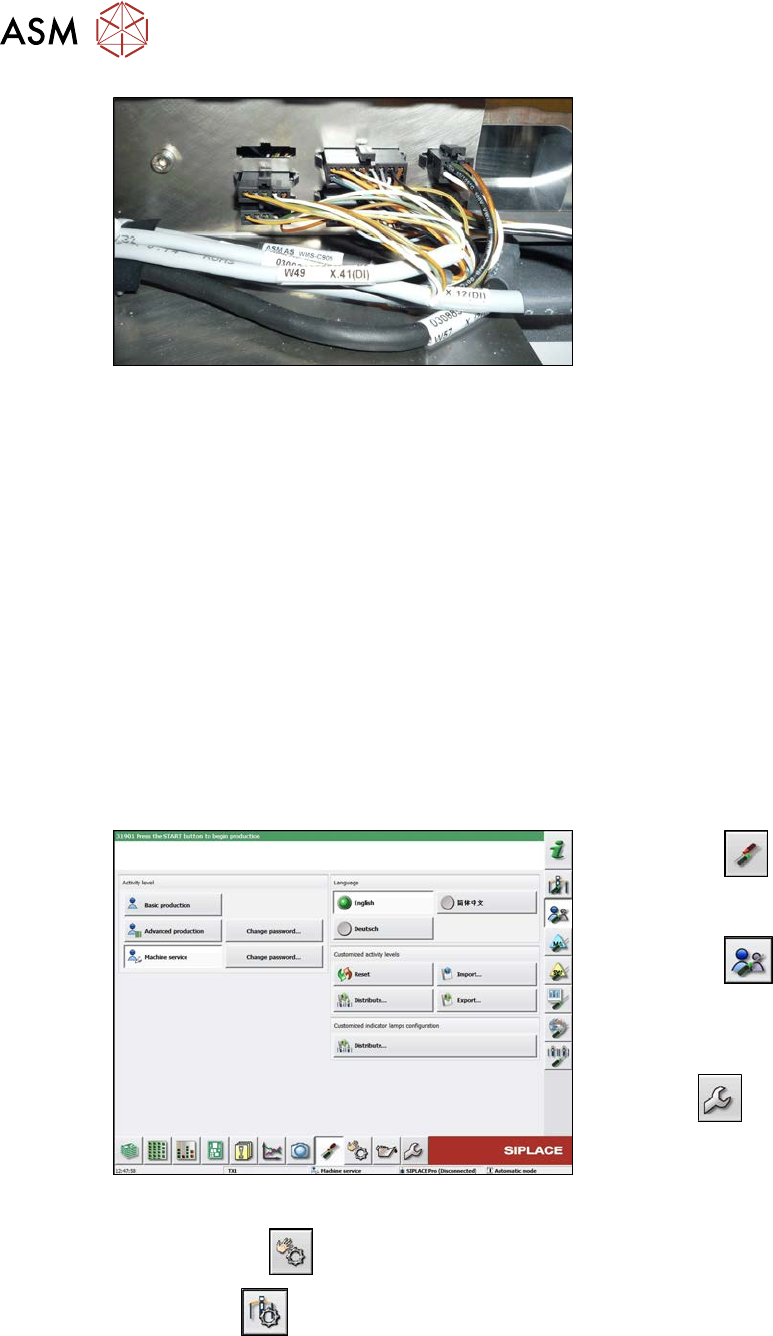
Fig.341: Connections (here output conveyor location 3)
► Disconnect the cable. You may want to
mark the position, to make clear as-
signment easier later on.
Installation
► Follow the removal instructions in reverse order for installation. Also observe the following
instructions:
– Leave enough room at the cable for easy removal of the transmitter/receiver from the side
wall. Make sure that the connector is not directly under the housing, otherwise you might
have problems inserting the module.
– Replace any open cable ties.
Make sure that the cable ties and the heads of the cable ties do not rub against any parts
when you do this.
– Check the setting for the transmitter/receiver and correct if necessary.
– Teach the PCB sensors.
7.8.3 Checking the laser light barrier
Whenever the laser light barrier is dismantled, it then needs to be checked and manually set again,
if necessary. Check the setting as follows:
Fig.342: Select operator level
► Select the
button, to open the
Configure, update and calibrate the
machine menu.
► Select the
button to open the
Check and set user settings menu.
► Switch over to the operator level Ma-
chine service.
ð The
button will be shown.
► Click on the
button, to switch over to the menu Check sensors and functions.
► Click the
button.