00197042-04_SM_X-Serie-S_Customer_EN.pdf - 第302页
7 Conveyor 7.10 Conveyor sides 302 Service Manual SIPLACE X-Serie S 06/2019 Fig.383: Calibrating the conveyor sides ► Click on this button: . ► Select "Calibrate conveyor sides". 7.10.4 Fixed Side Right/Left N…
7 Conveyor
7.10 Conveyor sides
Service Manual SIPLACE X-Serie S 06/2019 301
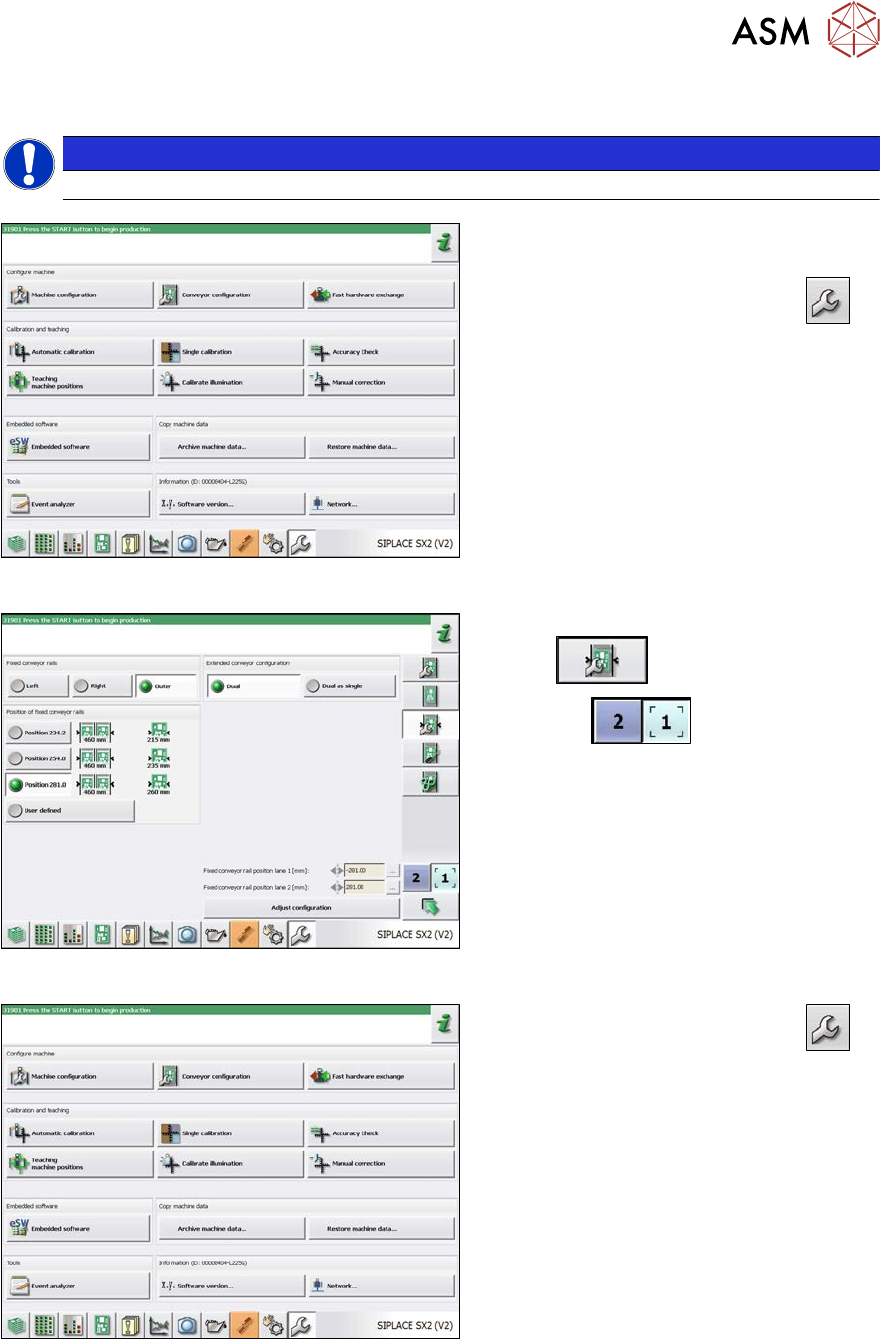
7.10.3 Calibrating the Conveyor Rails
NOTICE
This chapter is valid for machines with dual conveyor (DC) only.
Fig.380: Service menu
► Switch over to the activity level "Ser-
vice (customer)" (or better still).
► Switch over to the service menu
.
► Select "Conveyor configuration".
Fig.381: Setting the conveyor side
► Select "Set options for conveyor fixed
rail"
.
► Use the
button to select the
required conveyor lane.
► Set the conveyor position.
The fixed sides will later have their original
positions again.
Fig.382: Service menu
► Switch over to the service menu
.
► Select "Single calibration".
7 Conveyor
7.10 Conveyor sides
302 Service Manual SIPLACE X-Serie S 06/2019
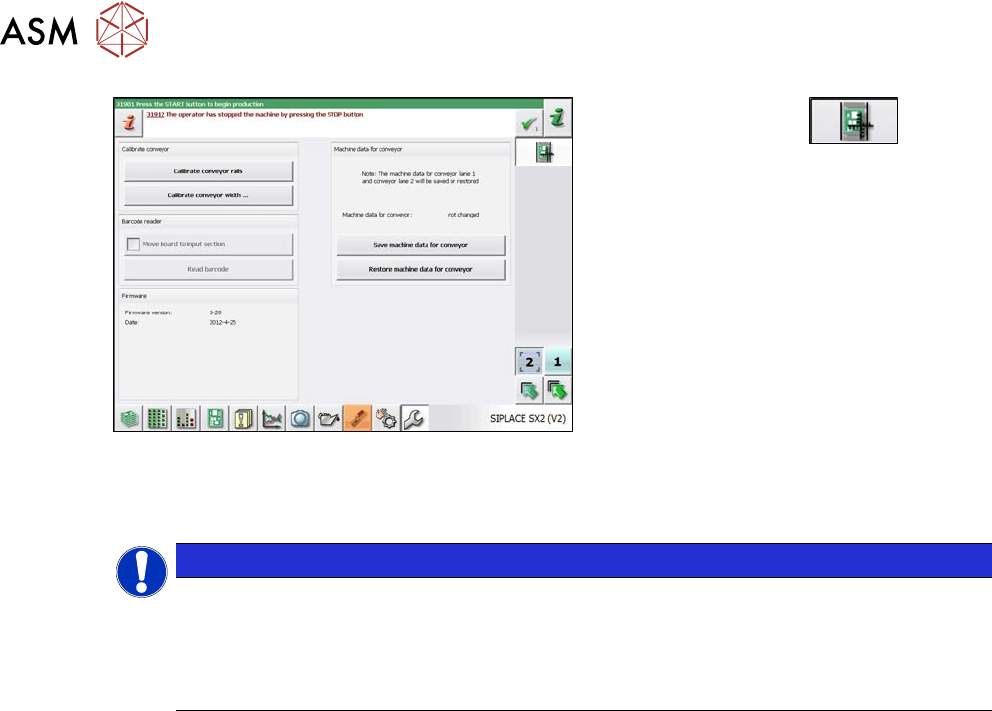
Fig.383: Calibrating the conveyor sides
► Click on this button:
.
► Select "Calibrate conveyor sides".
7.10.4 Fixed Side Right/Left
NOTICE
No conversion possible
The SIPLACE X-Series S single conveyor is available in the variants "fixed side right" and
"fixed side left".
Conversion from a fixed side right to a fixed side left or vice versa is not possible. In this
case, the conveyor must be replaced by your SIPLACE service team.
7 Conveyor
7.11 eSW Download (SW 70x)
Service Manual SIPLACE X-Serie S 06/2019 303
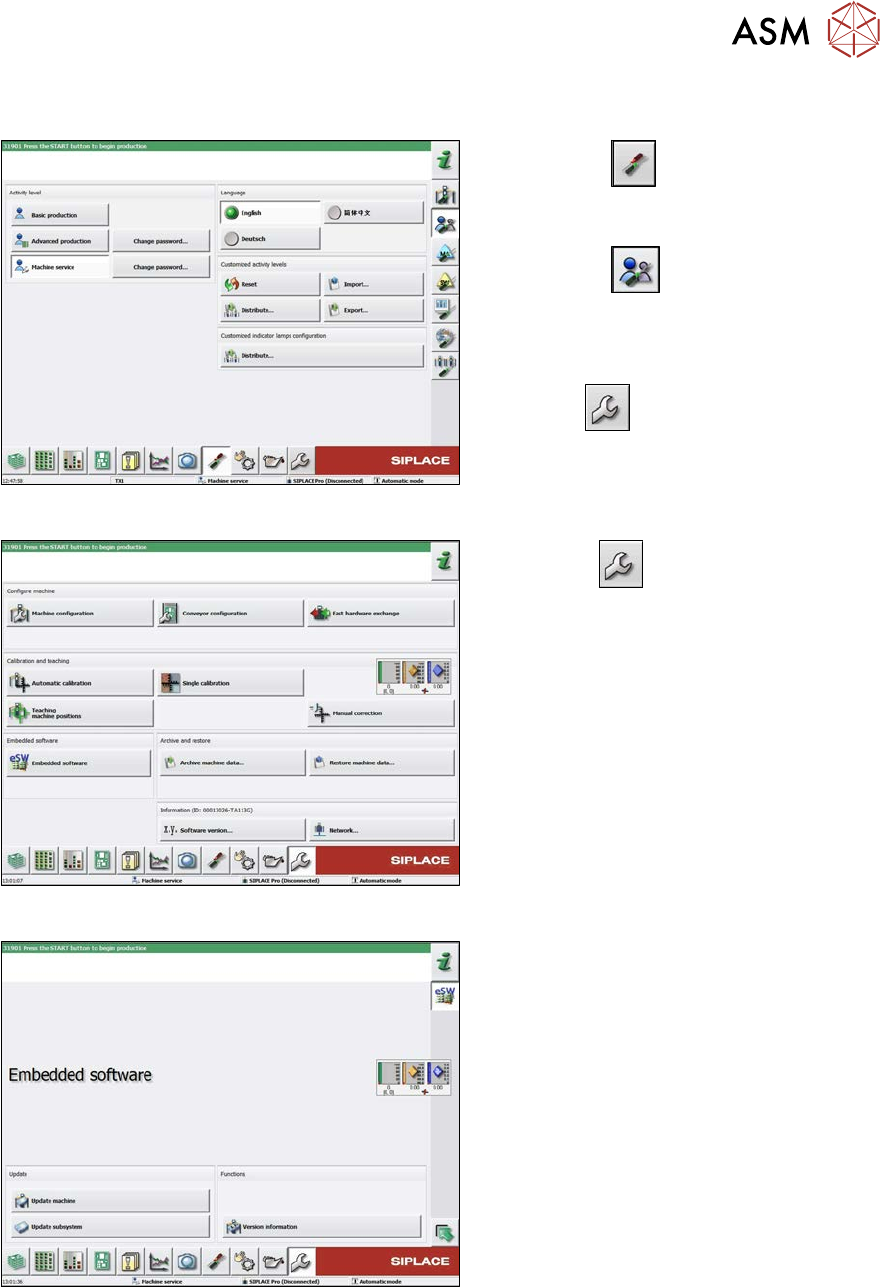
7.11 eSW Download (SW 70x)
Fig.384: Select operator level
► Select the
button, to open the
Configure, update and calibrate the
machine menu.
► Select the
button to open the
Check and set user settings menu.
► Switch over to the operator level Ma-
chine service.
ð The
button will be shown.
Fig.385: Service menu
► Click the
button to enter the Ser-
vice menu.
► Click on the Embedded software but-
ton.
Fig.386: Embedded software menu
Select the required function:
► Click on Update machine… to check
the entire machine and to perform an
eSW download for multiple subsystems
(see next picture).
► Click on Update subsystem… to se-
lect one subsystem, check and to per-
form an eSW download.
► Click on the button Version informa-
tion…, to view all versions of the sub-
systems, BIOS, application 1/2/3/5.