P-TOOL说明书.pdf - 第103页
2-69 2 Board Explorer 4 Set the number of boards to be produced. In the COUNT column, enter the number of boards to be pr oduced and press the [Enter] ke y . Setting the number of boards 64255-S0-00 5 Sav e the productio…
2-68
2
Board Explorer
6.2 Creating a new production plan
1
Start the Board Explorer.
2
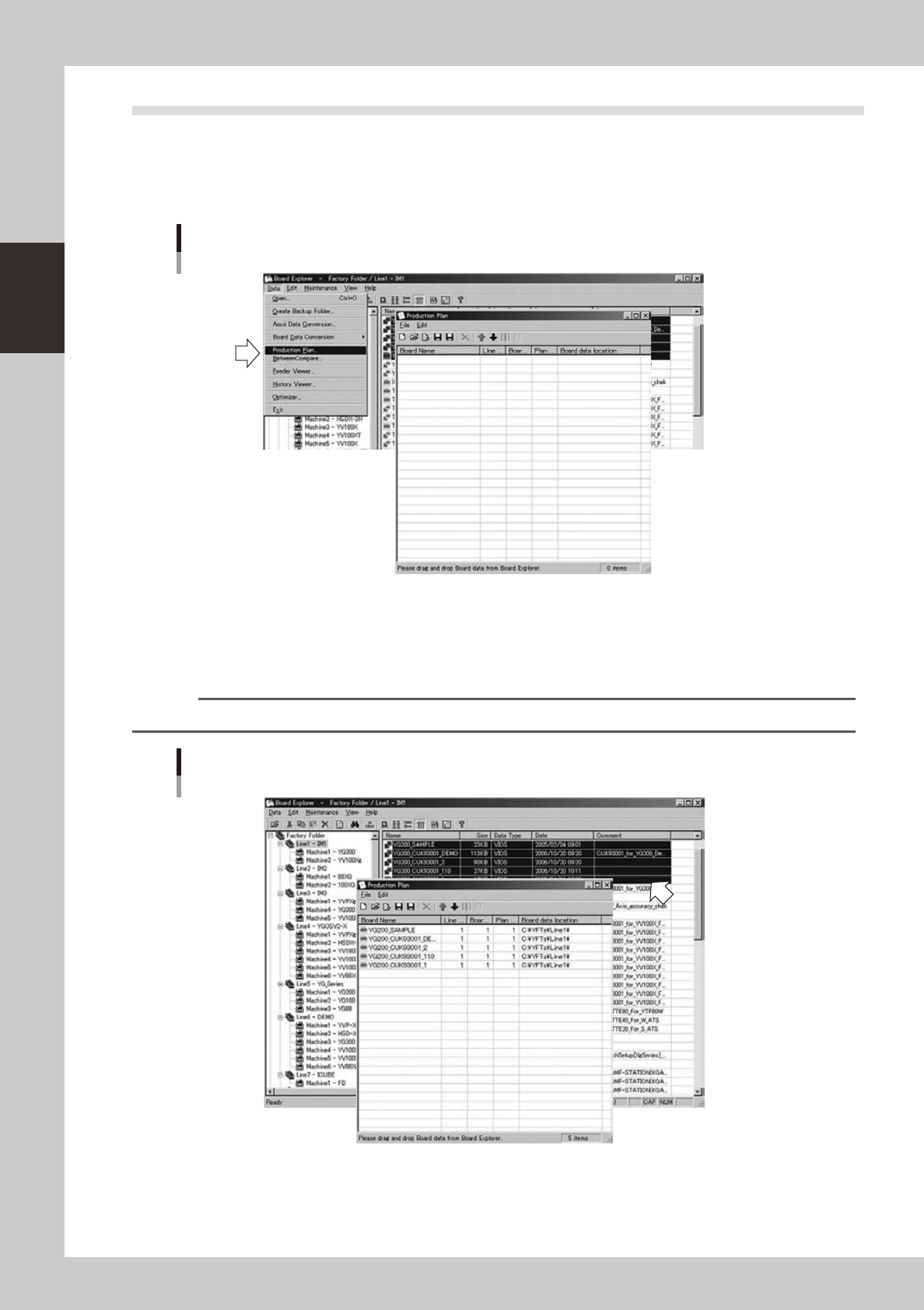
Select “Production Plan” from the Data menu.
The Production Plan window appears.
Production Plan window
62253-S0-00
3
Select the board data.
Select the board data from the list in the main view. Then drag and drop the selected board data into
the Production Plan window, or select "Register Plan" from the context menu that appears by clicking
the right mouse button.
Reference
You can select two or more items of board data while using the [Shift] key or [Ctrl] key.
Drag & drop for production plan
62254-S0-00
2-69
2
Board Explorer
4
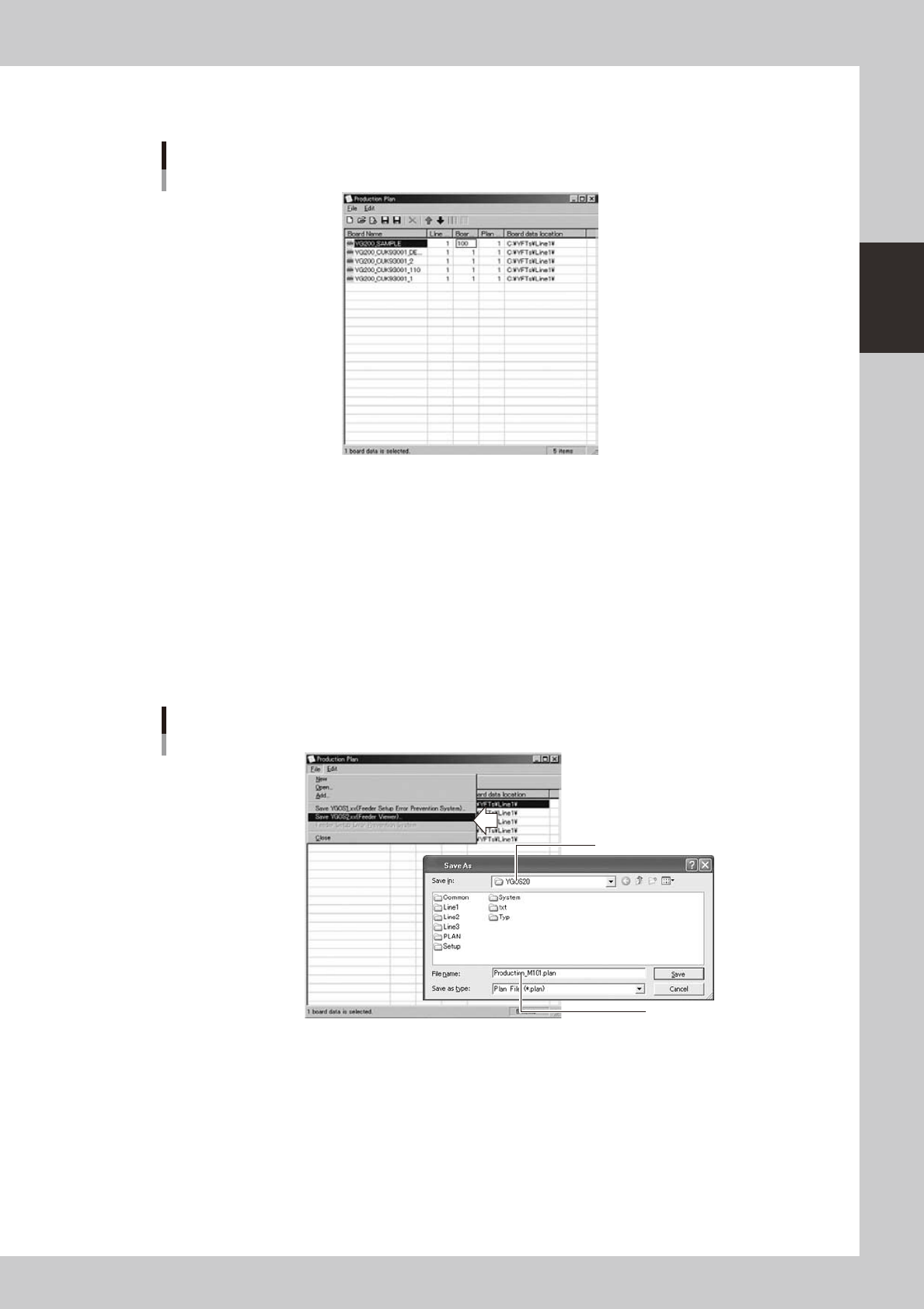
Set the number of boards to be produced.
In the COUNT column, enter the number of boards to be produced and press the [Enter] key.
Setting the number of boards
64255-S0-00
5
Save the production plan file.
After the production plan setting is complete, save the production plan file in either of the following
formats.
●
YGOS1.xx
Select "Save YGOS1.xx" from the File menu or click the [Save YGOS1.xx] button (black) on the
toolbar. Then follow the instructions that appear.
●
YGOS2.xx
Select "Save YGOS2.xx" from the File menu or click the [Save YGOS2.xx] button (blue) on the toolbar.
The "Save As" dialog box then appears. Enter the file name, check the destination to save the file,
and click the [Save] button.
Saving the production plan file
YGOS2.xx format
Specify the save destination.
Enter the file name.
64256-S0-00
2-70
2
Board Explorer
7. Creating the backup folders
The Factory Tools allows you to create backup folders under any desired directory to back up board data. To
create backup folders, follow these steps.
1
Start the Board Explorer.
2
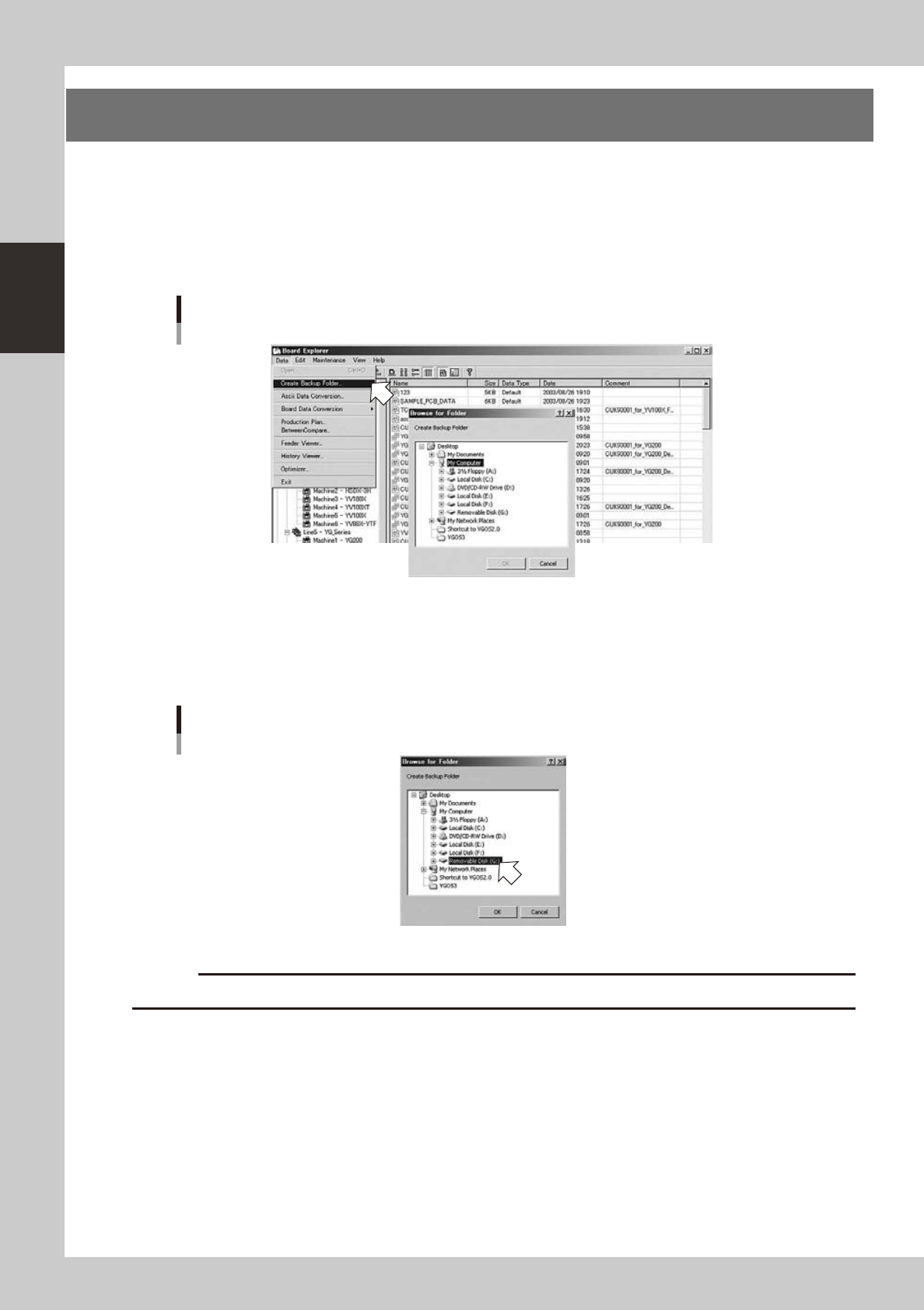
Select “Create Backup Folder” from the Data menu.
The "Browse for Folder" dialog box appears.
Data menu
Selecting "Create Backup Folder"
64257-S0-00
3
Specify the backup folder.
1. Select the directory to create a backup folder.
For example, if creating backup folders in drive "USB memory device", then select drive "USB memory
device" and click the [OK] button.
The "Browse for Folder" dialog box
64258-S0-00
c
CAUTION
CD-R drive and CD-RW drive cannot be specified to create backup folders.