P-TOOL说明书.pdf - 第122页
3-2 3 Board Editor 2 Select the line to use. When the "Select Editing Line" dialog bo x appear s, select the line (production line) to use and click the [OK] button. Reference When only one line is registered, …
3-1
3
Board Editor
1. Board Editor
The Board Editor allows you to edit board data or create production data for individual machines or lines.
This chapter explains how to start and quit the Board Editor and basic operations for editing or creating
board data.
1.1 Starting the Board Editor
Just as with the Board Explorer, the Board Editor can be started from the [Start] button on the Windows taskbar
as explained below.
1
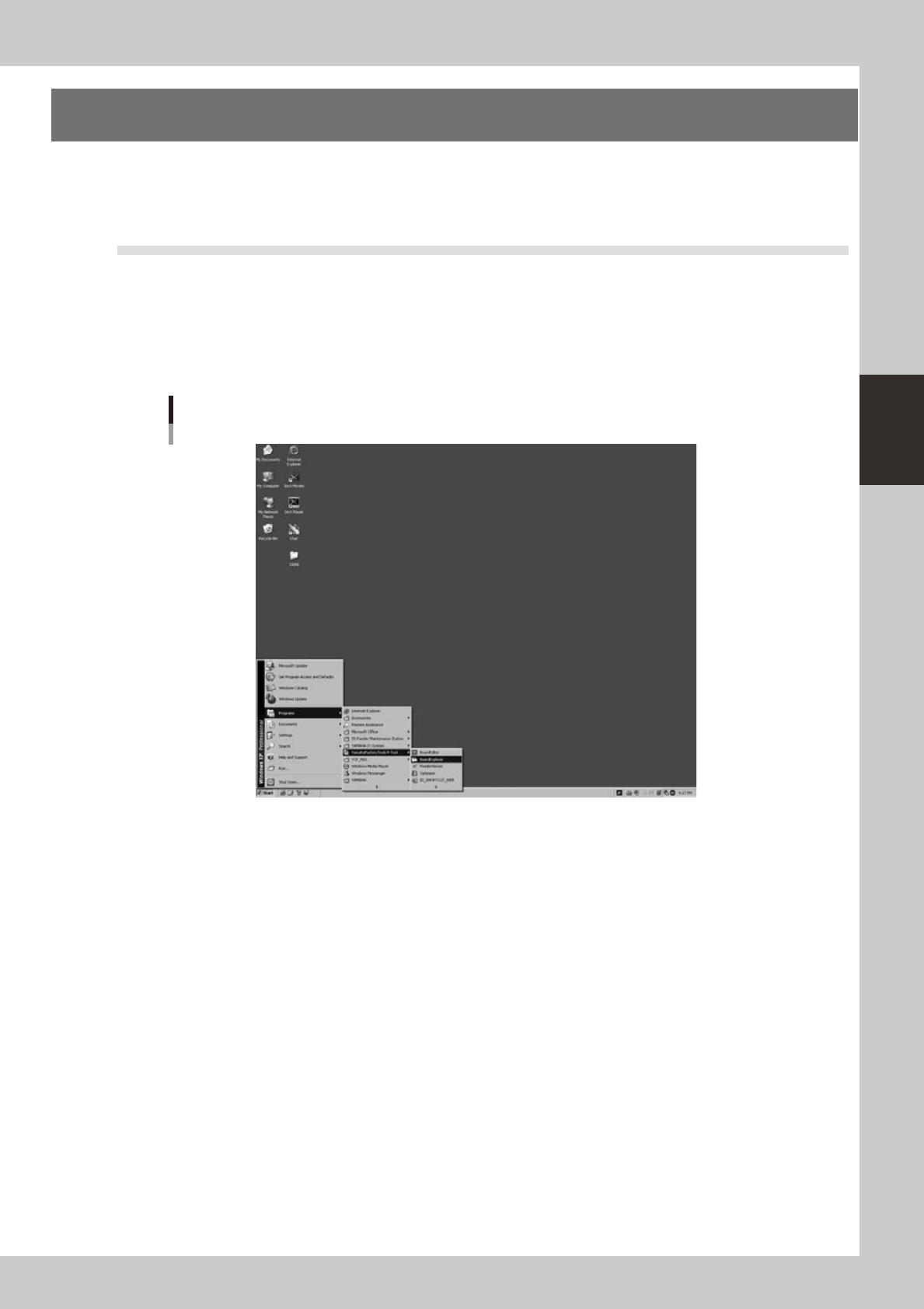
Start the Board Editor.
From the Start menu on the Windows taskbar, select "Programs" - "YAMAHA Factory Tools P-Tool" and then
click "Board Editor".
Start menu
Board Explorer
64300-S0-10
3-2
3
Board Editor
2
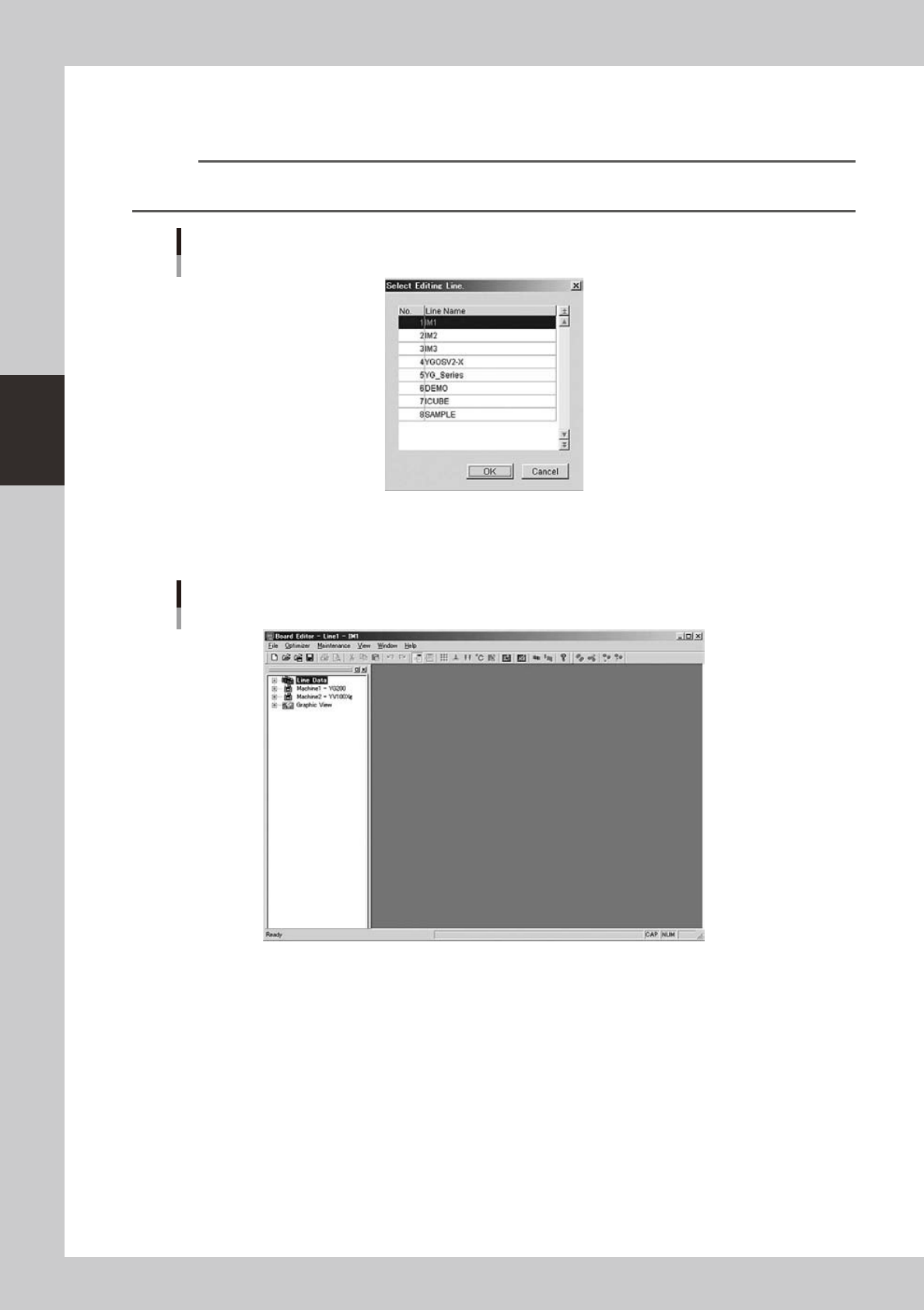
Select the line to use.
When the "Select Editing Line" dialog box appears, select the line (production line) to use and click the
[OK] button.
Reference
When only one line is registered, the "Select Editing Line" dialog box does not appear. If no line is registered, you must
start the Board Explorer to register at least one line.
"Select Editing Line" dialog box
64301-S0-00
3
The Board Editor starts.
The Board Editor window appears as shown below.
Board Editor window
64302-S0-00
3-3
3
Board Editor
1.2 Quitting the Board Editor
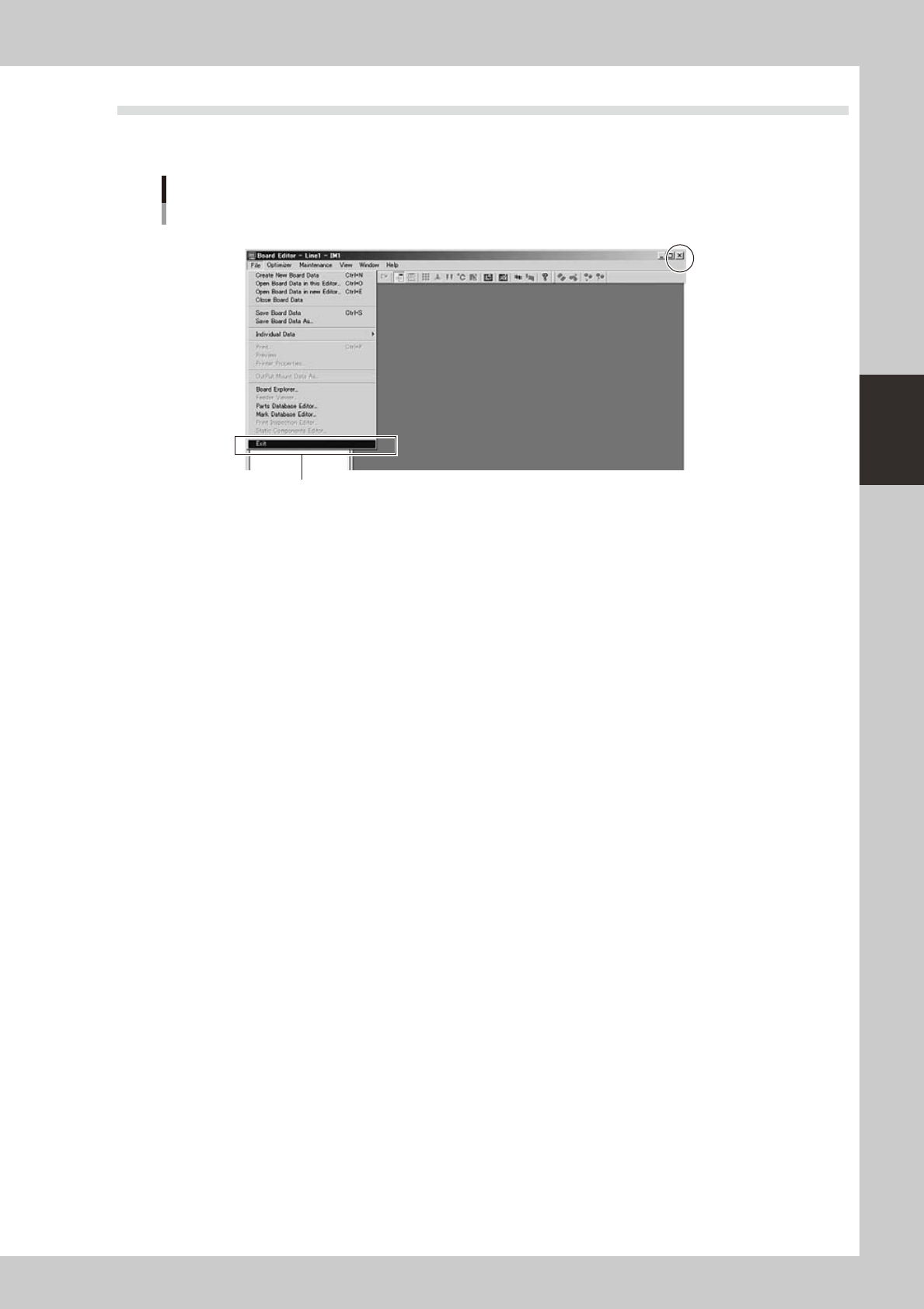
To quit the Board Editor, select “Exit” from the File menu or click the [Close] button in the upper right corner
of the Board Editor window.
Quitting the Board Editor
[Close] button
Select "Exit" from File menu.
64303-S0-00