P-TOOL说明书.pdf - 第141页
3-21 3 Board Editor ● Arranging the windows Currently open windows can be rearranged in the main view so you can see them easily. The Board Editor allows you to choose “Cascade”, “Tile vertically” or “Display side by sid…
3-20
3
Board Editor
2.5 Working with multiple windows
The Board Editor displays each information item (board, parts and mark information) of the selected board data
in its own window in the main view. For instance, board information can be displayed in one window while
mark information is edited in another window.
●
Switching the window
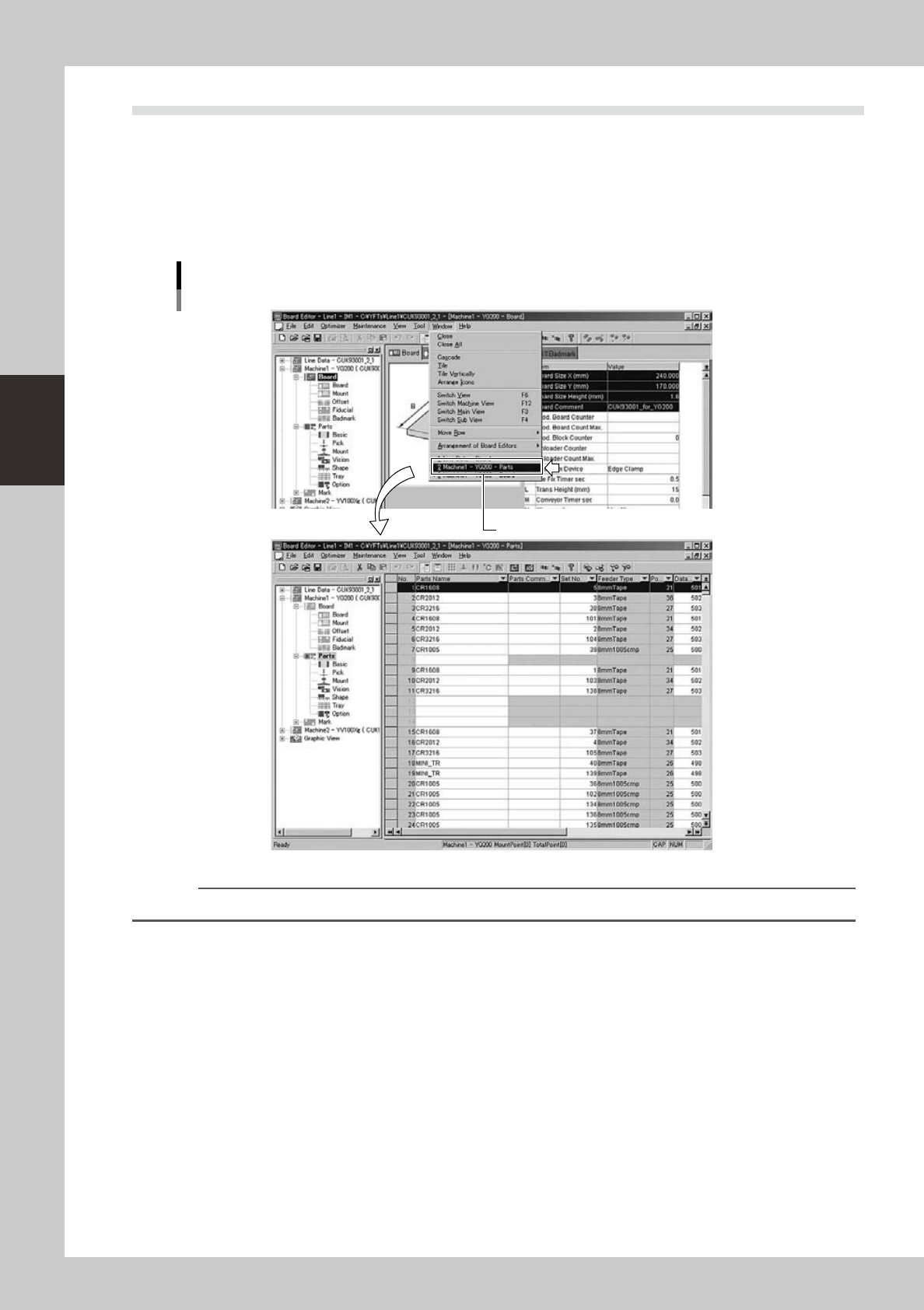
When you have opened two or more windows in the main view, these windows can be switched by selecting from the list
ontheWindowpull-downmenu.Theselectedwindowisbroughttothefrontofthemainview.
Select the window you want to display.
Switching the window
64325-S0-00
Reference
Windows can also be switched by clicking the item icon in the tree view.
3-21
3
Board Editor
●
Arranging the windows
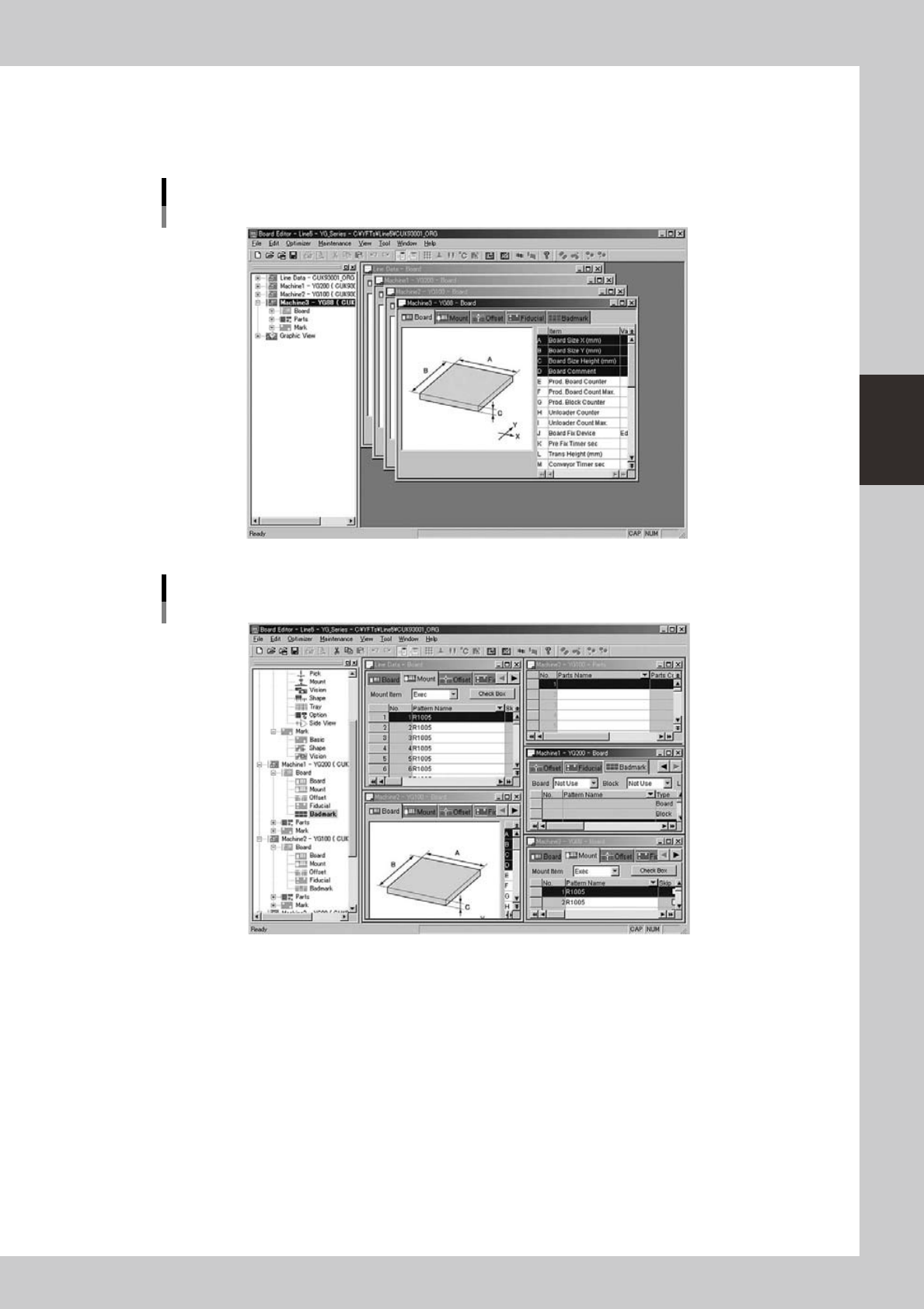
Currently open windows can be rearranged in the main view so you can see them easily.
The Board Editor allows you to choose “Cascade”, “Tile vertically” or “Display side by side”.
To rearrange click on the “Window (W)” menu and select the desired option from the menu.
Cascade display of multiple windows
64326-S0-00
Tiling display of multiple windows
64327-S0-00
3-22
3
Board Editor
2.6 Working with multiple board data
With one Board Editor, you can work with multiple board data registered with the same production line. To
edit board data registered in a different line, however, you must start another Board Editor. For details on how
tostarttheBoardEditorforeachline,referto1.1,“StartingtheBoardEditor”,inthischapter.
2.6.1 Arranging the Board Editor windows
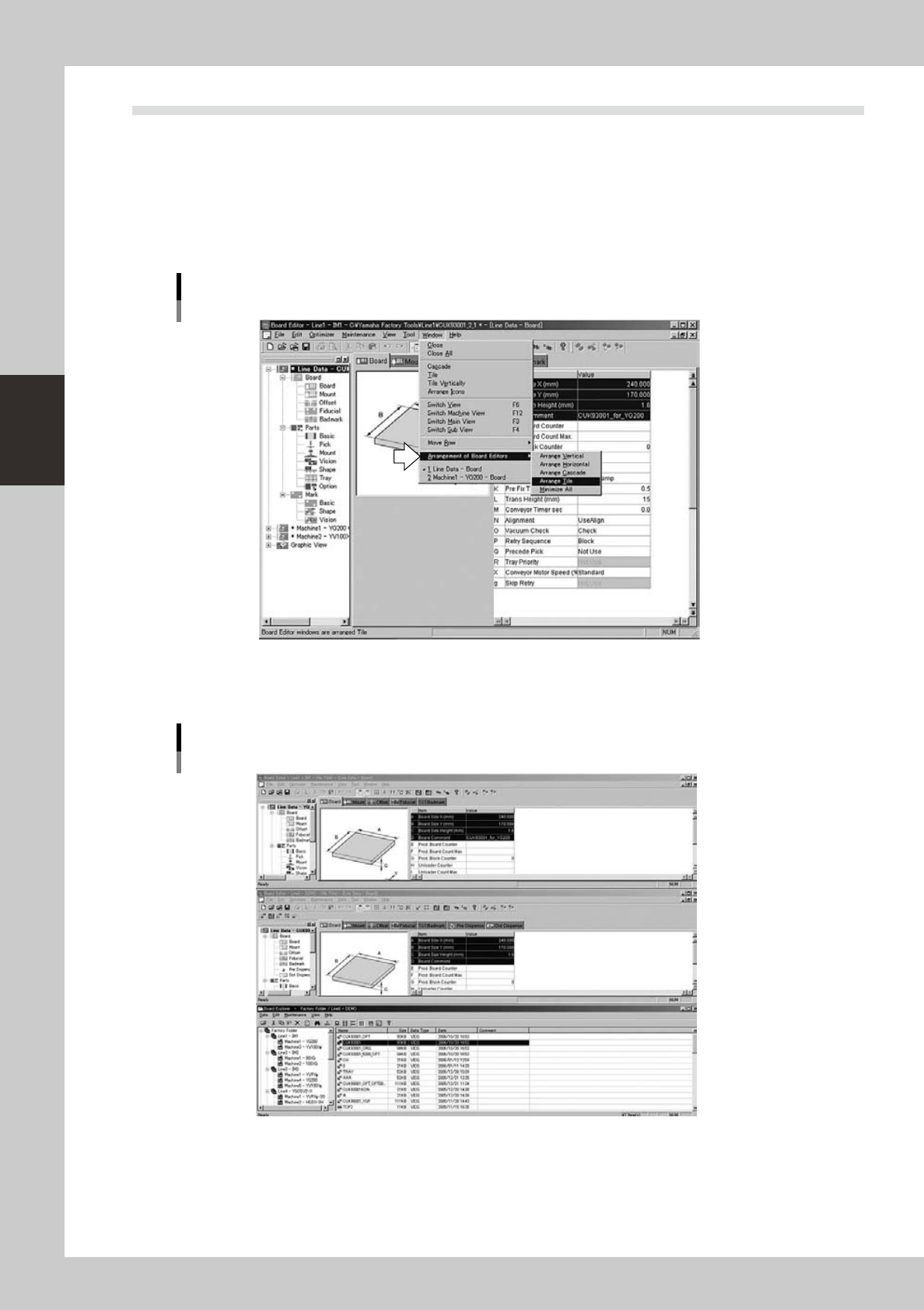
When you are working with multiple Board Editor windows, you can arrange them in an easier to view pattern.
Select the desired pattern from the “Arrangement of Board Editors” submenu on the Window menu.
"Arrangement of Board Editors" submenu
64328-S0-00
• Arrange Vertical
Arranges the Board Editor windows vertically, top to bottom on the screen.
"Arrangement of Board Editors" submenu
Arrange Vertical
64329-S0-00