P-TOOL说明书.pdf - 第145页
3-25 3 Board Editor 2.7 Moving the cursor from one row to another (jump) In the main view , the cursor can be jumped to the top, bottom or any specified row . This function can be used in the main view for “mount informa…
3-24
3
Board Editor
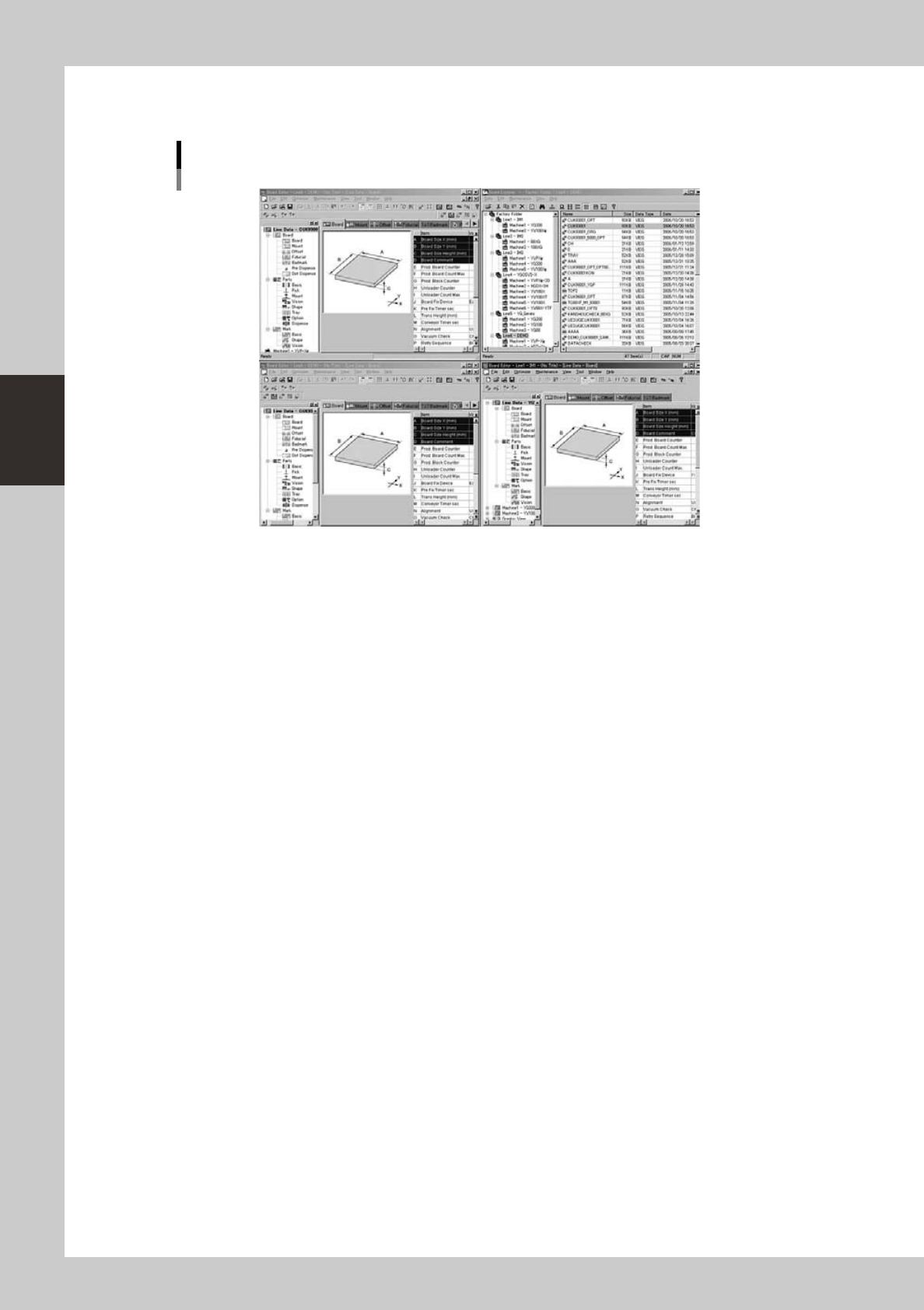
• Arrange Tile
Arranges the currently open Board Editor windows in a “tile” pattern so that they do not overlap.
"Arrangement of Board Editors" submenu
Arrange Tile
64332-S0-00
• Minimize All
Minimizes all the currently open windows into the taskbar.
3-25
3
Board Editor
2.7 Moving the cursor from one row to another (jump)
In the main view, the cursor can be jumped to the top, bottom or any specified row. This function can be
used in the main view for “mount information”, “parts information”, “mark information”, etc.
2.7.1 Moving the cursor to a specified line
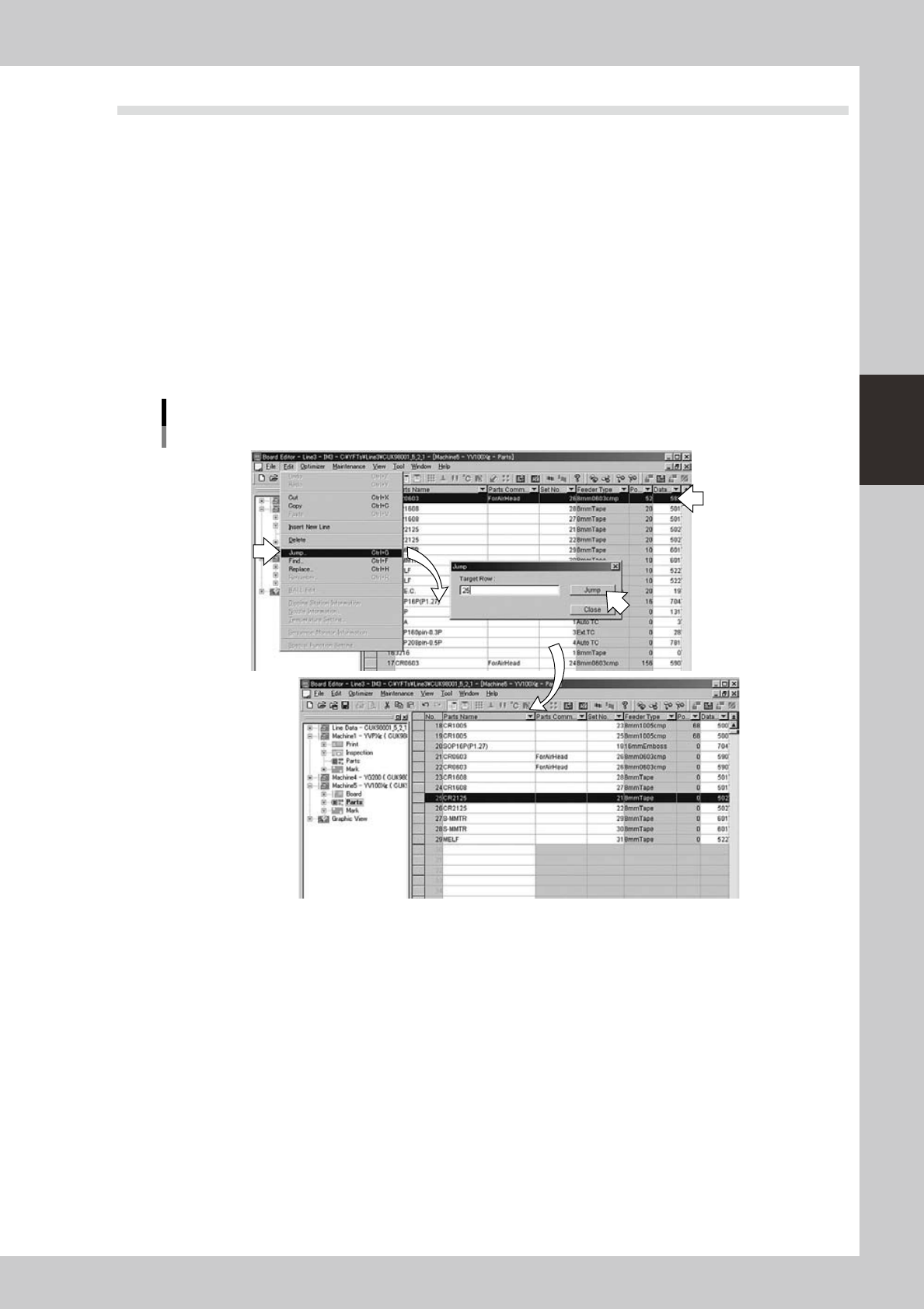
The cursor can be moved to a specified line as explained below.
1
Click any data row in the main view.
2
Specify the line number where to move the cursor.
1. Select "Jump" from the Edit menu.
The "Jump" dialog box appears.
2. Enter the line number and click the [Jump] button.
The cursor moves to the specified line.
Jump to a specified line
64333-S0-00
3-26
3
Board Editor
2.7.2 Moving the cursor to the top line
Useashort-cutkeytomovethecursortothetopline.
1.Clickanydatarowinthemainview.
2.Pressthe[Home]keywhileholdingdownthe[Ctrl]key.
The cursor moves to the top line.
2.7.3 Moving the cursor to the bottom line
Useashort-cutkeytomovethecursortothebottomline.
1.Clickanydatarowinthemainview.
2.Pressthe[End]keywhileholdingdownthe[Ctrl]key.
The cursor moves to the bottom line.
2.7.4 Moving the cursor one row up or down
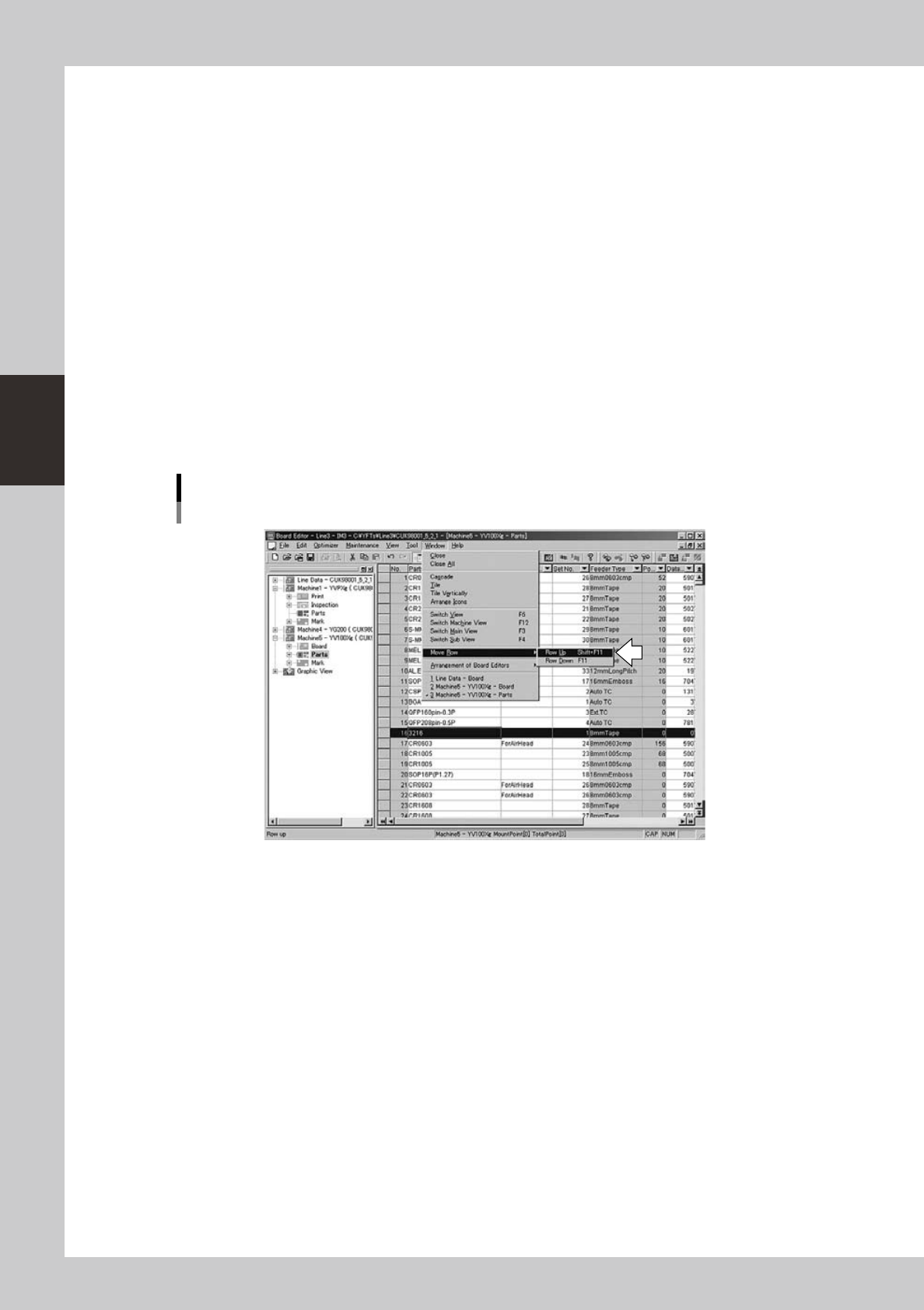
The cursor can be moved one row up or down.
1
Click any data row in the main view.
2
Select “Move Row” – “Row Up” or “Row Down” from the Window menu.
The cursor moves to one row up or down.
Moving one row up or down
64334-S0-00