P-TOOL说明书.pdf - 第147页
3-27 3 Board Editor 2.8 Copying and pasting the data To copy and paste data on the specified rows, follow these steps. Reference This operation can be perf or med even if the data is filter ed or sorted. 1 Select the rows…
3-26
3
Board Editor
2.7.2 Moving the cursor to the top line
Useashort-cutkeytomovethecursortothetopline.
1.Clickanydatarowinthemainview.
2.Pressthe[Home]keywhileholdingdownthe[Ctrl]key.
The cursor moves to the top line.
2.7.3 Moving the cursor to the bottom line
Useashort-cutkeytomovethecursortothebottomline.
1.Clickanydatarowinthemainview.
2.Pressthe[End]keywhileholdingdownthe[Ctrl]key.
The cursor moves to the bottom line.
2.7.4 Moving the cursor one row up or down
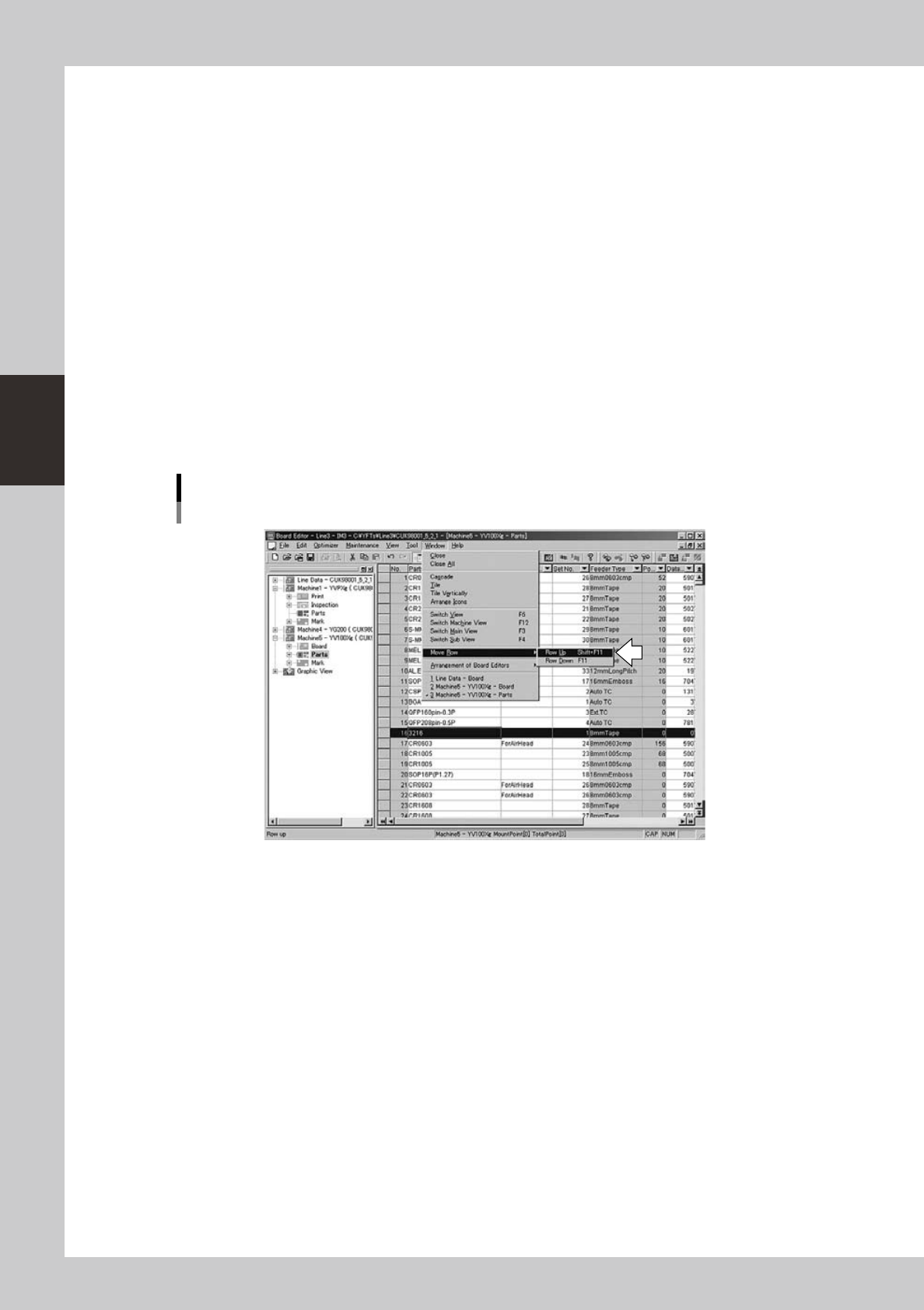
The cursor can be moved one row up or down.
1
Click any data row in the main view.
2
Select “Move Row” – “Row Up” or “Row Down” from the Window menu.
The cursor moves to one row up or down.
Moving one row up or down
64334-S0-00
3-27
3
Board Editor
2.8 Copying and pasting the data
To copy and paste data on the specified rows, follow these steps.
Reference
This operation can be performed even if the data is filtered or sorted.
1
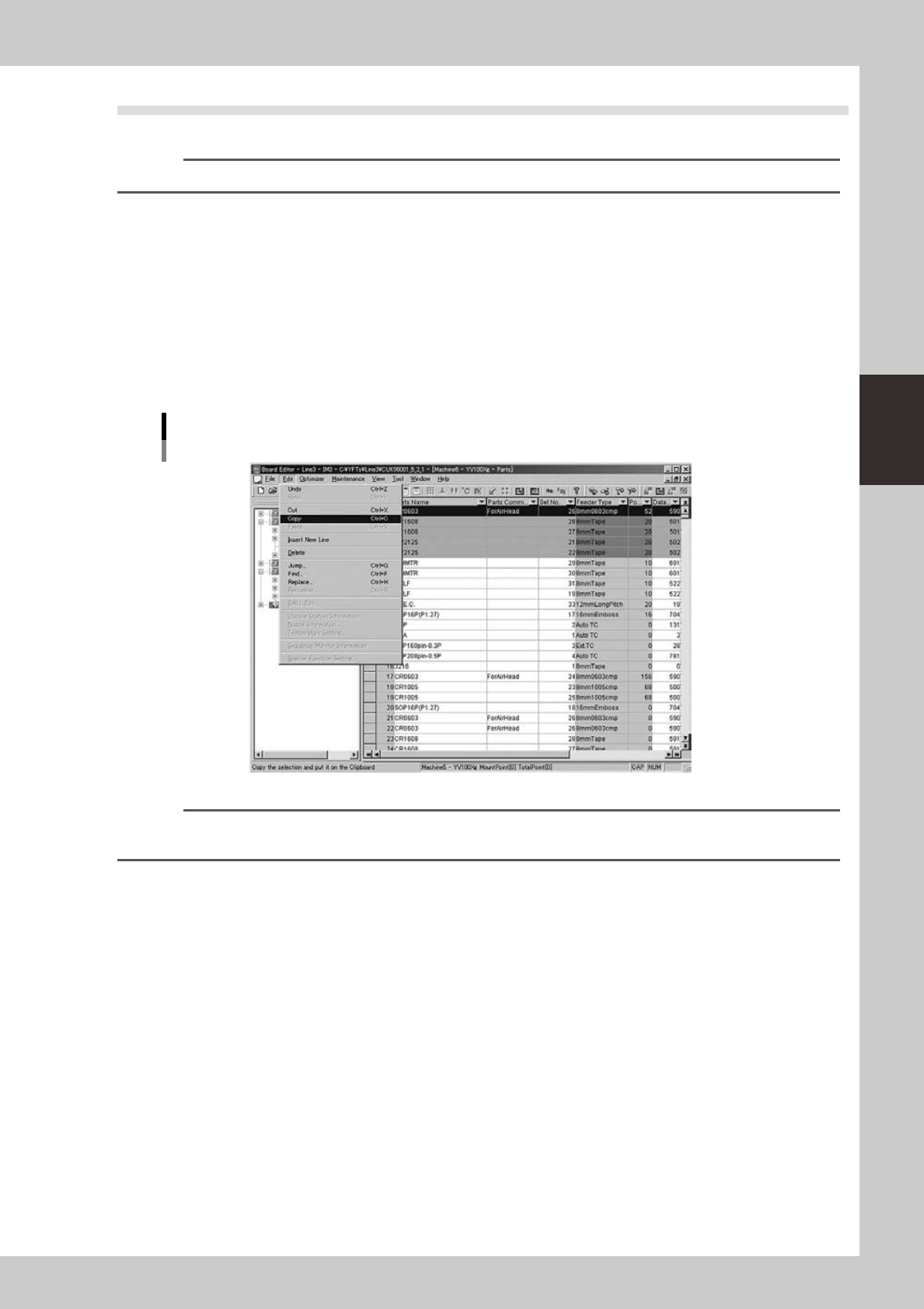
Select the rows you want to copy from.
1. Click the top of the data rows to be copied.
The selected row is highlighted.
2. To select a block of consecutive rows, click on the header of the last row of the data rows to be
copied while holding down the [Shift] key. All rows between the two rows you clicked are now
selected and highlighted.
If you want to select non-consecutive data rows, click on the header of each row to be copied
while holding down the [Ctrl] key. The clicked rows are selected and highlighted.
2
Select “Copy” from the Edit menu.
Copying the data
64335-S0-00
Reference
The "Copy" command can be selected from the context menu (right-click menu) that appears by clicking the right
mouse button on the selected rows.
3
Click the first row where you want to paste the copied data.
3-28
3
Board Editor
4
Select the data paste method.
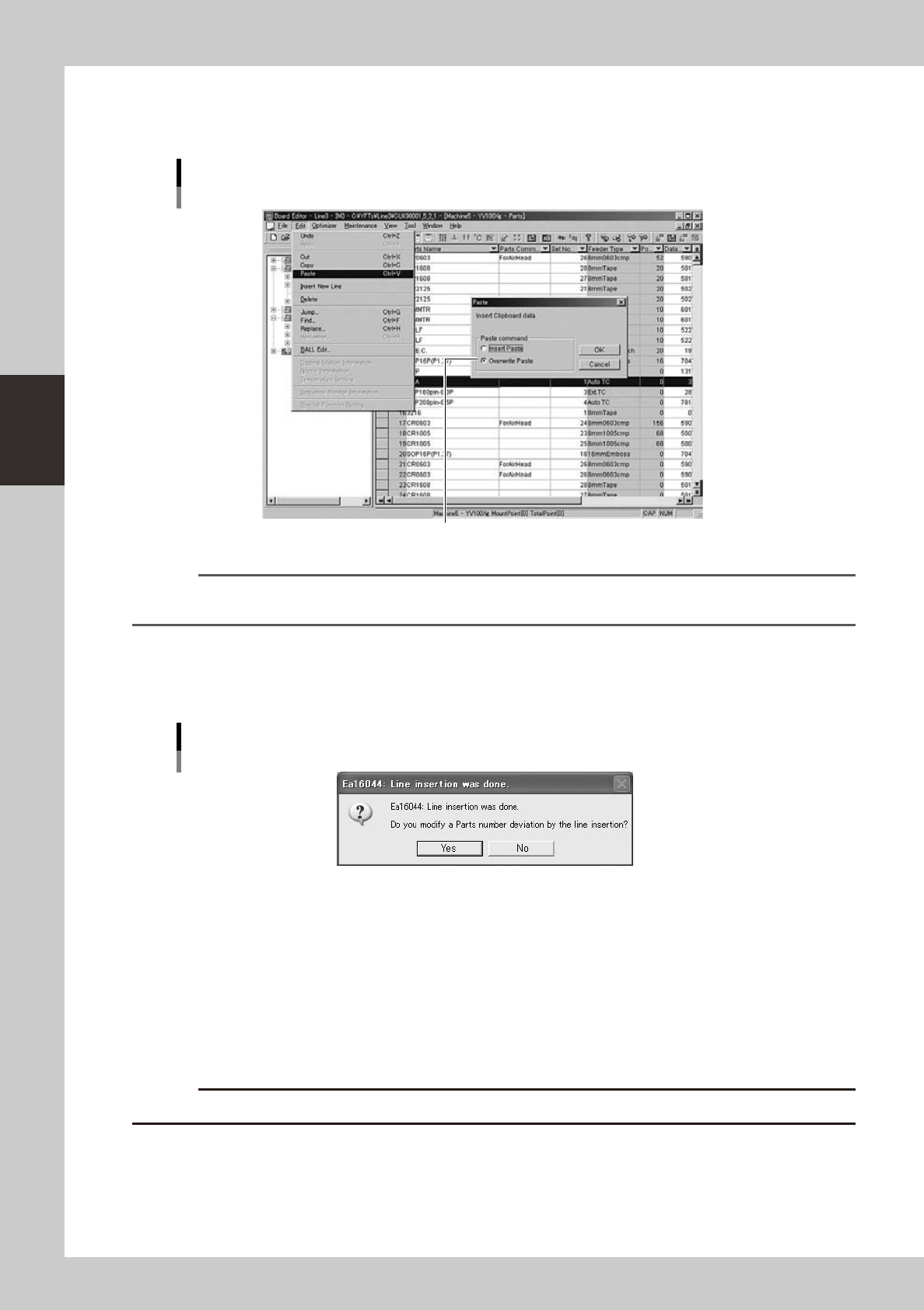
Select "Paste" from the Edit menu.
The "Paste" dialog box appears, so select "Insert Paste" or "Overwrite Paste" and click the [OK] button.
Pasting the data
Select the paste method.
64336-S0-00
Reference
The "Paste" command can be selected from the context menu (right-click menu) that appears by clicking the right
mouse button on the selected row.
When “Insert Paste” is selected:
The data rows below the insertion point will be shifted down by the number of inserted rows. A confirmation message for
numbering correction will appear.
Confirmation dialog box for numbering correction
64337-S0-00
• [Yes]
Clicking the [Yes] button will paste the data while keeping the data number matching.
• [No]
Clicking the [No] button will change the current data numbers, so the data number matching will be lost. This might
cause data errors in some cases.
When “Overwrite Paste” is selected:
The data rows below the insertion point will be overwritten by the number of inserted rows.
c
CAUTION
When "Overwrite Paste" is executed, the previous data in the paste range will be lost.