P-TOOL说明书.pdf - 第149页
3-29 3 Board Editor 2.9 Filtering the data Data items in the main view can be filtered by setting the display conditions. 2.9.1 Filtering the data 1 Click the filter drop-down button ne xt to a column header . Click this…
3-28
3
Board Editor
4
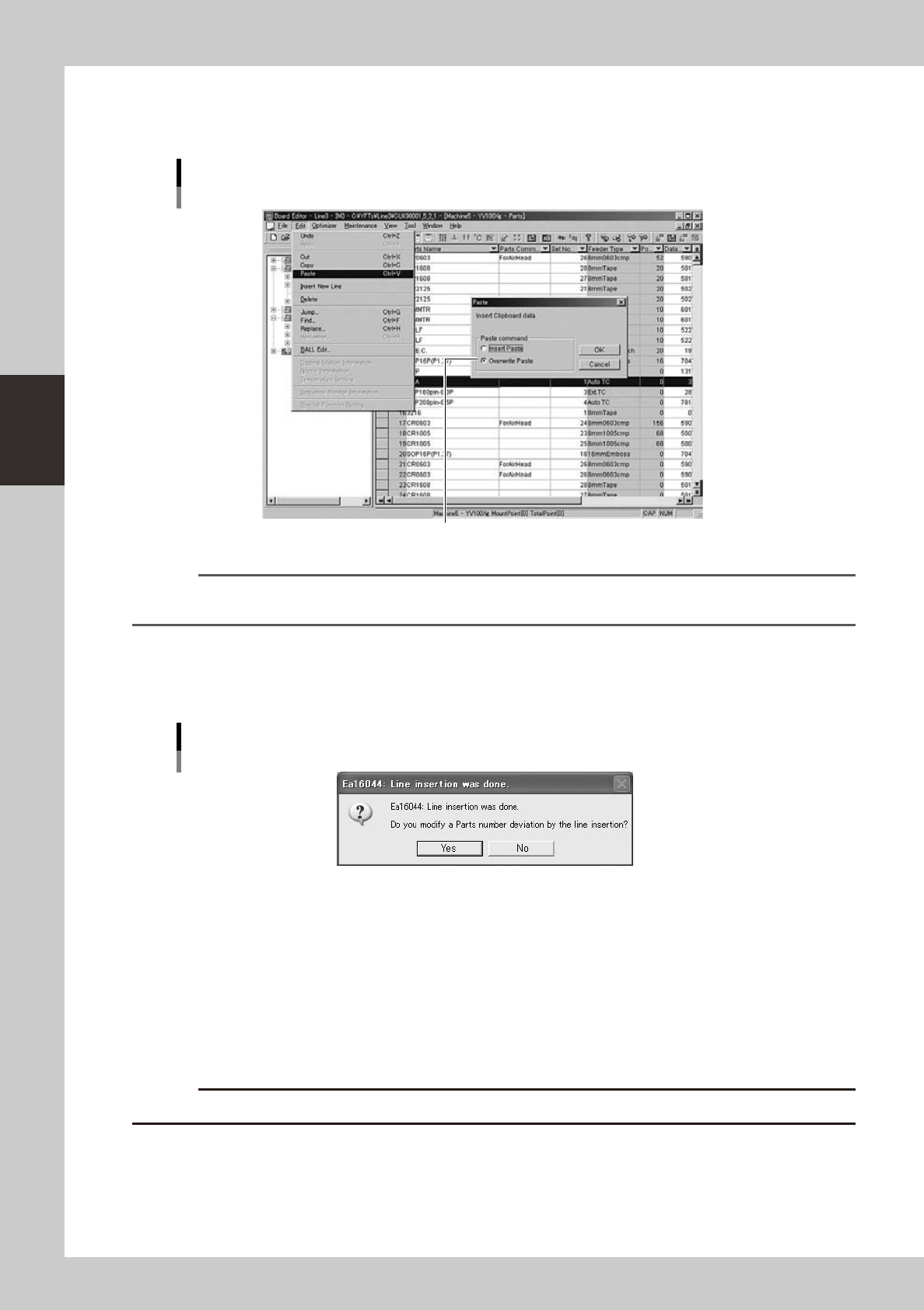
Select the data paste method.
Select "Paste" from the Edit menu.
The "Paste" dialog box appears, so select "Insert Paste" or "Overwrite Paste" and click the [OK] button.
Pasting the data
Select the paste method.
64336-S0-00
Reference
The "Paste" command can be selected from the context menu (right-click menu) that appears by clicking the right
mouse button on the selected row.
When “Insert Paste” is selected:
The data rows below the insertion point will be shifted down by the number of inserted rows. A confirmation message for
numbering correction will appear.
Confirmation dialog box for numbering correction
64337-S0-00
• [Yes]
Clicking the [Yes] button will paste the data while keeping the data number matching.
• [No]
Clicking the [No] button will change the current data numbers, so the data number matching will be lost. This might
cause data errors in some cases.
When “Overwrite Paste” is selected:
The data rows below the insertion point will be overwritten by the number of inserted rows.
c
CAUTION
When "Overwrite Paste" is executed, the previous data in the paste range will be lost.
3-29
3
Board Editor
2.9 Filtering the data
Data items in the main view can be filtered by setting the display conditions.
2.9.1 Filtering the data
1
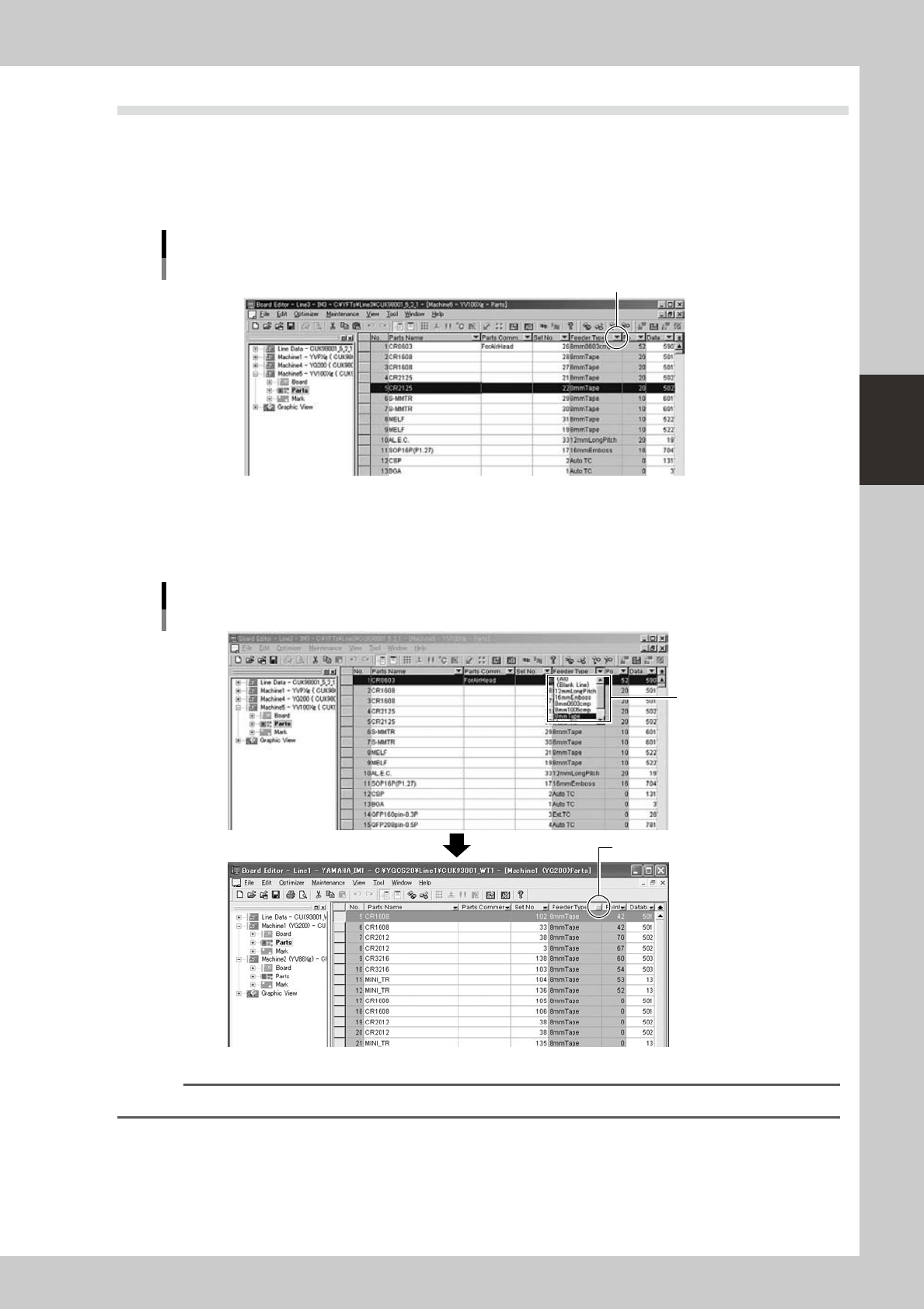
Click the filter drop-down button next to a column header.
Click this down-arrow button.
Filter drop-down button
64338-S0-00
2
From the drop-down menu, select the item to be displayed.
Displays the setting contents of the selected item. Filter items cannot be added or deleted.
The drop-down button turns blue at this point.
Filtering
Down-arrow button turns blue.
Select the item
to be displayed.
64339-S0-00
Reference
Data rows can be copied, inserted, deleted and pasted, or moved between machines, with the data still filtered.
3-30
3
Board Editor
2.9.2 Canceling the filter
To cancel the filtering, proceed as follows.
1
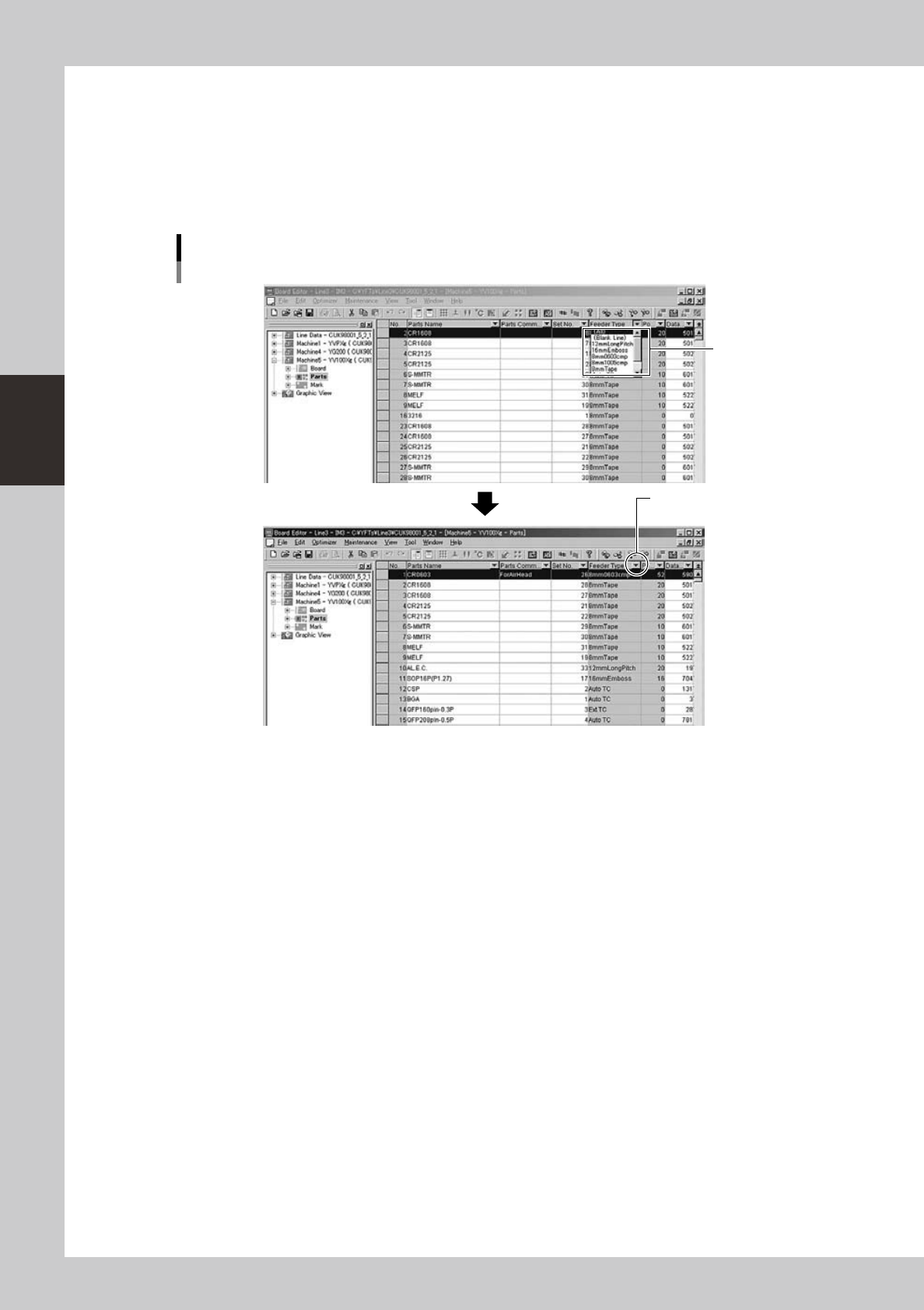
Click the filter drop-down button of the filtered column.
2
Select “(All)” from the drop-down menu.
The filtering is canceled and the filter drop-down button turns back to black.
Canceling the filter
Filter drop-down
button turns black.
Select "ALL".
64340-S0-00