P-TOOL说明书.pdf - 第167页
3-47 3 Board Editor 3.4 Board Graphic View Of fset setting Board Graphic View Offset setting 64370-S0-00 Settingforchangingtheindicationpointoftheorigincoordinate(0,0)fromthe“position(X=5mm,Y=5 mm) …
3-46
3
Board Editor
2
Change the mount position.
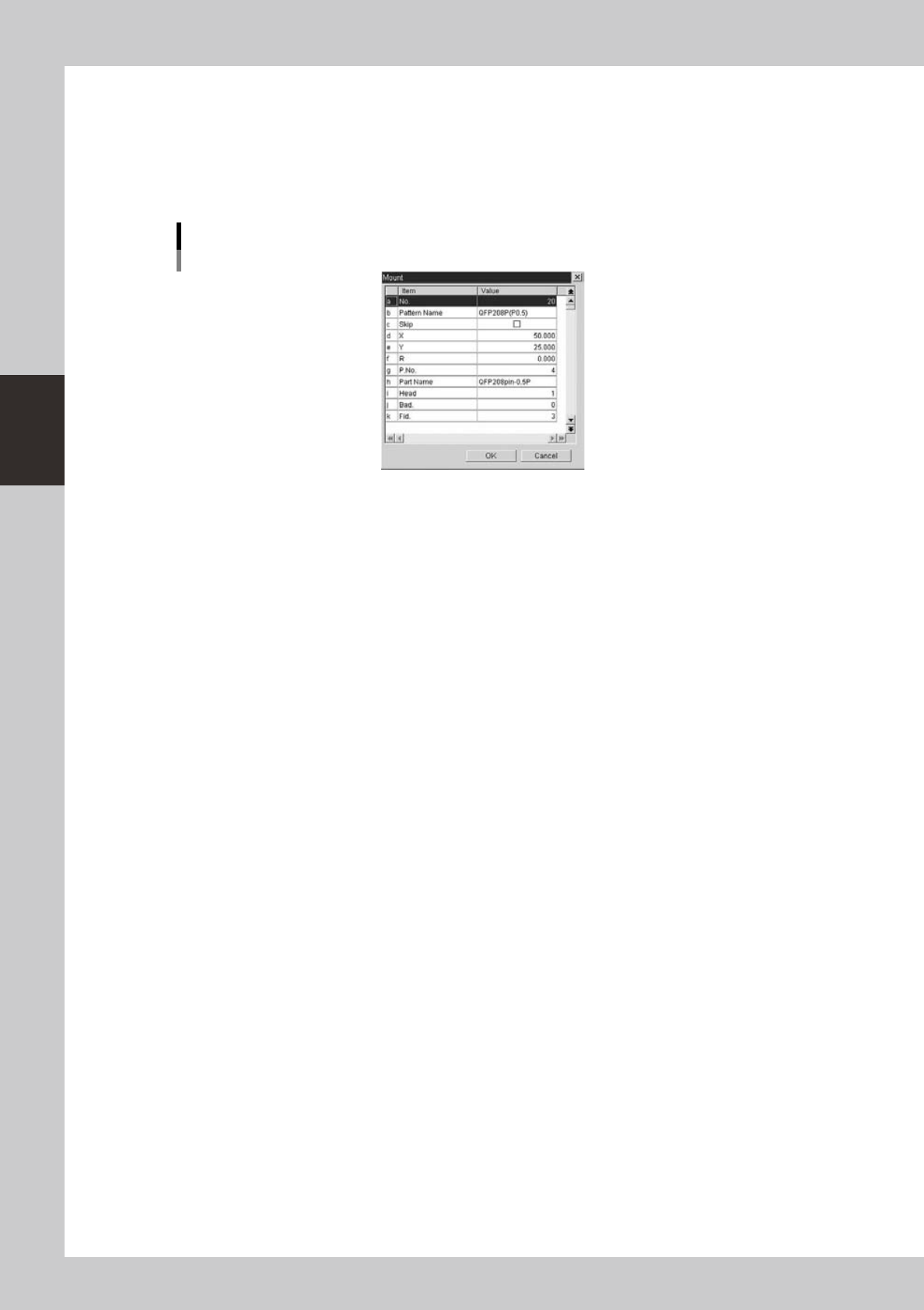
1. After selecting the component whose position you want to change, click the [Change Mount
Position] button on the toolbar or select "Change Mount Position" from the context menu that
appears by clicking the right mouse button. The “Mount” dialog appears.
2. Change the mount position data in the dialog box and click the [OK] button.
The selected component moves to the specified position.
Dialog box for creating new mount information
64356-S0-00
3-47
3
Board Editor
3.4 Board Graphic View Offset setting
Board Graphic View Offset setting
64370-S0-00
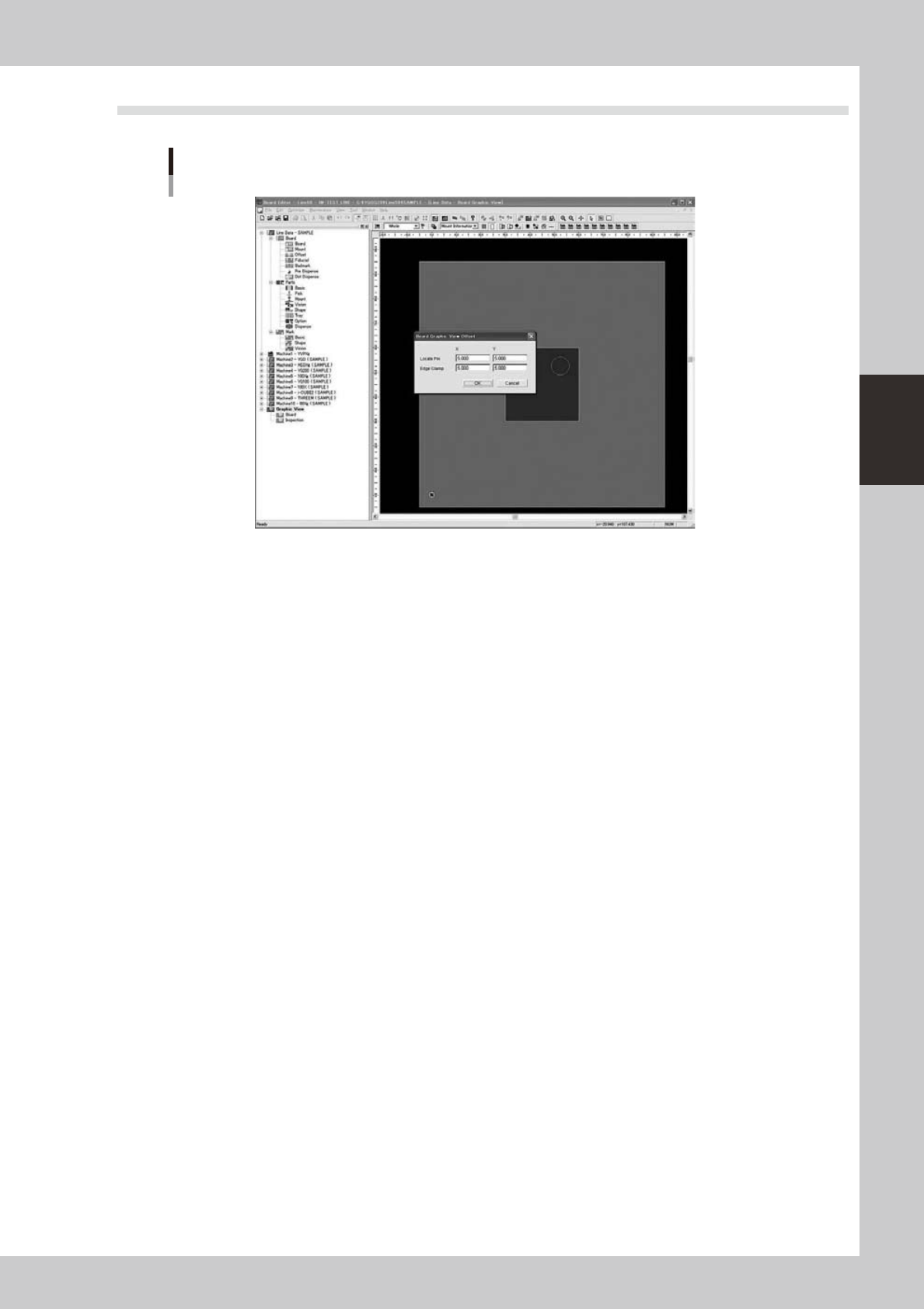
Settingforchangingtheindicationpointoftheorigincoordinate(0,0)fromthe“position(X=5mm,Y=5
mm) from the board outline” to a desired location.
3-48
3
Board Editor
n
Change Offset Value
To change the offset value, it operates it as follows.
n
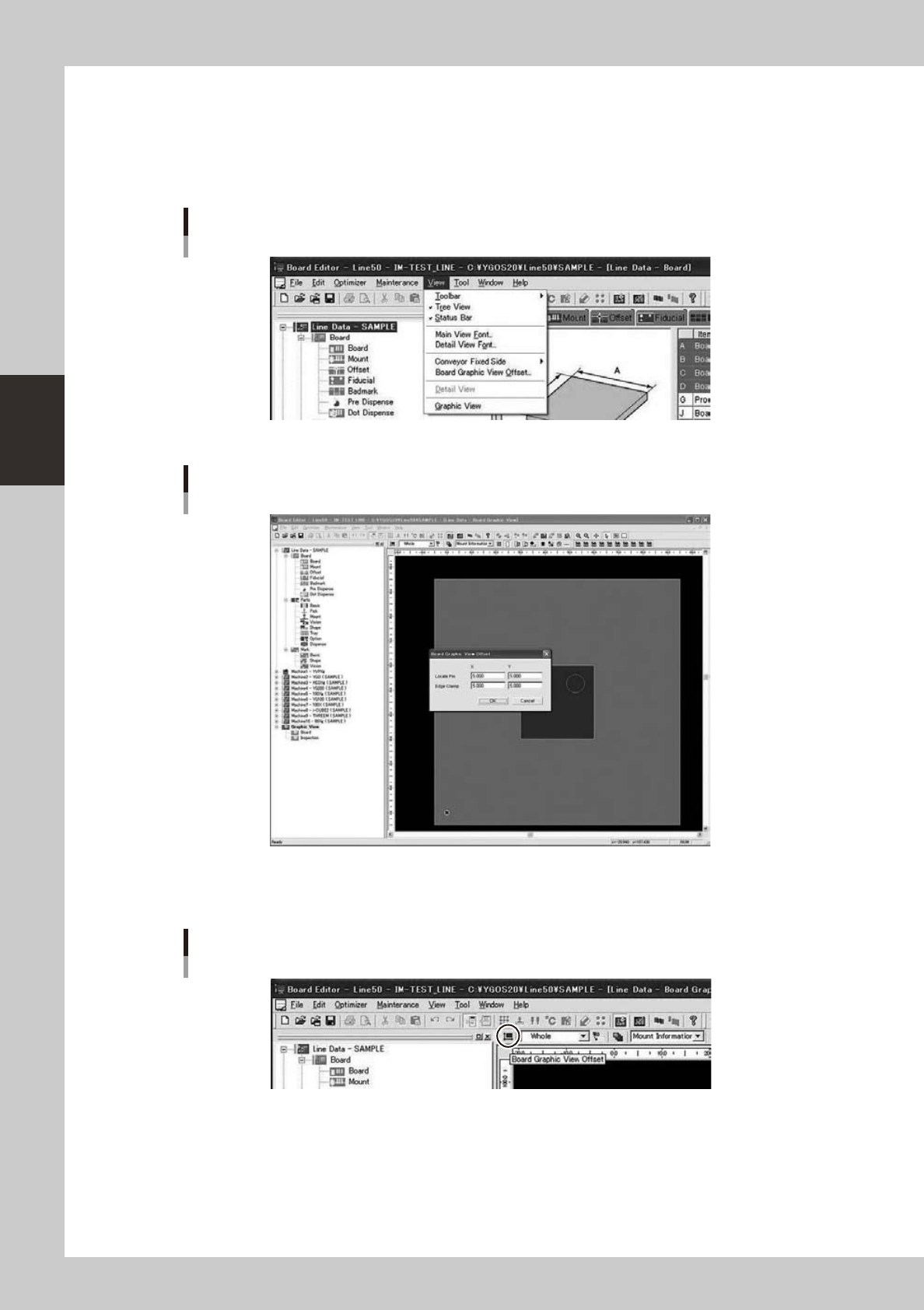
Display Board Graphic View Offset dialog
Select“View”-“BoardGraphicViewOffset”menu,andthentheBoardGraphicViewOffsetdialogisopened.
“View” - “Board Graphic View Offset” Menu
64371-S0-00
Opened Board Graphic View Offset dialog
64372-S0-00
Or, it is able to open the Board Graphic View Offset dialog by pushing the [Board Graphic View Offset]
button.
[Board Graphic View Offset] Button
64373-S0-00